
Introduction
The REDTIGER F17 Elite is a 3-channel dash camera system designed to provide comprehensive video recording for your vehicle. It features a 4K front camera, 2.5K rear camera, and 1080P interior camera, utilizing dual STARVIS 2 sensors for enhanced low-light performance. This manual provides detailed instructions for installation, operation, maintenance, and troubleshooting to ensure optimal use of your device.

Image: The REDTIGER F17 Elite 4K 3-Channel Dash Cam, showcasing its compact design and three camera lenses.
Package Contents
Before installation, please verify that all items are present in the package:
- 1x F17 Elite 4K Dash Cam
- 1x 2.5K Rear Camera
- 1x 18ft Rear Camera Cable
- 1x 128GB MicroSD Card
- 1x USB-C Car Charger
- 1x Adhesive Mount
- 5x Cable Clips
- 1x User Manual
- 1x APP Quick Guide
- 1x Car Wire Trim Tool
- 1x Electrostatic Sticker

Image: All components included in the REDTIGER F17 Elite package.
Unboxing Video
Video: An unboxing video demonstrating the contents of the F17 Elite package and initial handling of the dash cam unit.
Setup
1. Initial Device Configuration
- Insert the provided 128GB MicroSD card into the dash cam.
- Connect the dash cam to power using the USB-C car charger.
- Upon first power-on, select your preferred language (e.g., English) and set the correct time zone using the touchscreen interface.
Video: A demonstration of connecting the dash cam to Wi-Fi and setting up the companion app.
2. Mounting the Dash Cam
- Clean the windshield area where the dash cam will be mounted.
- Apply the electrostatic sticker to the chosen area on the windshield.
- Attach the adhesive mount to the electrostatic sticker. Ensure the mount is securely fixed.
- Slide the F17 Elite dash cam onto the adhesive mount.
- Adjust the front camera lens to capture the road ahead clearly.
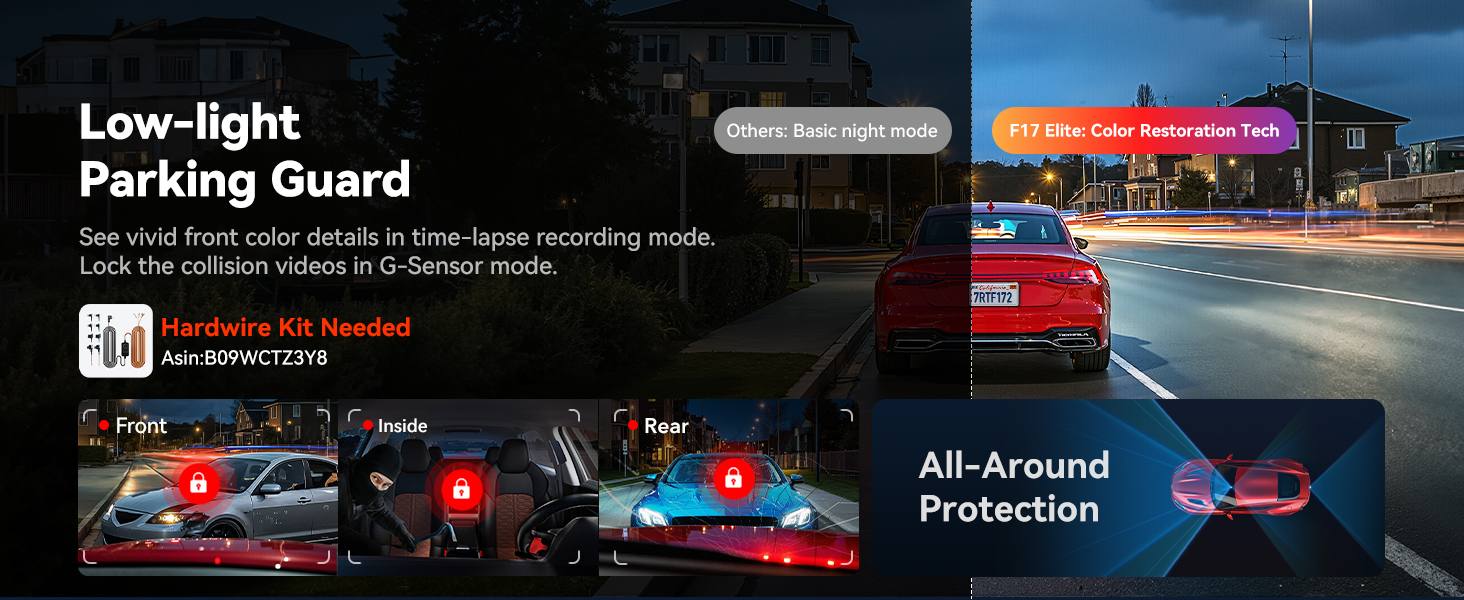
Image: Visual guide for installing the dash cam, hiding cables, and installing the rear camera.
3. Installing the Rear Camera
- Connect the 2.5K rear camera to the main dash cam unit using the 18ft rear camera cable.
- Route the cable discreetly along the vehicle's headliner and pillar trim to the rear windshield. Use the provided cable clips and trim tool to hide the cable.
- Mount the rear camera on the rear windshield using its adhesive. Ensure it has a clear view of the road behind.
Operating Instructions
1. Power On/Off and Basic Recording
- The dash cam will automatically power on and begin recording when your vehicle starts.
- It will power off automatically when the vehicle is turned off.
- Recordings are saved in segments to the MicroSD card.
2. Voice Control
The F17 Elite supports voice commands for hands-free operation. Common commands include:
- "Turn on screen" / "Turn off screen"
- "Lock the video" (to protect current recording from being overwritten)
- "Take photo"
- Other commands as listed in the full user manual.

Image: The dash cam screen showing icons for various functions including voice control and touch screen interaction.
3. Touchscreen Interface
Navigate settings, review footage, and control functions directly on the 3-inch touchscreen display.
4. Parking Mode (Hardwire Kit Required)
To enable 24/7 parking protection, a hardwire kit (sold separately) is required. Parking mode offers:
- Time-Lapse Recording: Records continuously at a low frame rate to save storage space while capturing events.
- G-Sensor Auto Event Detection: Automatically detects impacts or sudden movements and saves the footage as an emergency file.

Image: Illustration of the dash cam's low-light parking guard, showing front, inside, and rear camera coverage.
5. WiFi Connectivity and App Control
The built-in 5.8GHz WiFi 6 allows for fast connection to the REDTIGER Cam app on your smartphone. Through the app, you can:
- View live footage from all three cameras.
- Download recorded videos and photos at speeds up to 30MB/s.
- Adjust settings and preferences.
- Share trip footage easily.

Image: The REDTIGER Cam app interface on a smartphone, demonstrating video download and sharing options.
6. GPS Functionality
The integrated GPS module records accurate location, speed, and route information, which can be viewed alongside your video footage via the app.

Image: GPS tracking data displayed on a map alongside recorded video footage.
7. Night Vision and HDR
Equipped with dual STARVIS 2 sensors and HDR technology, the F17 Elite provides full-color night vision for both front and cabin cameras, ensuring clear and vivid recordings even in low-light conditions.

Image: Comparison of standard night vision versus the F17 Elite's full-color night vision for interior and front cameras.
Maintenance
1. MicroSD Card Management
- The dash cam supports loop recording, automatically overwriting the oldest files when the card is full, unless they are locked emergency files.
- It is recommended to format the MicroSD card monthly to maintain optimal performance and prevent data corruption. This can be done through the dash cam's settings.
- The device comes with a 128GB card and supports up to 512GB for extended recording time.

Image: Chart showing approximate recording times for 128GB, 256GB, and 512GB MicroSD cards.
2. General Care
- Keep the camera lenses clean using a soft, lint-free cloth.
- Avoid exposing the dash cam to extreme temperatures for prolonged periods. While designed for automotive use, excessive heat can affect longevity.
- Ensure cables are securely connected and not obstructing driver visibility or vehicle controls.
Troubleshooting
1. Dash Cam Not Powering On/Off Correctly
- Check Power Connection: Ensure the USB-C car charger is firmly plugged into both the dash cam and the vehicle's power outlet.
- Vehicle Power Outlet: Verify the vehicle's power outlet is functional.
- OBD Port Issues (if applicable): If using an OBD power cord, note that some vehicle OBD-II systems may temporarily cut power for self-diagnostics or to prevent battery drain, causing restarts. For a more stable power supply, an ACC hardwire kit connected directly to the fuse box is recommended.
- Heat-Related Shutdowns: In extreme heat, the dash cam may shut down as a protective measure. Ensure adequate ventilation and consider removing the dash cam when parked in direct sunlight for extended periods in very hot climates.
2. WiFi Connection Issues
- App Permissions: Ensure the REDTIGER Cam app has necessary permissions (e.g., location, photo access) on your smartphone.
- Reconnect: If the WiFi connection times out, you may need to reconnect the dash cam to the app.
- Signal Interference: Minimize other wireless devices near the dash cam during connection.
3. Parking Sensor Not Detecting Movement
- Hardwire Kit: Ensure a hardwire kit is properly installed and connected for continuous power to the parking monitor.
- Sensitivity Settings: Adjust the G-sensor sensitivity in the dash cam's settings. Higher sensitivity will detect lighter impacts.
Specifications
| Feature | Detail |
|---|---|
| Brand | REDTIGER |
| Model Name | F17 Elite |
| Video Capture Resolution | Front: 4K (2160p), Rear: 2.5K, Inside: 1080P |
| Sensors | Dual STARVIS 2 (8MP IMX678 front, 4MP IMX675 rear) |
| Connectivity Technology | Wi-Fi (5.8GHz WiFi 6) |
| Special Features | 3 Channel Recording, Full Color Night Vision, HDR, GPS, Voice Control, Touch Screen, Parking Monitor, Loop Recording, G-Sensor, Supercapacitor |
| Included Memory Card | 128 GB |
| Max. Supported Memory Card | 512 GB |
| Screen Size | 3 inches |
| Mounting Type | Windshield Adhesive Mount |
| Item Dimensions (D x W x H) | 2.56"D x 4.33"W x 3.27"H |
| Item Weight | 6.88 ounces |
Warranty and Support
The REDTIGER F17 Elite Dash Cam comes with an 18-month warranty, ensuring reliability and peace of mind. For any assistance, technical support, or warranty claims, please contact REDTIGER customer support:
- Email: help@redtigercam.com
- Please refer to the included 'APP Quick Guide' or the full 'User Manual' for additional contact methods or detailed support information.