
Introduction
The IQUNIX MQ80 is a low-profile mechanical keyboard designed for both work and gaming. It features tri-mode connectivity (wireless 2.4GHz, Bluetooth, and wired USB-C), a durable CNC aluminum body, hot-swappable switches, and customizable RGB backlighting with VIA support. This manual provides essential information for setting up, operating, and maintaining your MQ80 keyboard.
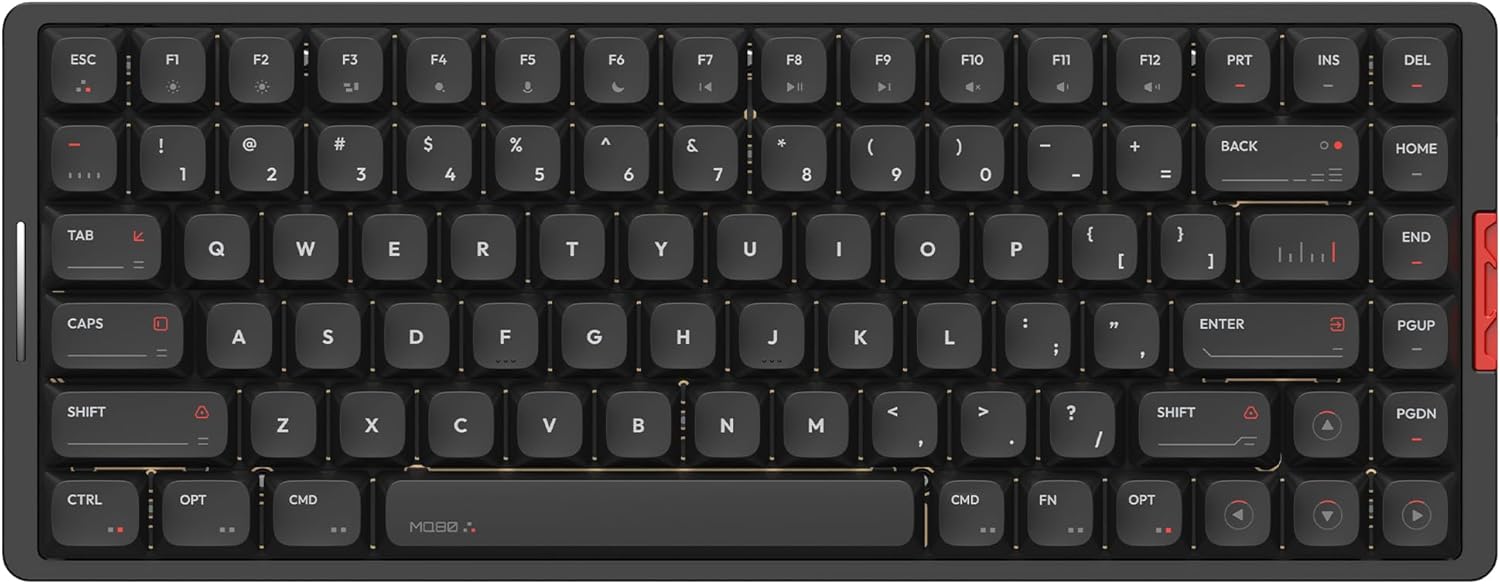
Image: Top-down view of the IQUNIX MQ80 Low Profile Mechanical Keyboard in Shadow Black.
Key Features
- Low Profile Design: Ergonomically engineered with a 0.40 inch front height for comfortable typing without a wrist rest. Features low-profile Kailh POM switches with 1.2mm pre-travel for faster actuation.
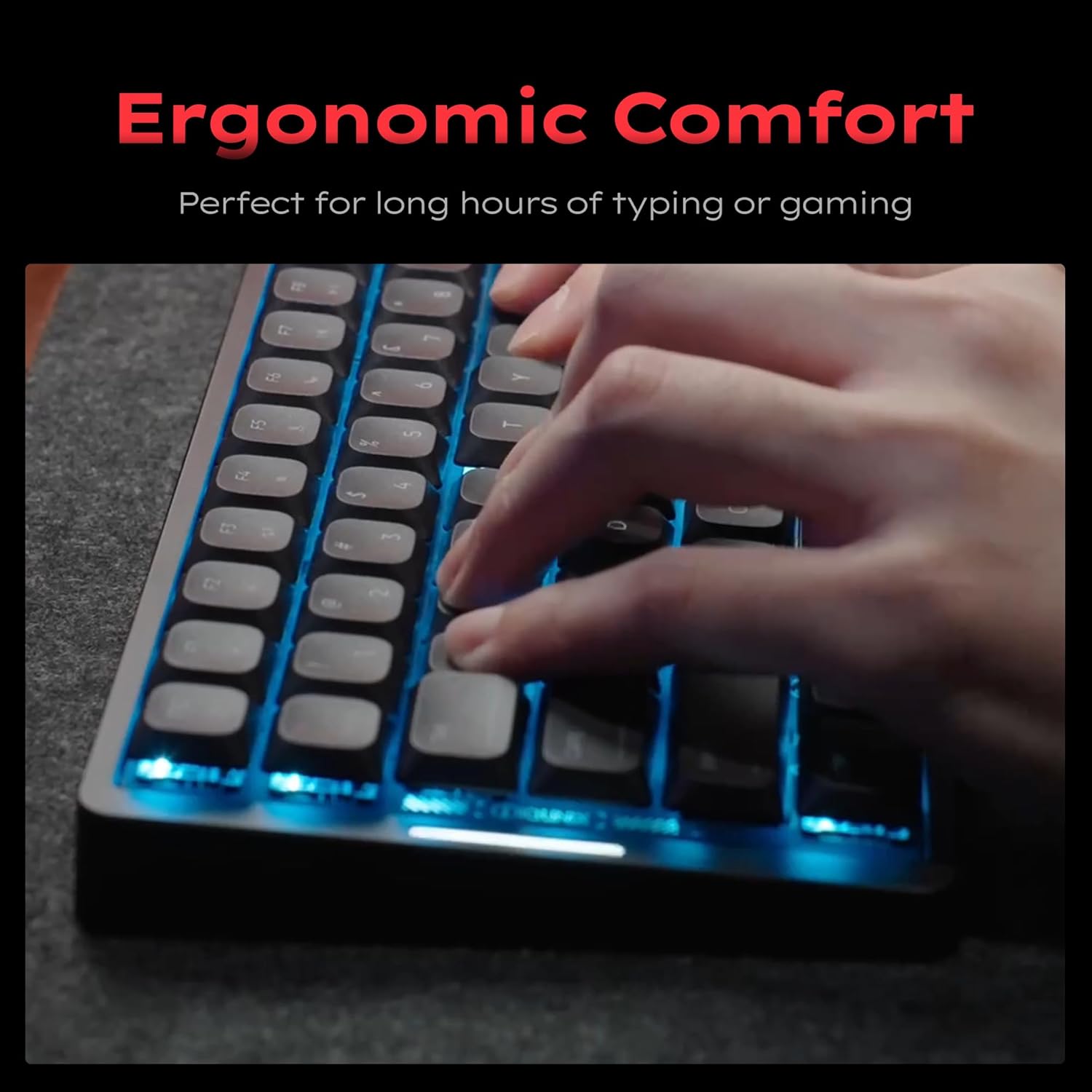
Image: Hands typing on the IQUNIX MQ80 keyboard, demonstrating its ergonomic design for comfortable use.
- Precision Aluminum Craftsmanship: CNC-machined aluminum body with a 180-grit anodized finish for durability and a premium feel.

Image: Underside view of the IQUNIX MQ80 keyboard, highlighting its full aluminum CNC body construction.
- Class-Leading Battery Life: Up to 350 hours of use on a single charge, enabled by advanced low-power technology.

Image: A graphic comparing the 350-hour battery life of the MQ80 to a typical 100-hour battery life of other keyboards.
- Custom Feel with Hot-Swappable Switches: Equipped with pre-lubed Gold Red switches (30gf–50gf actuation). The hot-swappable design allows for easy customization of switches without soldering.

Image: A detailed view of a Kailh POM Gold Red switch, showing its internal components and specifications.
- Effortless Customization with VIA Support: Supports VIA for powerful key remapping, macro recording, and RGB lighting customization without coding. Mac-ready by default, with extra keycaps for PC setup.

Image: A screenshot of the VIA software interface, demonstrating its capabilities for custom key mappings and RGB settings.
- Tri-Mode Connectivity: Seamlessly switch between Bluetooth 5.1, 2.4GHz wireless, and USB-C wired connections. Supports up to three Bluetooth connections and offers a 1000Hz polling rate in 2.4G mode.
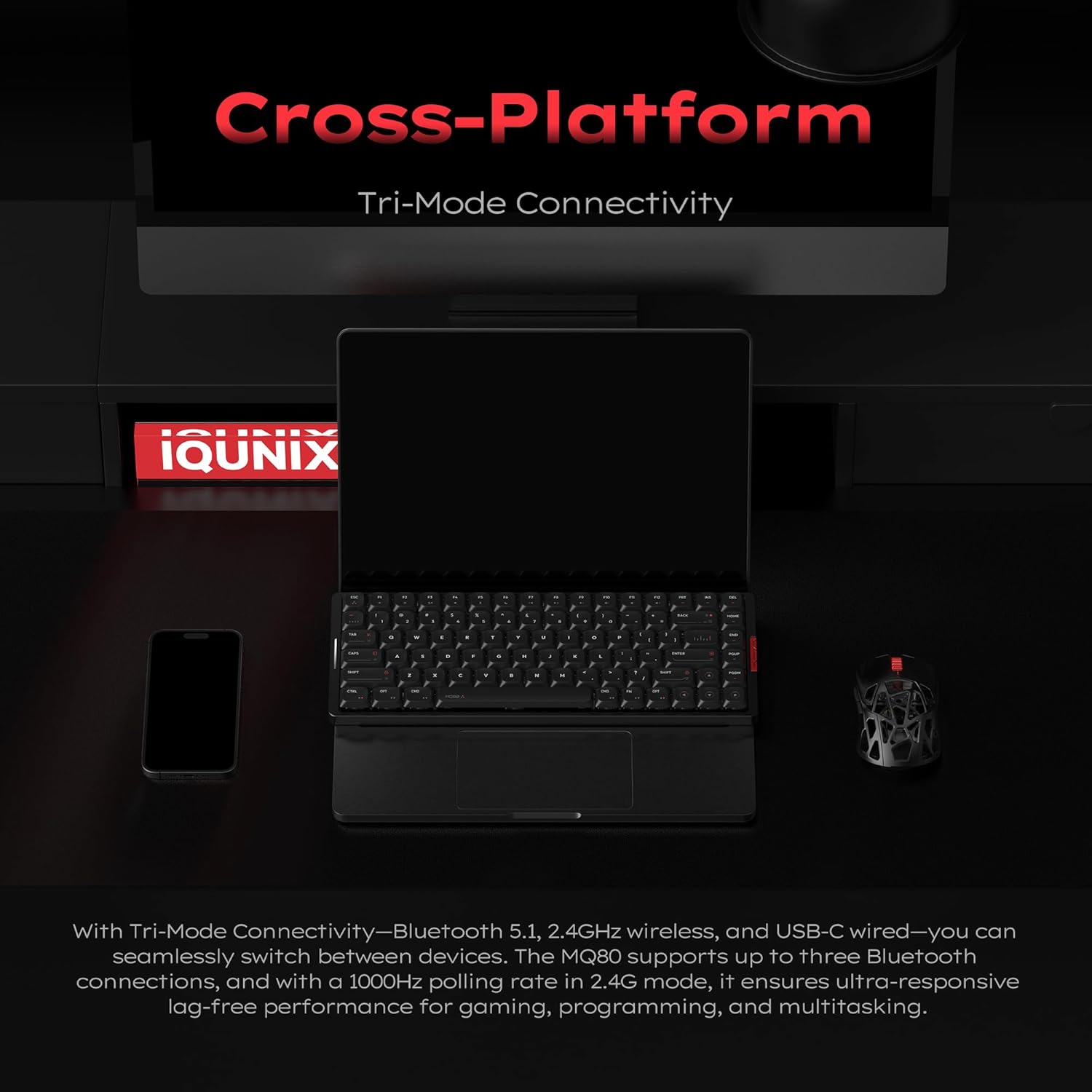
Image: The IQUNIX MQ80 keyboard shown connected to a laptop, smartphone, and mouse, illustrating its tri-mode connectivity.
- Proprietary Le-tray Mount & Sound Dampening: Features six PCB support arms, a silicone gasket, and five-layer sound dampening for responsive typing and balanced acoustics.
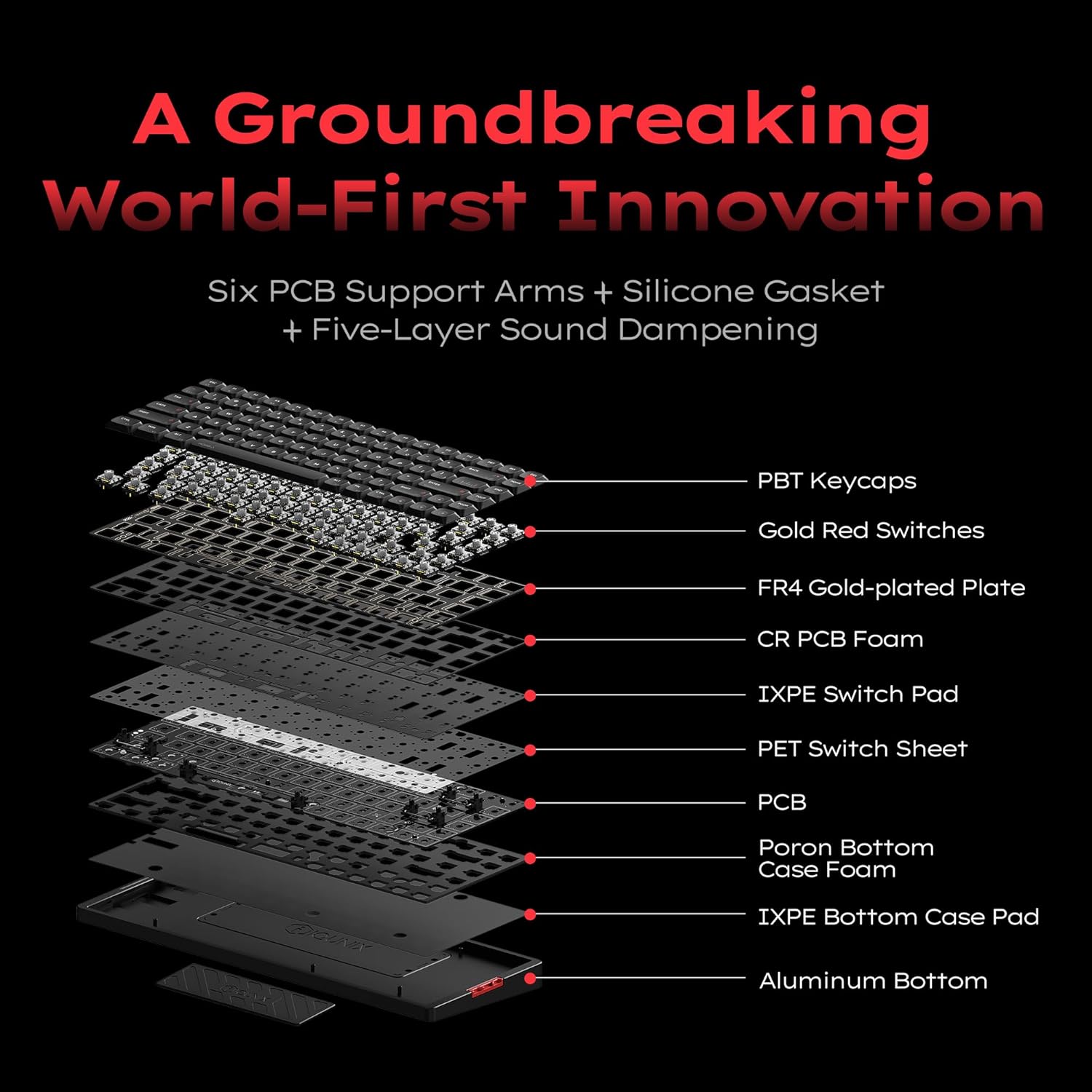
Image: An exploded diagram illustrating the internal layers and components of the IQUNIX MQ80 keyboard, including PBT keycaps, Gold Red switches, and various dampening layers.
Setup
Package Contents
Before setup, please ensure all items are present in the package:
- IQUNIX MQ80 Keyboard
- Premium Carrying Case
- Keycap & Switch Puller
- 2.4G USB Receiver
- Dusk Brush
- USB-C Cable
Connecting Your Keyboard
The IQUNIX MQ80 supports three connection modes: Wired (USB-C), 2.4GHz Wireless, and Bluetooth.
1. Wired Connection (USB-C)
- Locate the USB-C port on the keyboard.
- Connect one end of the provided USB-C cable to the keyboard.
- Connect the other end of the USB-C cable to an available USB port on your computer.
- The keyboard will be automatically recognized and ready for use.
2. 2.4GHz Wireless Connection
- Locate the 2.4G USB Receiver included in the package.
- Plug the 2.4G USB Receiver into an available USB port on your computer.
- On the keyboard, switch the connection mode to 2.4G (refer to the keyboard's physical switch or function key combination for mode selection, typically indicated by an icon or LED).
- The keyboard should automatically pair with the receiver.
3. Bluetooth Connection
The MQ80 supports up to three Bluetooth devices.
- On the keyboard, switch the connection mode to Bluetooth (refer to the keyboard's physical switch or function key combination for mode selection, typically indicated by an icon or LED).
- Activate Bluetooth on your computer or device.
- On your device, search for new Bluetooth devices. The keyboard should appear as "IQUNIX MQ80" or similar.
- Select the keyboard to pair. If prompted for a passkey, enter it as displayed on your screen or device.
- To switch between paired Bluetooth devices, use the designated function key combinations (e.g., Fn + 1, Fn + 2, Fn + 3).
Operating Instructions
Basic Keyboard Functions
The MQ80 keyboard features a standard layout with additional function keys accessible via the Fn key.
- Function Keys (F1-F12): Access multimedia controls, volume, and other system functions by pressing Fn + the corresponding F-key.
- Operating System Mode: The keyboard is Mac-ready by default. Use the provided extra keycaps for PC setup if desired. Specific key mappings for Windows/Mac can be adjusted via VIA software.
RGB Lighting Control
The MQ80 features dynamic RGB lighting with 16 million colors and various effects. Lighting can be customized directly on the keyboard or through the VIA software.
- Changing Lighting Modes: Use specific Fn key combinations (refer to the keyboard's quick guide or VIA software for exact commands) to cycle through pre-set lighting effects.
- Adjusting Brightness: Use Fn + arrow keys (or other designated keys) to increase or decrease RGB brightness.
- Customization via VIA: For advanced customization, including per-key RGB, custom effects, and color palettes, download and use the VIA software.
VIA Software Customization
VIA is a powerful tool for personalizing your MQ80 keyboard. It allows you to:
- Remap any key to a different function.
- Create and assign macros for complex key sequences.
- Customize RGB lighting effects, colors, and brightness.
- Manage multiple key layers for different workflows.
To use VIA, connect your keyboard via USB-C and visit the official VIA website for the software download and instructions. No coding is required.
Maintenance
Cleaning Your Keyboard
- General Cleaning: Use the provided dusk brush or a soft, lint-free cloth to gently wipe the keycaps and keyboard body. For stubborn dirt, slightly dampen the cloth with water or a mild, non-abrasive cleaner.
- Between Keycaps: Use compressed air to remove dust and debris from between the keycaps.
- Deep Cleaning (Keycaps): For thorough cleaning, use the keycap puller to carefully remove keycaps. Wash them with mild soap and water, rinse thoroughly, and ensure they are completely dry before reattaching.
Hot-Swappable Switches
The MQ80's hot-swappable design allows for easy switch replacement without soldering.
- Removing Switches: Use the switch puller tool. Gently grip the switch from the top and bottom clips and pull straight up. Avoid wiggling to prevent bending the pins.
- Installing Switches: Align the pins of the new switch with the holes on the PCB. Press down firmly and evenly until the switch clicks into place. Ensure the pins are straight before insertion to avoid damage.
Note: Only use compatible low-profile mechanical switches with the MQ80 keyboard.
Troubleshooting
| Problem | Possible Cause | Solution |
|---|---|---|
| Keyboard not responding (Wired) | Loose cable connection; faulty USB port; driver issue. | Ensure USB-C cable is securely connected. Try a different USB port or cable. Restart your computer. |
| Keyboard not responding (Wireless 2.4GHz) | Receiver not plugged in; keyboard in wrong mode; low battery. | Ensure 2.4G USB receiver is plugged in. Switch keyboard to 2.4G mode. Charge the keyboard. |
| Keyboard not responding (Bluetooth) | Keyboard not paired; keyboard in wrong mode; Bluetooth off on device; low battery. | Ensure Bluetooth is enabled on your device. Re-pair the keyboard. Switch keyboard to correct Bluetooth channel. Charge the keyboard. |
| RGB lighting not working or incorrect | Lighting turned off; incorrect mode selected; software conflict. | Check keyboard lighting controls (Fn key combinations). Use VIA software to reset or customize lighting. |
| Keys not registering or double-typing | Dust/debris under keycap/switch; faulty switch. | Remove keycap and use compressed air. If issue persists, replace the switch using the switch puller. |
| Poor wireless range or interference | Obstructions; other wireless devices; distance. | Move keyboard closer to receiver/device. Remove obstructions. Minimize interference from other 2.4GHz devices. |
Specifications
| Feature | Detail |
|---|---|
| Model Number | MQ80 Low Profile Keyboard |
| Product Dimensions | 12.64 x 4.9 x 1.08 inches (32.1 x 12.4 x 2.7 cm) |
| Item Weight | 2.2 pounds (1 kg) |
| Connectivity Technology | 2.4GHz Wireless, Bluetooth 5.1, USB-C Wired |
| Keyboard Description | Mechanical |
| Switches | Kailh POM Gold Red (Low Profile, Hot-Swappable) |
| Actuation Force | 30gf–50gf |
| Pre-travel | 1.2mm |
| Total Travel | 2.8mm |
| Lifespan | 50 Million Keystrokes |
| Battery Life | Up to 350 hours (without RGB) |
| Backlighting | RGB (16 million colors) |
| Special Features | Backlit, Ergonomic, Hot-Swappable, Low-Profile Key, Programmable Keys (VIA Support) |
| Compatible Devices | Laptop, PC, Tablet (Mac/Windows/Linux) |
| Manufacturer | IQUNIX |
Warranty and Support
IQUNIX products are designed for durability and performance. For warranty information, technical support, or service inquiries, please visit the official IQUNIX website or contact their customer support directly.
Official IQUNIX Website: www.iqunix.com
For the most up-to-date support resources, FAQs, and driver downloads (including VIA firmware), please refer to the support section of the IQUNIX website.
