
1. Introduction
Thank you for choosing the VILTROX DC-A1 2800 Nit Camera Monitor. This 7-inch HD 1920x1080 IPS touch screen field monitor is designed to enhance your video production workflow with its high brightness, versatile monitoring tools, and robust connectivity. It features 4K HDMI 2.0 input/output, 3D LUT support, and various professional functions like Focus Peaking, HDR, and Full Waveform. This manual provides essential information for the proper setup, operation, and maintenance of your monitor.
2. Safety Information
Please read and understand all safety precautions before using the monitor to prevent damage to the device or injury to yourself. Keep this manual for future reference.
- Do not expose the monitor to water or excessive humidity.
- Avoid extreme temperatures. Operate the monitor within 0°C to 40°C (32°F to 104°F).
- Do not disassemble or modify the monitor. Refer all servicing to qualified personnel.
- Use only VILTROX-approved accessories and power adapters.
- Protect the screen from sharp objects and excessive pressure.
- Ensure proper ventilation to prevent overheating. The built-in cooling fan system requires unobstructed airflow.
3. Package Contents
Verify that all items are present in your package:
- VILTROX DC-A1 2800 Nit 7 inch Camera field video monitor
- Special sunhood
- Black carry case
- VILTROX NP-F550 battery
- HDMI cable x2
- Type-C cable
- VL-550 cold shoe adapter
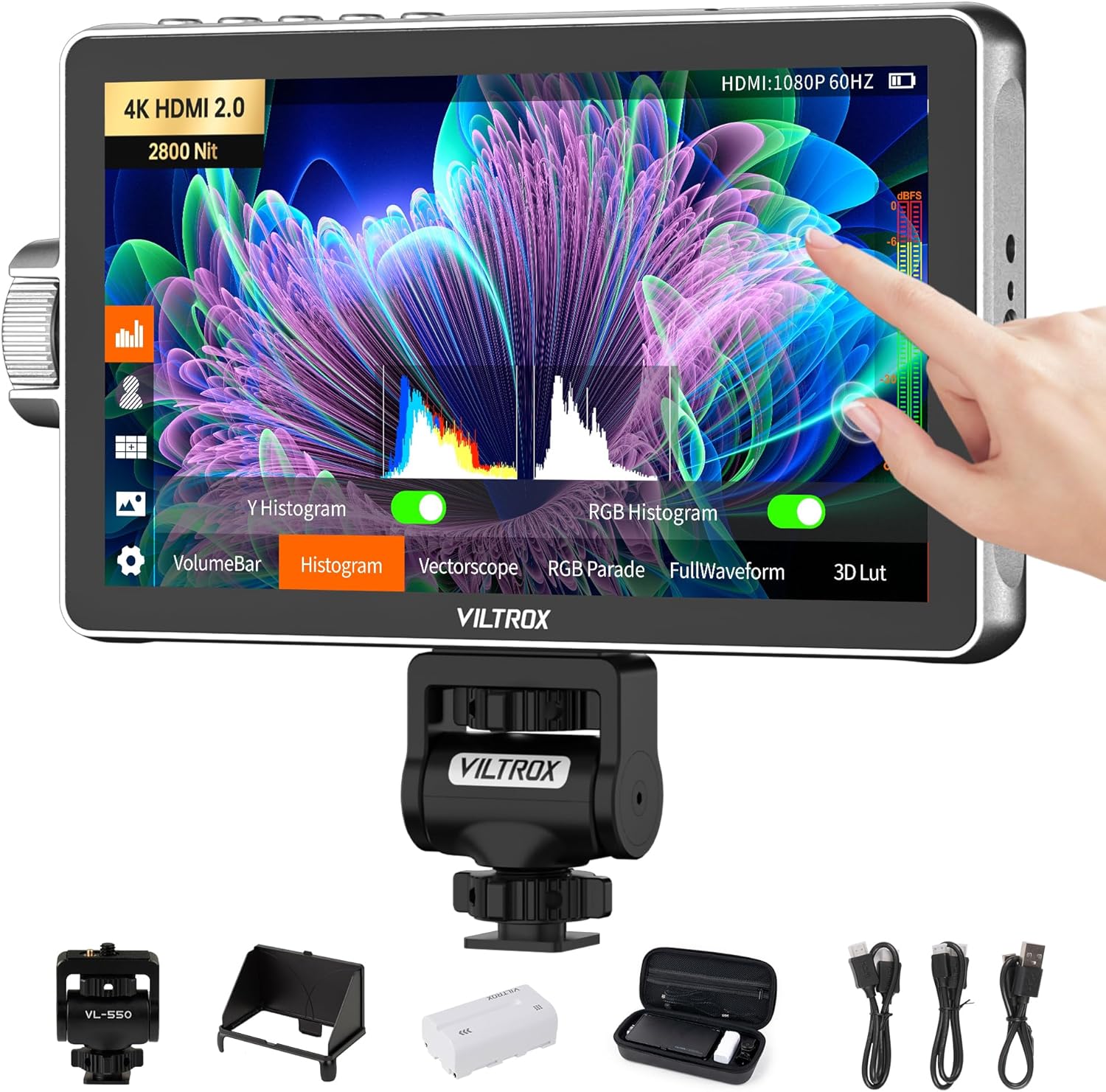
This image displays the VILTROX DC-A1 monitor along with all the items you should find in the box, including the sunhood, carrying case, NP-F550 battery, two HDMI cables, a Type-C cable, and the VL-550 cold shoe adapter.
4. Product Overview
Familiarize yourself with the various parts and interfaces of your VILTROX DC-A1 monitor:

This diagram illustrates the key components of the monitor:
- Back/Menu Button: Used to navigate back or access the main menu.
- Shortcut Key (F1, F2, F3, F4): Customizable buttons for quick access to frequently used functions.
- Display Screen: The 7-inch HD IPS touch screen.
- Fan Exhaust Vent: Ensures proper heat dissipation.
- USB Interface: For firmware upgrades and custom 3D LUT file uploading.
- Power Button: To turn the monitor on or off.
- Signal Indicator: Indicates signal status.
- Knob Key: For one-handed control and precise adjustments.
- 1/4 Screw Hole: Mounting points for accessories.
- HDMI Input: Connects to your camera or video source.
- HDMI Output: For passing the video signal to another monitor.
- 1/4 Screw Hole: Additional mounting point.
- Headphone Jack: 3.5mm port for audio monitoring.
- Type-C Port: For power supply.
- DC Port: For external DC power supply (10-18V/2A).
- Battery Release Button: Releases the NP-F series battery.
- Battery Slot: Accommodates NP-F series batteries.
- Cooling Air Intake: Air intake for the cooling system.
5. Setup
Follow these steps to set up your VILTROX DC-A1 monitor:
- Install Battery or Connect Power:
Insert a fully charged NP-F series battery (e.g., NP-F550 included) into the battery slot until it clicks into place. Alternatively, connect the monitor using the DC IN port (10-18V/2A) or the USB Type-C port (9V/3A) for continuous power. Ensure the power source is stable.

Figure 5.1: Multiple Power Supply Options. This image demonstrates the three ways to power the monitor: using an NP-F series battery, connecting a DC power adapter, or using a USB Type-C power source.
- Mount the Monitor:
Attach the VL-550 cold shoe adapter to the 1/4 screw hole on the monitor. Then, mount the monitor onto your camera's hot shoe or a compatible rig. The cold shoe adapter allows for 180° rotation for flexible viewing angles.
- Connect HDMI Cables:
Connect one end of an HDMI cable to your camera's HDMI output and the other end to the HDMI IN port on the monitor. If you need to send the signal to another display, connect a second HDMI cable from the monitor's HDMI OUT port to your secondary display.

Figure 5.2: HDMI Signal Input/Output. This image shows the HDMI input and output ports on the monitor, highlighting its ability to handle 4K HDMI 2.0 signals for clear and smooth transmission.
- Attach Sunhood (Optional):
For outdoor shooting or bright environments, attach the included special sunhood to reduce glare and improve screen visibility.
6. Operating Instructions
Operating the VILTROX DC-A1 monitor is intuitive with its touch screen and physical controls.
- Power On/Off:
Press and hold the Power Button (6) on the side of the monitor to turn it on or off.
- Touch Screen Control:
The monitor features a full touch screen for easy navigation and setting adjustments. Tap icons to select functions, swipe to navigate menus, and pinch to zoom.

Figure 6.1: Full Touch Screen Control and Physical Buttons. This image illustrates the responsive touch screen interface, the precise control offered by the knob button, and the convenience of the customizable shortcut keys for quick access to monitoring functions.
- Knob Key and Shortcut Keys:
Use the Knob Key (8) for precise adjustments and menu navigation. The four Shortcut Keys (F1, F2, F3, F4) on top can be customized to quickly access your most used monitoring functions, such as False Color, Peaking, or Histogram.
- Monitoring Functions:
The DC-A1 offers a wide range of professional monitoring tools:
- False Color: Helps with exposure adjustment.
- Zebras: Indicates overexposed areas.
- Histogram: Displays the tonal distribution of the image.
- Oscillogram / Full Waveform: Provides detailed luminance and chrominance information.
- Vectorscope: Shows color saturation and hue.
- HDR: High Dynamic Range support for wider contrast.
- Anti-squeeze: Adjusts aspect ratio for anamorphic lenses.
- Peak Focus: Highlights in-focus areas.
- Audio Bar: Displays audio levels.
- Custom 3D LUT:
The monitor supports 20 preloaded 3D LUTs and allows you to upload your own custom 3D LUT files via the USB A port. This feature enables instant preview of color effects for seamless post-production integration.
- Firmware Upgrade:
Firmware can be upgraded via the USB A port using a USB flash drive. Refer to the VILTROX official website for the latest firmware and instructions.
7. Maintenance
Proper care and maintenance will extend the lifespan of your VILTROX DC-A1 monitor.
- Cleaning: Use a soft, dry cloth to clean the monitor's body. For the screen, use a microfiber cloth specifically designed for electronics. Do not use liquid cleaners directly on the screen.
- Storage: When not in use, store the monitor in its black carry case to protect it from dust, scratches, and impacts. Store in a cool, dry place away from direct sunlight.
- Cooling System: Ensure the fan exhaust vents and cooling air intakes are not obstructed during operation to maintain optimal performance and prevent overheating. The built-in intelligent cooling fan system is designed for stable long-term operation.
- Battery Care: If using batteries, remove them if the monitor will not be used for an extended period. Store batteries in a cool, dry place.
8. Troubleshooting
If you encounter issues with your VILTROX DC-A1 monitor, refer to the following common problems and solutions:
| Problem | Possible Cause | Solution |
|---|---|---|
| Monitor does not power on. | Battery is depleted or not installed correctly; power cable is loose or faulty. | Ensure battery is charged and properly inserted. Check power cable connections or try a different power source. |
| No video signal displayed. | HDMI cable is loose or faulty; incorrect input selected; camera output settings. | Check HDMI cable connections. Ensure the correct HDMI input is selected on the monitor. Verify camera's HDMI output settings (resolution, frame rate). |
| Screen flickering or distorted image. | Faulty HDMI cable; signal interference; incompatible resolution. | Try a different HDMI cable. Ensure no strong electromagnetic interference. Adjust camera output resolution to a supported format. |
| Touch screen unresponsive. | Temporary software glitch; screen dirty. | Restart the monitor. Clean the screen with a soft, dry cloth. If problem persists, consider a firmware update. |
| Monitor overheats. | Obstructed ventilation; prolonged use in high ambient temperatures. | Ensure cooling vents are clear. Operate in a well-ventilated area. Allow monitor to cool down if used for extended periods. |
9. Specifications
Detailed technical specifications for the VILTROX DC-A1 2800 Nit Camera Monitor:
| Feature | Specification |
|---|---|
| Product Model | DC-A1 |
| Display Screen | 7-inch IPS Touch Screen |
| Resolution | 1920x1080 |
| Contrast Ratio | 1000:1 |
| Screen Brightness | 2800cd/m² (Nits) |
| Pixel Density | 316PPI |
| Color Depth | 8bit |
| Aspect Ratio | 16:9 |
| Refresh Rate | 60Hz |
| Viewing Angle | 170° |
| Color Gamut | sRGB |
| Input Interface | HDMI 2.0 IN |
| Output Interface | HDMI 2.0 OUT |
| Cooling Fan | Yes |
| Weight | ≈348g (Monitor) / 12.27oz |
| Dimensions | 187.8 x 110.5 x 28.5mm / 7.39 x 4.35 x 1.12 inches |
| USB Interface | Support of USB Upgrade and 3D Lut File Input |
| Audio Output | Headphone Jack φ3.5mm |
| Working Temperature | 0°C ~ 40°C |
| Storage Temperature | -20°C ~ 60°C |
| Power Interface | DC10V-18V/2A; Type-C=9V/3A (9V/12V/15V/20V=3A) |
| Applicable Battery | Lithium Battery NP-F550/F750/F970 |

This image provides a visual summary of the monitor's key technical specifications, including its display type, resolution, brightness, and power requirements.
10. Warranty and Support
VILTROX products are designed for reliability and performance. For warranty information, technical support, or service inquiries, please refer to the warranty card included with your product or visit the official VILTROX website. Keep your purchase receipt as proof of purchase for warranty claims.
For additional assistance, you may contact VILTROX customer support through their official channels. Information regarding product updates and additional resources can often be found on the manufacturer's website.