
1. Introduction
This manual provides essential instructions for the safe and efficient operation of your ENUOSUMA Cartoon Dog Smart Projector. Please read this guide thoroughly before using the device and retain it for future reference. This projector is designed for versatile use, offering a portable solution for various viewing needs.
2. Safety Information
- Do not look directly into the projector lens when the lamp is on.
- Ensure the projector is placed on a stable, level surface to prevent falls.
- Keep the device away from water, moisture, and extreme temperatures.
- Do not block ventilation openings to prevent overheating.
- Use only the power adapter provided with the projector.
- Do not attempt to disassemble or repair the projector yourself. Contact qualified service personnel for assistance.
3. Package Contents
Verify that all items are present in the package:
- ENUOSUMA Cartoon Dog Smart Projector
- Remote Control
- Power Adapter
- Instruction Manual
4. Product Overview
The ENUOSUMA Cartoon Dog Smart Projector features a unique design and offers various connectivity options for a flexible viewing experience.
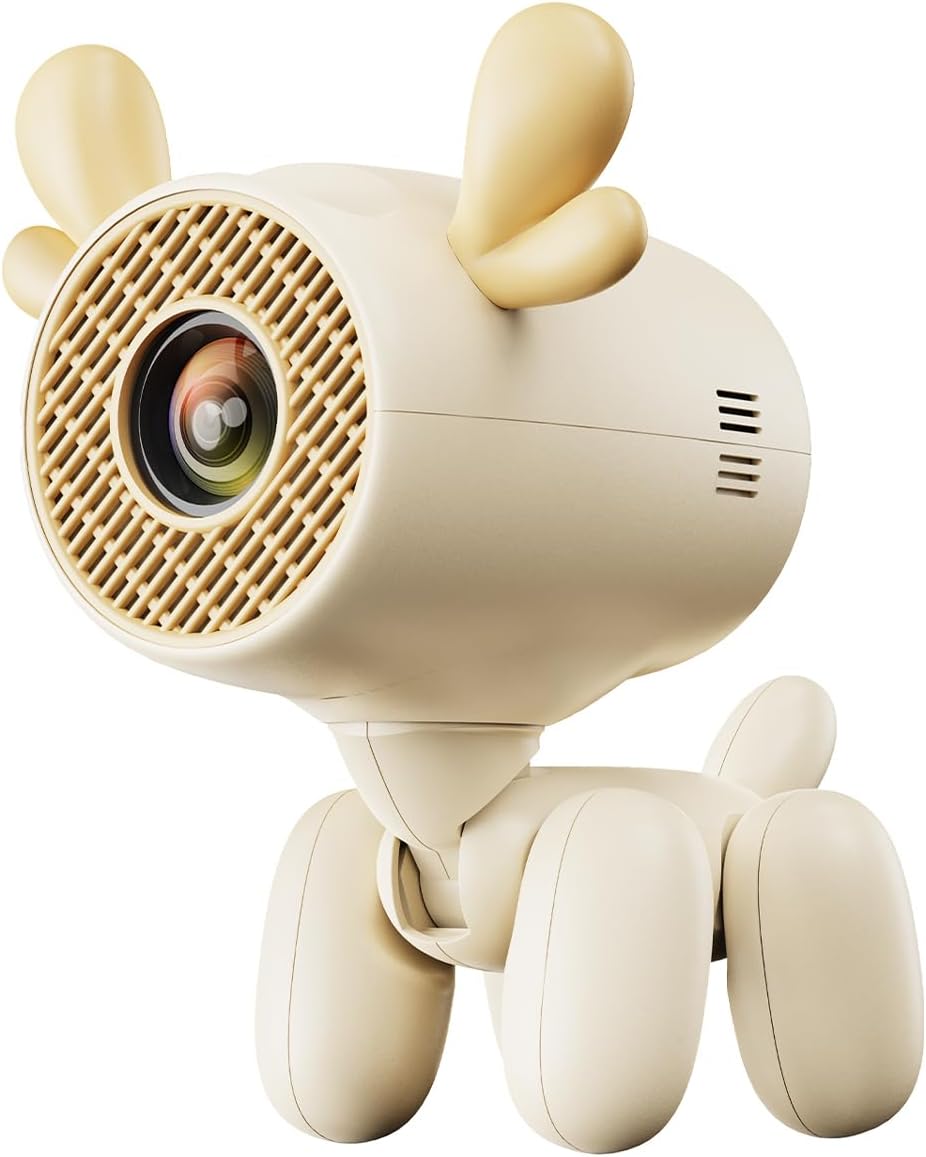
Figure 1: Front view of the ENUOSUMA Cartoon Dog Smart Projector, showcasing its unique design.
5. Setup
5.1 Placement
The projector's 180° rotating projection allows for flexible placement on walls, ceilings, or floors. Position the projector to achieve your desired screen size, ranging from 35 to 130 inches.

Figure 2: The projector positioned on a nightstand, ready for use.
5.2 Power Connection
Connect the provided power adapter to the projector's DC input port and then plug it into a power outlet.
5.3 Initial Power-On
Press the power button on the projector or the remote control to turn on the device. The projector will boot up and display the main interface.
5.4 Focus Adjustment
Manually adjust the focus ring near the lens until the projected image appears clear and sharp.
5.5 Auto Keystone Correction
The projector features automatic keystone correction. It will automatically adjust the image to be rectangular, even if the projector is placed at an angle. Manual adjustments can also be made through the settings menu if needed.
6. Operating Instructions
6.1 Navigation
Use the included remote control to navigate through the projector's interface. The directional buttons allow movement, and the 'OK' button confirms selections.
6.2 Connectivity
- Wi-Fi 6: Connect to your wireless network via the 'Settings' menu for seamless online streaming.
- Bluetooth 5.1: Pair with external Bluetooth speakers or headphones for enhanced audio.
- HDMI: Connect external devices such as laptops, gaming consoles, or TV sticks using an HDMI cable.
- USB: Plug in USB drives to play media files directly.
- Audio Jack: Use the 3.5mm audio jack to connect wired headphones or external speakers.
6.3 Streaming and Applications
The projector comes with built-in applications like Netflix, YouTube, and Prime Video. Access these directly from the main menu for instant entertainment.
6.4 Screen Mirroring/Casting
Mirror content from your iOS or Android devices directly to the projector. Refer to the 'Cast' or 'AirScreen' applications in the 'My Apps' section for instructions on connecting your specific device.
6.5 Audio
The projector includes a built-in speaker for audio output. For a more immersive experience, connect external Bluetooth speakers or wired headphones as described in section 6.2.
6.6 Usage Scenarios
This portable projector is suitable for various environments:
- Home Theater: Enjoy movies and shows on a large screen indoors.
- Outdoor Entertainment: Perfect for backyard movie nights or camping trips.
- Educational Use: Ideal for children's education, online teaching, or presentations.
- Video Conferences: Facilitate clear visual communication in meetings.

Figure 3: The projector providing outdoor entertainment for two individuals.

Figure 4: The projector displaying an image on a large indoor wall.
7. Maintenance
7.1 Cleaning
- Lens: Gently wipe the projector lens with a soft, lint-free cloth. Avoid abrasive materials that could scratch the lens.
- Exterior: Clean the exterior of the projector with a soft, dry cloth. Do not use liquid cleaners or solvents.
- Ventilation: Ensure the ventilation openings are free from dust and debris to maintain optimal cooling.
7.2 Storage
When not in use, store the projector in a cool, dry place, away from direct sunlight and extreme temperatures. Use the original packaging or a protective case to prevent damage.
8. Troubleshooting
- No Power: Check if the power adapter is securely connected to both the projector and the power outlet. Ensure the outlet is functional.
- No Image: Verify that the input source is correctly selected (HDMI, USB, etc.). Check cable connections.
- Blurry Image: Adjust the manual focus ring until the image is sharp. Ensure the projector is within the recommended projection distance.
- Image Distorted: The auto keystone correction should adjust the image. If not, check the settings for manual keystone adjustments.
- No Sound: Check the volume settings on the projector and any connected external audio devices. Ensure Bluetooth speakers are properly paired or wired connections are secure.
9. Specifications
| Brand | ENUOSUMA |
| Model | B0F8NC9K52 |
| Item Weight | 10.6 ounces |
| Product Dimensions | 4.33 x 1.97 x 4.33 inches |
| Display Resolution | 1024 x 720 (Supports up to 4K content) |
| Connectivity Technology | Wi-Fi 6, Bluetooth 5.1, HDMI, USB, 3.5mm Audio Jack |
| Special Features | Auto Keystone Correction, 180° Rotating Projection, Built-in Apps (Netflix, YouTube, Prime Video) |
| Projection Screen Size | 35-130 inches |
| Noise Level | Below 25dB |
10. Warranty and Support
ENUOSUMA is committed to providing quality products and customer service. For any inquiries, technical support, or warranty claims, please refer to the contact information provided in your product packaging or visit the official ENUOSUMA website. Our dedicated team is available to assist you.