
1. Introduction and Overview
The LBW MT600 Pro is a versatile 6-inch portable motorcycle display designed to enhance your riding experience with advanced connectivity and safety features. This device integrates wireless Apple CarPlay and Android Auto, providing seamless access to navigation, music, and communication directly from your smartphone. Equipped with a dual 2K dash camera system, it records both front and rear views, offering crucial evidence in case of incidents. The unit also features a high-definition waterproof touchscreen, a quick-release magnetic bracket for easy installation and removal, and a Tire Pressure Monitoring System (TPMS) for real-time tire safety. Its robust IP69K waterproof, dustproof, and sandproof design ensures reliable performance in various weather conditions.
2. What's in the Box
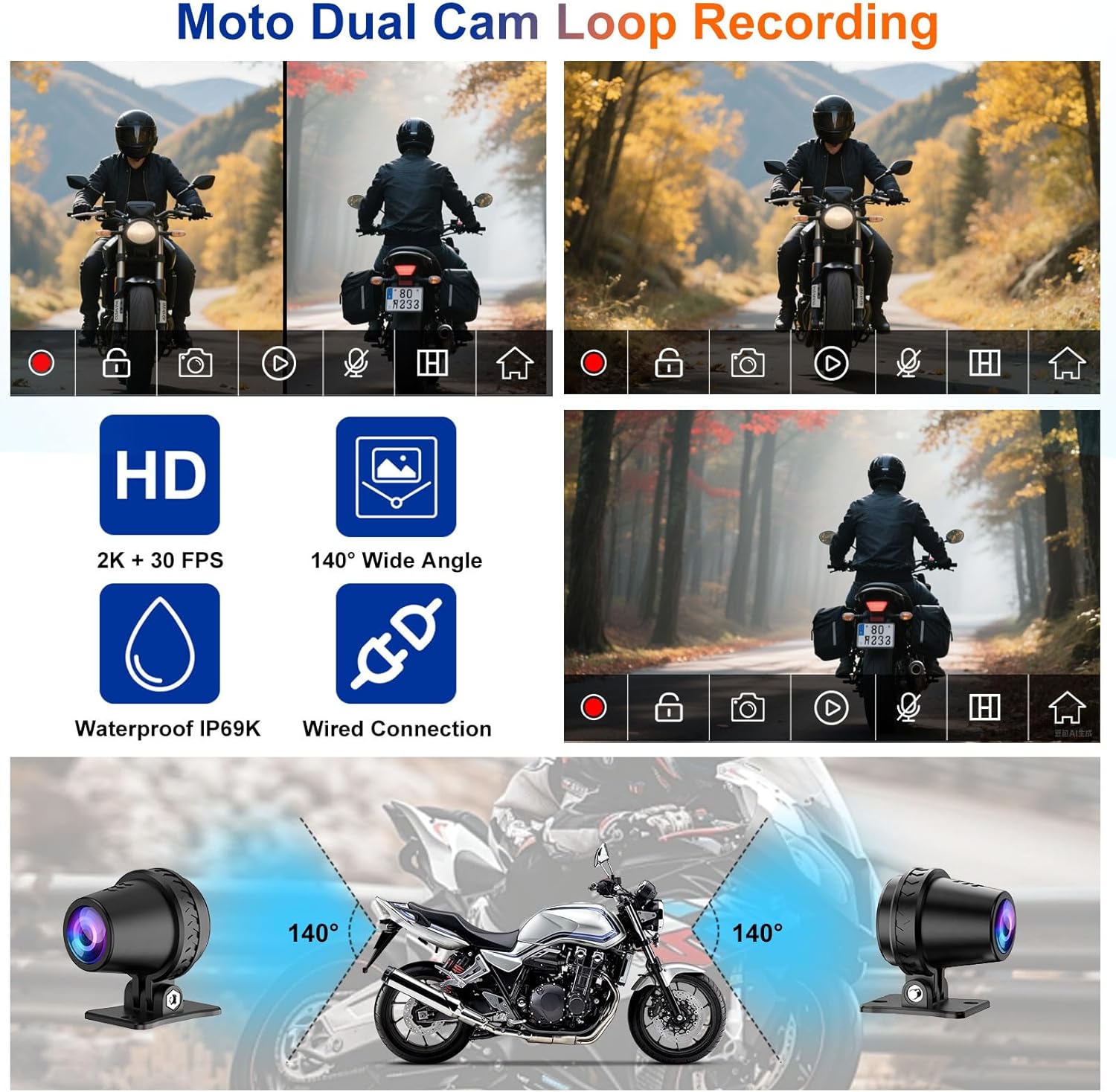
Image: A comprehensive display of all components included with the LBW MT600 Pro, neatly arranged for easy identification.
- Main Display Unit (Host)
- Hardwire Kit
- User Manual
- Quick-Release Magnetic Bracket
- Front Camera
- Rear Camera
- TPMS Sensors (2)
- Wire Control Unit
- USB Power Cable
- Power Cable
- Screwdrivers and Grips
- Electrical Tape
- Binding Straps (10)
- 128GB SD Card
3. Setup & Installation
3.1. Bracket Mounting
Video: Detailed instructions for installing the LBW MT600 Pro's bracket onto a motorcycle handlebar, demonstrating the secure attachment process.

Image: Step-by-step visual guide for assembling and installing the U-shaped extension rod bracket onto the motorcycle handlebar.

Image: Detailed dimensions of the metal bracket components, including the U-bolt, ball adapter, and double-socket arm.
3.2. Wiring Method

Image: A clear diagram illustrating how to connect the front and rear cameras, host unit, remote control, and step-down power line to the motorcycle's electrical system.
Connect the front and rear cameras and the host unit into the corresponding connectors. Ensure the cables are marked correctly (e.g., DVR-F/DVR-R). Connect the remote control to its designated connector. Finally, connect the step-down line to the power source, ensuring proper polarity and a stable 5V supply.
3.3. TPMS Sensor Installation

Image: Visual guide showing the steps to install the TPMS sensors onto the motorcycle's tire valves, including screwing out the valve cap, rotating the nut, and checking for air leakage.
To install the TPMS sensors, first remove the valve cap from your tire. Rotate the nut counter-clockwise, then screw the sensor onto the valve stem. Tighten the nut to secure the sensor. Check for any air leakage using soapy water. The system will automatically recognize the sensors once the motorcycle is in motion.
3.4. Camera Installation

Image: Close-up view of the dual 2K cameras, highlighting their compact design and adjustable lenses for optimal positioning on the motorcycle.

Image: Diagram showing recommended installation locations for the 6-inch mainframe screen, front camera, rear camera, line control, and TPMS sensors on a motorcycle.
Mount the front camera securely at the front of your motorcycle, ensuring a clear view of the road ahead. The lens can be rotated 360 degrees and adjusted up and down for various motorcycle types. Similarly, install the rear camera at the back, providing a clear view of the rear. Connect both cameras to the main unit as per the wiring diagram. Ensure all connections are secure and waterproof.
4. Operating Instructions
4.1. Connecting CarPlay/Android Auto
Video: Demonstrates the process of connecting a smartphone to the LBW MT600 Pro for CarPlay functionality, including Bluetooth pairing and app usage.

Image: Step-by-step guide for connecting your phone to the device via Bluetooth and Wi-Fi for wireless CarPlay or Android Auto, and then connecting to Bluetooth earphones/helmet.
To connect your smartphone, ensure Bluetooth and Wi-Fi are enabled on your phone. On the LBW MT600 Pro, navigate to the CarPlay or Android Auto section. Find the device's Bluetooth name (e.g., F600_1B15724C) on your phone and pair. Confirm the pairing request. Once connected, you can choose to use CarPlay/Android Auto or Bluetooth only. For optimal performance, ensure your phone's audio settings allow for connection via Wi-Fi.
4.2. Audio Transmission

Image: Visual steps for selecting the audio transmission channel on your smartphone to ensure sound is routed to Bluetooth speakers or headphones when connected to the device.
For the best audio experience, it is recommended to use Bluetooth speakers or Bluetooth headphones. The unit's built-in small speaker may not be audible once the vehicle starts, and its sound quality is not ideal for music playback. If using an iPhone, you may need to reconnect Bluetooth audio devices to reduce sound quality degradation.
4.3. Dash Cam Features
G-Sensing Lock Video
The built-in gravity sensor automatically locks footage when detecting vibrations or collisions. This feature preserves crucial video evidence by preventing it from being overwritten during continuous recording.
Loop Recording & WiFi App Control

Image: Illustrates the loop recording function, which automatically overwrites old videos, and the built-in WiFi feature for controlling the dash cam via a mobile app.
The device supports loop recording, automatically overwriting the oldest videos when the 128GB SD card is full, ensuring continuous recording without manual deletion. With built-in WiFi, you can directly control the dash cam via a mobile app to view live video, download recordings, and take photos, eliminating the need for mobile network traffic.
4.4. Screen Features
Brightness & Anti-Glare

Image: The QLED screen displaying clear navigation with 1000 nits brightness, ensuring visibility in various lighting conditions.

Image: Comparison of screen visibility in daytime and nighttime, demonstrating the automatic light sensing and anti-glare features of the QLED dash.
The 6-inch QLED screen boasts 1000 nits brightness, ensuring clear visibility for navigation and visuals in all weather conditions. Its 95% anti-glare coating reduces reflections, improving safety. The automatic light sensing feature adjusts screen brightness day and night for optimal viewing.
Waterproof & Durability

Image: The device shown with water droplets on its screen, illustrating its IP69K waterproof rating and suitability for wet conditions.

Image: The motorcycle CarPlay unit displayed in snowy, rainy, and sunny environments, highlighting its adaptability to all riding conditions.
With an IP69K waterproof, dustproof, and sandproof rating, the device is built to withstand harsh environmental conditions. Its advanced nano-coating repels rain and protects against dust and sand, ensuring reliable performance in all weather.
4.5. Navigation & Voice Control

Image: The device displaying a navigation map with voice control prompts, showing integration with Apple Maps, Waze, HERE Maps, and Baidu Map.

Image: Examples of the CarPlay split-screen function, showing navigation alongside music playback or call interfaces for enhanced multitasking.

Image: Close-up of the three-button waterproof wire control unit mounted on a handlebar, indicating its functions for call management, camera control, and GPS.
Utilize the integrated GPS navigation with support for Apple Maps, Waze, HERE Maps, and Baidu Map. Enjoy safe voice control through Siri or Google Assistant for hands-free operation. The CarPlay split-screen function allows you to view navigation and other apps simultaneously. The waterproof wire control unit provides convenient access to call answering, picture/video capture, and GPS functions without removing your hands from the handlebars.
5. Maintenance
To ensure the longevity and optimal performance of your LBW MT600 Pro, regular maintenance is recommended:
- Cleaning: Regularly wipe the touchscreen with a soft, damp cloth to remove dust and smudges. Avoid harsh chemicals that may damage the screen or casing.
- Connections: Periodically check all wired connections for tightness and ensure they are free from corrosion. The waterproof connectors should be securely fastened.
- Software Updates: Check the manufacturer's website or the device's settings for available firmware updates to ensure you have the latest features and bug fixes.
- Storage: When not in use, especially during long periods, store the device in a cool, dry place away from direct sunlight. The quick-release magnetic mount allows for easy removal for secure storage.
- TPMS Sensors: Ensure TPMS sensors are correctly installed and check their battery life periodically. Replace batteries as needed to maintain accurate tire pressure readings.
6. Troubleshooting
If you encounter issues with your LBW MT600 Pro, refer to the following common troubleshooting steps:
- Device Not Powering On: Ensure the hardwire kit is correctly connected to a stable 12V power source on your motorcycle. Check all power connections for looseness or damage. Verify that the power source provides sufficient amperage (at least 2A for USB connections).
- Intermittent Power/Restarting: This can indicate an unstable power supply. Ensure the power connection is secure and the power source meets the device's requirements. Check for loose wiring or faulty connections.
- CarPlay/Android Auto Connectivity Issues: Ensure Bluetooth and Wi-Fi are enabled on both your phone and the device. Forget previous connections on both devices and attempt to re-pair. Ensure no other devices are interfering with the Bluetooth or Wi-Fi signal.
- Screen Shaking/Drooping: This is often related to the mounting bracket. Ensure all screws and clamps on the quick-release magnetic bracket are securely tightened. The magnetic contacts should be clean and free of debris.
- Incorrect Time Display: Check the time settings within the device's menu. Ensure it's set to automatically synchronize with GPS or manually adjust it.
- Dash Cam App Issues: Ensure the mobile app is updated to the latest version. Check your phone's Wi-Fi connection to the device. Restart both the device and your phone.
- TPMS Sensors Not Recognized: Ensure the sensors are correctly installed on the tire valves. Drive for a short period (e.g., 10 seconds) to allow the system to recognize them. Check sensor batteries if the issue persists.
If these steps do not resolve the issue, please contact LBW-Direct customer support for further assistance.
7. Specifications
| Name | Value |
|---|---|
| Brand | LBW |
| Model Name | LBW MT600 Pro |
| Vehicle Service Type | ATV, Motorcycle |
| Connectivity Technology | Wireless |
| Special Feature | Built-In Bluetooth, Built-In WiFi, Touch Screen |
| Video Capture Resolution | 2K |
| Included Components | Car Mount, Hardwire Kit, User Manual |
| Mounting Type | Speaker |
| Color | Black |
| Field Of View | 170 Degrees |
| Control Method | App, Touch, Voice |
| Screen Size | 6 Inches |
| Flash Memory Type | microSD |
| Frame Rate | 30 FPS |
| Included Memory Card Size | 128 GB |
| Flash Memory Supported Size Maximum | 256 GB |
| Manufacturer | LBW |
| Model Number | MT600 Pro |
8. Warranty & Support
The LBW MT600 Pro comes with a 1-year warranty from the manufacturer. For any product-related inquiries, technical support, or warranty claims, please contact LBW-Direct customer support. Ensure you have your purchase details and model number (MT600 Pro) ready when contacting support.