
Roinvou Android 15 Car Stereo
Contents
Roinvou Android 15 Car Stereo User Manual
Model: Android 15 Car Stereo for Toyota Yaris (2012-2017)
Brand: Roinvou
Introduction
This manual provides comprehensive instructions for the installation, operation, and maintenance of your Roinvou Android 15 Car Stereo. Designed specifically for Toyota Yaris models from 2012 to 2017, this unit offers advanced features including wireless CarPlay, Android Auto, GPS navigation, Bluetooth connectivity, and a high-definition touch screen. Please read this manual thoroughly before installation and use to ensure optimal performance and safety.

Image: The Roinvou Android 15 Car Stereo unit, showcasing its 9-inch display, along with included accessories such as a backup camera, external microphone, and a smartphone displaying wireless CarPlay/Android Auto functionality.
What's in the Box
Verify that all components listed below are included in your package:
- 1 x Roinvou Car Stereo for Toyota Yaris
- 1 x Power Cable
- 1 x RCA Harness
- 1 x GPS Antenna
- 1 x AHD Backup Camera
- 1 x External Microphone
- 1 x Rear Camera Input Cable
- 2 x USB Cable
- 1 x Installation Tool & Accessories

Image: A visual representation of all items included in the package, such as the main stereo unit, various cables (power, RCA, USB), GPS antenna, backup camera, microphone, and installation tools.
Setup and Installation
Proper installation is crucial for the optimal performance of your car stereo. If you are unsure about any steps, it is recommended to seek professional assistance.
1. Compatibility Check
This car stereo is compatible with Toyota Yaris models from 2012 to 2017. Before installation, please confirm your car's model and year. You may send a picture of your car's dashboard to customer support for verification if needed.

Image: A comparison showing the Toyota Yaris dashboard before and after the installation of the Roinvou car stereo, demonstrating a seamless fit.
2. Wiring Port Diagram
Familiarize yourself with the wiring ports on the back of the stereo unit and the corresponding cables.

Image: A detailed diagram illustrating the various wiring ports on the car stereo unit, including connections for power, RCA, USB, camera input, and GPS antenna, with corresponding cable types.
- Power Cable: Connects to the vehicle's power supply.
- RCA Cable: For audio/video input/output.
- USB Cable: For data transfer and device charging.
- Camera Input: For connecting the AHD backup camera.
- GPS Antenna: For navigation functionality.
3. Reversing Camera Wiring
Properly connect the backup camera for enhanced safety during parking. The reverse input cable must be plugged in even if the reverse camera is not being used, as it affects Bluetooth and Wi-Fi signal reception.

Image: A wiring diagram showing how to connect the AHD backup camera. It highlights connecting the red cable to the positive terminal of the car's reverse light and the black cable to the negative terminal. Other extension cables are not required.
- Red Cable (①): Connects to the positive terminal of the car's reverse light cable.
- Black Cable (②): Connects to the negative terminal of the car's reverse light cable.
- The other two red extension cables (③ and ④) do not need to be connected.
4. CANBUS Note (Steering Wheel Control)
The method for enabling steering wheel controls depends on whether your vehicle uses a CANBUS decoder.
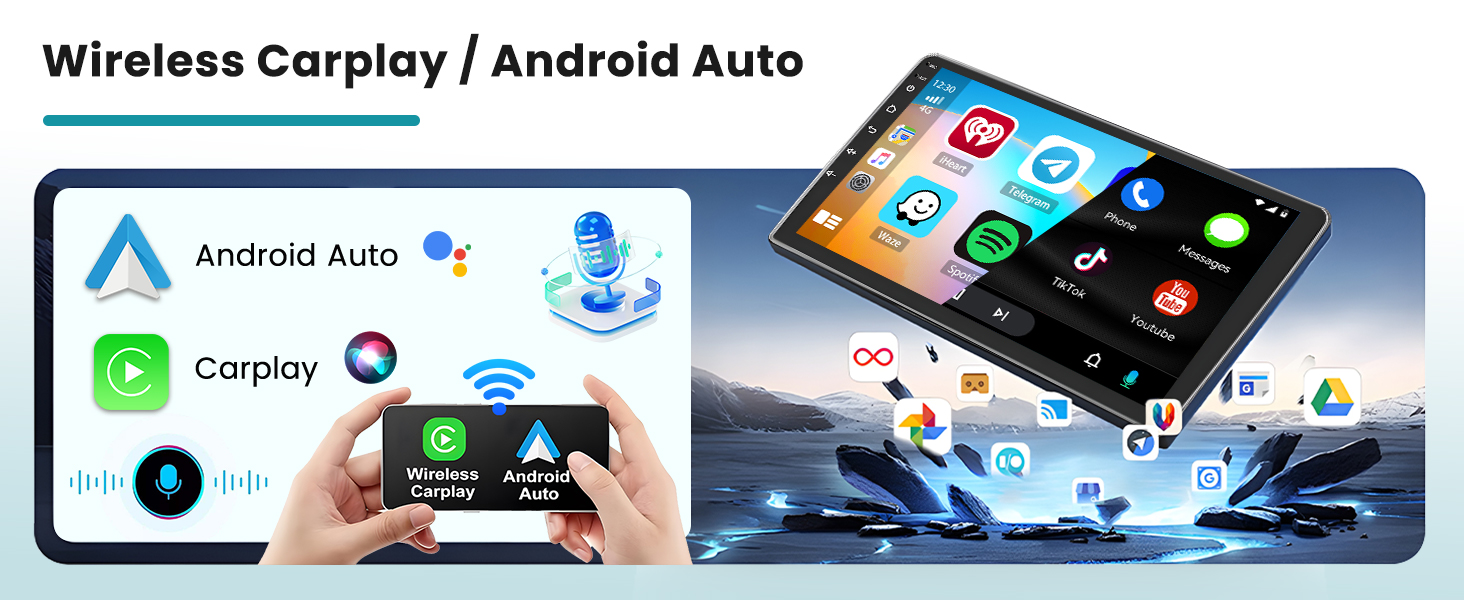
Image: Instructions detailing how to set up steering wheel controls with and without a CANBUS decoder. It shows the menu paths for manual button mapping and CANBUS decoder selection.
Without CANBUS Decoder:
Connect the plugs or the steering wheel control wires (Key1/Key2) in the power cable to the corresponding port or wire of your original car. Then, follow this path: Settings > Car Settings > General (Enter SWC setting interface) to manually match and activate the button function.
With CANBUS Decoder:
Connect the CANBUS before powering on the machine. Then, follow this path: Settings > Car Settings > Factory (000000) > CarType Setting to make SWC work properly. First, select the brand of the CANBUS decoder, then select the matching model and year according to the actual situation.
Operating Instructions
1. Wired/Wireless CarPlay & Android Auto
Easily connect your smartphone to the car stereo via Bluetooth to project its content onto the large screen. Access basic phone functions like calls, navigation, music, and apps.

Image: A visual guide explaining the connectivity options: Apple CarPlay (wireless/wired via Bluetooth/USB), Android Auto (wireless/wired via Bluetooth/USB), and Mirror Link (wireless/wired via Wi-Fi).

Image: A graphic demonstrating the wireless connectivity of CarPlay and Android Auto, showing a smartphone wirelessly mirroring its interface to the car stereo display.
- CarPlay: For iPhone users, access navigation, music, messages, and more.
- Android Auto: For Android users, integrate Google Maps, Spotify, and other apps.
- Mirror Link: Project your phone's screen directly onto the stereo display.
2. GPS Navigation & Wi-Fi Connection
The unit supports GPS navigation. You can purchase maps directly from the Play Store for offline navigation. With Wi-Fi connected, Google Maps can be used perfectly, allowing you to navigate anywhere.

Image: A visual representation of the GPS navigation and Wi-Fi connectivity features, showing map interfaces, music streaming, and a car navigating a city with a GPS signal.
- Pre-installed navigation apps or download your preferred ones from the Play Store.
- Connect to a Wi-Fi hotspot for online navigation and app updates.
3. Steering Wheel Control & AHD Rear View Camera
Upgrade your driving experience with convenient steering wheel controls and enhanced safety with the AHD reversing screen display.

Image: A display showing the rear view camera feed with parking guidelines, along with a virtual representation of steering wheel control buttons and their functions (e.g., volume, track skip, call answer/hang up).
- Support original steering wheel control buttons for easy operation.
- HD rear camera video input provides clear visuals for backing up and parking.
4. Hands-free Bluetooth & FM/RDS Radio
Enjoy hands-free calling, Bluetooth music playback, and access to stable FM/RDS radio with intelligent channel memory.

Image: The car stereo display showing a Bluetooth music playback interface and a phone call screen. Below, the FM radio interface is shown with station frequencies and RDS information like traffic conditions and news.
- Bluetooth: Connect your phone for hands-free calls and audio streaming.
- FM/RDS: Automatically receives station names, traffic conditions, and news.
- Intelligent channel memory allows one-key collection of frequently listened-to stations.
5. UI Themes & EQ Settings
Customize your user interface and audio experience with multiple EQ options and 26 desktop themes.
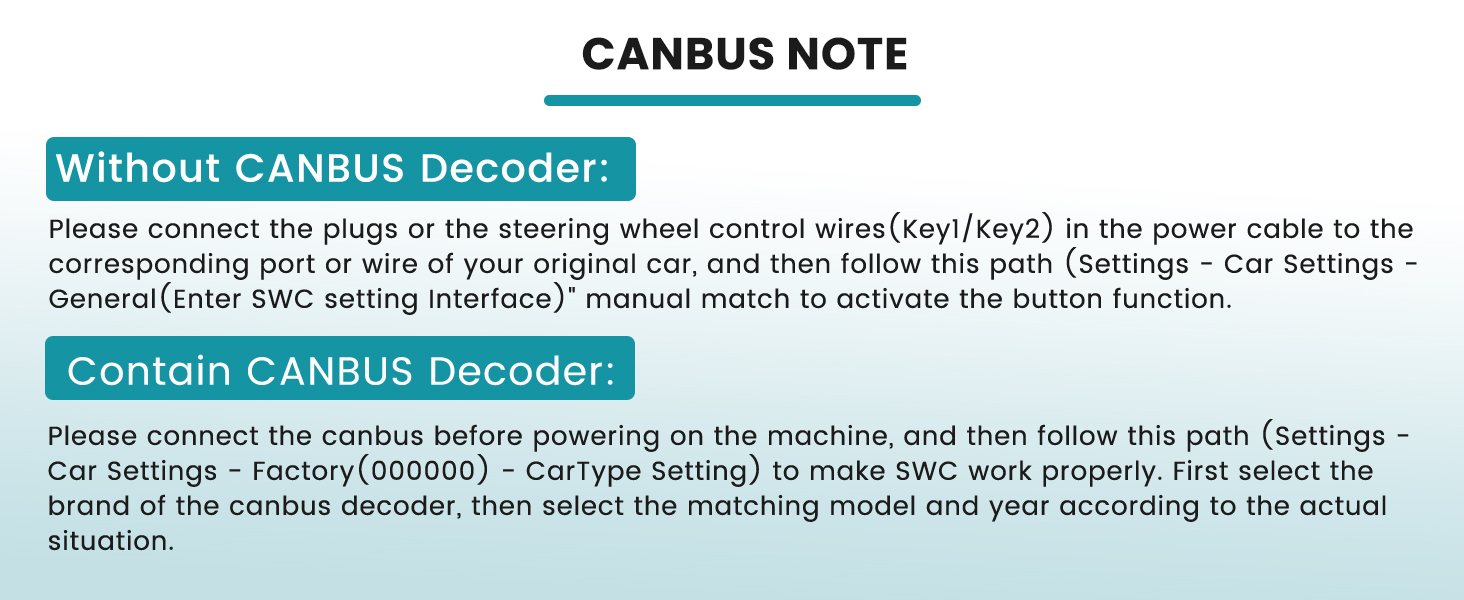
Image: A collage of various user interface themes available on the car stereo, showcasing different layouts and color schemes. Also includes a view of the Digital Sound Processor (DSP) and Equalizer (EQ) settings for audio customization.
- DSP (Digital Sound Processor): Technology to restore the true charm of sound.
- EQ (Equalizer): Multi-mode one-key switching, support for manual adjustment of high/medium/low frequency bands.
- Choose from 26 desktop themes to personalize your display.
Maintenance
- Cleaning: Use a soft, dry cloth to clean the screen and exterior. Avoid abrasive cleaners or solvents.
- Software Updates: Periodically check for software updates via the system settings to ensure optimal performance and access to new features. Connect to Wi-Fi for updates.
- Temperature: Avoid exposing the unit to extreme temperatures, which can affect its lifespan.
Troubleshooting
| Problem | Possible Cause | Solution |
|---|---|---|
| Unit does not power on. | Loose power connection; Blown fuse; Vehicle battery issue. | Check power cables and connections. Inspect vehicle fuses. Ensure car battery is charged. |
| No sound from speakers. | Volume too low; Mute activated; Speaker wires disconnected; Incorrect audio settings. | Increase volume. Check mute function. Verify speaker wire connections. Adjust EQ/DSP settings. |
| CarPlay/Android Auto not connecting. | Bluetooth/Wi-Fi off on phone; Incorrect pairing; USB cable issue; Reverse input cable not connected. | Ensure Bluetooth/Wi-Fi is on. Re-pair device. Try a different USB cable. Ensure reverse input cable is plugged in. |
| GPS signal weak or inaccurate. | GPS antenna obstructed or improperly installed. | Ensure GPS antenna has a clear view of the sky and is securely connected. |
| Steering wheel controls not working. | Incorrect CANBUS setting or wiring. | Refer to the "CANBUS Note" in the Setup section for correct configuration. |
Specifications
| Feature | Detail |
|---|---|
| Item Weight | 3.08 pounds |
| Package Dimensions | 13.39 x 6.69 x 3.94 inches |
| Display Size | 9 Inches |
| Operating System | Android |
| Memory Storage Capacity | 64 GB |
| Connectivity Technology | Bluetooth, Wi-Fi, USB |
| Special Features | Wired/Wireless CarPlay/Android Auto, Touchscreen, FM RDS Radio, Mirror Link, GPS Navigation, DSP, EQ, SWC, 26 Desktop Themes |
| Map Type | North America |
| Audio Output Mode | Stereo |
| Touch Screen Type | Capacitive |
Warranty and Support
Your Roinvou Car Stereo comes with a 1-Year Warranty from the date of purchase.
For technical support, troubleshooting assistance, or warranty claims, please contact Roinvou customer service. You can typically find contact information on the seller's page on Amazon or through the official Roinvou website.
Seller: Roinvou (A3C2QAO2AOYJ8M)
Please have your product model and purchase date ready when contacting support.
Documents and downloads
Ask a question about this manual
Ask about setup, troubleshooting, compatibility, parts, safety, or missing instructions. Manuals+ will review the question and use this page’s manual context to help answer it.