
Bettdow A1931
Bettdow Magic Keyboard Case User Manual
For iPad 11th Generation (A16 2025) and iPad 10th Generation (10.9" 2022)
1. Introduction
This manual provides detailed instructions for the Bettdow Magic Keyboard Case. It is designed to enhance your iPad experience by offering a physical keyboard, a multi-touch trackpad, and a protective case with a floating cantilever stand. Please read this manual thoroughly before use to ensure proper operation and to maximize the product's lifespan.
1.1 Compatibility
This keyboard case is specifically designed for the following iPad models:
- iPad 11th Generation A16 2025 (Model numbers: A3354, A3355, A3356)
- iPad 10th Generation 10.9" 2022 (Model numbers: A2696, A2777, A2757)
Important: This case is NOT compatible with iPad Air 11, iPad Pro 11, or any other iPad models. Please verify your iPad model number on the back of your device before attempting to attach the case.

2. Product Overview
The Bettdow Magic Keyboard Case integrates your iPad into a versatile workstation, offering a comfortable typing experience and precise navigation.

3. Setup
3.1 Attaching Your iPad
- Open the keyboard case.
- Align your compatible iPad with the magnetic back panel of the case. The magnets will securely attach the iPad.
- Adjust the floating cantilever stand to your desired viewing angle.

3.2 Bluetooth Pairing
To connect the keyboard to your iPad:
- Ensure the keyboard is charged (refer to Section 3.3).
- Turn on the keyboard using the power switch (usually located on the side or back).
- On your iPad, go to Settings > Bluetooth.
- Turn on Bluetooth. The iPad will search for nearby devices.
- Locate "Bettdow Keyboard" (or similar name) in the "Other Devices" list and tap to connect.
- A pairing request may appear on your iPad. Confirm the connection.
- The Bluetooth status light on the keyboard's LCD display will indicate a successful connection.
3.3 Charging the Keyboard
The keyboard is powered by an internal battery. To charge:
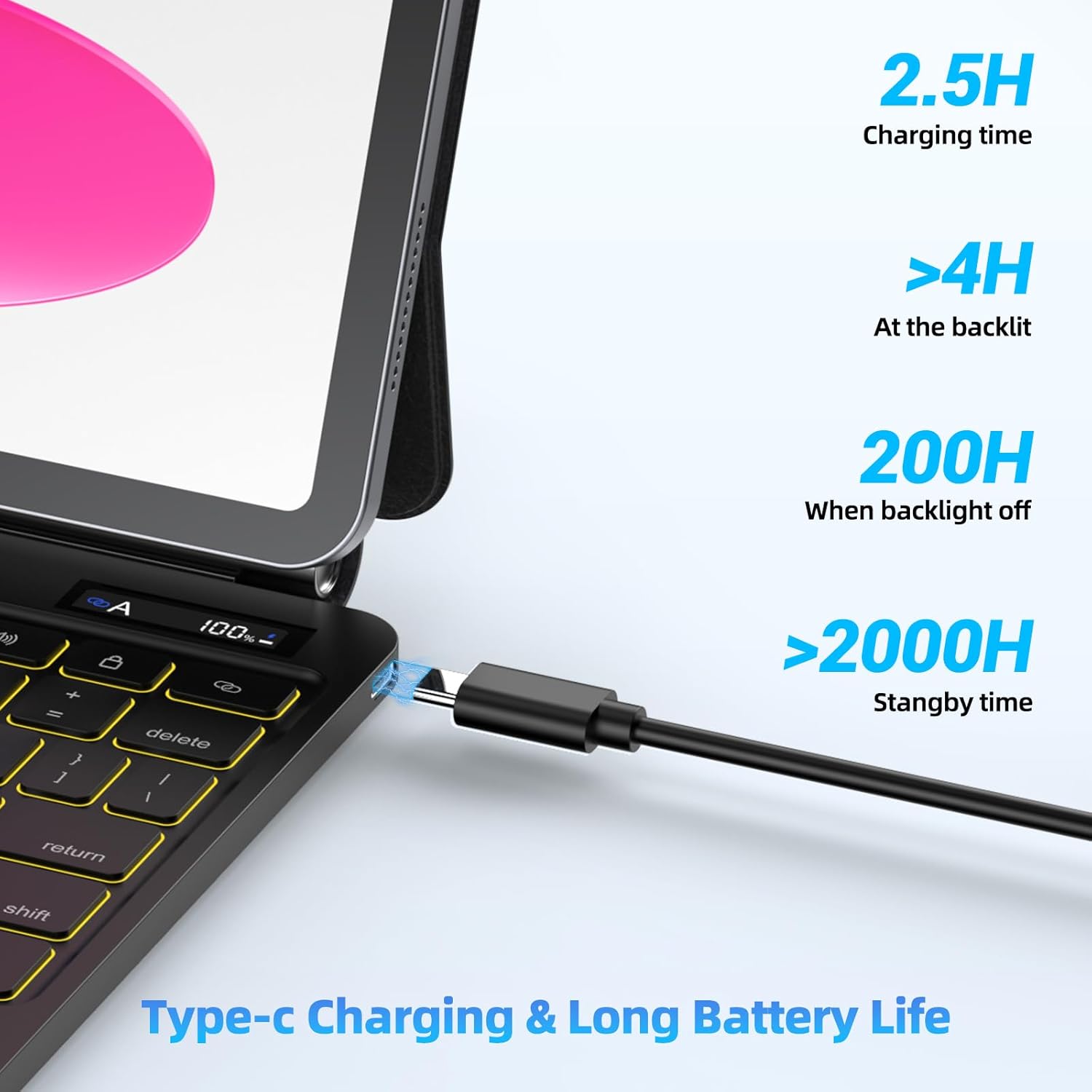
- Connect the provided Type-C charging cable to the charging port on the keyboard.
- Connect the other end of the cable to a USB power adapter (not included) or a computer's USB port.
- The LCD display will show the charging status.
Charging Time: Approximately 2.5 hours.
Battery Life:
- >4 hours with backlight on
- 200 hours with backlight off
- >2000 hours standby time
4. Operating Instructions
4.1 Keyboard Functions
The keyboard features a full row of iPadOS shortcut keys for quick access to common functions.
- Brightness Adjustment: Use dedicated keys to increase or decrease screen brightness.
- Volume Control: Adjust audio volume with dedicated keys.
- Media Playback: Control music or video playback (play/pause, skip tracks).
- Search: Activate iPad search.
- Home: Return to the iPad home screen.
4.2 Adjustable Backlights
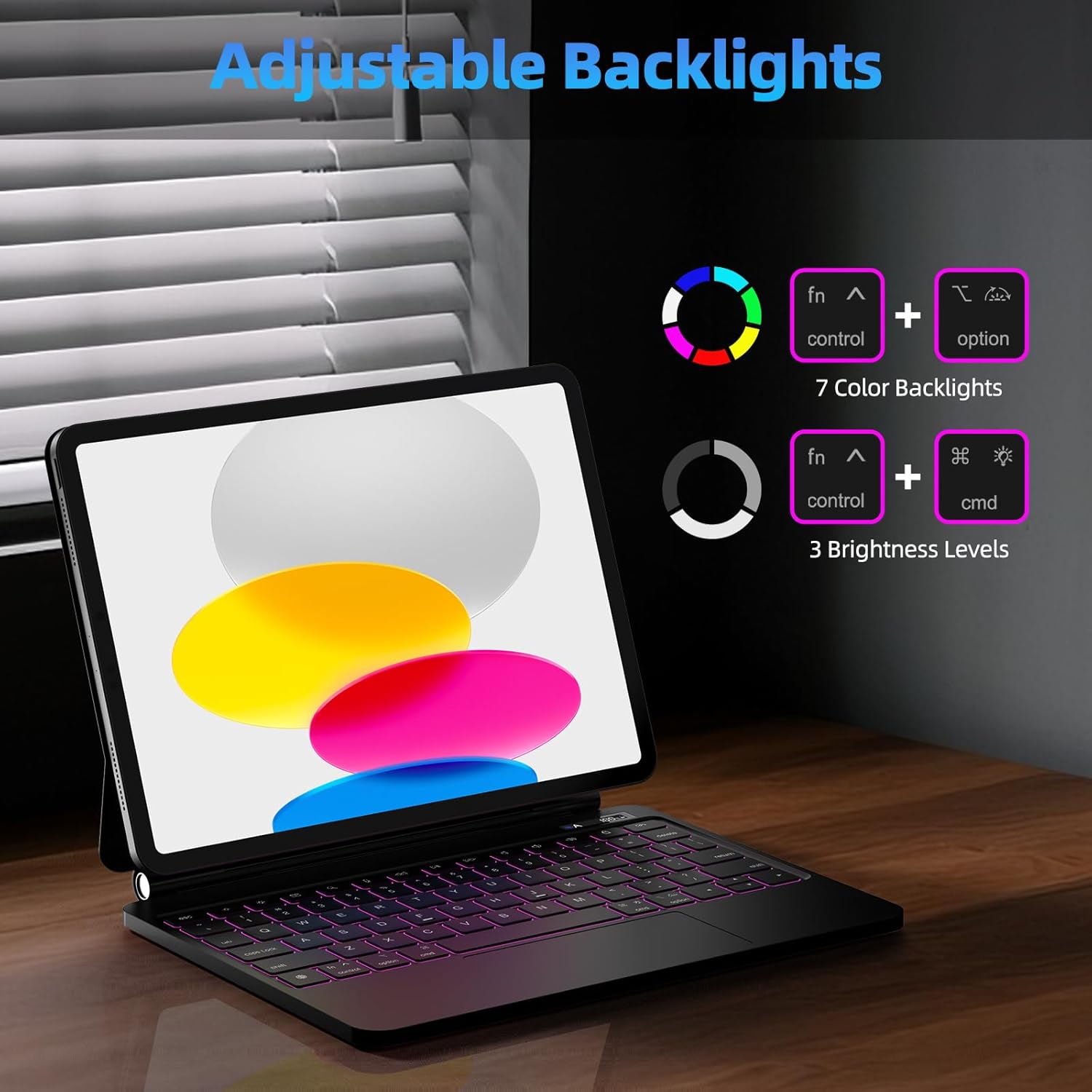
The keyboard features 7-color backlighting with 3 brightness levels.
- Change Color: Press Fn + Control + Option keys simultaneously to cycle through 7 different backlight colors.
- Adjust Brightness: Press Fn + Control + Cmd keys simultaneously to cycle through 3 brightness levels.
4.3 Multi-Touch Trackpad
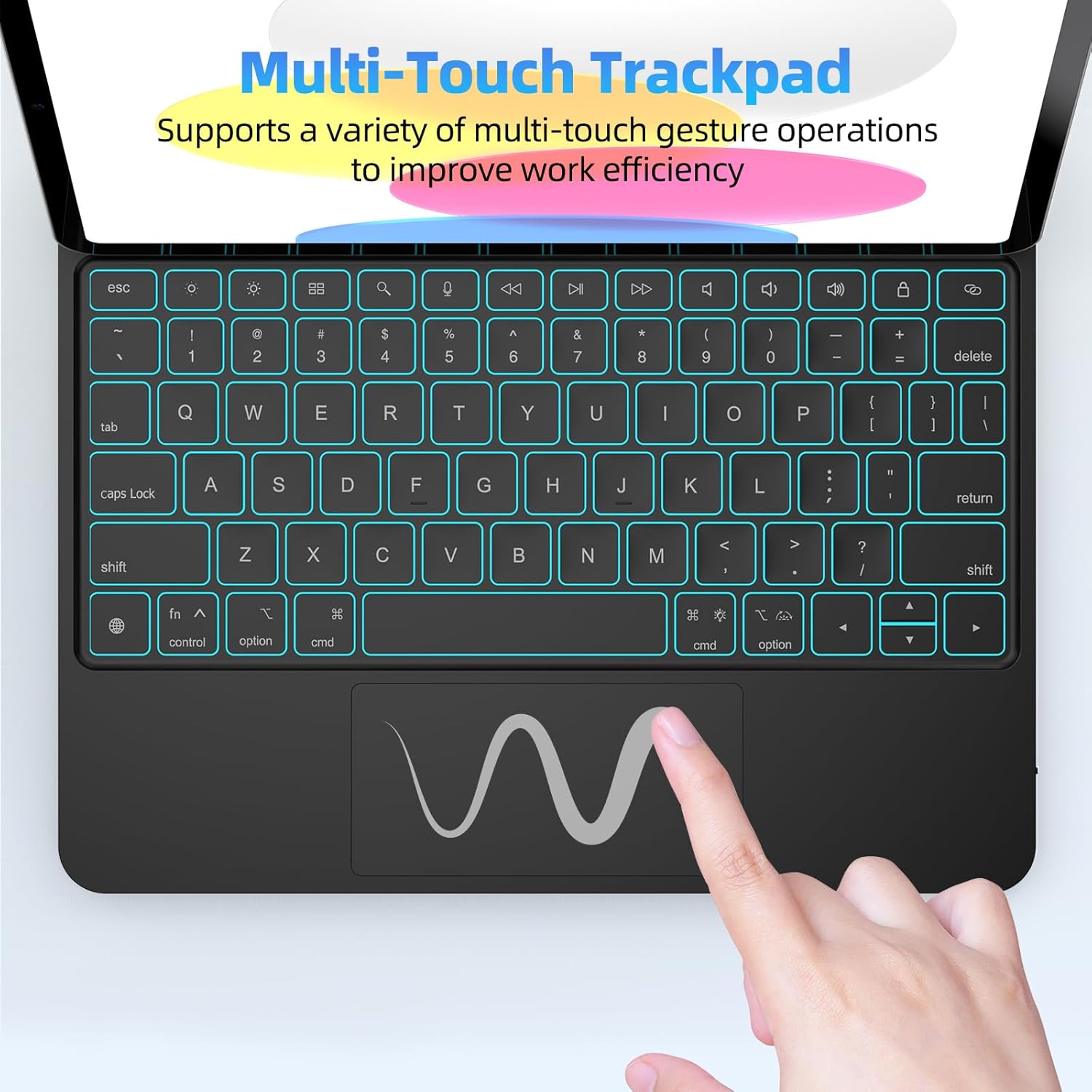
The integrated precision trackpad supports a variety of multi-touch gestures for efficient navigation and interaction with your iPad.
- Single Finger Tap: Select an item.
- Two Finger Scroll: Scroll through content vertically or horizontally.
- Pinch to Zoom: Zoom in or out on content.
- Three Finger Swipe: Switch between open applications or return to the home screen (depending on iPadOS settings).
- Four Finger Swipe: Access App Switcher or Control Center (depending on iPadOS settings).
4.4 LCD Digital Display
The keyboard features an LCD display that provides essential information at a glance:
- Bluetooth Status Light: Indicates pairing and connection status.
- Caps Lock Indicator: Shows when Caps Lock is active.
- Residual Power (%): Displays the current battery level. The percentage will flash when the battery level falls below 20%.
- Charging Indicator: Shows when the keyboard is charging.

5. Maintenance
To ensure the longevity and optimal performance of your Bettdow Magic Keyboard Case, follow these maintenance guidelines:
- Cleaning: Use a soft, lint-free cloth slightly dampened with water or a mild cleaning solution to wipe the exterior surfaces. Avoid harsh chemicals, abrasive cleaners, or excessive moisture.
- Keyboard Keys: Use compressed air to remove dust and debris from between the keys.
- Trackpad: Keep the trackpad clean and free of oils or dirt to maintain its responsiveness.
- Storage: When not in use, store the keyboard case in a cool, dry place away from direct sunlight and extreme temperatures.
- Avoid Liquids: Do not expose the keyboard case to liquids. In case of accidental spills, immediately power off the keyboard and allow it to dry completely before reuse.
6. Troubleshooting
If you encounter issues with your Bettdow Magic Keyboard Case, refer to the following common problems and solutions:
6.1 Keyboard Not Connecting via Bluetooth
- Check Power: Ensure the keyboard is turned on and has sufficient battery charge.
- Bluetooth On: Verify that Bluetooth is enabled on your iPad (Settings > Bluetooth).
- Forget Device: On your iPad, go to Settings > Bluetooth, tap the 'i' icon next to the keyboard's name, and select "Forget This Device." Then, attempt to pair again (refer to Section 3.2).
- Restart Devices: Restart both your iPad and the keyboard, then try pairing again.
- Proximity: Ensure the keyboard and iPad are within close range (typically within 10 meters or 33 feet).
6.2 Keys Not Responding or Typing Incorrectly
- Re-pair Keyboard: Disconnect and re-pair the keyboard as described in Section 6.1.
- Check for Debris: Inspect keys for any obstructions or debris. Use compressed air if necessary.
- Software Update: Ensure your iPad's operating system (iPadOS) is up to date.
6.3 Trackpad Not Responding
- Clean Trackpad: Ensure the trackpad surface is clean and dry.
- Re-pair Keyboard: Disconnect and re-pair the keyboard.
- iPadOS Settings: Check iPadOS settings for trackpad functionality (Settings > General > Trackpad).
6.4 Backlight Not Working
- Check Battery: Ensure the keyboard has sufficient battery charge. Backlight functionality may be limited on low battery.
- Adjust Settings: Use the backlight adjustment key combinations (Fn + Control + Option for color, Fn + Control + Cmd for brightness) to ensure it's not set to off or lowest brightness.
7. Specifications
| Brand | Bettdow |
| Model Number | A1931 |
| Connectivity Technology | Bluetooth |
| Compatible Devices | iPad 11th Gen A16 2025 (A3354/A3355/A3356), iPad 10th Gen 2022 (A2696/A2777/A2757) |
| Color | Black |
| Material | Plastic |
| Special Features | Backlit, Lightweight, Portable, Trackpad, Floating Cantilever Stand, LCD Display |
| Keyboard Backlight Color Support | RGB (7 Colors) |
| Power Source Type | Battery Powered |
| Number of Batteries | 1 (12V, included) |
| Lithium Battery Energy Content | 0.67 Watt Hours |
| Product Dimensions | 27.31 x 20.8 x 2.69 cm (10.75 x 8.19 x 1.06 inches) |
| Item Weight | 910 g |
8. Warranty and Support
8.1 Warranty Information
Bettdow products are manufactured to high-quality standards. This product comes with a standard manufacturer's warranty against defects in materials and workmanship. Please retain your proof of purchase for warranty claims. Specific warranty terms and duration may vary by region and retailer.
8.2 Customer Support
For technical assistance, troubleshooting, or warranty inquiries, please contact Bettdow customer support through the retailer where the product was purchased or visit the official Bettdow website for contact information.
Ask a question about this manual
Ask about setup, troubleshooting, compatibility, parts, safety, or missing instructions. Manuals+ will review the question and use this page’s manual context to help answer it.