
1. Introduction
Thank you for purchasing the FYHXele 27 inch 4K UHD 120Hz Gaming Monitor. This manual provides essential information for setting up, operating, and maintaining your monitor. Please read it thoroughly before use and retain it for future reference.
Safety Information:
- Do not expose the monitor to rain or moisture to prevent fire or shock hazards.
- Do not open the monitor casing. There are no user-serviceable parts inside. Refer all servicing to qualified personnel.
- Place the monitor on a stable, flat surface to prevent it from falling.
- Ensure proper ventilation around the monitor to prevent overheating.
- Use only the power adapter supplied with the monitor.
2. Package Contents
Please check the package contents to ensure all items are present:
- FYHXele 27 inch 4K UHD 120Hz Gaming Monitor
- Monitor Stand (Base and Neck)
- Power Adapter and Power Cable
- HDMI Cable
- DisplayPort (DP) Cable
- User Manual
- Screws for Stand Assembly
3. Setup
3.1 Assembling the Monitor Stand
- Carefully remove the monitor from its packaging, placing it face down on a soft, clean surface to prevent scratches.
- Attach the stand neck to the monitor panel using the provided screws.
- Connect the stand base to the stand neck, securing it with the designated screw.
- Place the assembled monitor on a stable desk.
3.2 VESA Wall Mount Installation (Optional)
The monitor supports VESA mounting (100x100mm) for alternative installation options. If using a VESA mount, ensure the mount is rated for the monitor's weight and size. Remove the stand before attaching the VESA mount bracket.
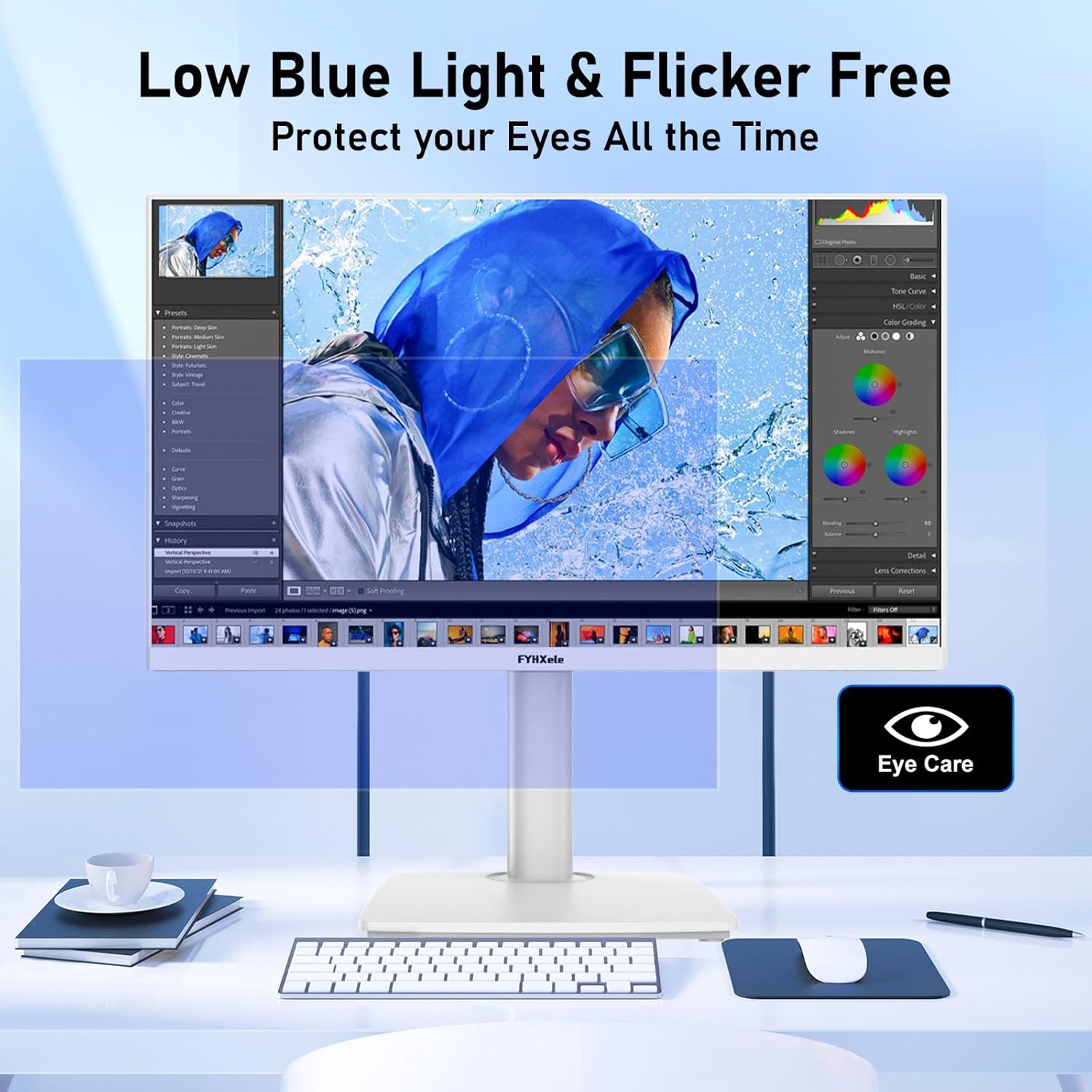
Image: Rear view of the monitor, highlighting the VESA 100x100mm mounting points and input ports.
3.3 Connecting Cables
Connect the necessary cables to the corresponding ports on the monitor and your computer or gaming console:
- Power: Connect the power adapter to the monitor's power input and then to a power outlet.
- Video Input: Use either an HDMI 2.1 cable or a DisplayPort 1.4 cable for video connection. The monitor features two HDMI 2.1 ports and two DisplayPort 1.4 ports.
- Audio Output: Connect headphones or external speakers to the 3.5mm earphone jack if desired.

Image: Diagram illustrating the monitor's multiple input interfaces, including HDMI 2.1 and DisplayPort 1.4 ports.
3.4 Initial Power On
After connecting all cables, press the power button on the monitor to turn it on. The monitor should automatically detect the input signal. If not, you may need to manually select the input source using the On-Screen Display (OSD) menu.
4. Operating Instructions
4.1 On-Screen Display (OSD) Menu
The OSD menu allows you to adjust various monitor settings. Typically, buttons located on the back or bottom of the monitor are used to navigate the OSD. Common settings include:
- Brightness/Contrast: Adjust the display's luminance and contrast levels.
- Color Settings: Modify color temperature, gamma, and individual RGB values.
- Input Source: Manually select between HDMI and DisplayPort inputs.
- Picture Mode: Choose from preset display modes (e.g., Standard, Game, Movie, sRGB).
- Audio: Adjust volume for the earphone jack.
- System Settings: Language, OSD timeout, factory reset.
4.2 Key Features
Your FYHXele 27 inch 4K UHD 120Hz Gaming Monitor offers advanced features for an enhanced visual experience:
- 4K UHD Resolution (3840x2160): Experience exceptional clarity and detail.

Image: Visual comparison demonstrating the superior clarity of 4K UHD (3840x2160) resolution compared to QHD (2560x1440).
- 120Hz Refresh Rate: Enjoy smoother motion and reduced input lag, especially beneficial for gaming.

Image: A split image comparing the visual smoothness of a 60Hz refresh rate versus a 120Hz refresh rate.
- Fast IPS Panel with 1ms GTG Response Time: Delivers vibrant colors and rapid pixel response for a fluid gaming experience.
- 100% sRGB Color Gamut & HDR400 Support: Provides accurate and rich color reproduction with enhanced contrast and brightness for HDR content.

Image: The monitor showcasing rich color performance, with indicators for 100% sRGB, 90% DCI-P3, and 350 cd/m² brightness.
Image: A visual demonstration of the difference between HDR OFF and HDR 400, illustrating improved picture quality with HDR enabled.
- FreeSync & G-Sync Compatibility: Synchronizes the monitor's refresh rate with your GPU's frame rate to eliminate screen tearing and stuttering.

Image: A split image illustrating the effect of FreeSync/G-Sync, showing a smooth image when enabled and a torn image when disabled.
- Eye Protection Mode (Low Blue Light & Flicker-Free): Reduces eye strain during prolonged use.

Image: The monitor screen with a blue filter overlay, representing the low blue light and flicker-free eye protection features.
- Adjustable Tilt: The monitor stand allows for tilt adjustment (-5° to 20°) for optimal viewing angles.
- RGB Lights: Customizable RGB lighting on the back of the monitor to enhance your setup's ambiance.
5. Maintenance
Proper maintenance ensures the longevity and optimal performance of your monitor.
- Cleaning the Screen: Gently wipe the screen with a soft, lint-free cloth. For stubborn marks, dampen the cloth slightly with water or a specialized screen cleaner. Never spray cleaner directly onto the screen.
- Cleaning the Casing: Use a soft, dry cloth to wipe the monitor casing. Avoid abrasive cleaners or solvents.
- Ventilation: Ensure the ventilation openings on the monitor are not blocked to prevent overheating.
- Power Off: Always turn off the monitor and unplug it from the power outlet before cleaning or if it will be unused for an extended period.
6. Troubleshooting
If you encounter issues with your monitor, refer to the following common problems and solutions:
| Problem | Possible Cause | Solution |
|---|---|---|
| No image on screen | Monitor not powered on; Incorrect input source; Loose video cable | Ensure power cable is connected and monitor is on. Select correct input source via OSD. Check video cable connections. |
| Image flickering or unstable | Faulty video cable; Graphics card driver issues; Refresh rate mismatch | Replace video cable. Update graphics drivers. Ensure refresh rate is set correctly in OS display settings. |
| No sound from earphone jack | Volume too low; Incorrect audio output selected on PC | Adjust monitor volume via OSD. Select monitor as audio output device in your computer's sound settings. |
| Screen tearing (horizontal lines) | Adaptive Sync (FreeSync/G-Sync) not enabled | Enable FreeSync/G-Sync in the monitor's OSD and your graphics card control panel. |
7. Specifications
| Feature | Detail |
|---|---|
| Screen Size | 27 Inches |
| Resolution | 3840 x 2160 Pixels (4K UHD 2160p) |
| Refresh Rate | 120Hz |
| Panel Type | Fast IPS |
| Response Time | 1ms GTG |
| Color Gamut | 100% sRGB |
| HDR Support | HDR 400 |
| Brightness | 350 cd/m² |
| Contrast Ratio | 1000:1 (Static) |
| Adaptive Sync | FreeSync & G-Sync Compatible |
| Connectivity | 2x HDMI 2.1, 2x DisplayPort 1.4, 1x Earphone Jack |
| VESA Mount | 100x100mm |
| Tilt Adjustment | -5° to 20° |
| Product Dimensions | 1.68 x 22.31 x 13.85 inches |
| Item Weight | 12.42 pounds |
8. Warranty and Support
8.1 Warranty Information
Your FYHXele monitor is covered by a limited warranty from the date of purchase. This warranty covers manufacturing defects and workmanship under normal use. Please retain your proof of purchase for warranty claims. The warranty does not cover damage caused by misuse, accidents, unauthorized modifications, or external factors.
8.2 Customer Support
For technical assistance, warranty inquiries, or any questions regarding your FYHXele monitor, please contact our customer support team:
- Email: support@fyhxele.com
- Website: FYHXele Official Store
Please have your monitor model number and purchase date ready when contacting support.
