
1. Introduction
This manual provides essential information for setting up, operating, and maintaining your Acer Aspire Go 15 Laptop. Please read this guide thoroughly to ensure proper use and to maximize the lifespan of your device. The Acer Aspire Go 15 is designed for everyday productivity and connectivity, featuring a 15.3-inch WUXGA IPS display and an Intel Core i5-1334U processor.
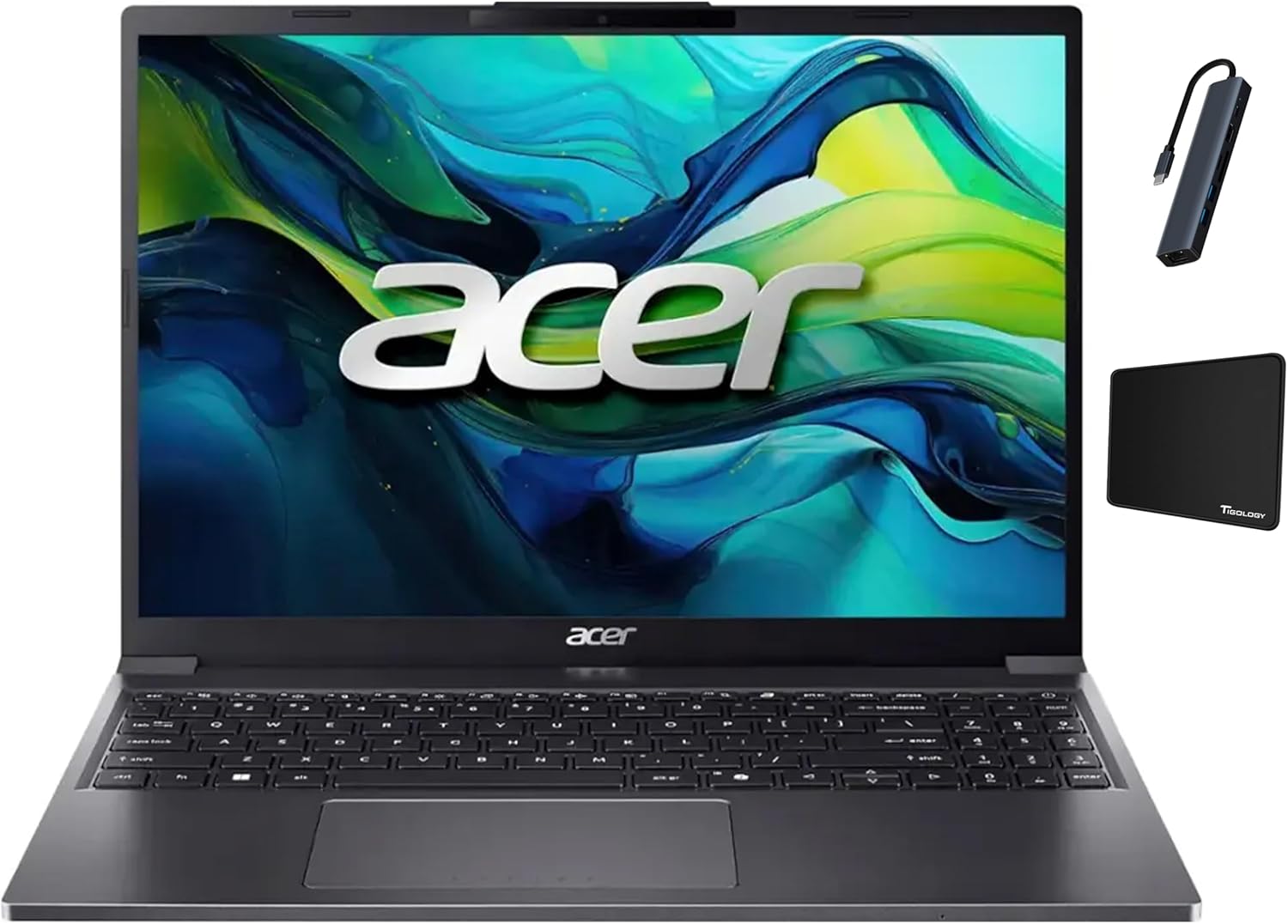
2. Package Contents
Verify that all items listed below are included in your product package:
- Acer Aspire Go 15 Laptop
- AC Power Adapter
- Tigology 7-in-1 USB Type C Hub
- Tigology Mouse Pad
- Integrated Webcam

3. Hardware Overview
Familiarize yourself with the various components and ports of your Acer Aspire Go 15 Laptop.
3.1 Left Side Ports

3.2 Right Side Ports

3.3 Keyboard and Touchpad

4. Setup
4.1 Initial Charging
Before first use, connect the AC power adapter to the laptop's power port and a wall outlet. Allow the battery to charge for at least 30 minutes before powering on the device.
4.2 Powering On
Open the laptop lid and press the power button, typically located on the top-right of the keyboard area. The laptop will boot up and guide you through the initial Windows 11 Home setup process.
4.3 Windows 11 Home Setup
Follow the on-screen instructions to configure your Windows 11 Home operating system. This includes selecting your region, connecting to a Wi-Fi network, creating a user account, and reviewing privacy settings.
5. Operating Instructions
5.1 Power Management
- Sleep Mode: Close the lid or press the power button briefly to enter sleep mode.
- Shut Down: Click the Start button, then Power > Shut down.
- Restart: Click the Start button, then Power > Restart.
5.2 Connecting Peripherals
Use the available USB-A, USB-C, and HDMI ports to connect external devices such as mice, keyboards, external displays, or the included Tigology 7-in-1 USB Type C Hub.
5.3 Wireless Connectivity
To connect to Wi-Fi or Bluetooth devices, access the network and internet settings in Windows 11 Home. Ensure Wi-Fi and Bluetooth are enabled in the Quick Settings panel.
6. Maintenance
6.1 Cleaning the Laptop
Use a soft, lint-free cloth slightly dampened with water or a screen cleaner to clean the display and exterior surfaces. Avoid harsh chemicals or abrasive materials. For the keyboard, use compressed air to remove dust and debris.
6.2 Battery Care
To prolong battery life, avoid fully discharging the battery frequently. Store the laptop in a cool, dry place when not in use for extended periods. It is recommended to keep the battery charge between 20% and 80% for optimal longevity.
6.3 Software Updates
Regularly check for and install Windows updates to ensure your system has the latest security patches and performance improvements. Go to Settings > Windows Update to manage updates.
7. Troubleshooting
This section addresses common issues you might encounter with your laptop.
7.1 Laptop Does Not Power On
- Ensure the AC adapter is securely connected to both the laptop and a working power outlet.
- Verify the power outlet is functional by plugging in another device.
- If the battery is completely drained, allow it to charge for a few minutes before attempting to power on.
7.2 Display Issues
- If the screen is blank, try pressing the function key combination to toggle the display output (e.g., Fn + F5 or F6, depending on your model).
- Ensure external monitors are properly connected and powered on.
- Restart the laptop.
7.3 Wi-Fi or Bluetooth Connectivity Problems
- Check if Wi-Fi or Bluetooth is enabled in Windows Quick Settings.
- Restart your router/modem for Wi-Fi issues.
- Ensure Bluetooth devices are in pairing mode and within range.
- Update wireless drivers through Windows Update or Acer's support website.
7.4 Slow Performance
- Close unnecessary applications running in the background.
- Check for and install any pending Windows updates.
- Run a disk cleanup to free up storage space.
- Ensure your antivirus software is up to date and perform a scan.
8. Specifications
| Feature | Specification |
|---|---|
| Model Name | Aspire Go 15 |
| Processor | Intel Core i5-1334U (1.3 GHz, up to 4.60 GHz, 10-core) |
| Display | 15.3-inch WUXGA (1920 x 1200) IPS, 16:10 aspect ratio |
| RAM | 64GB DDR5 |
| Storage | 8TB PCIe NVMe SSD |
| Operating System | Windows 11 Home |
| Graphics | Intel UHD Graphics (Integrated) |
| Ports | 2x USB-A 3.2, 2x USB-C 3.2, 1x HDMI |
| Wireless Connectivity | Wi-Fi, Bluetooth |
| Dimensions (WxLxH) | 2.56 x 12.2 x 19.6 inches |
| Weight | 3.7 pounds |
| Color | Steel Gray |
9. Safety Information
- Do not expose the laptop to extreme temperatures, direct sunlight, or high humidity.
- Avoid placing heavy objects on the laptop.
- Use only the provided power adapter or a compatible replacement.
- Keep liquids away from the laptop to prevent electrical shock or damage.
- Do not attempt to disassemble or repair the laptop yourself. Refer to qualified service personnel.
10. Warranty and Support
For warranty information and technical support, please refer to the documentation included with your purchase or visit the official Acer support website. You can also contact Acer customer service for assistance with product issues or inquiries.


