
1. Introduction
This manual provides detailed instructions for the setup, operation, and maintenance of your new FD V2050 Wireless Keyboard and Mouse Combo. Please read this guide thoroughly to ensure optimal performance and longevity of your device. This combo offers a reliable 2.4GHz wireless connection, a comfortable typing experience with its retro-style round keys, and smart power-saving features.
2. Package Contents
- Wireless Keyboard x 1
- Wireless Mouse x 1
- USB Receiver x 1
- User Manual x 1

3. Setup Guide
Follow these simple steps to set up your wireless keyboard and mouse combo:
- Insert Batteries: Open the battery compartments on both the keyboard and the mouse. Insert the required AA batteries (not included), ensuring correct polarity.
- Locate USB Receiver: The 2.4GHz USB receiver is typically stored inside the mouse's battery compartment for convenience. Remove it carefully.
- Plug in Receiver: Insert the USB receiver into an available USB-A port on your computer or laptop.
- Automatic Connection: The keyboard and mouse will automatically connect to your device. No additional drivers are usually required.

Note:
- Ensure your device has a USB-A port for the receiver. For devices with USB-C ports (e.g., modern MacBooks), a USB-A to USB-C adapter (sold separately) will be necessary.
4. Operating Instructions
4.1. 2.4GHz Wireless Connection
The combo utilizes a stable 2.4GHz wireless connection, providing a reliable range of up to 10 meters (33 feet). This ensures a consistent and responsive experience without the clutter of cables.

4.2. Smart Power-Saving (Auto-Sleep)
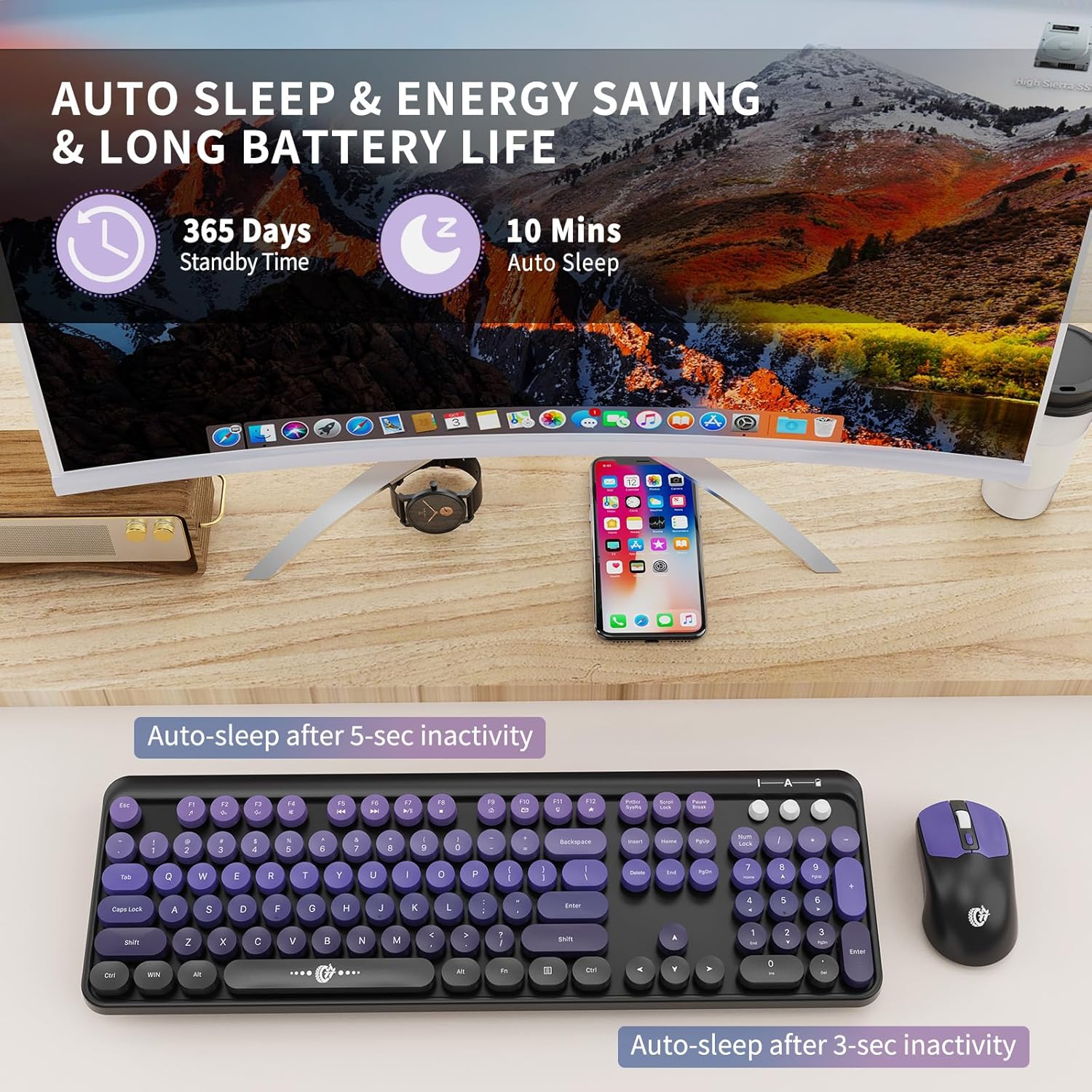
To extend battery life, both the keyboard and mouse feature an auto-sleep mode. The keyboard enters sleep mode after 5 minutes of inactivity, and the mouse after 3 seconds. Simply press any key or click the mouse to wake them up instantly.
4.3. Function Keys (12 Hot Keys)
The keyboard includes 12 dedicated function keys (F1-F12) that can be activated by pressing the Fn key simultaneously with the desired function key. These provide quick access to multimedia controls, email, search, and other common tasks.
- Fn + Esc: Music Player
- Fn + F1: Play/Pause
- Fn + F2: Previous Track
- Fn + F3: Next Track
- Fn + F4: Volume+
- Fn + F5: Volume-
- Fn + F6: Mute
- Fn + F7: Web Browser
- Fn + F8: Search
- Fn + F9: Favorites
- Fn + F10: Email
- Fn + F11: Lock Screen
- Fn + F12: Windows Key

4.4. Indicator Lights
The keyboard features indicator lights in the upper right corner:
- Num Lock Indicator: Illuminates when the numeric keypad is active.
- Low Battery / 2.4G Connection Indicator: Flashes to indicate low battery or connection status.
- Uppercase and Lowercase Switch Indicator (Caps Lock): Illuminates when Caps Lock is active.

4.5. Ergonomic Design
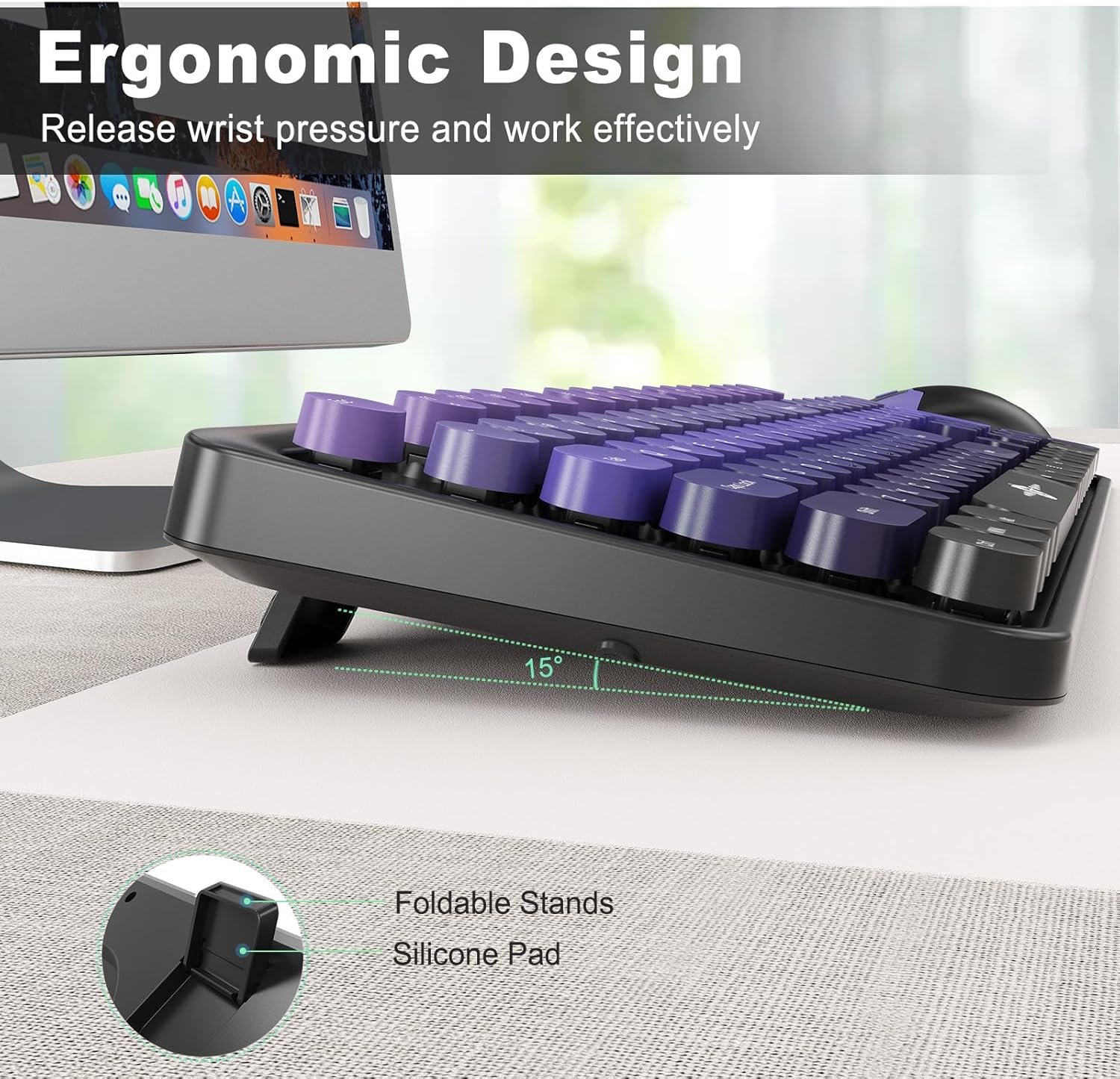
The keyboard is designed with foldable stands, allowing you to adjust the tilt angle by 15 degrees for improved ergonomic comfort and reduced wrist pressure during extended use.
4.6. Mouse DPI Adjustment
The wireless mouse features adjustable DPI settings (800/1000/1600) to customize cursor sensitivity. Press the DPI button located on top of the mouse to cycle through the settings.

5. Compatibility
The FD V2050 Wireless Keyboard and Mouse Combo offers wide compatibility with various operating systems and devices:
- Operating Systems: Windows (2000/ME/XP/7/8/10/11), Mac OS, Android, Linux, Chrome OS.
- Compatible Devices: Desktops, Laptops, Chromebooks, Smart TVs, Tablets (with appropriate adapters).
Important Notes:
- The hotkeys may not be fully compatible with Mac systems.
- This keyboard uses a USB-A receiver. Devices with USB-C ports (for example, modern MacBooks) will require a USB-A to USB-C adapter (sold separately).

6. Maintenance
To ensure the longevity and optimal performance of your FD V2050 Wireless Keyboard and Mouse Combo, please follow these maintenance guidelines:
- Battery Replacement: Replace AA batteries in both the keyboard and mouse when the low battery indicator flashes or when performance degrades. Expected battery life is up to 12 months under normal usage, thanks to the auto-sleep feature.
- Cleaning: Use a soft, dry cloth to clean the surfaces of the keyboard and mouse. For stubborn dirt, a slightly damp cloth with mild soap can be used, ensuring no liquid enters the device. Avoid harsh chemicals or abrasive materials.
- Storage: When not in use for extended periods, remove the batteries to prevent leakage. Store the devices in a cool, dry place away from direct sunlight and extreme temperatures.
- USB Receiver: Keep the USB receiver in a safe place, preferably stored within the mouse's battery compartment when traveling or not in use, to prevent loss or damage.
7. Troubleshooting
If you encounter any issues with your keyboard and mouse combo, please refer to the following common solutions:
- No Connection / Lag:
- Ensure the USB receiver is securely plugged into a working USB-A port.
- Check if the batteries in both the keyboard and mouse are correctly inserted and have sufficient charge. Replace if necessary.
- Move the keyboard and mouse closer to the USB receiver to ensure they are within the 10-meter operating range.
- Try plugging the USB receiver into a different USB port on your computer.
- Restart your computer.
- Keys Not Responding / Incorrect Output:
- Check the battery level of the keyboard.
- Ensure the keyboard is properly connected to the receiver.
- If specific keys produce incorrect symbols (e.g., '?' shows '_'), verify your operating system's keyboard layout settings match a standard QWERTY layout.
- Mouse Not Moving / Erratic Movement:
- Check the mouse battery level.
- Ensure the mouse is on a clean, non-reflective surface.
- Adjust the mouse DPI setting using the DPI button.
- Auto-Sleep Feature:
- The auto-sleep feature is designed to save power. If the mouse or keyboard goes to sleep quickly, this is normal behavior. Simply click or press a key to wake it up.
If these steps do not resolve your issue, please contact customer support for further assistance.
8. Specifications
| Feature | Specification |
|---|---|
| Brand | FD |
| Model | V2050 |
| Color | Purple Gradient |
| Connectivity Technology | 2.4GHz Wireless (USB Receiver) |
| Special Features | Plug and Play, Portable, Auto-Sleep, Energy Saving |
| Compatible Devices | PC, Laptop, Chromebook, Smart TV, Tablets |
| Operating System | Windows, Mac OS, Android, Linux, Chrome OS |
| Batteries Required | Yes (AA, not included) |
| Number of Keys | 104 |
| Power Source | Battery Powered |
| Keyboard Layout | QWERTY |
| Item Weight | 0.74 Kilograms |
| Mouse DPI | 800/1000/1600 |
9. Warranty and Support
FD offers a three-year worry-free warranty for this product. Additionally, a 60-day money-back guarantee or replacement option is available. For any inquiries or concerns regarding your FD V2050 Wireless Keyboard and Mouse Combo, please do not hesitate to contact FD customer support. Your satisfaction is our top priority.
You can typically find customer support contact information on the product packaging or the official FD website.