
ZWNAV ZW15F103220071417
ZWNAV 15.8 Inch Android 14 Car Multimedia Player User Manual
Model: ZW15F103220071417
1. Product Overview
This manual provides detailed instructions for the ZWNAV 15.8 Inch Qualcomm 128G Android 14 Carplay Multimedia Player. This head unit is designed to enhance your in-car entertainment and navigation experience with advanced features and seamless integration.
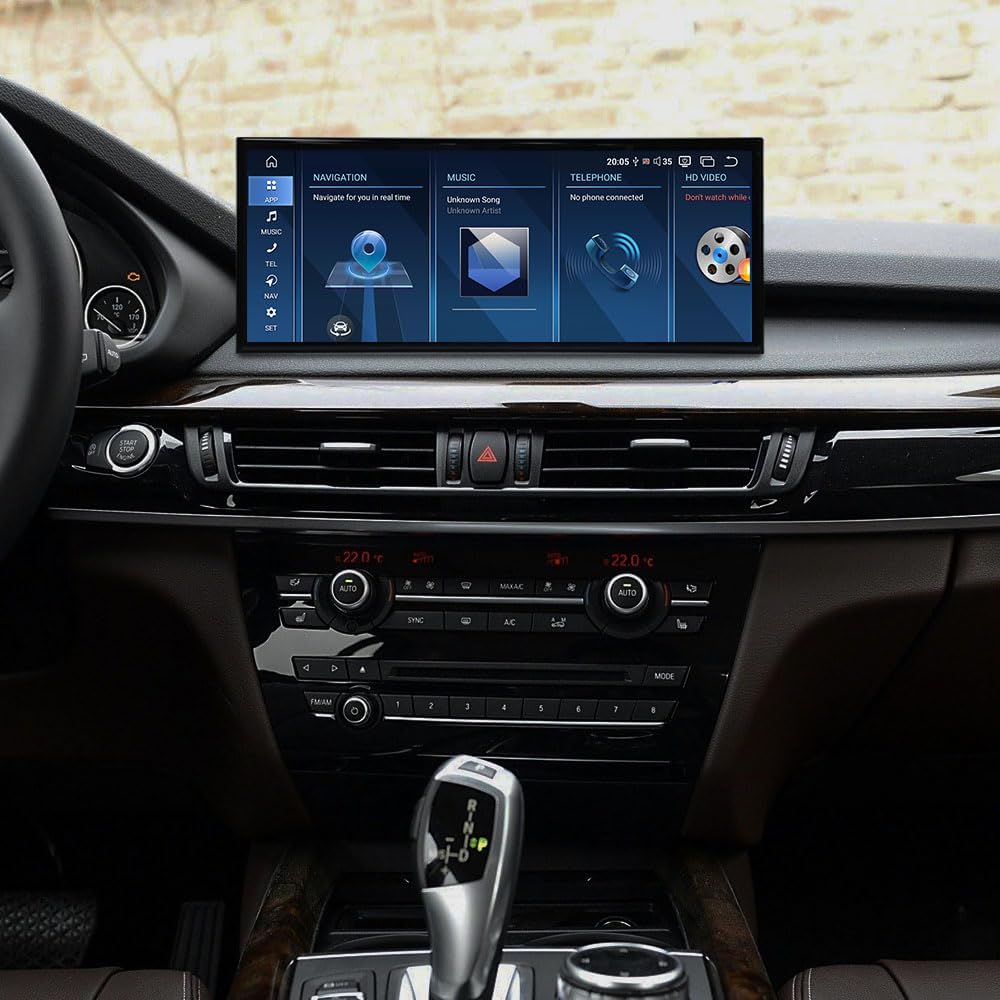
Figure 1.1: ZWNAV 15.8 Inch Multimedia Player integrated into a BMW vehicle dashboard, showcasing its large display and user interface.
2. Vehicle Compatibility
This ZWNAV multimedia player is specifically designed for the following BMW models and systems:
- BMW X5 F15 (2014-2019)
- BMW X6 F16 (2014-2019)
- BMW X5M (2014-2019)
- Compatible with NBT and EVO systems.
3. Key Features
- Operating System: Android 14
- Processor: Qualcomm 680 8-core CPU
- Memory: 8GB RAM, 128GB ROM
- Display: 15.8-inch touchscreen
- Connectivity: 4G/Wifi/Mobile phone hotspot, Bluetooth 5.0
- Navigation: Supports Google Map, IGO, Sygic, Waze, Yandex navigation
- Car Integration: Wireless Apple Carplay, supports factory steering wheel control, radar parking sensor, and A/C information display.
- Audio: Built-in SI4745 radio module with RDS, Built-in DSP (16 bands EQ), Built-in 7850 Amplifier (45W*4 audio output).
4. Setup and Installation
The ZWNAV multimedia player is designed for plug-and-play installation, simplifying the setup process. It comes with all necessary cables and a CANBUS decoder for seamless integration with your vehicle's existing systems.
4.1 Included Components
Before beginning installation, ensure all components are present:
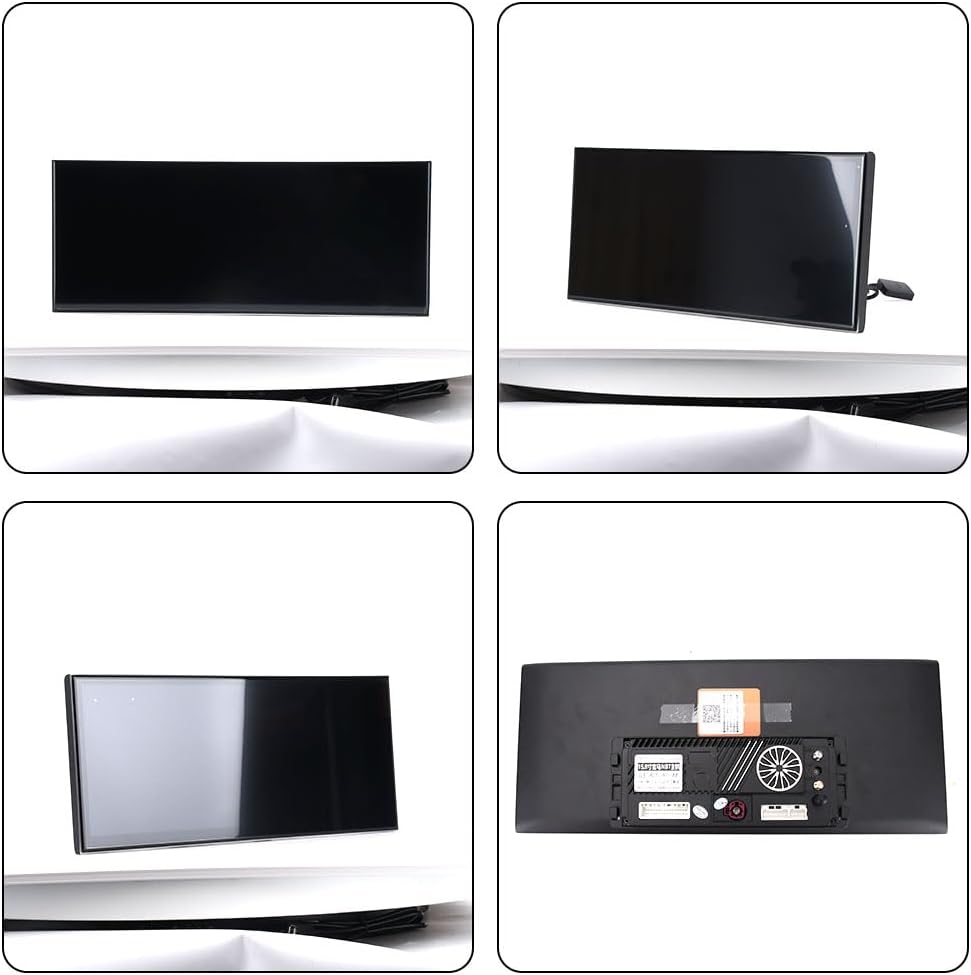
Figure 4.1: Overview of the main unit and included accessories, including GPS antenna, WiFi antenna, SIM card slot, power cable, and external microphone.
- Main Head Unit (15.8-inch display)
- Power Cable
- GPS Antenna
- WiFi Antenna
- SIM Card Slot/Cable
- Microphone
- CANBUS Decoder (integrated with cables)
4.2 Installation Steps (General Guidance)
- Preparation: Ensure the vehicle's ignition is off and the battery is disconnected before starting any electrical work.
- Remove Factory Unit: Carefully remove the existing factory head unit and display from your BMW. Refer to your vehicle's service manual for specific removal instructions.
- Connect Cables: Connect the provided power cable and CANBUS decoder to the vehicle's wiring harness. Ensure all connections are secure.
- Connect Peripherals: Connect the GPS antenna, WiFi antenna, and external microphone to the corresponding ports on the ZWNAV head unit.
- Install SIM Card (Optional): If using 4G connectivity, insert a compatible SIM card into the designated slot.
- Mount New Unit: Carefully mount the ZWNAV 15.8-inch display into the dashboard opening. Ensure it is securely fastened.
- Test Functionality: Reconnect the vehicle battery and turn on the ignition. Test all functions of the new head unit, including audio, navigation, Bluetooth, and steering wheel controls.
- Final Assembly: Reassemble any removed trim pieces or panels.
Note: Professional installation is recommended to ensure proper functionality and avoid damage to your vehicle.
5. Operating Instructions
The ZWNAV multimedia player runs on Android 14, offering a familiar and intuitive user interface. Navigation is primarily via the 15.8-inch touchscreen.
5.1 User Interface Overview

Figure 5.1: Main user interface screen displaying quick access icons for Navigation, Music, Telephone, and HD Video functions.

Figure 5.2: Alternative user interface layout with icons for Navi, Bluetooth, Music, and Video, along with a "Car Info" section.

Figure 5.3: Screenshots of various application interfaces including the app drawer, audio equalizer, Bluetooth device pairing, and music player.
5.2 Navigation
The unit supports various navigation applications such as Google Maps, IGO, Sygic, Waze, and Yandex. Ensure the GPS antenna is properly connected for accurate positioning.
- Starting Navigation: Tap the "Navi" or "Maps" icon on the home screen.
- Entering Destination: Use the on-screen keyboard or voice command (if configured) to input your destination.
- Map Updates: Navigation app updates are typically managed through the Google Play Store (requires internet connection).
5.3 Wireless Apple Carplay
Connect your iPhone wirelessly to access Carplay features directly on the head unit's display.

Figure 5.4: The ZWNAV unit displaying the Apple Carplay interface, showing common applications like Phone, Music, Maps, and Messages.
- Pairing: Enable Bluetooth and Wi-Fi on your iPhone. On the head unit, go to the Carplay application and follow the on-screen instructions to pair your device.
- Functions: Access phone calls, messages, Apple Maps, Apple Music, Podcasts, and other compatible apps.
5.4 Bluetooth 5.0
The built-in Bluetooth 5.0 module allows for hands-free calling and audio streaming.
- Pairing: Go to the Bluetooth settings on the head unit. Enable Bluetooth on your mobile device and search for the ZWNAV unit. Select it and confirm the pairing code.
- Hands-Free Calling: Make and receive calls directly from the head unit.
- Audio Streaming: Play music from your paired device through the car's speakers.
5.5 Radio and DSP
The unit features an SI4745 radio module with RDS function and a 16-band DSP for audio customization.
- Radio: Access the radio application to tune into FM/AM stations. RDS provides station information where available.
- DSP (Digital Sound Processor): Adjust equalizer settings (16 bands) to fine-tune the audio output to your preference. Access DSP settings through the audio or settings menu.
5.6 Steering Wheel Control and Vehicle Information
The unit supports your vehicle's factory steering wheel controls, radar parking sensors, and displays A/C information, ensuring seamless integration.
- Steering Wheel Controls: Volume, track skip, and call controls should function automatically after installation.
- Vehicle Data: A/C status and parking sensor data will be displayed on the screen as supported by your vehicle's CANBUS system.
6. Maintenance
To ensure the longevity and optimal performance of your ZWNAV multimedia player, follow these general maintenance guidelines:
- Screen Cleaning: Use a soft, lint-free cloth slightly dampened with water or a screen cleaner specifically designed for electronic displays. Avoid abrasive materials or harsh chemicals.
- Software Updates: Periodically check for system and application updates through the unit's settings or Google Play Store to ensure you have the latest features and security patches.
- Environmental Conditions: Avoid exposing the unit to extreme temperatures, direct sunlight for prolonged periods, or excessive moisture.
- Cable Connections: Ensure all cables remain securely connected. Avoid pulling on cables forcefully.
7. Troubleshooting
If you encounter issues with your ZWNAV multimedia player, refer to the following common troubleshooting steps:
| Problem | Possible Cause | Solution |
|---|---|---|
| Unit does not power on. | Loose power connection, blown fuse, vehicle battery issue. | Check power cable connections. Inspect vehicle fuses. Ensure vehicle battery is charged. |
| No sound or distorted audio. | Speaker wire issues, incorrect audio settings, DSP settings. | Verify speaker connections. Check volume levels and mute settings. Reset DSP settings to default. |
| GPS signal lost or inaccurate. | GPS antenna not properly connected or obstructed. | Ensure GPS antenna is securely connected and has a clear view of the sky. Relocate antenna if necessary. |
| Bluetooth pairing issues. | Bluetooth not enabled, device not discoverable, interference. | Ensure Bluetooth is enabled on both devices. Restart both devices. Clear previous pairings. |
| Touchscreen unresponsive. | Software glitch, temporary freeze. | Perform a soft reset (refer to unit's specific reset procedure, usually holding power button). If persistent, disconnect power for a few minutes. |
If the problem persists after attempting these solutions, please contact ZWNAV customer support for further assistance.
8. Specifications
| Feature | Detail |
|---|---|
| Model Name | ZW15F103220071417 |
| Operating System | Android 14 |
| Processor | Qualcomm 680 8-core CPU |
| RAM | 8GB |
| ROM | 128GB |
| Screen Size | 15.8 Inches |
| Product Dimensions | 13.3 x 4.9 x 4.9 inches (33.78 x 12.45 x 12.45 cm) |
| Item Weight | 6.49 pounds (2.94 kg) |
| Connectivity Technology | 4G SIM Carplay, Bluetooth, Wi-Fi, USB, Cables |
| Bluetooth Version | 5.0 |
| Audio Output Mode | Digital |
| Amplifier | Built-in 7850 Amplifier (45W*4) |
| DSP | Built-in (16 bands of EQ) |
| Radio Module | SI4745 (supports RDS) |
| Map Type | North America (supports Google Map/IGO/Sygic/Waze/Yandex) |
| Voice Command | Keyboard (on-screen) |
| Included Components | Unit, cables |
9. Warranty and Support
ZWNAV provides comprehensive support for its products:
- Warranty: 1-year manufacturer warranty.
- After-Sales Service: Life-time after-sales service.
- Contact Information:
- Email: zwnavgps@hotmail.com
- Amazon Store: Click "ZWNAVGPS Official Store" then "ask a question" on the product page.
Ask a question about this manual
Ask about setup, troubleshooting, compatibility, parts, safety, or missing instructions. Manuals+ will review the question and use this page’s manual context to help answer it.