
CHROX X88 PRO X5M (66437318-4GB+32GB)
Contents
CHROX X88 PRO X5M Android 14.0 TV Box User Manual
Model: X88 PRO X5M
1. Introduction
The CHROX X88 PRO X5M is an advanced Android 14.0 TV Box designed to transform your television into a smart entertainment hub. Equipped with a powerful Amlogic S905X5M processor, 4GB RAM, and 64GB ROM, it delivers smooth performance for streaming, gaming, and running various applications. This manual provides detailed instructions for setting up, operating, maintaining, and troubleshooting your device to ensure optimal performance and user experience.
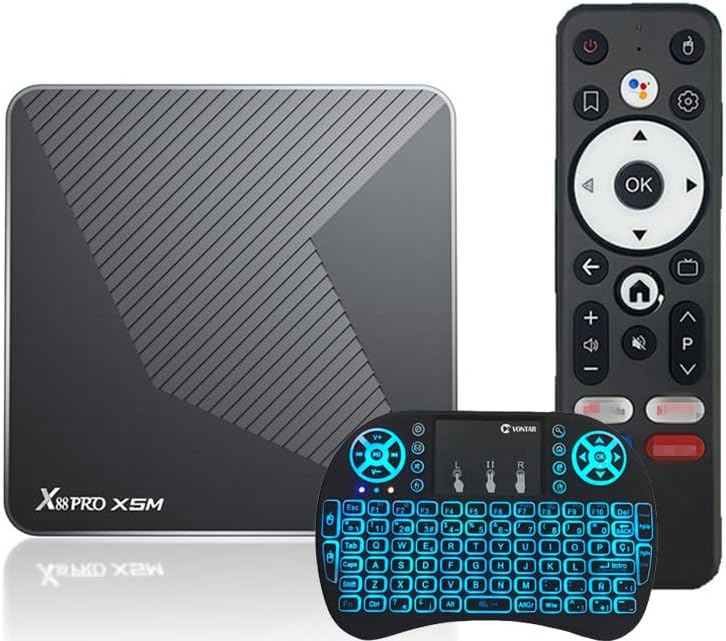
Image: The X88 PRO X5M Android TV Box, its standard remote control, and the included mini wireless keyboard.
2. Package Contents
Please check the box contents upon unpacking. If any items are missing or damaged, contact customer support.
- 1x TV BOX 14.0 (X88 PRO X5M)
- 1x Remote Control
- 1x HD Cable
- 1x Power Adapter (DC 5V/2A)
- 1x Mini Wireless Keyboard
3. Product Overview
The X88 PRO X5M TV Box features a compact design with essential ports for connectivity and a digital display for status indication.
3.1. Ports and Interfaces

Image: Detailed view of the X88 PRO X5M TV Box's rich interface design, highlighting the DC power input, SPDIF audio output, HD (HDMI) port, LAN (Ethernet) port, USB ports, and TF card slot.
- DC (Power Input): Connect the provided power adapter here.
- SPDIF (Audio Digital Interface): For connecting to external audio systems.
- HD (HDMI 2.0): Connect to your TV or display for video and audio output. Supports up to 8Kx4K@60fps.
- LAN (Ethernet): For wired network connection (10/100/1000M RJ-45).
- USB Host: Includes one USB 2.0 port and one USB 3.0 port for connecting external devices like USB drives, mice, or keyboards.
- TF Card Slot: For expanding storage with a TF (MicroSD) card.
3.2. Dimensions

Image: The X88 PRO X5M TV Box with its compact dimensions indicated: 10.3 cm (length) x 10.3 cm (width) x 2.05 cm (height).
The device features a small and portable design, making it suitable for various usage scenarios.
4. Setup Guide
4.1. Connecting the TV Box
- Connect to TV: Plug one end of the provided HD (HDMI) cable into the HD port on the TV Box and the other end into an available HDMI input on your television.
- Connect Power: Insert the DC plug of the power adapter into the DC port on the TV Box, then plug the power adapter into a wall outlet.
- Connect to Network (Optional):
- Wired Connection: Connect an Ethernet cable from your router to the LAN port on the TV Box.
- Wireless Connection: The device supports 2.4G/5G Dual-WiFi. You will configure this during the initial setup on screen.
- Connect Peripherals: Connect the mini wireless keyboard's USB receiver to one of the USB ports on the TV Box. You can also connect other USB devices like a mouse or external storage.
4.2. Initial Boot-up and Configuration
Once connected, turn on your TV and select the correct HDMI input source. The TV Box will automatically power on and display the boot-up screen. Follow the on-screen prompts to complete the initial setup, which typically includes:
- Language selection.
- Network connection (Wi-Fi setup if not using Ethernet).
- Date and time settings.
- Google account sign-in (optional, but recommended for app downloads).
Important Safety Note: Handle the device with care and avoid drops and impacts. Ensure the product is securely assembled before use.

Image: A warning label from the product packaging, advising users to handle the device with care, avoid drops, and ensure secure assembly before use. Text is provided in English, German, French, Italian, Spanish, Dutch, Swedish, and Polish.
5. Operating Instructions
5.1. Navigating the Interface
The X88 PRO X5M runs on Android 14.0, providing a user-friendly interface. Use the included remote control or mini wireless keyboard to navigate through menus, select applications, and input text.

Image: Two X88 PRO X5M TV Boxes displayed with the Android robot, illustrating the powerful performance and stable video output provided by the latest Android 14.0 system.
5.2. Installing Applications
Access the pre-installed app store (e.g., Google Play Store) to download and install your favorite streaming services, games, and utility applications. The 64GB ROM provides ample space, and you can expand storage further with a TF card or USB hard drive.
5.3. Mirroring Cast Functionality
The TV Box supports Mirroring Cast, allowing you to project content from your mobile phone or tablet onto your TV screen. This feature enables multi-screen interaction for sharing videos, photos, and other media with a larger audience.
5.4. Enhanced Visual Experience

Image: A visual representation of AI-SR (Artificial Intelligence Super Resolution) technology, demonstrating how it improves image quality and provides stunning visual effects compared to an original image.
The X88 PRO X5M supports 4K H.265 HDR10 ultra-high-definition content and features AI-SR Super Resolution technology. This combination delivers a stunning visual experience with true-to-life picture quality and enhanced detail. You can also enjoy 3D movies at home with this TV Box.
6. Maintenance and Care
- Cleaning: Use a soft, dry cloth to clean the device. Do not use liquid cleaners or aerosols.
- Ventilation: Ensure the TV Box is placed in a well-ventilated area to prevent overheating. Do not block ventilation openings.
- Storage: When not in use for extended periods, disconnect the power adapter and store the device in a cool, dry place.
- Software Updates: Periodically check for system updates in the device settings to ensure optimal performance and access to the latest features.
7. Troubleshooting
| Problem | Possible Cause | Solution |
|---|---|---|
| No power | Power adapter not connected; power outlet issue. | Ensure power adapter is securely connected to the device and a working power outlet. |
| No signal on TV | Incorrect HDMI input selected; HDMI cable loose or faulty. | Select the correct HDMI input on your TV. Check HDMI cable connections; try a different HDMI port or cable. |
| Wi-Fi connection unstable/slow | Weak signal; router issues; interference. | Move the TV Box closer to the router. Restart your router. Ensure no large obstructions are between the device and router. Consider using a wired Ethernet connection. |
| Applications freezing/crashing | Insufficient RAM; app compatibility issues; corrupted data. | Close background applications. Clear app cache/data. Uninstall and reinstall the problematic app. Ensure sufficient storage space. |
| Remote control not working | Low batteries; line of sight blocked; pairing issue. | Replace batteries. Ensure no obstructions between remote and TV Box. Re-pair the remote if necessary (refer to remote's specific instructions). |
8. Technical Specifications
8.1. System Configuration
- Operating System: Android 14.0
- CPU: H728 64-bit Quad-core ARM Cortex A55 CPU
- GPU: G31 MP2 GPU processor
- SDRAM: 4GB
- FLASH: 64GB
- WIFI/Bluetooth: 2.4G & 5G WIFI, BT5.X
- Ethernet: Standard 10/100/1000M RJ-45
- HDMI: HDMI 2.0, 8Kx4K@60fps max resolution output
- SPDIF: Audio Digital Interface
- USB Host: USB2.0*1, USB3.0*1
8.2. Video and Audio Capabilities

Image: A promotional image highlighting the Ultra High Speed 4K HD 2.1 capabilities of the TV Box, including support for 4K@60fps, HDR10+, and high-definition output for a delicate and natural color effect.
- Video Decoder:
- H.265 HEVC/MVC Main10 Profile yuv420@L5.1 up to 4096x2304@60fps
- H.264 AVC/MVC Main10 Profile yuv400/yuv420/yuv422/@L5.1 up to 4096x2304@60fps
- VP9 Profile0/2 yuv420@L5.1 up to 4096x2304@60fps
- VP8 version2
- Video Encoder:
- H.264/AVC BP/MP/HP@level4.2, up to 1920x1080@100fps
- H.265/HEVC MP@level4.1, up to 1920x1080@100fps (4096x4096@10fps with TILE)
- Support YUV/RGB video source with rotation and mirror
- JPEG Decoder:
- Support YUV400/YUV411/YUV420/YUV422/YUV440/YUV444
- Support 1920x1080@120fps, Support MJPEG
9. Warranty and Support
For warranty information and technical support, please refer to the documentation provided with your purchase or contact the seller directly. Keep your purchase receipt as proof of purchase.
Documents and downloads
Ask a question about this manual
Ask about setup, troubleshooting, compatibility, parts, safety, or missing instructions. Manuals+ will review the question and use this page’s manual context to help answer it.