
1. Introduction
This manual provides essential information for the proper setup, operation, and maintenance of your FUNYET FUNPAD 10-inch Android Tablet. Please read this guide thoroughly before using your device to ensure optimal performance and longevity.
2. What's in the Box
Verify that all items are present in the package:
- FUNYET FUNPAD 10-inch Android Tablet
- Power Adapter
3. Product Overview
The FUNYET FUNPAD is a 10-inch Android tablet featuring an Octa-Core processor, 8GB RAM, 128GB storage, and a metal shell design. It is equipped with dual cameras, Wi-Fi 5, and Bluetooth 5.0 for versatile use.
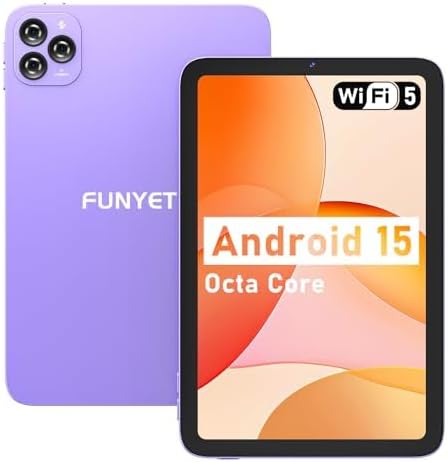
Image: Front and back view of the FUNYET FUNPAD 10-inch Android Tablet, showcasing its purple metal shell and camera module.
3.1 Device Layout and Components

Image: Diagram illustrating the various ports and buttons on the FUNYET FUNPAD tablet. This includes the Micro SD Slot, Power On/Off button, Volume buttons, Type-C (Full Function) port, Auto Focus 8MP Rear Camera, Fixed Focus 2MP Front Camera, Flashlight, and Dual Speakers.
- Power Button: Located on the side, used to power the device on/off or put it to sleep.
- Volume Buttons: Adjust the audio output level.
- Type-C Port: For charging and data transfer.
- Micro SD Slot: Insert a Micro SD card for expandable storage.
- Front Camera: 2MP camera for video calls and selfies.
- Rear Camera: 8MP autofocus camera with flashlight for capturing photos and videos.
- Dual Speakers: Provide audio output.
4. Setup
4.1 Initial Charging
Before first use, fully charge the tablet using the provided power adapter and Type-C cable. The battery indicator on the screen will show charging status.
4.2 Powering On/Off
- To Power On: Press and hold the Power button until the FUNYET logo appears.
- To Power Off: Press and hold the Power button, then select "Power off" from the options on the screen.
- To Restart: Press and hold the Power button, then select "Restart" from the options.
4.3 Initial Setup Wizard
Upon first power-on, the tablet will guide you through an initial setup process. Follow the on-screen prompts to:
- Select your language.
- Connect to a Wi-Fi network.
- Set up your Google account (optional, but recommended for app downloads).
- Configure date and time.
5. Operating Instructions
5.1 Basic Navigation
The FUNYET FUNPAD features an In-cell multi-touch display. Use standard Android gestures:
- Tap: Select an item or open an app.
- Swipe: Scroll through screens or lists.
- Pinch: Zoom in or out on images and web pages.
- Long Press: Access contextual menus or move icons.
5.2 Wi-Fi Connectivity
To connect to a Wi-Fi network:
- Go to Settings > Network & internet > Wi-Fi.
- Toggle Wi-Fi On.
- Select your desired network from the list.
- Enter the password if prompted, then tap Connect.
5.3 Bluetooth Pairing
To pair with a Bluetooth device (e.g., headphones, speakers):
- Go to Settings > Connected devices > Bluetooth.
- Toggle Bluetooth On.
- Ensure your Bluetooth device is in pairing mode.
- Select your device from the list of available devices and follow any on-screen prompts to complete pairing.
5.4 Camera Usage
The tablet features an 8MP autofocus rear camera and a 2MP fixed-focus front camera.

Image: Visual representation of the FUNYET FUNPAD tablet's camera capabilities, highlighting the 8MP rear camera with autofocus and flashlight, and the 2MP front camera. Example photos are displayed.
- Open the Camera app.
- Tap the camera icon to switch between front and rear cameras.
- Tap the shutter button to take a photo or start/stop video recording.
5.5 Storage Management
The tablet comes with 128GB of internal storage. You can expand this by inserting a Micro SD card (up to 1TB capacity).

Image: The FUNYET FUNPAD tablet screen showing icons for 128GB ROM, 8GB RAM, and 1TB Micro SD expansion, indicating ample storage and expandability.
To manage storage:
- Go to Settings > Storage.
- View internal storage usage and manage files.
- Insert a Micro SD card into the designated slot to expand storage.
5.6 Battery Management
The tablet is equipped with a 6000mAh battery for extended usage.

Image: The FUNYET FUNPAD tablet being used for various activities like watching videos and video calls, illustrating its long-lasting 6000mAh battery.
- To check battery status, go to Settings > Battery.
- For optimal battery life, avoid extreme temperatures and use the provided charger.
5.7 GPS Navigation
The tablet supports GPS, GLONASS, and BDS for accurate location services. Ensure location services are enabled in Settings > Location for navigation apps to function correctly.
6. Maintenance
6.1 Cleaning the Device
- Use a soft, lint-free cloth to clean the screen and body.
- Avoid using harsh chemicals or abrasive materials.
- Do not spray cleaners directly onto the screen.
6.2 Software Updates
Regularly check for and install software updates to ensure your tablet has the latest features and security enhancements. Go to Settings > System > System update.
6.3 Battery Care
- Avoid fully discharging the battery frequently.
- Do not expose the tablet to extreme heat or cold.
- If the tablet will not be used for an extended period, charge it to about 50% before storing.
7. Troubleshooting
If you encounter issues with your FUNYET FUNPAD, refer to the following common solutions:
| Problem | Possible Solution |
|---|---|
| Tablet does not power on | Ensure the battery is charged. Connect the tablet to the charger for at least 30 minutes, then try powering on again. |
| Wi-Fi connection issues | Restart the tablet and your Wi-Fi router. Forget the network in Wi-Fi settings and reconnect. Ensure you are within range. |
| Slow performance or freezing | Close unnecessary background apps. Clear cache for problematic apps. Restart the tablet. Check for available storage space. |
| Screen unresponsive | Perform a forced restart by holding the Power button for approximately 10-15 seconds. If the issue persists, consider a factory reset (data will be lost). |
| Device reboots unexpectedly | Ensure the device is updated to the latest software. Check for conflicting apps. If the issue persists, a factory reset may be necessary. |
7.1 Factory Reset
A factory reset will erase all data from your tablet and restore it to its original factory settings. This should be considered a last resort for persistent software issues.
- Back up any important data.
- Go to Settings > System > Reset options > Erase all data (factory reset).
- Confirm your choice and follow the on-screen instructions.
8. Specifications
Key technical specifications for the FUNYET FUNPAD 10-inch Android Tablet:
| Feature | Specification |
|---|---|
| Screen Display Size | 10 Inches |
| Screen Resolution | 800x1280 Pixels |
| Processor | 1.6 GHz Octa-Core (Spreadtrum T606) |
| Graphics Coprocessor | Mali-G57 |
| RAM | 8 GB |
| Internal Storage | 128 GB |
| Expandable Storage | Micro SD (up to 1TB) |
| Operating System | Android |
| Wireless Type | 802.11ac (Wi-Fi 5) |
| Bluetooth | Bluetooth 5.0 |
| Rear Camera | 8MP Auto Focus |
| Front Camera | 2MP Fixed Focus |
| Battery | 6000mAh |
| Item Weight | 1.74 pounds |
| Product Dimensions | 9.48 x 6.28 x 0.3 inches |
9. Warranty and Support
FUNYET is dedicated to providing quality electronic products. We offer a 30-day free exchange policy and a 1-year free repair service for all our products.
If you have any questions or require assistance with your FUNYET FUNPAD tablet, please contact FUNYET support. We aim to reply to all inquiries within 24 hours.
For further information or to explore other products, visit the official FUNYET store: FUNYET Store on Amazon