
Phezer PC11 Plus-Printer
Phezer PC11 Plus Mini Inkjet Printer User Manual
Model: PC11 Plus-Printer | Brand: Phezer
1. Introduction and Overview
The Phezer PC11 Plus is an upgraded mini inkjet printer designed for portable and versatile marking on various surfaces. This compact device offers quick-drying ink and supports 25 languages, making it suitable for printing text, labels, QR codes, barcodes, dates, times, and logos. Its intuitive touch screen interface allows for easy operation without the need for external connections to a computer or mobile phone.
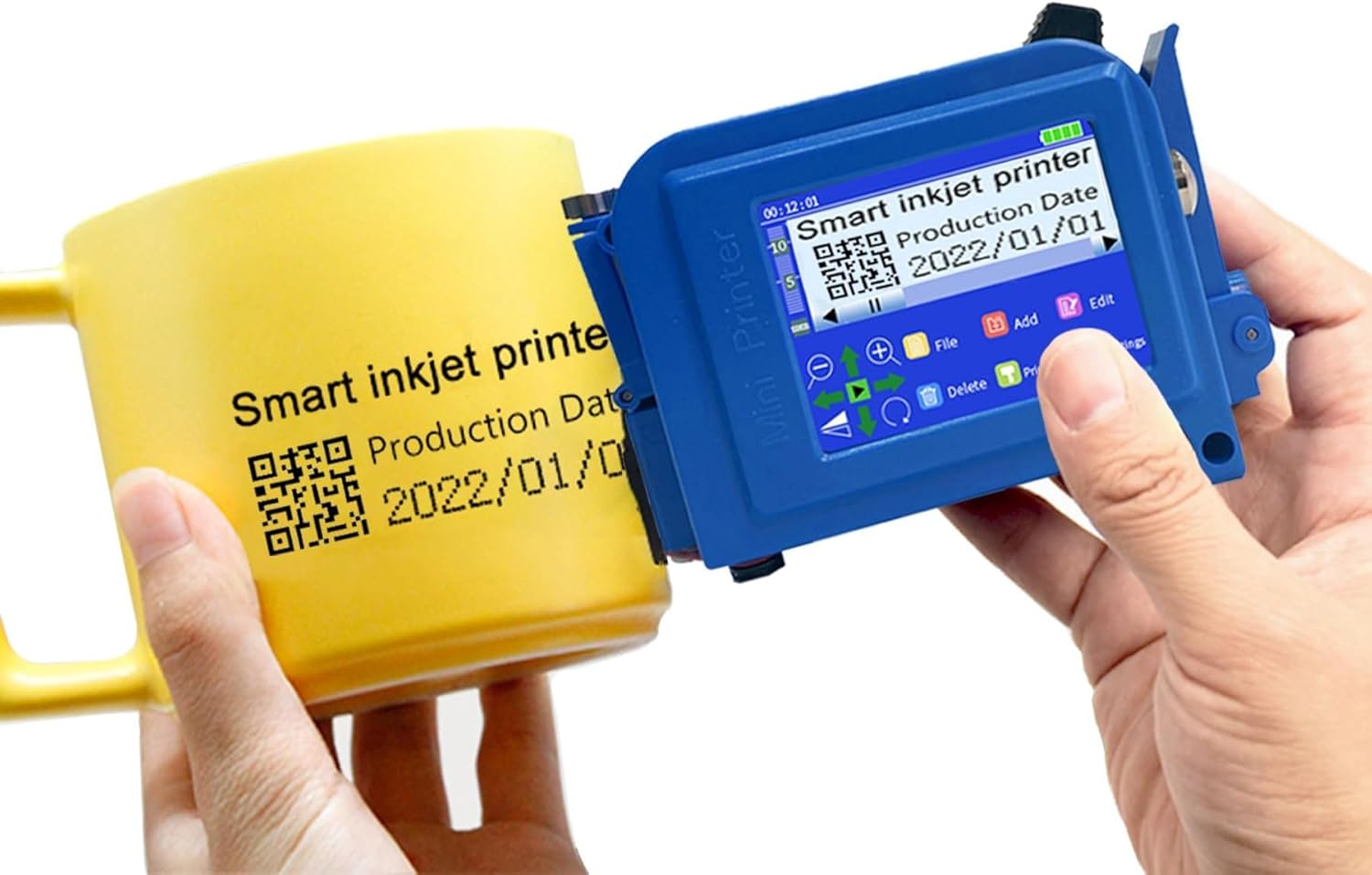
Image: The Phezer PC11 Plus Mini Inkjet Printer demonstrating its capability to print on a curved surface like a mug.
Key Features:
- Compact and Portable: Weighing only 0.25kg (0.55lb) and measuring 110x47x73mm, it fits easily into a pocket for on-the-go printing.
- Smart Touch Screen: Features an upgraded quad-core CPU and independent system for smooth, stable operation directly on the device. No external app or computer connection required.
- Versatile Printing: Supports printing of text, labels, digits, QR codes, barcodes, production dates, times, and logos.
- Wide Surface Compatibility: Effective on paper, boards, carton, stone, pipe, cable, metal, glass, plastic, cloth, and more.
- Multi-Language Support: 25 languages available for diverse user needs.
- Quick-Drying Ink: Includes a 42ml high-definition quick-drying ink cartridge to prevent leaks and nozzle blocking, ensuring clear and vibrant prints. Available in multiple colors.

Image: A visual guide illustrating the four simple steps to begin using the printer: Upload, Edit, Create, and Print.
2. Safety Information
Please read all safety instructions carefully before using the Phezer PC11 Plus Mini Inkjet Printer to ensure safe and proper operation. Keep this manual for future reference.
- Do not disassemble or attempt to repair the device yourself. Refer to qualified service personnel for repairs.
- Keep the device away from water, moisture, and extreme temperatures.
- Use only the specified ink cartridges and charging accessories provided or recommended by Phezer.
- Avoid direct contact with the ink. In case of contact, wash thoroughly with soap and water. If ink gets into eyes, rinse immediately with plenty of water and seek medical attention.
- Ensure proper ventilation when using the printer, especially in enclosed spaces.
- Keep out of reach of children and pets.
- Handle the ink cartridge with care. Do not drop or puncture it.
3. Package Contents
Upon opening the package, please verify that all the following items are included:
- Phezer PC11 Plus Mini Inkjet Printer
- Black Original High-Definition 42ml Quick-Drying Ink Cartridge (Model: PS100(M))
- Instruction Manual
- Touch Pen
- Charger (USB-A to USB-C cable and power adapter)

Image: Contents of the Phezer PC11 Plus Mini Inkjet Printer package.
4. Setup Guide
4.1. Charging the Printer
Before first use, fully charge the printer. Connect the provided USB-A to USB-C cable to the printer's USB-C port and the power adapter. Plug the adapter into a wall outlet. The charging indicator light will be red while charging and turn green when fully charged. Note that while the printer has a USB-C port, it requires a USB-A to USB-C cable for charging as it does not make a power request compatible with all USB-C chargers.
4.2. Installing the Ink Cartridge
Follow these steps to properly install the ink cartridge:
- Remove the protective cover from the ink cartridge.
- Open the ink cartridge slot cover on the printer.
- Insert the ink cartridge into the slot, ensuring it is seated firmly and correctly.
- Close the cartridge slot cover until it clicks into place.

Image: Step-by-step guide for ink cartridge installation.
4.3. Powering On/Off
To power on the printer, press and hold the power button for approximately 8 seconds until the screen illuminates. To power off, press and hold the power button again until the device shuts down.
5. Operating Instructions
5.1. Navigating the Touch Screen Interface
The Phezer PC11 Plus features a smart touch screen for direct operation. Use the included touch pen for precise input. The interface is designed for ease of use, allowing you to edit and revise content directly on the device.
5.2. Creating and Editing Content
The printer supports various content types including text, labels, digits, QR codes, barcodes, production dates, times, and logos. You can create new print jobs or edit existing ones directly on the device. The printer supports 25 languages, which can be selected from the settings menu.

Image: The printer's display showing the language selection menu with 25 supported languages.
5.3. Printing on Various Surfaces
The PC11 Plus is designed to print on a wide range of materials. Ensure the surface is clean and dry for optimal print quality. The printing height can be adjusted from 2-12.7mm, and the length is not limited.

Image: Examples of wide applications for the printer, including metal, PVC pipe, cable, wood, carton, glass, plastic, and cloth.
5.4. Printing Process
Once your content is ready, position the printer's nozzle close to the surface you wish to print on. Press the print button and smoothly glide the printer across the surface. Practice on scrap materials to find the optimum print distance and speed for consistent results.

Image: Demonstrates the printer's portability and ability to print anywhere, including on small items like an AirPods case.
5.5. Printing Capacity
The printer's ink cartridge offers significant printing capacity for various content types:
- Characters (2mmx2mm): Approximately 800,000
- Date (MFG: 2022/10/10): Approximately 100,000
- Logo (Phezer): Approximately 150,000
- Variable Data (001 002 003): Approximately 100,000
- QR Code: Approximately 100,000

Image: Detailed breakdown of the printer's estimated printing capacity per ink cartridge for various content types.
6. Maintenance
6.1. Ink Cartridge Care
The quick-drying ink cartridge is designed to minimize ink-leaking and nozzle-blocking. To ensure longevity and optimal performance:
- Always replace the protective cap on the ink cartridge when not in use.
- If the printer will not be used for extended periods, consider storing the ink cartridge in a vacuum-sealed bag to prevent drying.
- Do not attempt to clean the nozzle with sharp objects.

Image: Comparison of Phezer's dual nozzle ink cartridge design with a single nozzle design, emphasizing improved efficiency and lifespan.

Image: The quick-drying ink cartridge, highlighting its water-resistant properties and clear printing capabilities.
6.2. General Cleaning
Wipe the exterior of the printer with a soft, dry cloth. Do not use abrasive cleaners or solvents. Keep the printing roller clean and free of debris to ensure smooth operation.

Image: A detailed view of the printer's internal roller, which should be kept clean for optimal performance.
7. Troubleshooting
If you encounter issues with your Phezer PC11 Plus printer, refer to the following common problems and solutions:
| Problem | Possible Cause | Solution |
|---|---|---|
| Clunky User Interface | Older UI model or initial unfamiliarity. | Familiarize yourself with the menu-based system. Practice creating and manipulating labels. The included touch pen is essential for precise navigation. |
| Printer not charging | Incorrect USB cable used (e.g., USB-C to USB-C without proper power request). | Ensure you are using the provided USB-A to USB-C cable or an adapter that properly handles power requests. The printer draws power from USB-A sources. |
| Poor print quality (smudges, uneven lettering) | Incorrect print distance, inconsistent speed, or dirty nozzle/roller. | Practice on scrap material to find the optimum print distance and maintain a consistent, smooth speed. Ensure the nozzle and roller are clean. |
| Printer does not power on | Insufficient battery charge, power button not held long enough. | Charge the printer fully. Press and hold the power button for approximately 8 seconds. |
| Cannot find firmware updates or support information | Limited public availability of firmware updates or specific model support. | Refer to the contact information in the Warranty and Support section for direct assistance from the manufacturer or seller. |
8. Specifications
Detailed technical specifications for the Phezer PC11 Plus Mini Inkjet Printer:
| Feature | Specification |
|---|---|
| Model | PC11 Plus-Printer |
| Brand | Phezer |
| Printing Technology | Inkjet |
| Connectivity Technology | USB |
| Maximum Print Resolution (B&W) | 600 x 600 DPI |
| Max Print Speed (Monochrome) | 60 ppm |
| Print Output | Monochrome (with various ink colors available separately) |
| Product Dimensions | 4.6D x 9.7W x 7.1H Centimetres (4.33 x 1.85 x 2.87 inches) |
| Item Weight | 0.458 kg (1.01 Pounds) |
| Display Type | Touch Screen |
| Special Features | Display Screen, Internal Memory, Portable, Touch Screen |
| Battery Type | Lithium (1 x 9V battery included) |
| Battery Capacity | 2600mAh |
| Continuous Working Time | >8 Hours |
| Power Consumption | 25 Watts |
| Maximum Media Size | 13 x 19 inch (referring to printable area, not media feed) |
| Dual-sided printing | No |

Image: Visual representation of the printer's long-lasting 2600mAh battery, providing over 8 hours of continuous operation.
9. Warranty and Support
9.1. Warranty Information
The Phezer PC11 Plus Mini Inkjet Printer comes with a Limited Warranty. Please refer to the product packaging or contact Phezer customer service for specific terms and conditions of the warranty.
9.2. Customer Support
For any questions, technical assistance, or support inquiries, please contact Phezer Coding & Marking Solution directly through the Amazon platform where the product was purchased. You can typically find a 'Sold by' link on the product page that leads to the seller's profile, where you can initiate a message or 'Ask a question'.

Image: Instructions on how to contact Phezer customer support via Amazon.
Related documentsPC11 Plus-Printer


Ask a question about this manual
Ask about setup, troubleshooting, compatibility, parts, safety, or missing instructions. Manuals+ will review the question and use this page’s manual context to help answer it.