
1. Product Overview
The ideaspark 0.96 inch OLED Display Module is a compact, high-contrast display featuring 128x64 pixel resolution. It utilizes the SSD1306 driver IC and communicates via the I2C/IIC interface, requiring only two I/O ports for operation. This module is designed for integration with various microcontrollers, including Arduino Uno, Nano, Mega, Raspberry Pi, 51 MCU, and STIM 32. It comes with a protective screen bracket to enhance durability against bumps and impacts.
Key features include:
- Diagonal Size: 0.96 inch
- Resolution: 128 x 64 pixels
- View Angle: > 160°
- Support Voltage: 3.3V-5V DC
- Driver IC: SSD1306
- Interface: I2C/IIC (2 I/O ports)
- Power Consumption: 0.04W (normal), 0.08W (full screen lit)
- Protective Case: Included to prevent damage
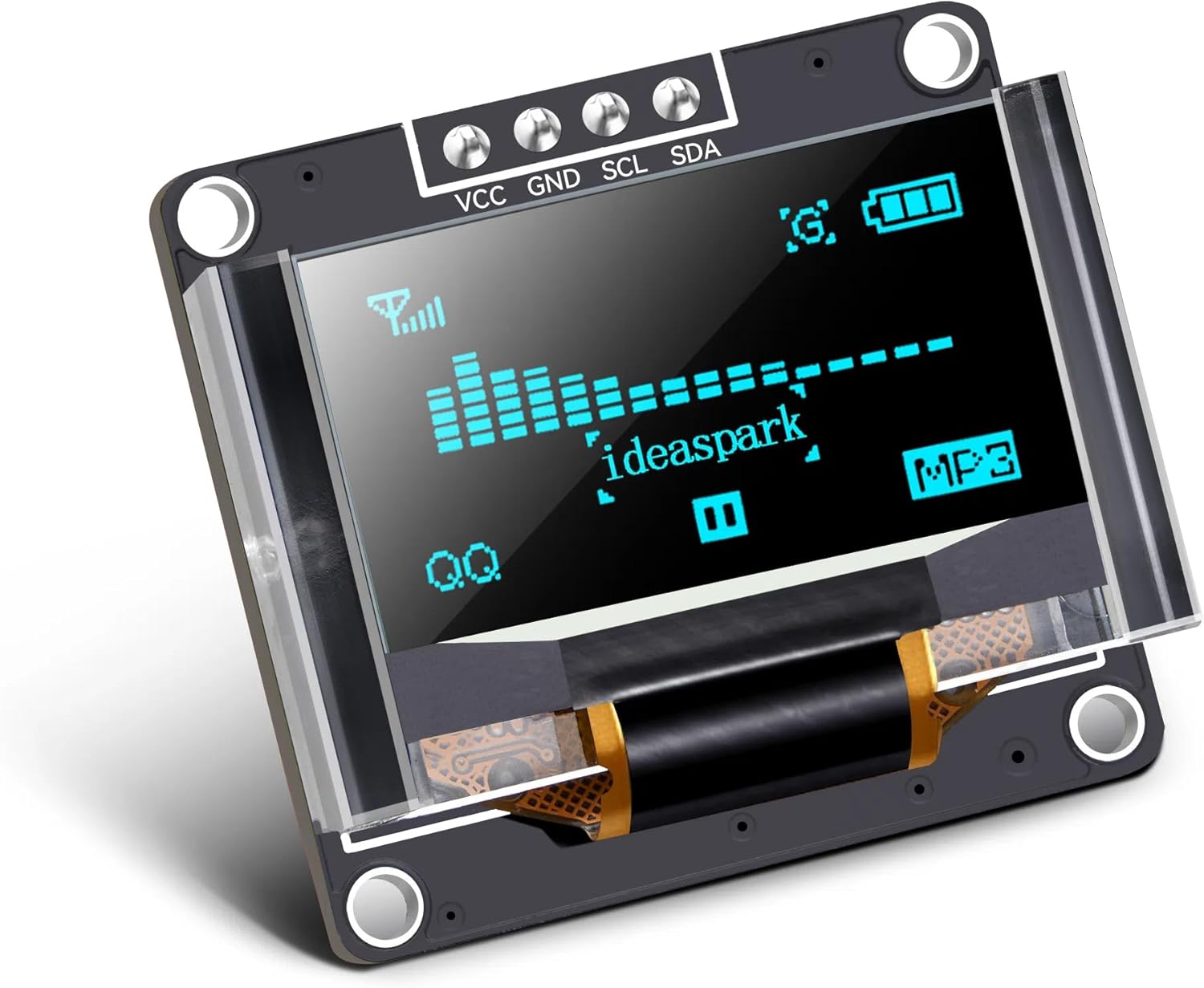
Image: The 0.96 inch OLED Display Module with its clear protective case, displaying example graphics and the 'ideaspark' logo.

Image: Examples of the OLED module's wide application in devices such as pulse oximeters, e-cigarettes, coffee machines, and smartwatches.
2. Setup Instructions
This section guides you through connecting and programming your ideaspark 0.96 inch OLED Display Module with an Arduino board.
2.1 Hardware Connection (Arduino)
Connect the OLED module to your Arduino board as shown in the diagram below. Ensure correct pin assignments for VCC, GND, SCL, and SDA.
- VCC: Connect to Arduino 5V or 3.3V (depending on module version, typically 5V is safe for this module).
- GND: Connect to Arduino GND.
- SCL: Connect to Arduino A5 (for Uno/Nano) or SCL pin.
- SDA: Connect to Arduino A4 (for Uno/Nano) or SDA pin.

Image: Wiring diagram illustrating the connection between the OLED module and an Arduino Uno. VCC to 5V, GND to GND, SCL to A5, SDA to A4.
2.2 Software Setup (Arduino IDE)
To program the OLED module, you will need to install the U8g2 library in the Arduino IDE.
- Include Library: Open the Arduino IDE. Navigate to Sketch > Include Library > Manage Libraries...
- Install U8g2 Library: In the Library Manager, search for "u8g2". Select the "U8g2" library by oliver and click Install.
- Set Board and Processor: Ensure your Arduino board type and processor are correctly selected under Tools > Board and Tools > Processor.
- Run Example Code: Open an example sketch from the U8g2 library (e.g., File > Examples > U8g2 > page_buffer > HelloWorld). Modify the constructor line to match your OLED module (SSD1306, 128x64, I2C). For example, for an I2C SSD1306 128x64 display, you might use:
U8G2_SSD1306_128X64_NONAME_F_HW_I2C u8g2(U8G2_R0, U8X8_PIN_NONE);. Upload the code to your Arduino board.

Image: Arduino IDE Library Manager with the U8g2 library highlighted for installation.

Image: Arduino IDE displaying a basic code example to initialize and write text to the OLED module.
3. Operating Instructions
Once the module is correctly wired and the U8g2 library is installed, you can begin programming the display. The U8g2 library provides extensive functions for drawing text, graphics, and bitmaps.
3.1 Basic Display Operations
- Initialization: In your Arduino sketch's
setup()function, initialize the display using the appropriate constructor for your module and then callu8g2.begin();. - Clearing the Buffer: Before drawing new content, it's good practice to clear the display buffer using
u8g2.clearBuffer();. - Setting Font: Choose a font using
u8g2.setFont(u8g2_font_name);. - Drawing Text: Display text at specific coordinates using
u8g2.drawStr(x, y, "Your Text");. - Sending Buffer to Display: After drawing all elements to the buffer, update the physical display by calling
u8g2.sendBuffer();.
Refer to the U8g2 library documentation and examples for advanced drawing functions, including lines, circles, rectangles, and bitmaps.
4. Maintenance
Proper care ensures the longevity and optimal performance of your OLED display module.
- Handling: Always handle the module by its edges. Avoid touching the display surface directly to prevent fingerprints and scratches.
- Cleaning: If necessary, gently wipe the display surface with a soft, lint-free cloth. For stubborn smudges, slightly dampen the cloth with distilled water or an electronics-safe cleaning solution. Do not use abrasive cleaners or solvents.
- Protector Case: The included protector case is designed to shield the display from physical damage. Ensure it is properly installed, especially when the module is part of a portable or exposed project.
- Storage: Store the module in a dry, dust-free environment, away from extreme temperatures and direct sunlight.

Image: The OLED module housed within its clear protective case, demonstrating its enhanced durability.
5. Troubleshooting
If you encounter issues with your OLED display module, consider the following troubleshooting steps:
- Display Not Lighting Up:
- Check all wiring connections (VCC, GND, SCL, SDA) for proper seating and correct pin assignments.
- Verify that the power supply to the Arduino/microcontroller is stable and sufficient.
- Ensure the correct I2C address is being used in your code. Some SSD1306 modules use 0x3C, others 0x3D.
- Garbled or Incorrect Display:
- Confirm that the correct U8g2 constructor is used for your specific SSD1306 128x64 module.
- Check for any conflicts with other I2C devices on the same bus.
- Ensure the
u8g2.sendBuffer();command is called after all drawing operations.
- Arduino IDE Errors:
- Verify that the U8g2 library is correctly installed (see Section 2.2).
- Ensure your Arduino board and port are correctly selected in the IDE.
- No Communication:
- Perform an I2C scanner sketch to detect if the module is recognized on the I2C bus and to find its address.
6. Specifications
Detailed technical specifications for the ideaspark 0.96 inch 128x64 SSD1306 OLED Display Module.
| Feature | Specification |
|---|---|
| Brand | ideaspark |
| Display Size | 0.96 inch (diagonal) |
| Resolution | 128 x 64 pixels |
| Driver IC | SSD1306 |
| Interface | I2C/IIC (4-pin soldered) |
| View Angle | > 160° |
| Support Voltage | 3.3V - 5V DC |
| Power Consumption | 0.04W (normal), 0.08W (full screen lit) |
| Item Weight | 0.423 ounces |
| Package Dimensions | 1.57 x 1.57 x 0.63 inches |
| Color | Blue (display color) |
| ASIN | B0F8HRYH98 |
| UPC | 727210621787 |

Image: Technical drawing illustrating the dimensions of the OLED module.
7. Warranty and Support
For warranty information and technical support, please refer to the product listing on the retailer's website or contact the manufacturer, ideaspark, directly. Keep your purchase receipt as proof of purchase.
For additional resources and community support, consider visiting online forums and communities dedicated to Arduino, Raspberry Pi, and OLED displays. These platforms often provide valuable insights, example code, and troubleshooting tips from experienced users.