
realme GT7
realme GT7 5G Smartphone User Manual
Model: GT7
1. Introduction
This manual provides essential information for the safe and efficient use of your realme GT7 5G Smartphone. Please read it thoroughly before operating the device.
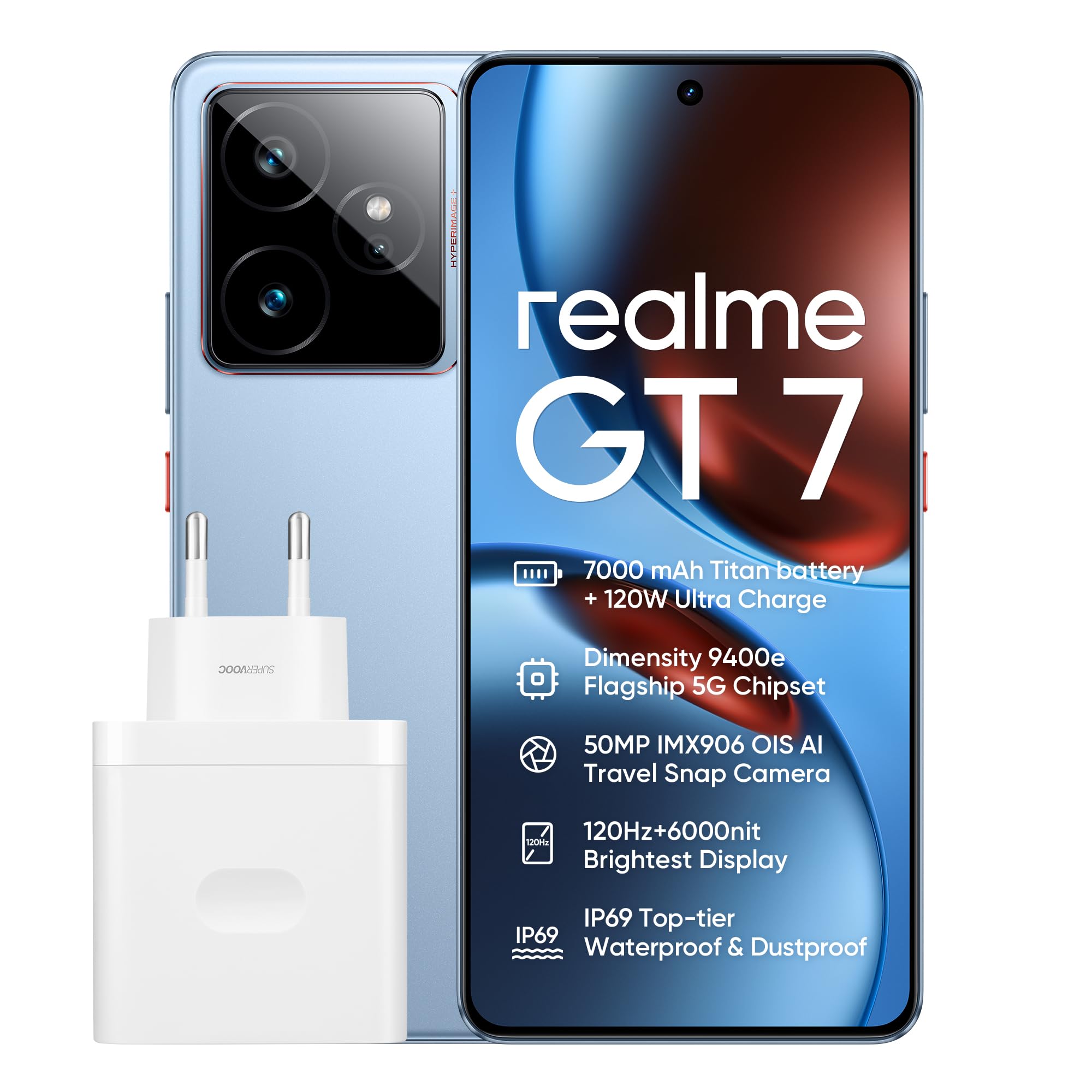
Image 1.1: Front view of the realme GT7 5G Smartphone, highlighting its display and front camera.
2. Setup
2.1 Package Contents
Verify that your package contains the following items:
- realme GT7 5G Smartphone
- USB Type-C Cable
- Phone Case
- SIM Card Removal Tool
- 1 C Battery (pre-installed)
2.2 Inserting SIM Card(s)
The realme GT7 supports dual Nano SIM cards.
- Locate the SIM card tray on the side of the device.
- Insert the SIM card removal tool into the small hole next to the tray to eject it.
- Place your Nano SIM card(s) into the tray with the gold contacts facing down.
- Carefully reinsert the tray into the phone.

Image 2.1: Illustration of inserting SIM cards into the realme GT7 using the provided tool.
2.3 Initial Charging
Before first use, fully charge your device. The realme GT7 features 120W ultra-charging.
- Connect the USB Type-C cable to the phone's charging port and the other end to the power adapter.
- Plug the power adapter into a wall outlet.
- A full charge from 0% takes approximately 40 minutes.
3. Operating Your realme GT7
3.1 Power On/Off
- To power on: Press and hold the Power button until the realme logo appears.
- To power off: Press and hold the Power button, then select "Power off" from the options.
- To restart: Press and hold the Power button, then select "Restart" from the options.
3.2 Display and Navigation
The device features a 6.78-inch OLED display with a 120 Hz refresh rate and 1440 x 3120 resolution.
- Touch Gestures: Tap, swipe, pinch-to-zoom for navigation and interaction.
- Fingerprint Recognition: Use the in-display fingerprint sensor for secure unlocking.
- Operating System: Runs on Android 16.0.
3.3 Camera Functions
The realme GT7 is equipped with a 50 MP IMX906 OIS main camera, a 32 MP front camera, and an 8 MP ultra-wide-angle camera.
- Taking Photos: Open the Camera app, frame your shot, and tap the shutter button.
- AI Travel Snap: This feature automatically optimizes images for landscapes and removes reflections. Tap twice on the back of the phone to activate the AI planner.
- Video Recording: Supports 1080p video recording at 120 FPS.
3.4 AI Planner
The AI Planner simplifies tasks by scanning your screen and generating programs. To use:
- Double-tap the back of the phone.
- The AI Planner will scan the current screen content.
- It will then gather relevant information and suggest or generate a program based on the context.
4. Maintenance
4.1 Cleaning Your Device
- Use a soft, lint-free cloth to clean the screen and body.
- Avoid using harsh chemicals or abrasive materials.
- The device is IP69 rated for water and dust resistance, but avoid intentional submersion.
4.2 Battery Care
The realme GT7 features a 7000 mAh battery with advanced silicon-anode technology.
- Use only the original charger and cable for optimal charging and battery longevity.
- Avoid exposing the device to extreme temperatures.
- Regular software updates can optimize battery performance.
4.3 Software Updates
Ensure your device's software is up to date for the best performance and security.
- Go to Settings > About Phone > Software Update to check for and install updates.
5. Troubleshooting
5.1 Device Not Powering On
- Ensure the battery is charged. Connect the charger and wait a few minutes before attempting to power on.
- Press and hold the Power button for at least 10-15 seconds to force a restart.
5.2 Apps Crashing or Freezing
- Close and reopen the app.
- Clear the app's cache: Settings > Apps > Select App > Storage > Clear Cache.
- Restart the phone.
- Ensure the app and phone software are updated.
5.3 Poor Battery Life
- Check for background apps consuming power and close them.
- Reduce screen brightness or enable adaptive brightness.
- Disable unnecessary features like GPS, Bluetooth, or Wi-Fi when not in use.
- Perform a software update.
5.4 Network Connectivity Issues
- Toggle Airplane Mode on and off.
- Restart the device.
- Check SIM card insertion.
- Reset network settings: Settings > System > Reset options > Reset Wi-Fi, mobile & Bluetooth.
6. Specifications
| Feature | Detail |
|---|---|
| Model Name | realme GT7 |
| Operating System | Android 16.0 |
| Processor | Mediatek Dimensity 9400 (3.4 GHz) |
| RAM | 12 GB |
| Storage Capacity | 256 GB (Max. supported flash memory) |
| Display Size | 6.78 Inches |
| Display Type | OLED |
| Display Resolution | 1440 x 3120 (Max. 1440 x 3200) |
| Rear Camera | 50 MP (IMX906 OIS) + 2 x 50 MP + 8 MP Ultra-wide |
| Front Camera | 32 MP |
| Battery Capacity | 7000 mAh |
| Charging | 120 W Ultra Charge |
| Connectivity | 5G, USB Type-C |
| SIM Card Slots | Dual SIM (Nano) |
| Biometric Security | Fingerprint Recognition |
| Water Resistance | IP69 Rated |
| Dimensions | 19 x 8 x 5 cm (Package) |
| Weight | 500 g (Package) |
7. Warranty and Support
7.1 Warranty Information
For warranty details, please refer to the warranty card included in your product packaging or visit the official realme website. The product comes with a standard manufacturer's warranty covering defects in materials and workmanship.
7.2 Customer Support
If you encounter any issues not covered in this manual, please contact realme customer support. Contact information can typically be found on the official realme website or in the warranty documentation.
For online support and FAQs, visit: realme Official Support
Related documentsGT7


Ask a question about this manual
Ask about setup, troubleshooting, compatibility, parts, safety, or missing instructions. Manuals+ will review the question and use this page’s manual context to help answer it.