
1. Introduction
Thank you for choosing the Edifier G2000 Pro 2.0 RGB Gaming Speakers. These speakers are designed to provide an immersive audio experience for gaming, movies, and music, featuring virtual 7.1 surround sound, dynamic RGB lighting, and multiple connectivity options. This manual will guide you through the setup, operation, and maintenance of your new speakers.

Image 1.1: Edifier G2000 Pro 2.0 RGB Gaming Speakers (Black model).
2. Package Contents
Please verify that all items are present in the package:
- Edifier G2000 Pro Speakers (Left and Right)
- Power Cable
- USB-C to USB-A Cable
- 3.5mm Audio Cable
- Instruction Manual
- Warranty Card (if applicable)

Image 2.1: Illustration of the Edifier G2000 Pro speaker package contents, including speakers, cables, and documentation.
3. Setup
3.1 Speaker Placement
For optimal sound, place the left and right speakers equidistant from your listening position, forming an equilateral triangle. Ensure no obstructions block the sound path. The compact size of the G2000 Pro speakers makes them suitable for desktop setups.

Image 3.1: Recommended speaker placement for an immersive gaming audio experience.
3.2 Power Connection
- Connect the power cable to the power input port on the back of the main speaker.
- Plug the power cable into a standard wall outlet.
3.3 Audio Connections
The G2000 Pro speakers offer multiple connectivity options:
- USB-C: For PC and PS5. Provides ultra-low latency audio. Use the included USB-C to USB-A cable.
- 3.5mm AUX: For Xbox, Nintendo Switch, and other devices with a 3.5mm audio output. Use the included 3.5mm audio cable.
- Bluetooth 5.4: For wireless connection to mobile phones, tablets, and other Bluetooth-enabled devices.

Image 3.2: Overview of the triple connection compatibility: Bluetooth 5.4, USB, and 3.5mm AUX.
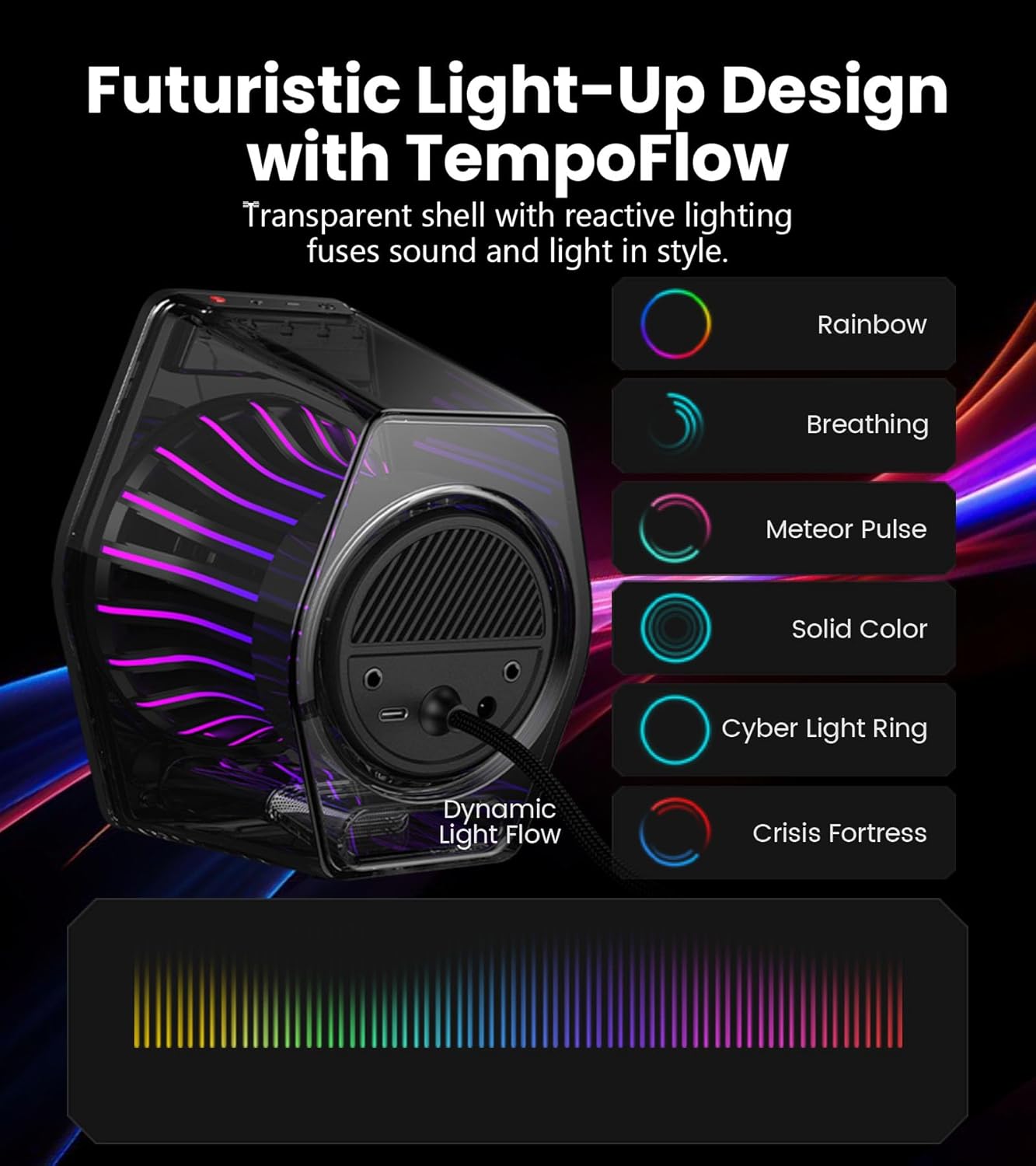
Image 3.3: Rear view of the speaker showing USB-C, AUX, and power input ports.
4. Operating Instructions
4.1 Power On/Off and Input Selection
The power button is located on the main speaker. Press and hold to power on or off. Short press the power button to cycle through input modes (USB, AUX, Bluetooth). An audible cue will indicate the selected input.
4.2 Volume Control
Adjust the volume using the dedicated volume knob or buttons on the main speaker, or through your connected device.
4.3 Bluetooth Pairing
- Switch the speaker to Bluetooth mode by short pressing the power button until the Bluetooth indicator light flashes.
- On your device, enable Bluetooth and search for "Edifier G2000 Pro".
- Select the speaker to pair. Once connected, the indicator light will become solid.
4.4 Sound Modes (EQ Presets)
The G2000 Pro speakers feature three optimized sound modes for different content types. Use the mode selection button on the speaker to switch between them:
- Game Mode: Enhances positional audio cues like footsteps for competitive gaming.
- Movie Mode: Activates virtual 7.1 surround sound for an immersive cinematic experience.
- Music Mode: Optimizes audio for clear vocals and balanced sound reproduction.
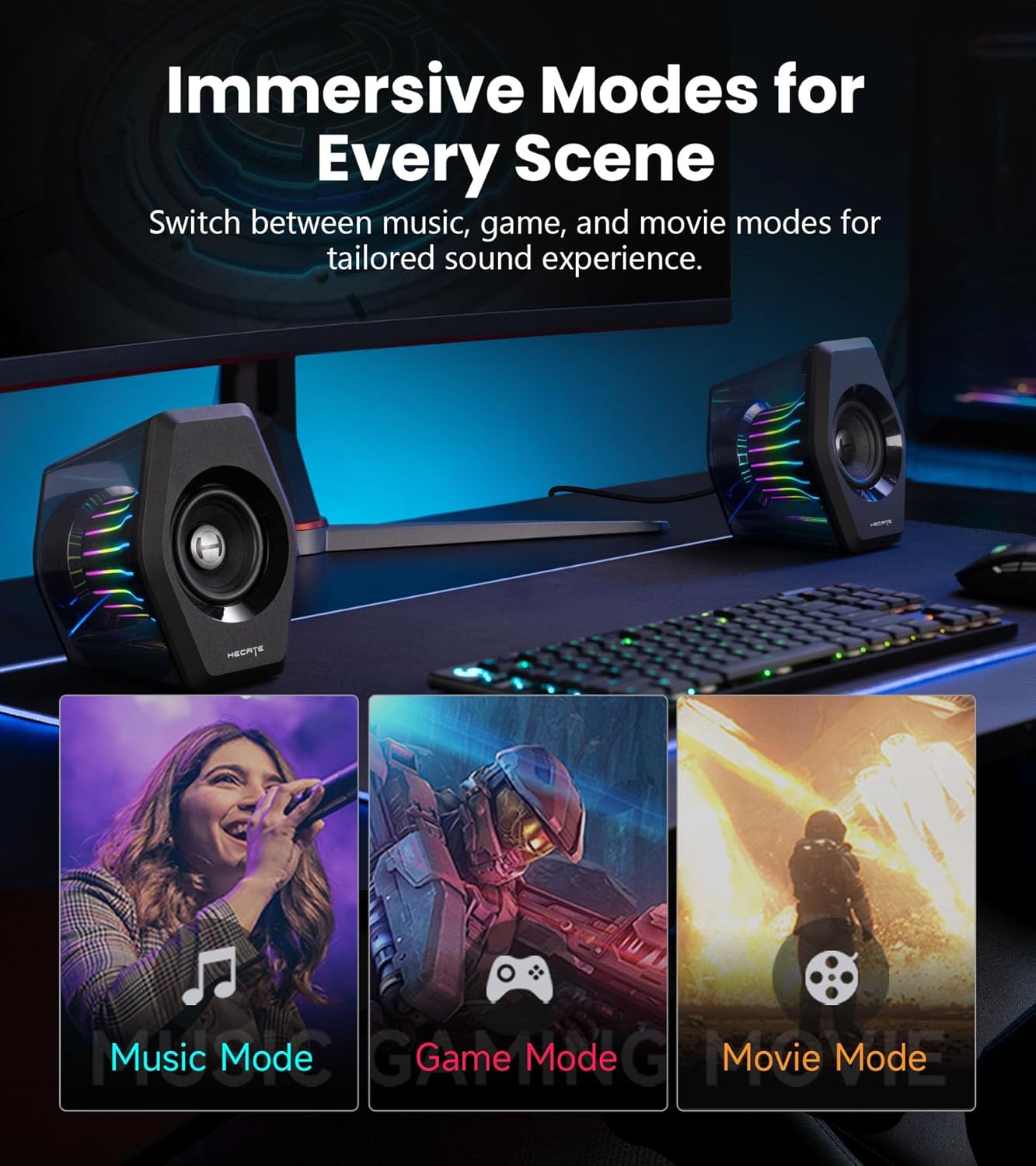
Image 4.1: Visual representation of the three immersive sound modes: Music, Game, and Movie, available on the Edifier G2000 Pro speakers.
4.5 RGB Lighting Control (TempoFlow)
The speakers feature 270° TempoFlow dynamic RGB lighting. You can control the lighting effects using the dedicated button on the speaker or via the HECATE software (available for PC). There are 7 lighting modes, including Rainbow, Breathing, Meteor Pulse, Solid Color, Cyber Light Ring, and Crisis Fortress.
Image 4.2: Rear view of the speaker highlighting the transparent enclosure and dynamic RGB lighting effects.
5. Maintenance
To ensure the longevity and optimal performance of your Edifier G2000 Pro speakers, follow these maintenance guidelines:
- Cleaning: Use a soft, dry cloth to wipe the speaker surfaces. Avoid abrasive cleaners or solvents.
- Dust: Regularly dust the speakers, especially around the drivers and vents, to prevent accumulation.
- Environment: Keep the speakers away from direct sunlight, excessive heat, humidity, and strong magnetic fields.
- Handling: Avoid dropping or subjecting the speakers to strong impacts.
6. Troubleshooting
If you encounter issues with your speakers, refer to the following common problems and solutions:
| Problem | Possible Cause | Solution |
|---|---|---|
| No sound |
|
|
| Audio cutouts or crackling |
|
|
| Bluetooth pairing issues |
|
|
| 7.1 Surround Sound not working |
|
|
7. Specifications
| Feature | Detail |
|---|---|
| Brand | Edifier |
| Model Name | G2000 Pro |
| Speaker Type | Surround Sound |
| Connectivity Technology | Bluetooth 5.4, USB-C, 3.5mm AUX |
| Speaker Maximum Output Power | 64 Watts (Peak), 32W RMS |
| Signal-to-Noise Ratio | 96 dB |
| Frequency Response | 75Hz - 20kHz |
| Product Dimensions (each speaker) | 5.5"D x 4.6"W x 6.3"H |
| Item Weight (pair) | 1.6 Kilograms / 3.52 pounds |
| Drivers | 3-inch full-range drivers with dual bass reflex |
| RGB Lighting | 270° TempoFlow dynamic lighting (20 LED strips + 100 RGB beads) |
| UPC | 875674008382 |
8. Warranty and Support
Edifier products are designed and manufactured to the highest quality standards. For information regarding warranty coverage, please refer to the warranty card included in your package or visit the official Edifier website. For technical support, product inquiries, or service requests, please contact Edifier customer support through their official channels.
Official Edifier Website: www.edifier.com