
Product Overview
This manual provides detailed instructions for the XINFUTE ZXV10 B866 TV Remote, designed for use with МТС ZTE IPTV systems. This genuine remote control unit offers both Bluetooth and Infrared connectivity, along with voice search capabilities for enhanced user experience. It is constructed from durable ABS material and comes in a sleek black finish.

Image: Front view of the XINFUTE ZXV10 B866 TV Remote. This image displays the full layout of the remote, including the power button, volume controls, channel navigation, number pad, and the central OK button, along with dedicated buttons for voice search, settings, and home.
Key features include:
- Compatibility with ZXV10 B866 models.
- Integrated Voice Search functionality.
- Ergonomic design for comfortable handling.
- Dual connectivity: Bluetooth and Infrared.
Setup Guide
Before using your new remote control, you will need to install the batteries.
Battery Installation
- Locate the battery compartment on the back of the remote control.
- Slide the battery cover downwards or outwards to open it.
- Insert two (2) AAA batteries, ensuring the positive (+) and negative (-) terminals align correctly with the indicators inside the compartment.
- Replace the battery cover by sliding it back into position until it clicks securely.
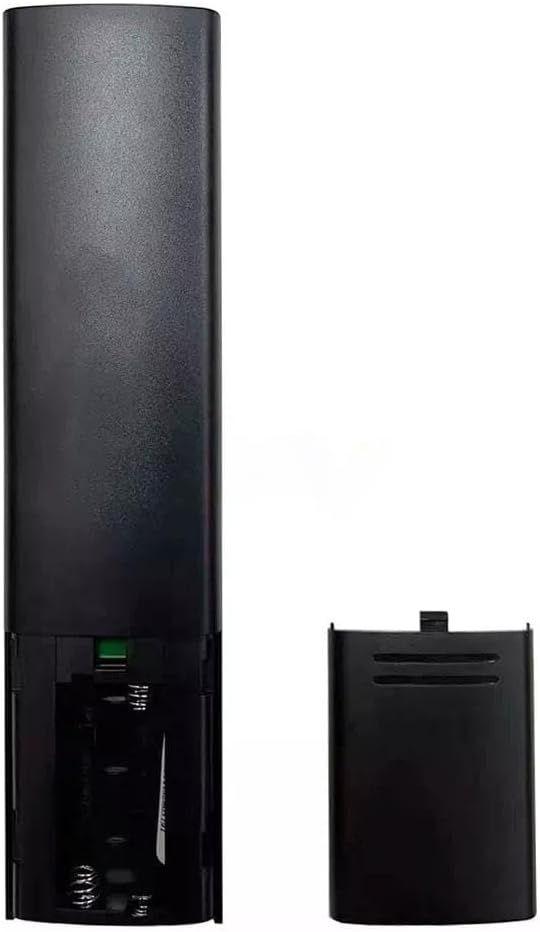
Image: Rear view of the remote control with the battery compartment open. This image clearly shows the two slots for AAA batteries and the correct orientation markings for installation.
Initial Pairing (Bluetooth)
For Bluetooth functionality, the remote may need to be paired with your МТС ZTE IPTV device. Refer to your IPTV device's manual for specific pairing instructions, as procedures can vary. Typically, this involves putting the IPTV device into pairing mode and then pressing a specific button combination on the remote (e.g., Home and OK buttons simultaneously) until an indicator light flashes.
Operating Instructions
Familiarize yourself with the buttons on your remote control to effectively navigate your television and IPTV system.
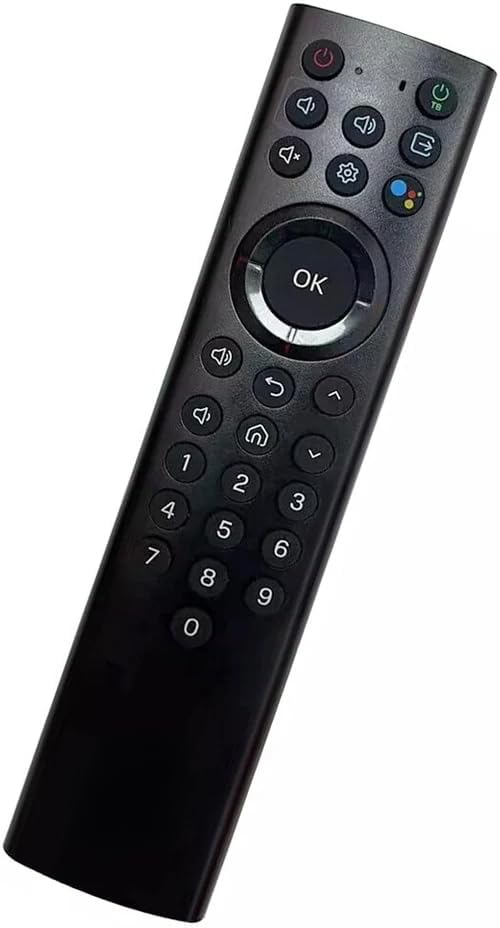
Image: Angled view of the remote control, providing a clear perspective of the button arrangement and their labels for easy identification during operation.
Button Functions
- Power Button (⏻): Turns the connected device on or off.
- Volume Up/Down (🔊+ / 🔊-): Adjusts the audio volume.
- Mute (🔇): Mutes or unmutes the audio.
- Navigation Pad (Up, Down, Left, Right): Moves the cursor or selection on screen.
- OK Button: Confirms a selection or enters a menu.
- Back Button (↩): Returns to the previous screen or menu.
- Home Button (🏠): Returns to the main home screen of the IPTV device.
- Voice Search Button (🎤): Activates the voice search feature. Speak clearly into the remote when prompted.
- Number Pad (0-9): Directly enters channel numbers or other numerical inputs.
- Settings Button (⚙️): Accesses device settings.
Maintenance
Proper care and maintenance will extend the life of your remote control.
Cleaning
- Wipe the remote control with a soft, dry cloth.
- For stubborn dirt, slightly dampen the cloth with water or a mild, non-abrasive cleaner. Do not spray cleaner directly onto the remote.
- Avoid using harsh chemicals, solvents, or abrasive cleaning pads, as these can damage the remote's surface or internal components.
Battery Replacement
If the remote control becomes unresponsive or its range decreases, the batteries may need to be replaced. Follow the battery installation steps outlined in the 'Setup Guide' section. Always replace both batteries at the same time with new AAA batteries.
Troubleshooting
If you encounter issues with your remote control, try the following solutions:
- Remote Not Responding:
- Check if the batteries are correctly inserted and have sufficient charge. Replace them if necessary.
- Ensure there are no obstructions between the remote and the IPTV device's IR receiver (for Infrared mode).
- If using Bluetooth, ensure the remote is paired with the device. Try re-pairing if connection is lost.
- Voice Control Not Working:
- Ensure the remote is properly paired via Bluetooth, as voice functionality typically relies on Bluetooth.
- Check your IPTV device's settings to ensure voice control is enabled.
- Speak clearly and directly into the remote's microphone.
- Limited Range:
- Replace the batteries. Low battery power can reduce the remote's effective range.
- Ensure no strong interference sources (e.g., other electronic devices) are near the remote or the IPTV device.
Technical Specifications
| Feature | Description |
|---|---|
| Product Dimensions | 6 x 3 x 1 inches |
| Item Weight | 2.82 ounces |
| Model Number | МТС ZXV10 B866 |
| Batteries Required | 2 AAA batteries (not included) |
| Connectivity Technology | Bluetooth, Infrared |
| Compatible Devices | Television (specifically ZXV10 B866 models) |
| Special Features | Ergonomic, Voice Search |
| Max Number of Supported Devices | 1 |
| Material | ABS Material |
Warranty Information
The XINFUTE ZXV10 B866 TV Remote comes with a one-year warranty from the date of purchase. This warranty covers manufacturing defects and ensures the product functions as intended under normal use. Please retain your proof of purchase for any warranty claims.
For warranty service or inquiries, please contact XINFUTE customer support.
Customer Support
For further assistance, technical support, or to inquire about replacement parts, please contact the manufacturer, XINFUTE. You can also visit the official XINFUTE store on Amazon for more product information and support resources.
XINFUTE Store Link: Visit XINFUTE Store