1. Introduction
This manual provides essential information for the safe and efficient use of your LG 43-Inch QNED80 4K Smart TV. Please read this manual thoroughly before operating your TV and retain it for future reference. The LG QNED80 4K Smart TV offers a vibrant visual experience with advanced AI processing and smart features.
2. Key Features
- Dynamic QNED Colour with 100% Color Volume: LG's wide color gamut technology delivers colorful images for a vivid immersive experience.
- α7 AI Processor Gen8: Enhanced brightness, improved sound, and refined picture detail with 4K upscaling and Dynamic Tone Mapping Pro.
- HDR10 Pro: Delivers a dramatic visual experience and elevated picture quality by enhancing each color on your screen.
- Filmmaker Mode: Watch films as directors intended with automatic preservation of original colors, settings, and frame rates.
- WebOS Smart TV Platform: A smarter, more personalized experience with access to streaming apps and LG Channels. Includes Re:New Program for software updates.
- AI Magic Remote: Features a dedicated AI button for AI Chatbot, AI Concierge, AI Search, AI Picture Wizard, and AI Sound Wizard.
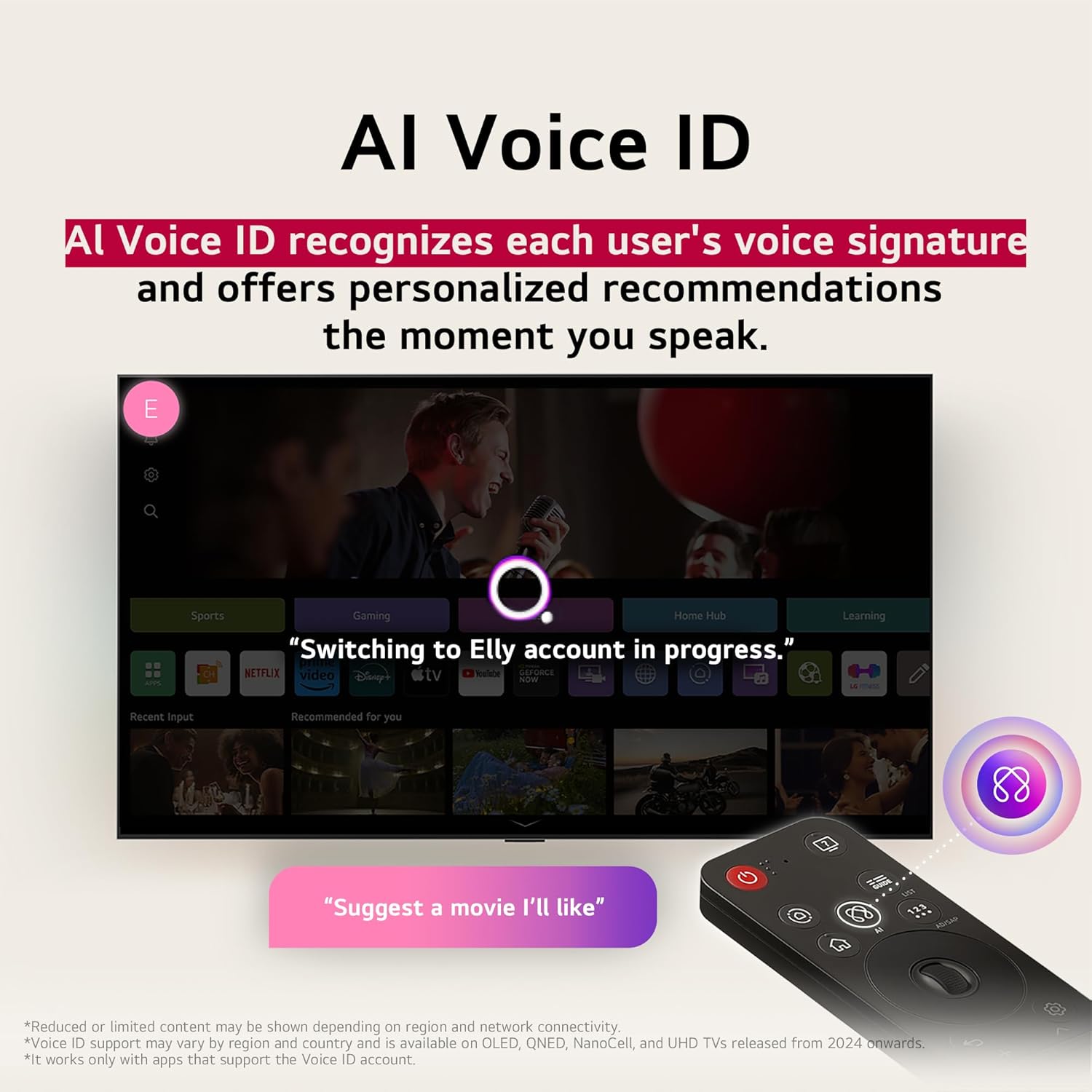
- AI Voice ID: Recognizes user's voice signature for personalized recommendations.
3. Setup
3.1 Unboxing and Initial Inspection
Carefully remove the TV and all accessories from the packaging. Ensure all components listed in the 'What's in the Box' section are present and undamaged. Keep packaging for potential future transport or returns.
3.2 Stand Assembly or Wall Mounting
If using the included stand, follow the instructions provided in the separate quick setup guide to securely attach the stand to the TV. If wall-mounting, ensure you use a compatible VESA mount and follow the mount manufacturer's instructions, paying attention to weight limits and wall type. Always ensure the TV is securely fastened to prevent accidental falls.
3.3 Connecting Peripherals
Connect your external devices (e.g., cable box, Blu-ray player, gaming console) to the appropriate HDMI ports. For internet connectivity, use an Ethernet cable for a stable wired connection or connect via Wi-Fi during the initial setup process. Ensure the power cable is securely connected to the TV and a power outlet.
3.4 Initial Power-On and Setup Wizard
Press the power button on the TV or the Magic Remote. The TV will guide you through the initial setup wizard, including language selection, network connection, channel scanning, and smart TV account setup. Follow the on-screen prompts to complete the process.
4. Operating Instructions
4.1 Using the Magic Remote
The Magic Remote allows for intuitive control of your TV. Point and click, use the scroll wheel, or utilize voice commands. Dedicated buttons provide quick access to popular streaming services and AI features.
4.2 Navigating WebOS
The WebOS platform provides a user-friendly interface for accessing apps, live TV, and connected devices. Use the Magic Remote's pointer to select icons on the home screen launcher bar. Customize the launcher bar to prioritize your favorite apps.
4.3 AI Features
- AI Voice ID: Set up your voice profile to receive personalized content recommendations and settings adjustments.
- AI Search: Use voice commands to search for content, information, or additional solutions.
- AI Concierge: Provides customized keywords and recommendations based on your viewing history.
- AI Chatbot: Understands your intent and provides immediate solutions for configuration settings or troubleshooting.
5. Media Integration
5.1 Product Images
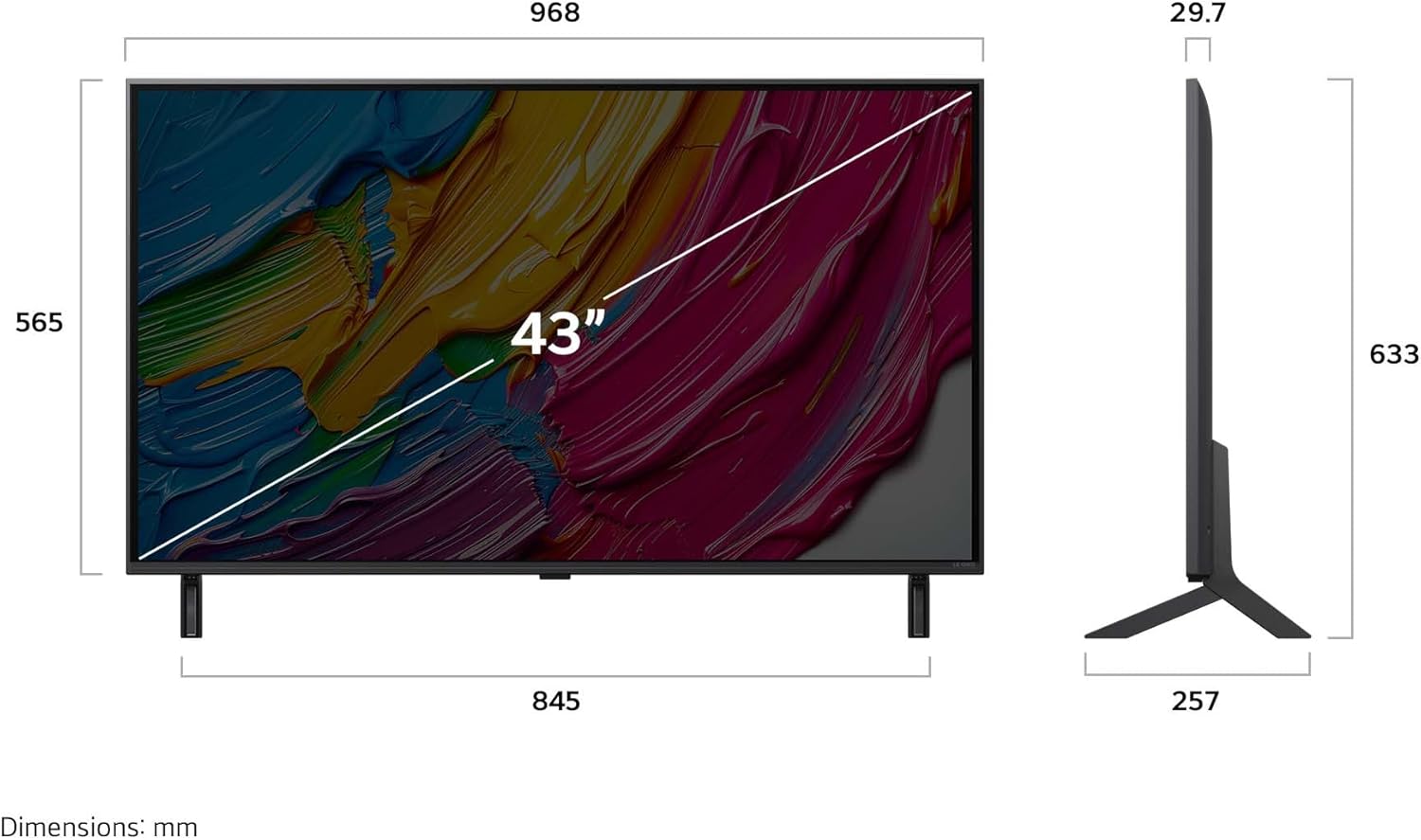
Front view of the LG 43-Inch QNED80 4K Smart TV.

Side profile of the LG 43-Inch QNED80 4K Smart TV, showcasing its slim design.

Rear view of the LG 43-Inch QNED80 4K Smart TV, highlighting connectivity ports.

Illustration of Dynamic QNED Colour with 100% Color Volume for vibrant visuals.

The α7 AI Processor Gen8, responsible for upscaling 4K visuals with stunning color and brightness.

Visual comparison demonstrating Precision Dimming Technology for sharper pictures and finer details.

Demonstration of 4K Super Upscaling, boosting resolution for enhanced clarity, brightness, and detail.
Experience your favorite films, sports, and games on the LG Ultra Big TV with high resolution.

The AI Magic Remote, completing your AI experience with dedicated AI buttons for various functions.

AI Voice ID recognizing a user's voice signature to offer personalized recommendations.

AI Search providing personalized recommendations and additional solutions based on user requests.
5.2 Official Product Videos
No official product videos from the seller were available for embedding based on the provided criteria.
6. Maintenance
6.1 Cleaning the TV
Always unplug the TV before cleaning. Use a soft, dry cloth to wipe the screen and exterior surfaces. For stubborn marks, lightly dampen the cloth with water or a specialized screen cleaner. Avoid using harsh chemicals, abrasive materials, or spraying liquids directly onto the TV.
6.2 Software Updates
Your LG Smart TV will periodically receive software updates to improve performance and add new features. Ensure your TV is connected to the internet. Software updates will automatically download, or you may receive a notification to accept or deny the update. It is recommended to keep your TV's software up to date for optimal performance and security.
7. Troubleshooting
If you encounter issues with your LG QNED80 4K Smart TV, refer to the following common troubleshooting steps:
- No Power: Check if the power cord is securely plugged into both the TV and the wall outlet. Try a different outlet.
- No Picture/Sound: Ensure the correct input source is selected. Check all cable connections (HDMI, antenna, etc.) for looseness.
- Remote Control Not Working: Replace the batteries in the Magic Remote. Ensure there are no obstructions between the remote and the TV. Re-pair the remote if necessary (refer to the on-screen guide for pairing instructions).
- Poor Picture Quality: Adjust picture settings (brightness, contrast, sharpness) in the TV menu. Ensure the input source is providing a high-quality signal.
- Internet Connectivity Issues: Check your Wi-Fi router and modem. Restart them if needed. Reconnect the TV to the Wi-Fi network or try a wired Ethernet connection.
- Smart TV Apps Not Working: Ensure your TV's software is up to date. Try clearing the app's cache or reinstalling the app.
For more detailed troubleshooting, consult the on-screen user guide available through the WebOS interface or visit the LG support website.
8. Specifications
| Feature | Detail |
|---|---|
| Brand | LG |
| Model Number | 43QNED80AUA |
| Screen Size | 43 Inches |
| Display Technology | 4K QNED |
| Resolution | 4K (3840 x 2160) |
| Refresh Rate | 60 Hz |
| Processor | α7 AI Processor 4K Gen 8 |
| Special Features | HDR10 Pro, AI webOS, LG Channels, webOS Re:New, Magic Remote |
| Connectivity Technology | Bluetooth, Ethernet, HDMI, USB, Wi-Fi |
| HDMI Ports | 3 |
| USB Ports | 2 |
| Aspect Ratio | 16:9 |
| Item Weight | 26.4 pounds |
| Product Dimensions (D x W x H) | 10.12 x 38.11 x 24.92 inches |
| Color Name | Black |
| Included Components | Power Cable, Magic Remote, Stand, Remote Control Batteries |
9. Warranty & Support
9.1 Product Warranty
Your LG 43-Inch QNED80 4K Smart TV comes with a standard manufacturer's warranty. Please refer to the warranty card included in your product packaging for specific terms, conditions, and duration. Keep your proof of purchase for warranty claims.
9.2 Extended Protection Plans
Extended protection plans are available for purchase to provide additional coverage beyond the manufacturer's warranty. Options include a 4-Year Protection Plan and a Complete Protect plan. For details on these plans, please refer to the product listing or contact your retailer.
9.3 Customer Support
For technical assistance, service requests, or further information, please visit the official LG support website or contact LG customer service directly. You can find contact information and online resources in your product documentation or on the LG website.