
1. Introduction
Thank you for choosing the Xega Solar Security Camera. This device is designed to provide reliable outdoor surveillance with the convenience of solar power and wireless connectivity. Featuring 2K resolution, Pan-Tilt-Zoom (PTZ) functionality, color night vision, and smart motion detection, it offers comprehensive monitoring for your property. This manual will guide you through the installation, operation, and maintenance of your camera system.

Image: The Xega Solar WiFi Camera mounted on a house, illustrating its wireless connectivity.
2. What's in the Box
Please check the package contents to ensure all items are present:
- WiFi Camera (4 units)
- Solar Panel (4 units)
- Solar Panel Bracket (4 units)
- 3-meter Connection Cable (4 units)
- User Manual
- Screws and Wall Plugs
3. Product Overview and Features
The Xega Solar Security Camera is equipped with advanced features for reliable outdoor surveillance:
- Solar-Powered & Easy Installation: Operates entirely on solar energy with a built-in 5200mAh rechargeable battery. No electrical wiring required, allowing flexible installation. The 3.5W angle-adjustable solar panel maximizes sunlight exposure.
- 2K Image & PTZ Technology: Delivers 2K HD clarity with a high-performance image sensor. Features 355° horizontal and 90° vertical rotation for wide area coverage.
- Color Night Vision: Provides vibrant full-color night vision up to 25 meters (82ft) in darkness.
- Smart Detection & Instant Alerts: Built-in PIR sensor with adjustable sensitivity supports human detection and customizable detection zones to minimize false alarms. Triggers bright floodlights and audible alarms upon detection. Real-time alerts are pushed to your phone via the Ubox app.
- Two-way Talk: Built-in microphone and speaker enable real-time two-way communication.
- Optional Storage: Supports local storage via TF card (up to 128GB, not included) and cloud storage (30-day trial available).
- IP66 Weatherproof: Designed to withstand various weather conditions, ensuring year-round security.
Visual Features Overview

Image: The camera and solar panel setup, emphasizing continuous solar power for 365 days.
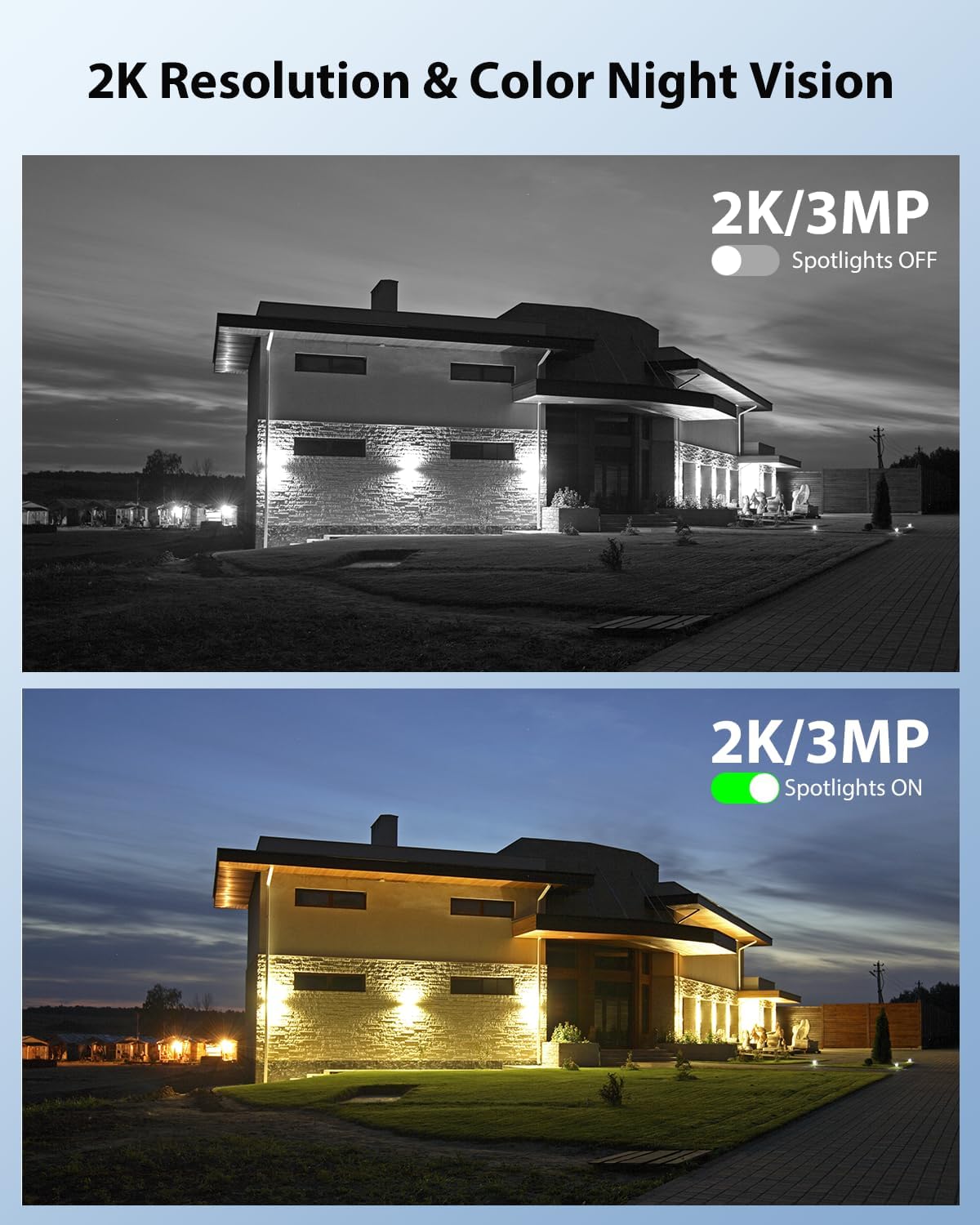
Image: Demonstrates 2K resolution and the difference between infrared and color night vision with spotlights.

Image: Illustrates the panoramic view and PTZ (Pan-Tilt-Zoom) capabilities controlled via a smartphone app.
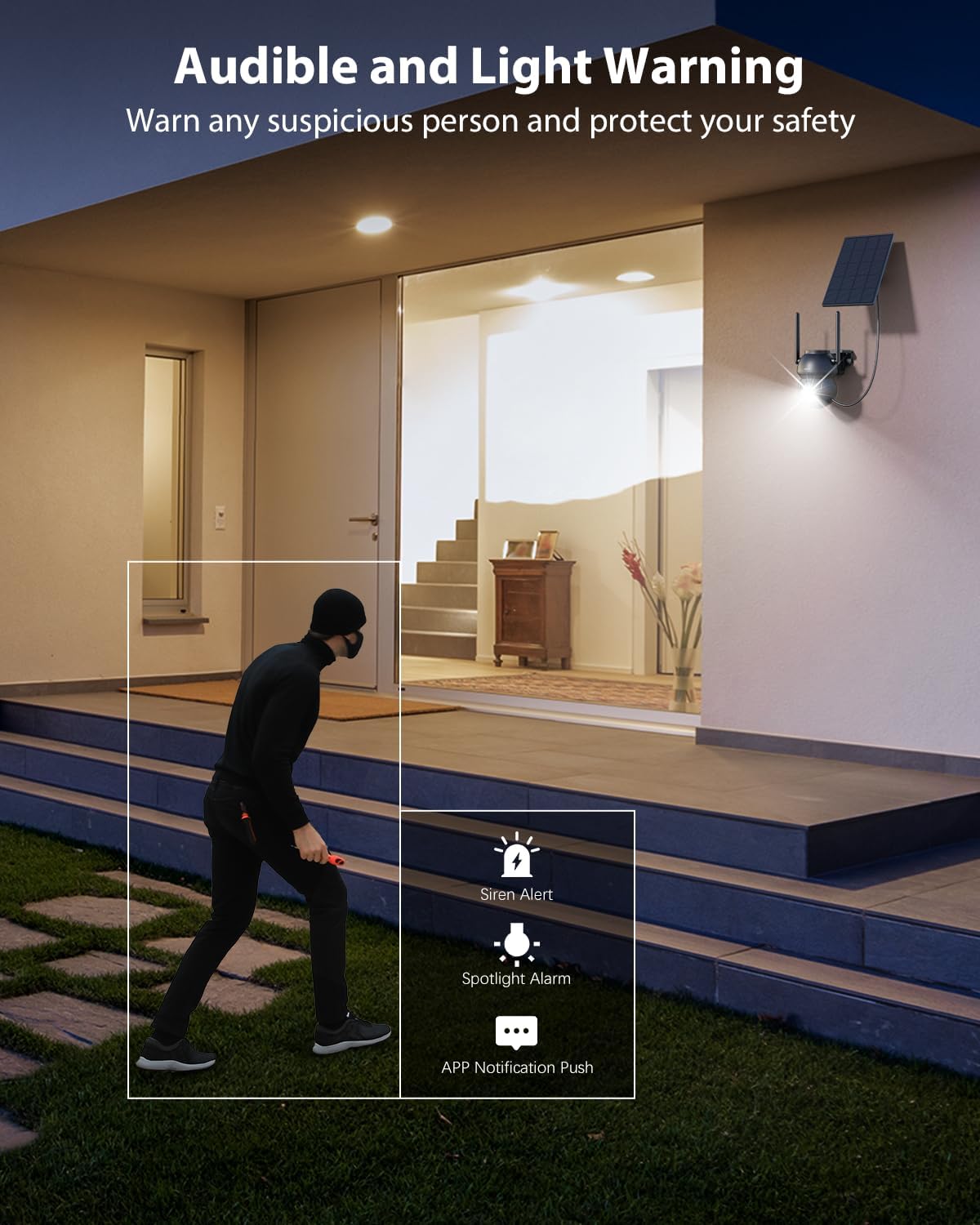
Image: Shows the camera's audible and light warning system deterring a suspicious person.

Image: Depicts the two-way audio function, allowing communication through the camera.

Image: Shows how to customize detection areas to focus monitoring on important zones and reduce false alarms.

Image: Highlights the IP66 weather-resistant design, showing the camera's durability in various weather conditions.
Product Video
Video: An overview of the Xega Solar WiFi Camera Outdoor Wireless, demonstrating its key features and ease of installation.
4. Setup Guide
4.1 Charging the Battery
Before initial use, fully charge the camera's built-in 5200mAh battery using the provided USB cable. Although solar-powered, a full initial charge ensures optimal performance from the start.
4.2 App Installation and Account Creation
- Download the Ubox app from your smartphone's app store (iOS or Android).
- Open the app and follow the on-screen instructions to create a new account or log in if you already have one.
4.3 Camera Pairing with Wi-Fi
- Ensure your smartphone is connected to a 2.4GHz Wi-Fi network. The camera does not support 5GHz Wi-Fi.
- In the Ubox app, tap the "Add Device" or "+" icon.
- Power on the camera. It will enter pairing mode, indicated by a specific LED light pattern (refer to the camera's LED indicator guide in the app for details).
- Follow the app's instructions to connect the camera to your Wi-Fi network. This usually involves scanning a QR code displayed on your phone with the camera lens.
- Once connected, the camera will confirm successful pairing, and you can name your device.
4.4 Mounting the Camera and Solar Panel
The camera and solar panel are designed for wall mount installation.
- Choose a Location: Select an outdoor location with good Wi-Fi signal strength and ample sunlight exposure for the solar panel. The camera should be mounted at a height that provides optimal viewing angles and detection range.
- Mount the Camera: Use the provided screws and wall plugs to securely attach the camera bracket to a wall or suitable surface. Ensure the camera has a clear line of sight to the area you wish to monitor.
- Mount the Solar Panel: Attach the solar panel bracket to a location where it receives direct sunlight for most of the day. Adjust the angle of the solar panel to maximize sunlight exposure.
- Connect Solar Panel: Use the 3-meter connection cable to link the solar panel to the camera.
5. Operating Instructions
5.1 Live View and PTZ Control
- Open the Ubox app and select your camera to access the live view.
- Use the on-screen joystick or swipe gestures to control the camera's 355° pan and 90° tilt movements.
- Pinch to zoom in or out (digital zoom).
5.2 Two-Way Audio
- In the live view, tap the microphone icon to speak through the camera's speaker.
- Tap the speaker icon to listen to audio from the camera's surroundings.
5.3 Motion Detection and Alerts
- Navigate to the camera settings in the Ubox app.
- Adjust PIR sensor sensitivity to optimize detection and minimize false alarms.
- Set up custom detection zones to monitor specific areas of interest.
- Enable or disable floodlight and siren alarms for motion events.
- Ensure push notifications are enabled in your phone settings and the Ubox app to receive instant alerts.
5.4 Night Vision Modes
The camera offers different night vision modes:
- Infrared Night Vision: Provides clear black and white images in low light.
- Color Night Vision: Activates built-in spotlights to provide full-color images at night when motion is detected. This can be configured in the app settings.
5.5 Storage Options
- TF Card Storage: Insert a TF (microSD) card (up to 128GB, not included) into the camera's designated slot for local recording.
- Cloud Storage: Subscribe to the optional cloud storage service via the Ubox app for secure, remote storage of your recordings. A 30-day trial may be available.
- Access recorded footage and playback options through the Ubox app.
6. Maintenance
- Solar Panel Cleaning: Regularly wipe the solar panel surface with a soft, damp cloth to remove dust, dirt, or debris that may reduce charging efficiency.
- Camera Lens Cleaning: Gently clean the camera lens with a microfiber cloth to ensure clear image quality. Avoid abrasive materials.
- Firmware Updates: Check the Ubox app periodically for firmware updates. Keeping your camera's firmware updated ensures optimal performance and access to new features.
- Battery Health: While solar-powered, extreme weather or prolonged periods of low sunlight may affect battery levels. Ensure the solar panel is optimally positioned.
- Weather Resistance: The IP66 rating ensures protection against dust and strong jets of water. No special weather-proofing maintenance is typically required beyond ensuring secure mounting.
7. Troubleshooting
- Camera Not Connecting to Wi-Fi:
- Ensure your Wi-Fi network is 2.4GHz.
- Check Wi-Fi signal strength at the camera's location.
- Restart your router and the camera.
- Verify correct Wi-Fi password entry in the app.
- Poor Image Quality:
- Clean the camera lens.
- Ensure adequate lighting, especially for color night vision.
- Check your internet connection speed.
- False Motion Alerts:
- Adjust PIR sensor sensitivity in the app.
- Define or refine custom detection zones to exclude irrelevant areas (e.g., public roads, swaying trees).
- Battery Not Charging:
- Ensure the solar panel is receiving direct sunlight for several hours daily.
- Clean the solar panel surface.
- Check the connection cable between the solar panel and the camera.
- Two-Way Audio Issues:
- Ensure your phone's volume is up and the microphone is enabled for the Ubox app.
- Check the camera's speaker and microphone settings in the app.
8. Specifications
| Feature | Specification |
|---|---|
| Model Name | XG-22-WIFI-P4 |
| Indoor/Outdoor Usage | Outdoor |
| Power Source | Solar and Battery Powered (5200mAh Lithium Ion batteries included) |
| Connectivity Technology | 2.4Ghz WiFi |
| Video Capture Resolution | 2K (1296p) |
| PTZ (Pan/Tilt) | 355° Horizontal, 90° Vertical |
| Night Vision Range | 25 Meters (82ft) |
| Low Light Technology | Color Night Vision |
| Motion Detection | PIR Sensor, Human Detection, Customizable Alarm Areas |
| Two-Way Audio | Yes |
| Storage Options | TF Card (Max. 128GB), Cloud Storage |
| International Protection Rating | IP66 |
| Mounting Type | Wall Mount |
| Material | Acrylonitrile Butadiene Styrene (ABS) |
| Product Dimensions | 5 x 5 x 5 inches |
| Item Weight | 6.43 pounds (for 4-pack) |
9. Warranty and Support
9.1 Warranty Information
Xega products typically come with a manufacturer's warranty. Please refer to the product packaging or the official Xega website for specific warranty terms and conditions. Keep your purchase receipt as proof of purchase.
9.2 Customer Support
For technical assistance, troubleshooting, or any product-related inquiries, please contact Xega customer support. You can usually find contact information on the Xega official website or through the Ubox app.

Image: Xega offers 24/7 online customer support for assistance.


