
1. Introduction
Thank you for choosing the JYXCN 55-inch Dual-OS Conference Board. This advanced interactive display is designed to enhance productivity and collaboration in various professional and educational environments. Featuring a 4K UHD touchscreen with both Windows 10 and Android 11 operating systems, it offers versatile functionality for presentations, video conferencing, interactive teaching, and more. This manual provides essential information for setup, operation, maintenance, and troubleshooting to ensure optimal performance and longevity of your device.

Figure 1.1: The JYXCN 55-inch Dual-OS Conference Board, showcasing its large display and sleek design.
2. Safety Information
Please read all safety instructions carefully before using the product. Keep this manual for future reference.
- Power Supply: Use only the power cable provided. Ensure the power outlet matches the voltage requirements of the device.
- Ventilation: Do not block ventilation openings. Ensure adequate space around the device for proper airflow to prevent overheating.
- Placement: Place the conference board on a stable, level surface or mount it securely to a wall using appropriate hardware. Avoid placing it in direct sunlight, near heat sources, or in areas with high humidity.
- Cleaning: Disconnect the power before cleaning. Use a soft, dry cloth. Do not use liquid cleaners or aerosol sprays.
- Handling: Handle the device with care. Avoid dropping or subjecting it to strong impacts.
- Repairs: Do not attempt to repair the device yourself. Refer all servicing to qualified service personnel.
3. Package Contents
Verify that all items listed below are included in your package:
- JYXCN 55-inch Dual-OS Conference Board
- Remote Control
- Wall Shelf (Mounting Hardware)
- Power Cable
- Certificate / Documentation

Figure 3.1: Overview of the items included in the product package.
4. Initial Setup
4.1 Unpacking
- Carefully remove the conference board and all accessories from the packaging.
- Inspect the device for any signs of damage during transit. If damaged, contact customer support immediately.
4.2 Mounting Options
The JYXCN Conference Board supports wall mounting for flexible installation. Ensure the wall can support the weight of the device (approximately 77.2 pounds) and use the provided VESA-compatible mounting hardware.
- Wall Mount: Use the included wall shelf and follow the instructions provided with the mounting hardware for secure installation. Ensure the mount is level and properly anchored to wall studs or appropriate wall anchors.
4.3 Connecting Peripherals
Connect necessary devices to the conference board:
- Power: Connect the power cable to the board and then to a grounded electrical outlet.
- HDMI: Use the 3 HDMI ports (HDMI 2.1 supported for 4K@60Hz) to connect gaming consoles, streaming devices, or other external sources.
- Audio: Connect soundbars via Bluetooth or optical audio output for enhanced sound.
- Wireless Connectivity: The board supports wireless screen sharing from up to 4 devices simultaneously (Phone, Tablet, Laptop, Desktop Computer).
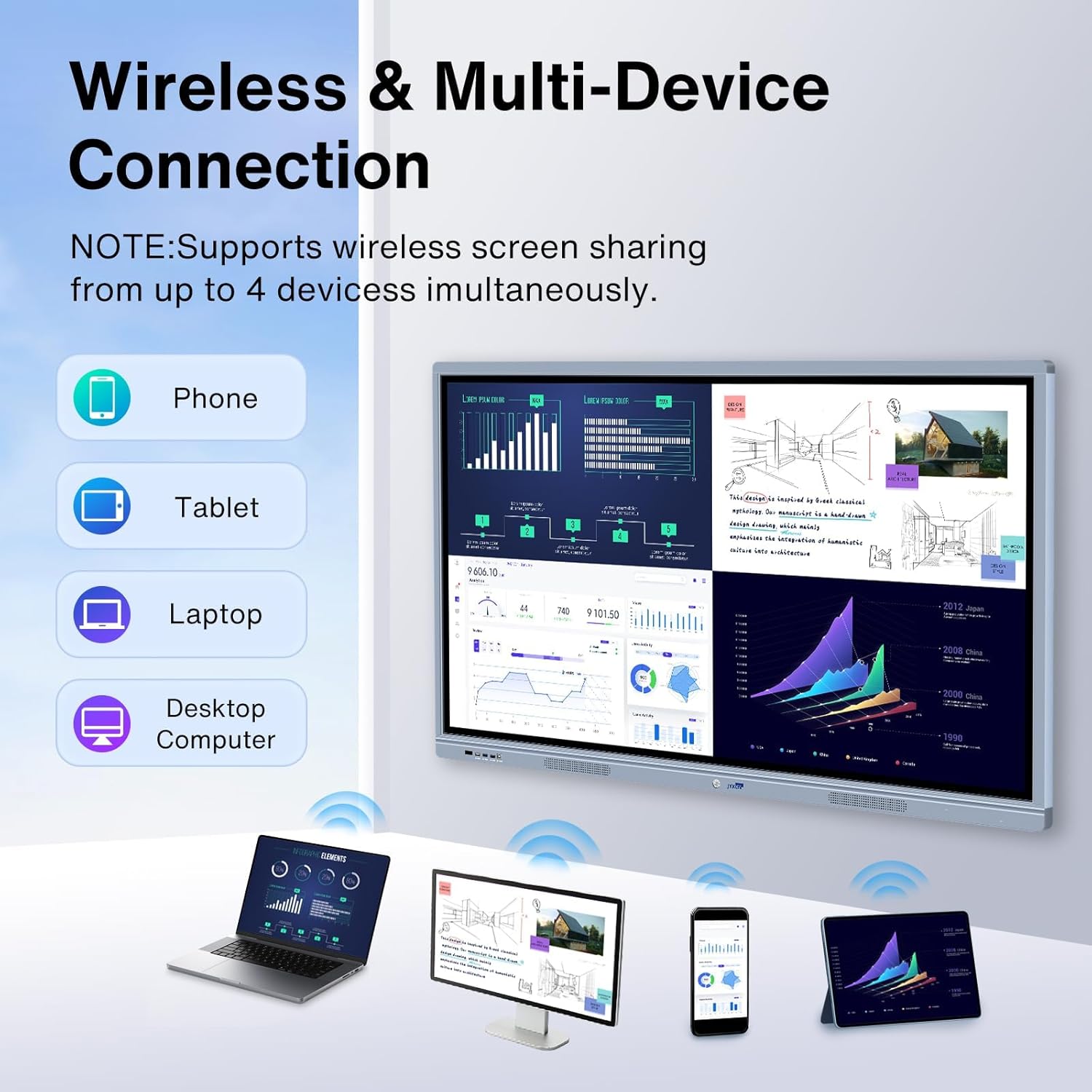
Figure 4.1: The conference board supports wireless screen sharing from multiple device types.
5. Operating Instructions
5.1 Powering On/Off
- Power On: Press the power button on the board or the remote control.
- Power Off: Press and hold the power button or use the remote control to shut down the system.
5.2 Dual-OS Functionality
The conference board features a dual-OS system, allowing you to switch between Windows 10 and Android 11. Instructions for switching between operating systems will be displayed on-screen upon initial setup or can be found in the system settings.
5.3 Touchscreen Operation
The 55-inch display features a 10-point sensitive capacitive touch control for intuitive interaction.
- Touch Gestures: Use standard touch gestures (tap, swipe, pinch-to-zoom) as you would on a tablet or smartphone.
- Writing/Annotation: Utilize the touchscreen for real-time annotation and collaborative whiteboarding.

Figure 5.1: The 4K UHD capacitive touchscreen offers precise and responsive interaction.

Figure 5.2: The interactive display facilitates real-time sharing and collaborative work.
5.4 Wireless Sharing and Applications
The board supports wireless screen sharing and comes with pre-installed applications and features:
- Wireless Screen Sharing: Share content wirelessly from phones, tablets, laptops, and desktop computers.
- 4K UHD Display with HDR10: Experience sharp clarity and vibrant colors. Switch between pre-set modes like Cinema and Sports for optimized viewing.
- Gamer-Ready Performance: Low-latency Game Mode and motion handling technology reduce blur, with HDMI 2.1 ports supporting 4K@60Hz for gaming consoles.
- Smart Convenience with Alexa: Stream seamlessly via built-in Fire TV or use Alexa voice commands for app launching, settings adjustment, and information retrieval.
- Pre-loaded Applications: Access popular streaming services like Netflix, Disney+, and Prime Video. A variety of other applications are available for download.
- Video Conferencing: Facilitate remote video conferencing and online teaching without geographical restrictions.

Figure 5.3: The board supports a wide range of applications for various uses.

Figure 5.4: The conference board is ideal for remote video conferencing and distance learning.

Figure 5.5: The JYXCN Conference Board is applicable to multiple scenarios, from business to home use.
6. Care and Maintenance
Proper care ensures the longevity and optimal performance of your conference board.
- Screen Cleaning: Gently wipe the screen with a soft, lint-free cloth. For stubborn marks, slightly dampen the cloth with water or a screen-safe cleaning solution. Do not spray liquid directly onto the screen.
- Body Cleaning: Use a soft, dry cloth to clean the body of the device.
- Dust Removal: Regularly dust the ventilation openings to prevent dust buildup, which can affect performance and lead to overheating.
- Storage: If storing the device for an extended period, power it off, disconnect it from the power source, and store it in a cool, dry place away from direct sunlight and extreme temperatures.
7. Troubleshooting Common Issues
If you encounter problems with your conference board, refer to the following common troubleshooting steps:
- No Power: Ensure the power cable is securely connected to both the board and a working electrical outlet. Try a different outlet.
- No Display: Check if the board is powered on. If using an external source, ensure the correct input source is selected (e.g., HDMI 1, HDMI 2).
- Touchscreen Unresponsive: Restart the device. Ensure the screen is clean and free of obstructions.
- Wireless Sharing Issues: Ensure both devices are on the same network. Check network connectivity and firewall settings.
- Audio Problems: Check volume settings on the board and any connected audio devices. Ensure external audio devices are properly connected.
If the issue persists after trying these steps, please contact JYXCN customer support for further assistance.
8. Product Specifications
| Feature | Specification |
|---|---|
| Brand | JYXCN |
| Display Size | 55 inches |
| Display Resolution | 4K UHD with HDR10 |
| Operating Systems | Windows 10 & Android 11 |
| Touch Technology | Capacitive Touch, 10-point sensitive |
| Audio | Dual 10W speakers with Dolby Audio |
| Connectivity | 3 HDMI ports (HDMI 2.1), Bluetooth, Wireless Sharing |
| Mounting Type | Wall Mount (VESA-compatible) |
| Color | Black |
| Item Weight | 77.2 pounds |
| Package Dimensions | 53.54 x 36.61 x 7.09 inches |
| Manufacturer | JYXCN |
| Country of Origin | China |
| First Available Date | May 12, 2025 |
9. Warranty and Customer Support
JYXCN is committed to providing high-quality products and excellent customer service.
9.1 Protection Plans
Extended protection plans are available for purchase to cover your investment:
- 3-Year Protection Plan: Available for $159.99.
- 4-Year Protection Plan: Available for $199.99.
- Complete Protect: A monthly plan at $16.99/month covering eligible past and future purchases.
9.2 Customer Support
For any inquiries, technical assistance, or warranty claims, please contact JYXCN customer support. The manufacturer offers a 24-hour product after-sales team to assist you.
- Returns: Enjoy 30-day easy returns.
- Data Security: Keep your data safe with exclusive accessories.
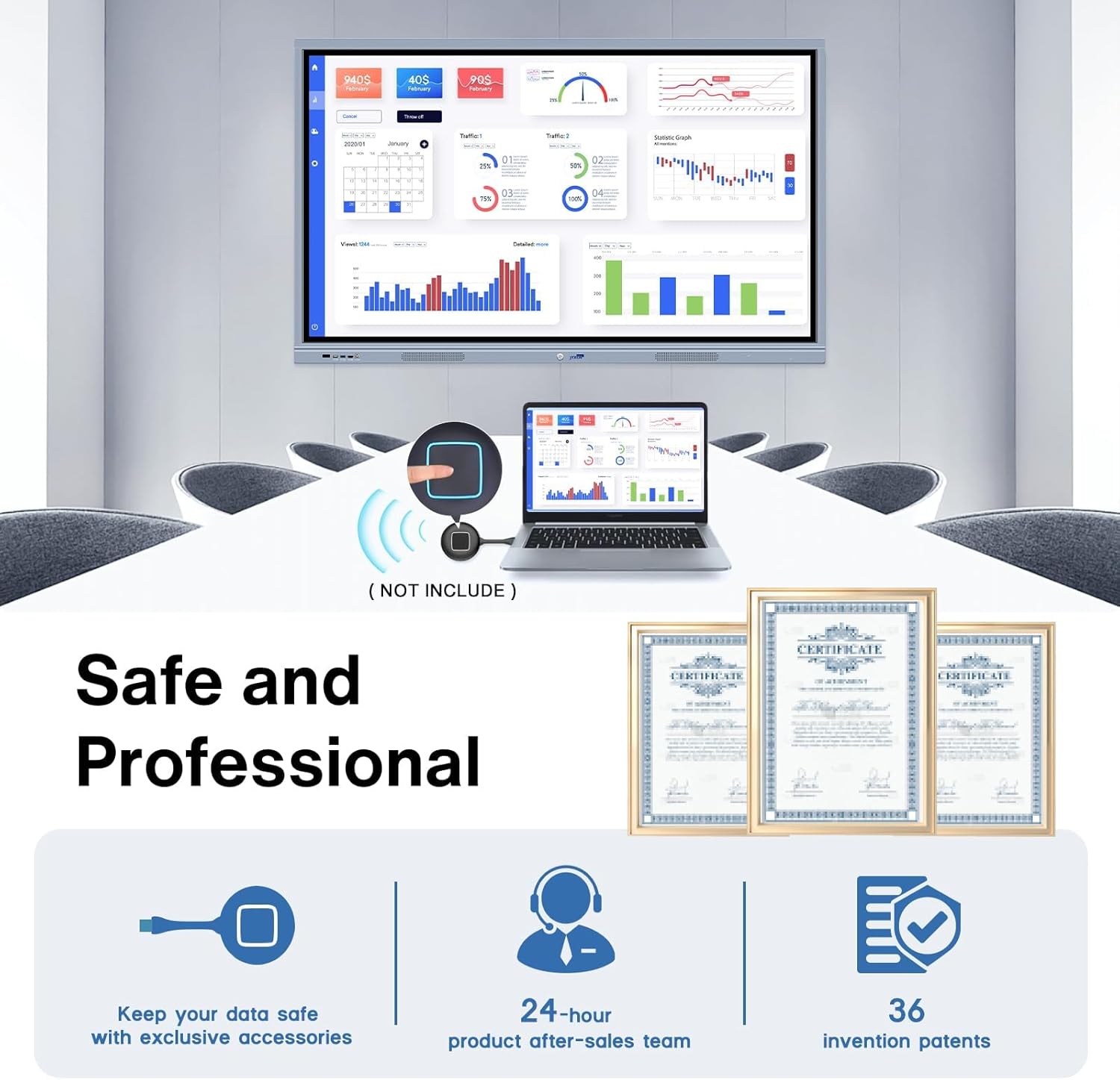
Figure 9.1: JYXCN's commitment to safety, professional support, and innovation.

