
1. Introduction
Thank you for choosing the ORICO 80Gbps 2TB Portable SSD X50. This high-performance external solid-state drive is designed for ultra-fast data transfer, making it ideal for professionals in video editing, photography, and graphic design. Featuring Thunderbolt 5 compatibility and a fanless cooling design, the X50 ensures efficient and reliable storage for your critical data.
2. Package Contents
Please verify that all items are present in your package:
- ORICO 80Gbps Portable SSD X50 (1 unit)
- Data Cable (1 unit)
- Instruction Manual (1 unit)
3. Key Features
- Up to 80Gbps Bandwidth: Experience lightning-fast Thunderbolt 5 performance, delivering ultra-smooth data transfer and real-time editing.
- Backward Compatible: Supports Thunderbolt 5, 4, and 3 interfaces, ensuring broad compatibility and superior speed compared to traditional external hard drives.
- High-Performance 2TB SSD: Achieve up to 5800MB/s read and 3300MB/s write speeds, perfect for handling 4K/8K video editing, photography workflows, and large-scale data storage.
- Silent Fanless Cooling: Crafted from CNC aluminum, the enclosure efficiently dissipates heat without a fan, ensuring quiet operation and stable performance even under heavy workloads.
- Portable & Professional: Compact and lightweight, ideal for creators, designers, and professionals who need fast and reliable storage anytime, anywhere.

Image: The ORICO X50 Portable SSD demonstrating its high-speed capabilities with 80Gbps bandwidth, 5800MB/s read, and 3300MB/s write speeds.

Image: The ORICO X50 Portable SSD showcasing its fanless, silent, and efficient heat dissipation design, including cooling hydrogel coating, aluminum alloy body, CPU-grade thermal pad, and fin structure.
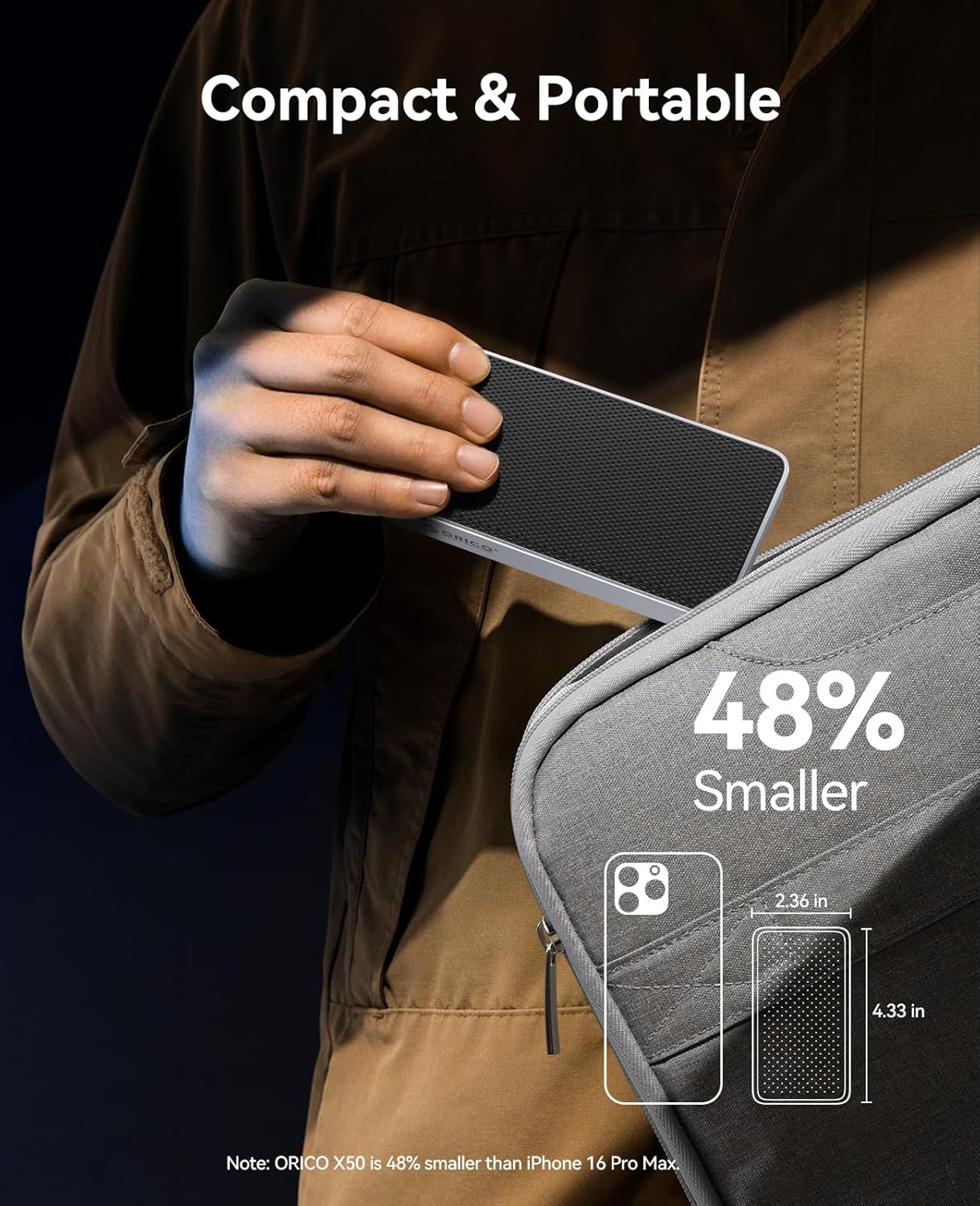
Image: The ORICO X50 Portable SSD being held, emphasizing its compact and portable design, ideal for on-the-go use.

Image: The ORICO X50 Portable SSD's multi-OS and plug-and-play compatibility, supporting Windows, Mac OS, Linux, and various Mac and PC devices.
Video: An official ORICO video demonstrating the high-speed capabilities and compact design of the Portable SSD.
Video: An official ORICO video showcasing the 80Gbps transfer speed and features of the X50 External Solid State Drive.
4. Setup Guide
4.1 Connecting the SSD
- Locate the Thunderbolt/USB-C port on your computer.
- Connect one end of the provided data cable to the ORICO X50 Portable SSD.
- Connect the other end of the data cable to your computer's Thunderbolt/USB-C port.
- The SSD will be automatically detected by your operating system.
4.2 Initial Formatting (If Required)
For optimal performance and compatibility, especially when switching between operating systems or for specific use cases, you may need to format the SSD. Note: Formatting will erase all data on the drive. Back up any important data before proceeding.
Windows:
- Right-click on the 'Start' button and select 'Disk Management'.
- Locate the ORICO X50 SSD (it may appear as 'Unallocated Space' or with an existing partition).
- Right-click on the drive and select 'New Simple Volume' or 'Format'.
- Follow the on-screen prompts to choose a file system (e.g., NTFS for Windows, exFAT for cross-platform compatibility) and assign a drive letter.
macOS:
- Open 'Disk Utility' from 'Applications' > 'Utilities'.
- Select the ORICO X50 SSD from the sidebar.
- Click the 'Erase' button in the toolbar.
- Choose a format (e.g., APFS for macOS, exFAT for cross-platform compatibility) and a scheme (e.g., GUID Partition Map).
- Click 'Erase' to confirm.
5. Operating Instructions
5.1 Data Transfer
Once connected and recognized by your computer, the ORICO X50 SSD functions like any other external drive. You can drag and drop files, copy and paste, or use your operating system's file management tools to transfer data.
- For maximum speed, ensure your computer's port supports Thunderbolt 5, 4, or 3.
- Avoid disconnecting the drive during active data transfer to prevent data corruption.
5.2 Safe Ejection
Always safely eject the ORICO X50 SSD before physically disconnecting it from your computer to prevent data loss or corruption.
Windows:
- Click the 'Safely Remove Hardware and Eject Media' icon in the system tray.
- Select the ORICO X50 SSD from the list.
- Wait for the 'Safe to Remove Hardware' notification before disconnecting.
macOS:
- Drag the drive icon from your desktop to the Trash.
- Alternatively, right-click (or Control-click) the drive icon and select 'Eject'.
- Wait for the drive icon to disappear from the desktop before disconnecting.
6. Maintenance
6.1 Cleaning
To clean the exterior of the SSD, use a soft, dry, lint-free cloth. Avoid using harsh chemicals, solvents, or abrasive materials, as these can damage the finish.
6.2 Firmware Updates
Periodically check the official ORICO website (www.orico.cc) for any available firmware updates for your X50 SSD. Firmware updates can improve performance, stability, and compatibility.
6.3 Heat Management
The ORICO X50 features a fanless cooling design with an aluminum alloy body and internal thermal components to dissipate heat. While designed for efficient cooling, ensure the device is not covered or placed in an enclosed space during prolonged heavy use to allow for proper airflow.
7. Troubleshooting
If you encounter issues with your ORICO X50 Portable SSD, please refer to the following common solutions:
| Problem | Possible Cause | Solution |
|---|---|---|
| SSD not detected by computer | Loose cable connection, incompatible port, driver issue, unformatted drive. | Ensure the data cable is securely connected to both the SSD and the computer. Try a different USB-C/Thunderbolt port or cable. Check Disk Management (Windows) or Disk Utility (macOS) to see if the drive is visible and needs formatting. Update your computer's drivers. |
| Slow data transfer speeds | Using a non-Thunderbolt port, cable quality, background processes, drive fragmentation (less common for SSDs). | Ensure you are connected to a Thunderbolt 5/4/3 port on your computer. Use the provided ORICO data cable. Close unnecessary applications. While SSDs do not fragment like HDDs, ensure your operating system is optimized for SSDs (e.g., TRIM enabled). Note that actual speeds can vary based on system configuration and file types. |
| Drive disconnects randomly | Loose connection, power management settings, faulty port/cable. | Check cable connections. Disable USB selective suspend setting in Windows Power Options. Try a different port or cable. |
| SSD feels warm during use | Normal operation, heavy workload. | The aluminum alloy enclosure is designed to dissipate heat. Some warmth during heavy data transfer is normal. Ensure the device has adequate ventilation and is not covered. If it becomes excessively hot or performance degrades, contact support. |
If the problem persists after trying these solutions, please contact ORICO customer support for further assistance.
8. Specifications
| Feature | Detail |
|---|---|
| Brand | ORICO |
| Model | X50 |
| Digital Storage Capacity | 2 TB |
| Hard Disk Interface | Thunderbolt |
| Connectivity Technology | Thunderbolt 5/4/3, USB4 |
| Max Read Speed | Up to 5800 MB/s |
| Max Write Speed | Up to 3300 MB/s |
| Hardware Platform | Mac, PC |
| Cooling Design | Fanless, CNC Aluminum Alloy Housing, Hydrogel Coating, Thermal Pad, Fin Structure |
| Color | Silver |
| Item Weight | 10.2 ounces |
| Package Dimensions | 6.06 x 3.78 x 1.73 inches |
9. Warranty and Support
ORICO products come with a standard manufacturer's warranty. For specific warranty terms and conditions, please refer to the warranty card included in your product packaging or visit the official ORICO website. For technical support, troubleshooting assistance, or warranty claims, please contact ORICO customer service through their official website or the contact information provided in your product documentation.
ORICO Official Website: www.orico.cc


