
EasySMX D10
EasySMX D10 Wireless Gaming Controller User Manual
Comprehensive guide for setup, operation, and maintenance of your EasySMX D10 controller.
Product Overview
The EasySMX D10 Wireless Gaming Controller is designed for competitive gamers, offering ultra-low latency and broad compatibility across multiple platforms. It features advanced components such as TMR Joysticks, Dual-Mode Triggers, and Mechanical Keys for precise and responsive gameplay. The controller also includes customizable RGB lighting, remappable back buttons, and a convenient charging dock.

Image: EasySMX D10 Wireless Gaming Controller with its charging dock, showcasing its design and RGB lighting.
Package Contents
Before proceeding with setup, please ensure all items are present in the package:
- EasySMX D10 Wireless Gaming Controller
- Magnetic Intelligent Charging Dock
- USB-C Charging Cable
- 2.4G Wireless Dongle (stored in the charging dock)
- User Manual

Image: The EasySMX D10 controller, its charging dock, USB-C cable, and user manual, as typically found in the product packaging.
Setup
Initial Charging
It is recommended to fully charge the controller before first use. The controller includes a magnetic intelligent charging dock for convenience.
- Connect the USB-C charging cable to the charging dock and a power source (e.g., PC USB port, USB wall adapter).
- Place the EasySMX D10 controller onto the magnetic charging dock. The controller will automatically align and begin charging.
- The RGB lighting on the controller and dock will indicate charging status. A full charge typically takes approximately 2.5 hours.

Image: The EasySMX D10 controller securely placed on its intelligent charging dock, ready for charging.
Connecting the Controller
The EasySMX D10 supports wired, 2.4G wireless, and Bluetooth connections.
2.4G Wireless Connection (Recommended for PC)
- Locate the 2.4G wireless dongle, which is conveniently stored within the charging dock.
- Plug the 2.4G wireless dongle into an available USB port on your PC or compatible device.
- Turn on the controller. It should automatically connect to the dongle. The controller offers a 1000Hz polling rate in 2.4G wireless mode for minimal latency.
Bluetooth Connection (for Switch, iOS, Android)
- Ensure the controller is powered on.
- On your device (Switch, iOS, Android), navigate to the Bluetooth settings.
- Search for available devices and select "EasySMX D10" (or similar) to pair.
- For Nintendo Switch, the 6-axis gyroscope feature is supported via Bluetooth.
Wired Connection
Connect the controller directly to your PC or compatible device using the USB-C cable. The controller will function immediately, also supporting a 1000Hz polling rate in wired mode.
Operating Instructions
Controller Layout and Functions
Familiarize yourself with the key components of your EasySMX D10 controller:
- TMR Joysticks: High-sensitivity, anti-drift joysticks optimized for precision in FPS and racing games.
- EasyPos D-pad: Delivers precise 8-way movement with millisecond response, ideal for fighting and retro games.
- Dual-Mode Triggers: Switch between Hall linear triggers (longer travel for racing/shooting) and micro-switch tactile triggers (shorter travel for action/fighting).
- Mechanical Buttons: Face buttons (A, B, X, Y) feature 1.0mm actuation and a 5M+ click life, providing tactile feedback similar to a mechanical keyboard.
- Programmable Back Buttons (M1, M2): Two remappable buttons on the rear of the controller for custom commands.
- RGB Lighting: Customizable lighting effects integrated into the controller's design.
- Vibration Motors: Adjustable vibration feedback for enhanced immersion.
Customization Features
Adjusting RGB Lighting
The controller features customizable RGB lighting with multiple modes and color combinations. Refer to the included user manual for specific button combinations to cycle through lighting effects and adjust brightness.
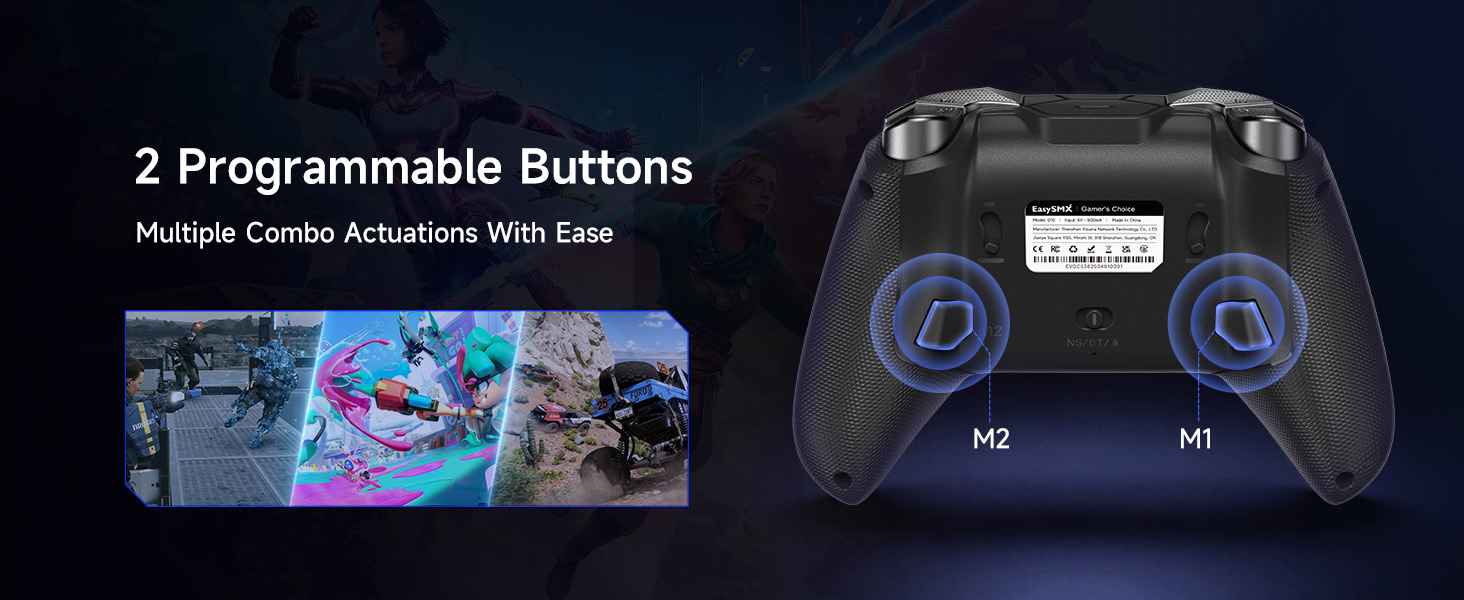
Image: Three EasySMX D10 controllers demonstrating various customizable RGB lighting options.
Remapping Back Buttons
The two back buttons (M1 and M2) can be programmed to replicate other button inputs, allowing for quick access to complex commands or frequently used actions. Consult the detailed instructions in the full user manual for the remapping process.

Image: A diagram highlighting the two programmable buttons (M1 and M2) located on the underside of the EasySMX D10 controller.
Vibration Adjustment
The intensity of the controller's vibration can be adjusted to suit personal preference, offering four distinct levels for immersive gameplay. Specific button combinations are used to cycle through these vibration settings.

Image: A visual representation of the four adjustable vibration levels for the EasySMX D10 controller.
Trigger Mode Switching
The D10 controller features innovative dual-mode triggers. A physical switch on the underside of each trigger allows you to toggle between Hall linear mode (for precise analog input in racing or flight simulators) and micro-switch tactile mode (for rapid, clicky input in shooters or fighting games).

Image: A detailed view of the EasySMX D10's triggers, illustrating the two distinct modes: Hall Effect for longer travel and Microswitch for immediate actuation.
D-pad and Joysticks
The EasySMX D10 incorporates an exclusive EasyPos D-pad for lightning-fast actuation and ultra-precise 8-way movement. The TMR Joysticks are designed for anti-drift performance and high precision, making them suitable for demanding game genres.

Image: An exploded diagram detailing the internal components of the EasySMX D10's EasyPos D-pad, highlighting its design for precise movement.

Image: A cutaway view illustrating the advanced TMR (Tactile Magnetic Resistance) technology used in the EasySMX D10 joysticks for optimized precision and durability.
Maintenance
Cleaning
To maintain the longevity and appearance of your controller:
- Use a soft, dry cloth to wipe down the controller's surface regularly.
- For stubborn dirt, slightly dampen the cloth with water or a mild, non-abrasive cleaner. Avoid excessive moisture.
- Do not use harsh chemicals, solvents, or abrasive materials, as these can damage the controller's finish or internal components.
- Use a cotton swab or compressed air to clean around buttons and joysticks if dust or debris accumulates.
Storage
When not in use, store the controller in a cool, dry place away from direct sunlight, extreme temperatures, and high humidity. Utilizing the charging dock for storage helps keep the controller organized and charged.
Troubleshooting
| Problem | Possible Cause | Solution |
|---|---|---|
| Controller does not turn on. | Low battery. | Charge the controller using the charging dock or USB-C cable. |
| Controller not connecting wirelessly. | Out of range, interference, or incorrect pairing mode. | Ensure controller is within range. Re-pair the controller via Bluetooth or re-insert the 2.4G dongle. Check for other wireless devices causing interference. |
| Input lag or unresponsiveness. | Wireless interference, low battery, or distance from receiver. | Move closer to the receiver/device. Ensure controller is fully charged. Try a wired connection to rule out wireless issues. |
| Joysticks or buttons not responding correctly. | Software glitch, physical obstruction, or calibration issue. | Restart the controller and the connected device. Check for any physical debris around buttons/joysticks. Refer to the full manual for joystick/trigger calibration procedures if available. |
| Vibration not working or too weak/strong. | Vibration setting is off or set to an extreme level. | Adjust the vibration intensity using the controller's built-in controls. |
Specifications
- Model: D10
- Compatibility: Windows PC, Android, Nintendo Switch, Nintendo Switch 2, iOS
- Connectivity: Wired (USB-C), 2.4G Wireless, Bluetooth
- Polling Rate: 1000Hz (Wired & 2.4G)
- Joysticks: TMR (Tactile Magnetic Resistance) Sensors
- D-pad: EasyPos™ 8-way precision
- Triggers: Dual-Mode (Hall Linear & Micro-switch Tactile)
- Buttons: Full Mechanical, 1.0mm actuation, 5M+ click life
- Battery: 1 Lithium Ion battery (included), 1000mAh
- Charging Time: Approx. 2.5 hours (via USB-C and charging dock)
- Special Features: Customizable RGB Lighting, 2 Remappable Back Buttons, 6-axis Gyroscope (Switch only), Adjustable Vibration
- Dimensions: 7.17 x 6.42 x 2.83 inches
- Weight: 11.2 ounces
- Manufacturer: EasySMX
- Country of Origin: China
Warranty and Support
EasySMX products are designed for reliability and performance. For warranty information, technical support, or service inquiries, please refer to the official EasySMX website or contact their customer support directly.
Official EasySMX Store: EasySMX Amazon Store
Please retain your proof of purchase for warranty claims.
Related documentsD10


Ask a question about this manual
Ask about setup, troubleshooting, compatibility, parts, safety, or missing instructions. Manuals+ will review the question and use this page’s manual context to help answer it.