
1. Introduction
Welcome to the user manual for your new VGKE 15.6" Laptop Computer. This manual provides essential information to help you set up, operate, maintain, and troubleshoot your device. Please read this manual thoroughly to ensure optimal performance and longevity of your laptop.
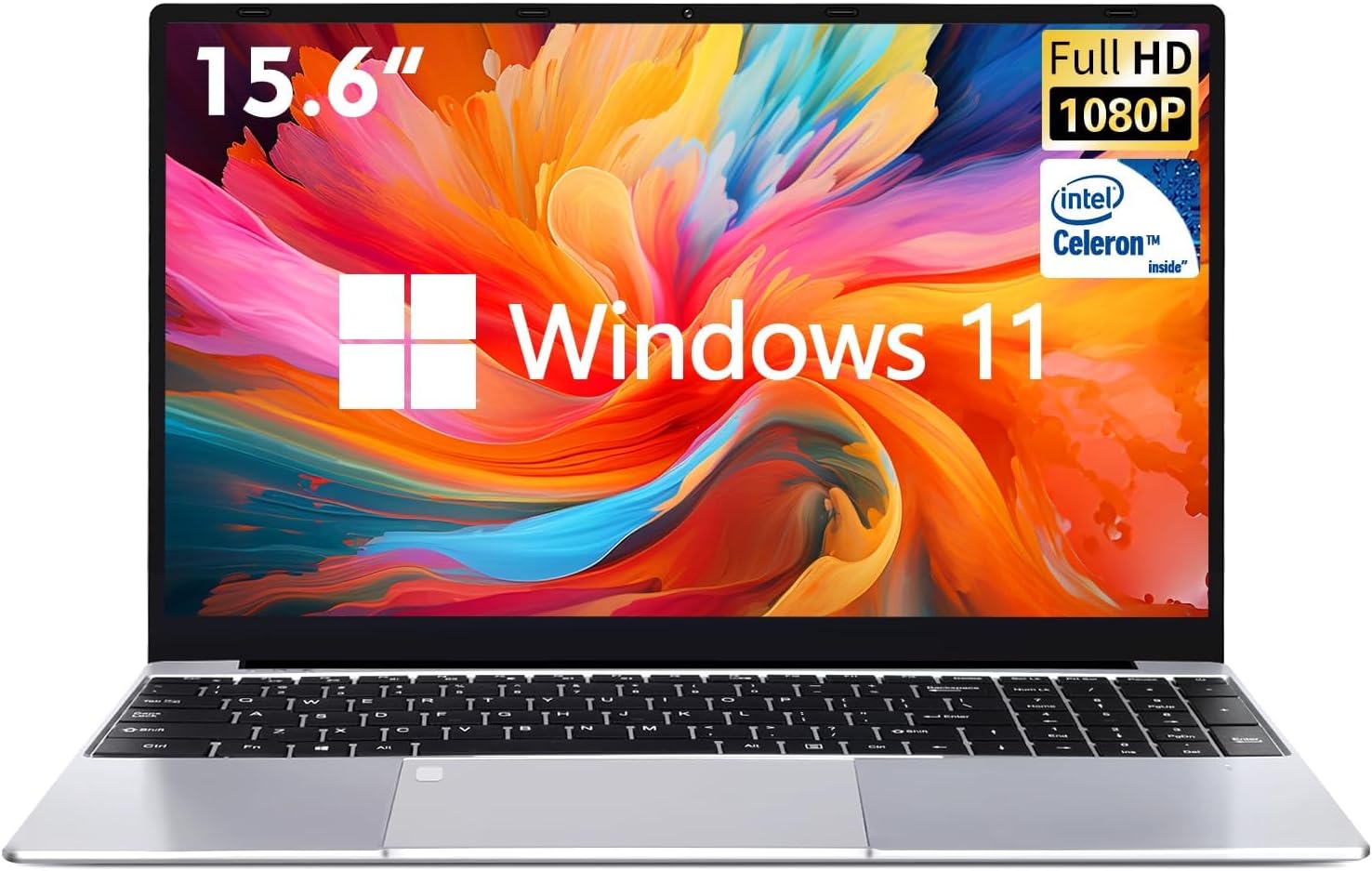
Figure 1.1: VGKE 15.6" Laptop Computer, showcasing its full HD display and Windows 11 operating system.
2. Package Contents
Upon opening your VGKE laptop package, please verify that all the following items are included:
- VGKE 15.6" Laptop Computer
- AC Adapter
- Battery (may be pre-installed)
3. Product Features
3.1. Processor
The VGKE laptop is equipped with a 10nm Intel Celeron N5095 quad-core processor, operating at up to 2.90 GHz. This processor is designed for efficient performance with low power consumption, suitable for daily computing tasks.
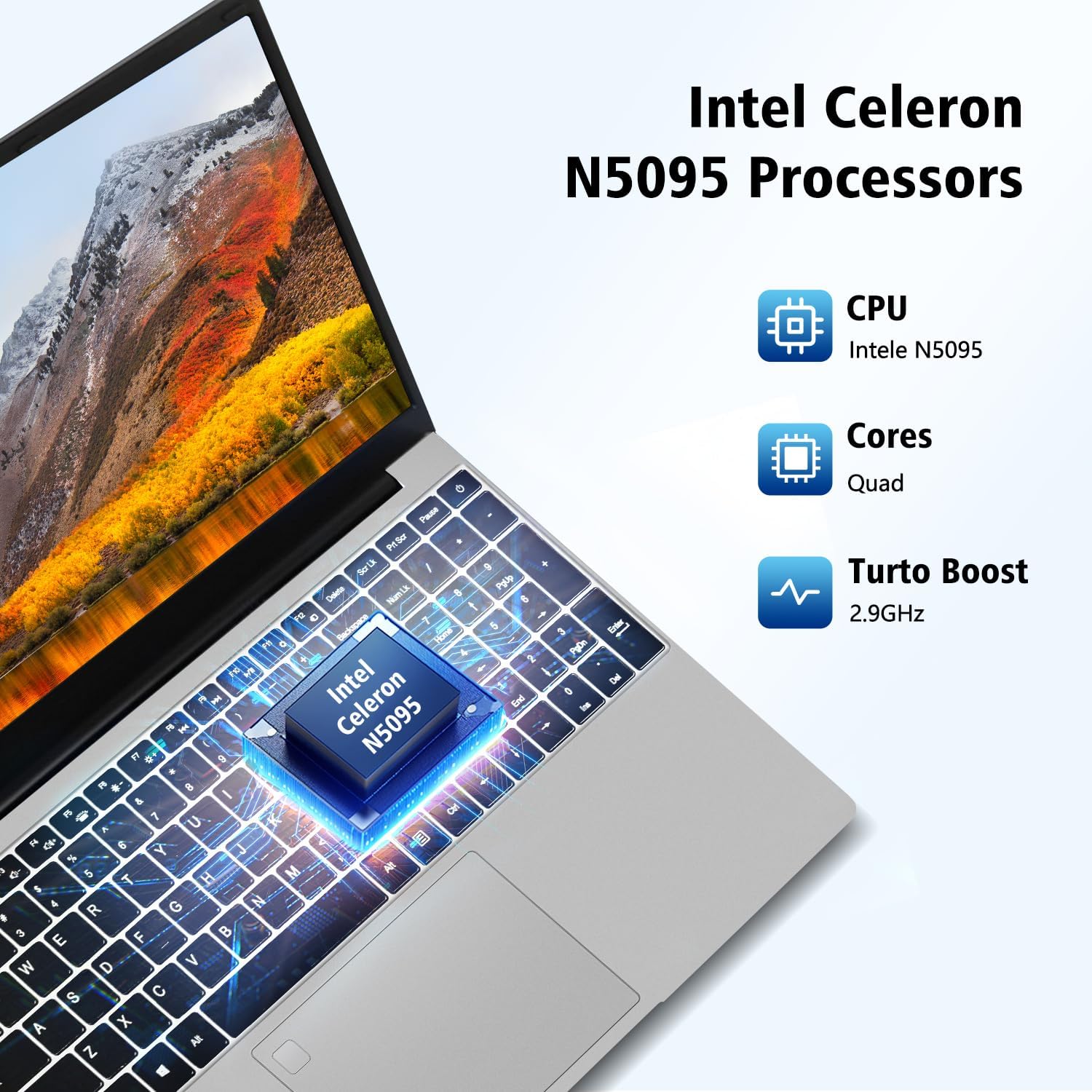
Figure 3.1: Visual representation of the Intel Celeron N5095 processor, highlighting its quad-core architecture and Turbo Boost frequency.
3.2. Memory and Storage
This laptop features 12GB of DDR4 dual-channel RAM, enhancing system responsiveness and multitasking capabilities. For storage, it includes a 256GB SSD (Solid State Drive), providing faster boot times, application loading, and data transfer speeds compared to traditional hard drives.

Figure 3.2: Illustration emphasizing the fast response and mass storage provided by 12GB DDR4 RAM and 256GB SSD, enabling smooth multitasking.
3.3. Display
Experience vibrant visuals on the 15.6-inch Full HD (1920x1080) IPS display. With a narrow 5.9mm bezel, the screen offers an immersive viewing experience. The anti-glare function helps protect your eyes from harmful blue light during extended use.

Figure 3.3: Diagram illustrating the 15.6-inch IPS Full HD screen with its 1920x1080 resolution, narrow bezel, and backlit keyboard feature.
3.4. Keyboard and Fingerprint Reader
The C15 laptop features a full-size keyboard with backlighting, improving typing convenience in various lighting conditions. An independent numeric keypad is included for quick data entry. The integrated fingerprint reader provides a secure and convenient method for unlocking your device and protecting personal privacy.

Figure 3.4: Overview of the laptop's communication and security features, including the 720p HD webcam, tuned dual speakers, and fingerprint reader.
3.5. Connectivity Ports
The laptop offers a range of ports for versatile connectivity:
- USB 3.0 Ports (x2)
- Micro HDMI Port
- TF Card Slot
- Headset Jack
- Power DC Input

Figure 3.5: Detailed view of the laptop's side ports, including USB 3.0, Micro HDMI, Power DC, TF Card Slot, and Headset Jack.
4. Setup
4.1. Initial Power On
- Unpack the laptop and all accessories from the box.
- Connect the AC adapter to the laptop's Power DC input port and then plug it into a power outlet.
- Open the laptop lid. The laptop may power on automatically, or you may need to press the power button.
- Follow the on-screen instructions to complete the initial Windows 11 setup, including language selection, network connection, and user account creation.
4.2. Connecting Peripherals
You can connect various peripherals to your laptop:
- USB Devices: Plug USB flash drives, external hard drives, mice, or keyboards into the USB 3.0 ports.
- External Display: Use a Micro HDMI cable to connect to an external monitor or TV.
- Headphones/Microphone: Connect your headset to the 3.5mm headset jack.
- Memory Cards: Insert a TF card into the TF Card Slot for additional storage or data transfer.
5. Operating Instructions
5.1. Basic Operation
- Power On/Off: Press the power button to turn on the laptop. To shut down, click the Start button, then Power > Shut down.
- Sleep Mode: Close the lid or click the Start button, then Power > Sleep to put the laptop into sleep mode.
- Adjusting Volume: Use the function keys (Fn + F1-F12, typically F2/F3 for volume) or the volume icon in the taskbar.
- Screen Brightness: Use the function keys (Fn + F1-F12, typically F6/F7 for brightness) or display settings in Windows.
5.2. Backlit Keyboard Control
To turn on or off the keyboard backlight, press the Fn + F5 keys simultaneously.
5.3. Fingerprint Reader Usage
The fingerprint reader allows for quick and secure login. To set up your fingerprint:
- Go to Windows Settings > Accounts > Sign-in options.
- Under 'Windows Hello Fingerprint', click 'Set up'.
- Follow the on-screen prompts to register your fingerprint. You may need to scan your finger multiple times from different angles.
Once set up, you can simply place your registered finger on the fingerprint reader to unlock your laptop.
6. Maintenance
6.1. Cleaning Your Laptop
- Screen: Use a soft, lint-free cloth slightly dampened with water or a screen cleaning solution. Do not spray liquid directly onto the screen.
- Keyboard and Casing: Use a soft, dry cloth. For stubborn dirt, a slightly damp cloth can be used, ensuring no liquid enters openings. Use compressed air to remove dust from between keys.
- Ports: Gently remove dust from ports using compressed air.
6.2. Battery Care
- Avoid fully discharging the battery frequently.
- Do not expose the laptop to extreme temperatures.
- If storing the laptop for an extended period, ensure the battery is charged to about 50-60%.
6.3. Software Updates
Regularly update your Windows operating system and drivers to ensure optimal performance, security, and compatibility. You can check for updates via Windows Settings > Windows Update.
7. Troubleshooting
This section addresses common issues you might encounter with your VGKE laptop.
| Problem | Possible Cause | Solution |
|---|---|---|
| Laptop does not power on. | Low battery; AC adapter not connected or faulty. | Ensure AC adapter is securely connected and plugged into a working outlet. Allow battery to charge for a few minutes before attempting to power on. |
| Keyboard backlight not working. | Backlight is turned off. | Press Fn + F5 to toggle the keyboard backlight on/off. |
| Poor battery life. | High screen brightness; many background applications; battery degradation. | Reduce screen brightness. Close unnecessary applications. Check battery health in Windows settings. Consider recalibrating the battery (full charge, then full discharge). |
| Wi-Fi connection issues. | Wi-Fi adapter off; incorrect password; router issue. | Ensure Wi-Fi is enabled in Windows settings. Re-enter Wi-Fi password. Restart your router and laptop. Update Wi-Fi drivers. |
| System is slow or unresponsive. | Too many programs running; low disk space; malware. | Close unnecessary applications. Free up disk space. Run a full system scan with antivirus software. Restart the laptop. |
8. Specifications
Detailed technical specifications for the VGKE 15.6" Laptop Computer (Model N5095).
| Feature | Specification |
|---|---|
| Model Name | C15 |
| Item Model Number | N5095 |
| Standing Screen Display Size | 15.6 Inches |
| Max Screen Resolution | 1920 x 1080 Pixels (Full HD IPS) |
| Processor | Intel Celeron N5095 Quad-Core (up to 2.9 GHz) |
| RAM | 12 GB DDR4 |
| Hard Drive | 256 GB SSD |
| Graphics Coprocessor | Intel UHD Graphics 600 (Integrated) |
| Operating System | Windows 11 |
| Color | Silver-grey |
| Item Weight | 5.08 pounds |
| Product Dimensions (LxWxH) | 14.1 x 9.05 x 0.78 inches |
| Special Features | Fingerprint Reader, Backlit Keyboard, Anti-Glare Coating, Numeric Keypad |
| Date First Available | April 18, 2022 |
9. Warranty and Support
For warranty information and technical support, please refer to the documentation included with your purchase or visit the official VGKE website. Keep your proof of purchase for warranty claims.