Product Overview
The Kisnt FD17 is a versatile 17-key wireless mechanical number pad designed to enhance productivity for various computing tasks. It offers dual-mode connectivity, allowing seamless switching between Bluetooth 5.0 and 2.4G wireless connections. Featuring a gasket-mounted structure for a comfortable typing experience and creamy sound, along with hot-swappable linear switches and durable PBT keycaps, this numpad is built for both performance and customization.

Front view of the Kisnt FD17 Wireless Mechanical Number Pad, showcasing its 17-key layout, including the 'Pair' key and the included USB receiver, indicating its dual wireless capabilities.
Key Features:
- Dual-Mode Connectivity: Supports Bluetooth 5.0 and 2.4G wireless connections for broad compatibility and minimal latency.
- 17-Key Practical Layout: Includes essential keys like ESC, Tab, Backspace, and Calculator for enhanced functionality.
- Gasket Mounted Design: Absorbs sound effectively, providing a comfortable and quiet typing experience.
- Hot-Swappable Switches: Compatible with 3-pin and 5-pin switches, allowing for easy customization and maintenance.
- Ergonomic Design: Features a sloped profile for comfortable use during extended periods.
- Power-Saving Mode: Automatically enters sleep mode after inactivity to conserve battery life.
Setup and Connection
The Kisnt FD17 offers two primary connection methods: 2.4G wireless via a USB receiver and Bluetooth 5.0. Ensure you have one AAA battery (not included) installed before proceeding.
Battery Installation:
- Locate the battery compartment on the back of the number pad.
- Open the battery cover.
- Insert one AAA battery, ensuring correct polarity.
- Close the battery cover.

Rear view of the number pad, illustrating the AAA battery compartment and the storage slot for the 2.4G USB receiver.
2.4G Wireless Connection:
- Take out the 2.4G USB receiver from the battery compartment.
- Plug the receiver into an available USB port on your computer.
- Locate the power and mode switch on the side of the number pad and slide it to the '2.4G' position.
- The number pad will automatically connect to your computer.
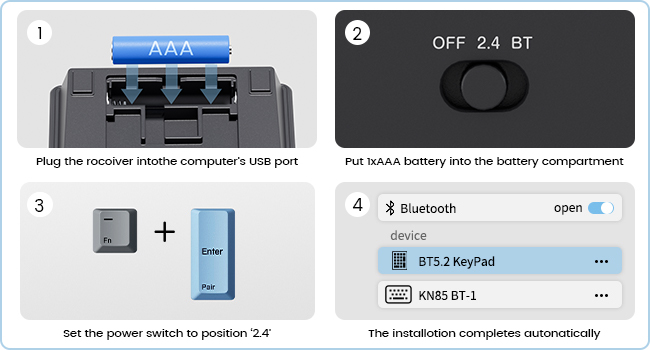
Step-by-step guide for connecting the number pad via 2.4G wireless, including battery insertion, receiver plug-in, and switch setting.
Bluetooth 5.0 Connection:
- Locate the power and mode switch on the side of the number pad and slide it to the 'BT' (Bluetooth) position.
- Press and hold the Fn + Enter (Pair) keys simultaneously for 5 seconds until the indicator light flashes, indicating pairing mode.
- On your computer or device, open Bluetooth settings and search for new devices.
- Select 'BT 5.2 KeyPad' from the list of available devices to complete the pairing process.
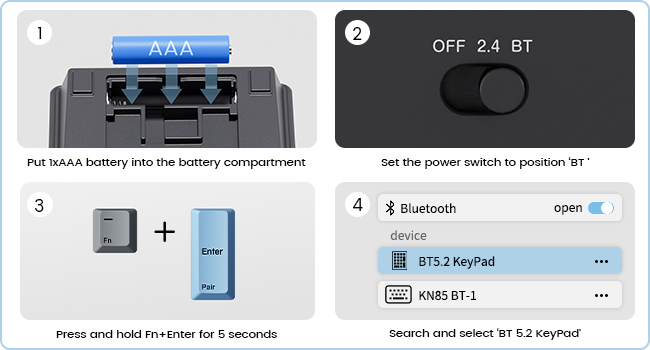
Step-by-step guide for connecting the number pad via Bluetooth, including switch setting, pairing key combination, and device selection.

The Kisnt FD17 number pad shown connected to both a desktop computer via 2.4G wireless and a laptop via Bluetooth, demonstrating its dual-mode capability.
Operating Instructions
The Kisnt FD17 number pad is designed for intuitive use with its practical 17-key layout and additional functions.
Key Functions:
- The numpad includes standard numeric keys (0-9), arithmetic operators (+, -, *, /), and Enter.
- Additional keys include Esc, Tab, Backspace, and a dedicated Calculator key.
- The Calculator key functions only in Windows OS.
- The Fn key can be used in combination with other keys for specific functions, such as pairing.
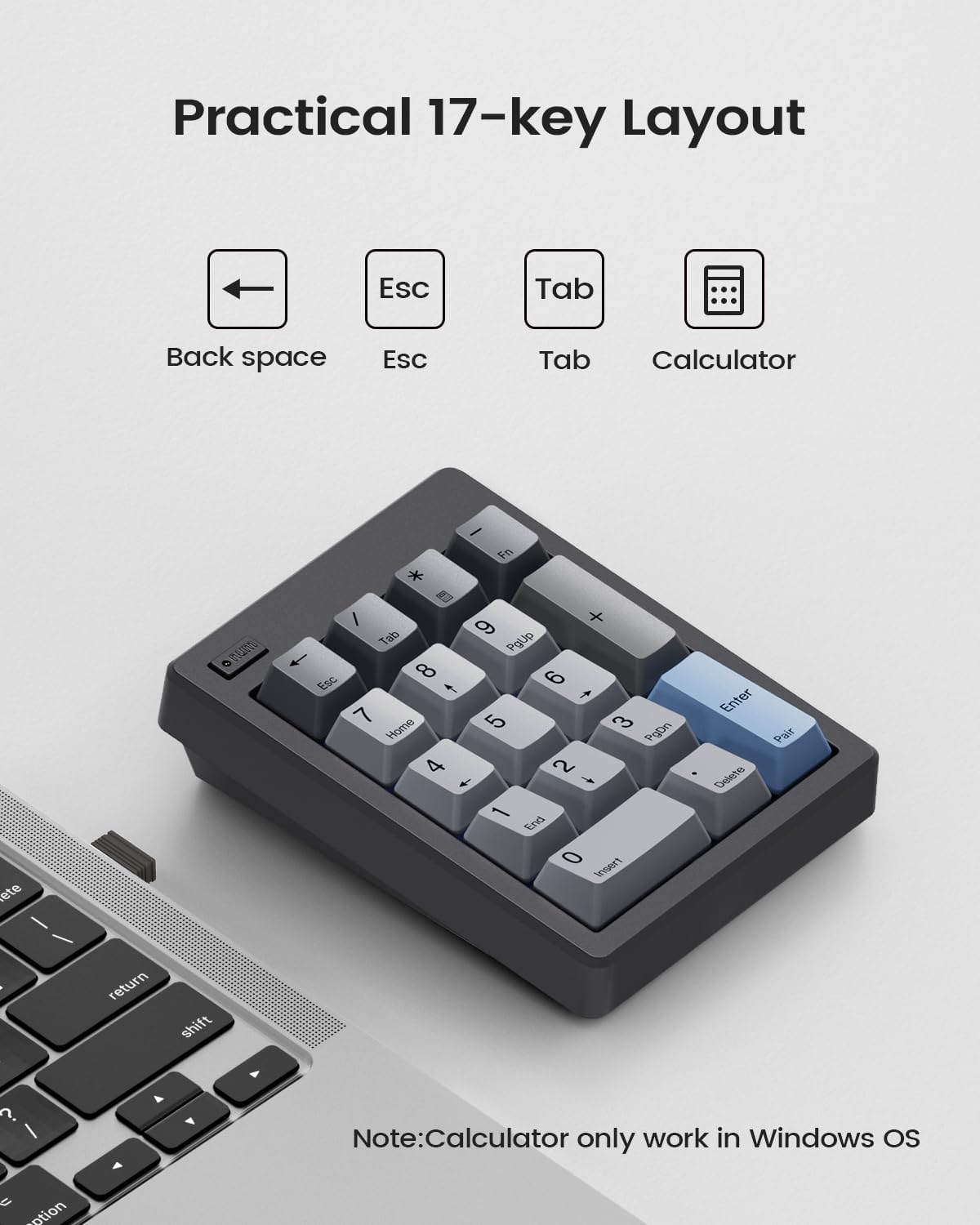
An overhead view of the 17-key layout, highlighting the Backspace, Esc, Tab, and Calculator keys, with a note on Calculator key compatibility.
Auto Sleep & Power-Saving Mode:
To conserve battery life, the number pad automatically enters a sleep mode after a period of inactivity. It has an independent power switch for manual control.
- In 2.4G mode, the numpad will enter sleep mode after 5 minutes of inactivity.
- In Bluetooth mode, the numpad will enter sleep mode after 60 minutes of inactivity.
- To wake the numpad, simply press any key.

The number pad from a side angle, showing the power switch and details about its auto-sleep duration for both 2.4G and Bluetooth modes.
Maintenance
Proper maintenance ensures the longevity and optimal performance of your Kisnt FD17 number pad.
Cleaning:
- Use a soft, dry cloth to wipe the surface of the number pad.
- For stubborn dirt, slightly dampen the cloth with water or a mild cleaning solution, then wipe dry immediately.
- Avoid using harsh chemicals or abrasive materials.
Hot-Swappable Switches:
The FD17 features hot-swappable switches, allowing you to easily change switches without soldering. It supports both 3-pin and 5-pin switches.
- Gently pull the keycap off the switch using a keycap puller (not included).
- Use a switch puller (not included) to carefully remove the switch from the PCB.
- Align the pins of the new switch with the holes on the PCB.
- Press the new switch firmly into place until it clicks.
- Reattach the keycap.

The number pad with several keycaps and switches removed, illustrating the hot-swappable design that supports both 3-pin and 5-pin switches.
Troubleshooting
If you encounter issues with your Kisnt FD17 number pad, refer to the following common solutions.
Connection Issues:
- Numpad not connecting: Ensure the battery is correctly installed and has sufficient charge. Check that the mode switch is set to the correct position (2.4G or BT).
- 2.4G connection issues: Try plugging the USB receiver into a different USB port on your computer. Ensure the receiver is not too far from the numpad.
- Bluetooth connection issues: Make sure Bluetooth is enabled on your device. Forget the device from your Bluetooth settings and attempt to re-pair it. Ensure no other Bluetooth devices are causing interference.
Functionality Issues:
- Calculator key not working: The Calculator key is only compatible with Windows operating systems. It will not function on Mac OS or ChromeBook.
- Limited functionality on Mac OS: Apple products do not fully support external function key buttons, which may limit the use of certain special keys on the numpad when connected to Mac OS.
- Keys not responding: Check if the numpad is in sleep mode and press any key to wake it. If individual keys are not responding, the switch or keycap may need to be re-seated or replaced.
Specifications
| Feature | Detail |
|---|---|
| Model | FD17 |
| Connectivity Technology | Bluetooth 5.0 / Wireless 2.4GHz |
| Number of Keys | 17 |
| Keyboard Description | Mechanical Number Pad |
| Special Features | Creamy Sound, Ergonomic, Hot-Swappable, PBT Dye-Sub Keycap, Powered by AAA Battery |
| Compatible Devices | Laptop, PC, Smartphone |
| Power Source Type | Battery Powered (1x AAA, not included) |
| Material Type | Plastic |
| Product Dimensions | 12.29 x 9.19 x 3.3 cm (4.84 x 3.62 x 1.3 inches) |
| Item Weight | 197.88 g (6.98 oz) |

The ergonomic design of the Kisnt FD17, highlighting its sloped profile and compact dimensions for comfortable use.
Warranty and Support
Specific warranty details for the Kisnt FD17 Wireless Mechanical Number Pad are not provided in this manual. For warranty information, technical support, or further assistance, please contact Kisnt customer service directly or visit their official website.
You can often find support contact information on the product packaging or through the retailer where the product was purchased.


