
1. Introduction
The BIGASUO 15.6" Frameo Digital Picture Frame offers a modern way to display and share your favorite photos and videos. Featuring a 1920 x 1080 IPS Full HD touch screen and 64GB of internal storage, it allows for easy sharing from anywhere via the Frameo app. This manual will guide you through the setup and operation of your new digital picture frame.
2. Setup
2.1 Package Contents
Before beginning, ensure all items are present in the package:
- 1 x 15.6" Frameo Digital Picture Frame
- 1 x AC Adapter
- 1 x Frame Stand
- 1 x User Manual

Figure 2.1: Contents included in the product package.
2.2 Initial Power-On and Wi-Fi Connection
- Connect the AC adapter to the frame and plug it into a power outlet. The frame will power on automatically.
- Follow the on-screen prompts to select your preferred language and time zone.
- Connect the frame to your Wi-Fi network. Ensure you are connecting to a 2.4GHz Wi-Fi network, as 5GHz networks are not supported.
2.3 Frameo App Setup for Photo/Video Sharing
The Frameo app allows you to send photos and videos directly to your digital frame from anywhere in the world.
- Download the free "Frameo" app from the App Store (iOS) or Google Play Store (Android) on your smartphone.
- Open the app and create your profile.
- On your digital frame, navigate to the 'Add Friend' section to get a unique code.
- Enter this code into the Frameo app on your phone to link your device to the frame.
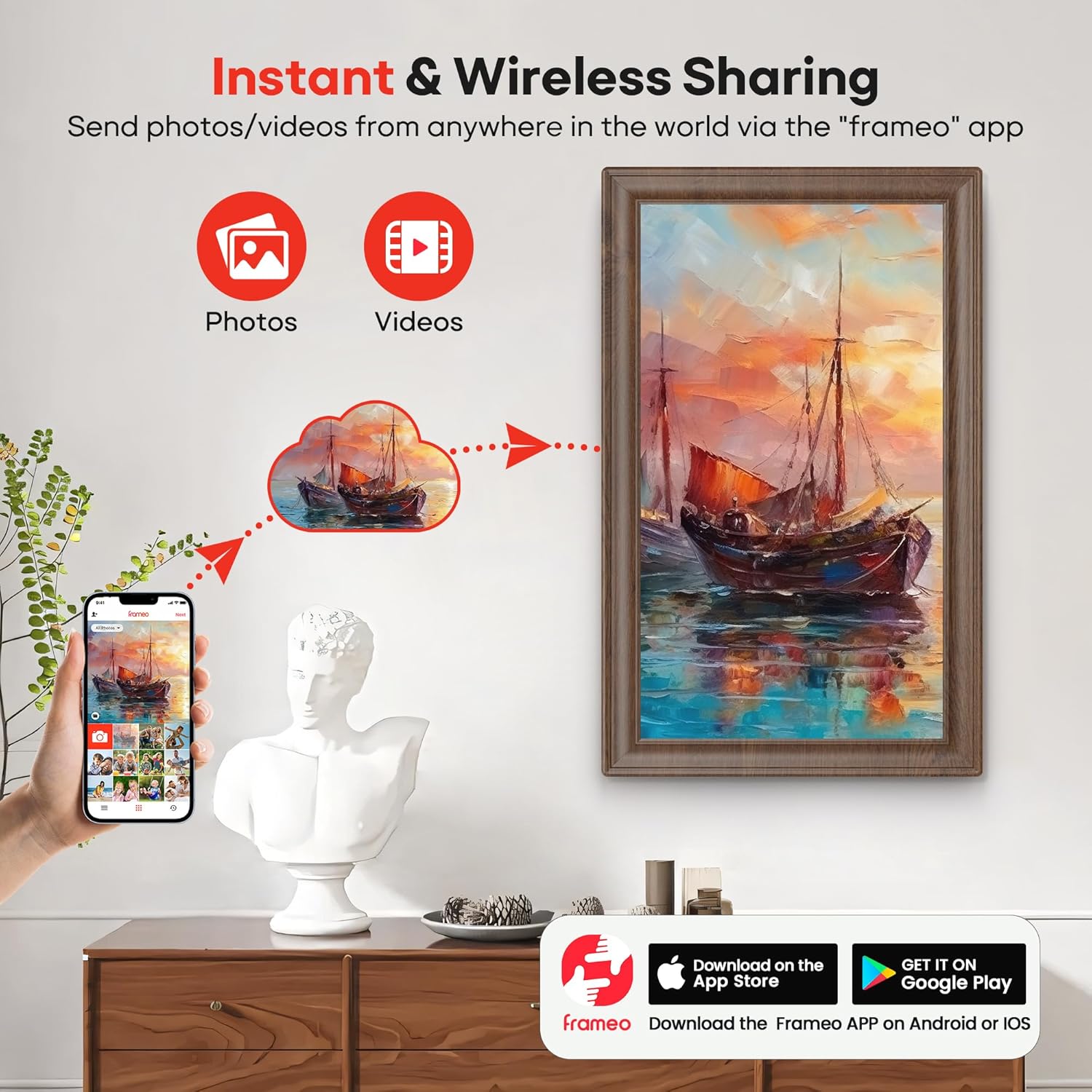
Figure 2.2: Instant and wireless sharing of photos and videos using the Frameo app.
2.4 Importing Media via SD Card or USB Drive
The frame supports direct import of photos and videos from SD cards and USB flash drives (FAT32 format required).
- Insert the SD card or USB flash drive into the corresponding slot on the frame.
- The frame will prompt you to import media. Select the photos/videos you wish to import.
- You can choose to directly play media from the drive or copy it to the frame's internal 64GB storage.

Figure 2.3: Easy setup and media import using SD card and USB drive.
3. Operating the Digital Picture Frame
3.1 Display and Touch Screen Features
The 15.6-inch IPS Full HD touch screen provides a clear and vibrant display for your media.
- Resolution: 1920 x 1080 for vivid and lifelike colors.
- Viewing Angle: 178° IPS panel ensures stunning visual effects from any angle.
- Touch Interface: User-friendly touchscreen for simple and convenient operation.

Figure 3.1: High-resolution IPS Full HD Touch Screen capabilities.
3.2 Managing Photos and Videos
The frame offers ample storage and flexible management options.
- Internal Memory: Built-in 64GB storage can hold up to 100,000 photos.
- Expandable Storage: Supports SD cards and USB flash drives for easy import, export, and backup.
- Video Playback: Play videos with sound by inserting an SD card or USB flash drive. The Frameo app supports videos up to 15 seconds.
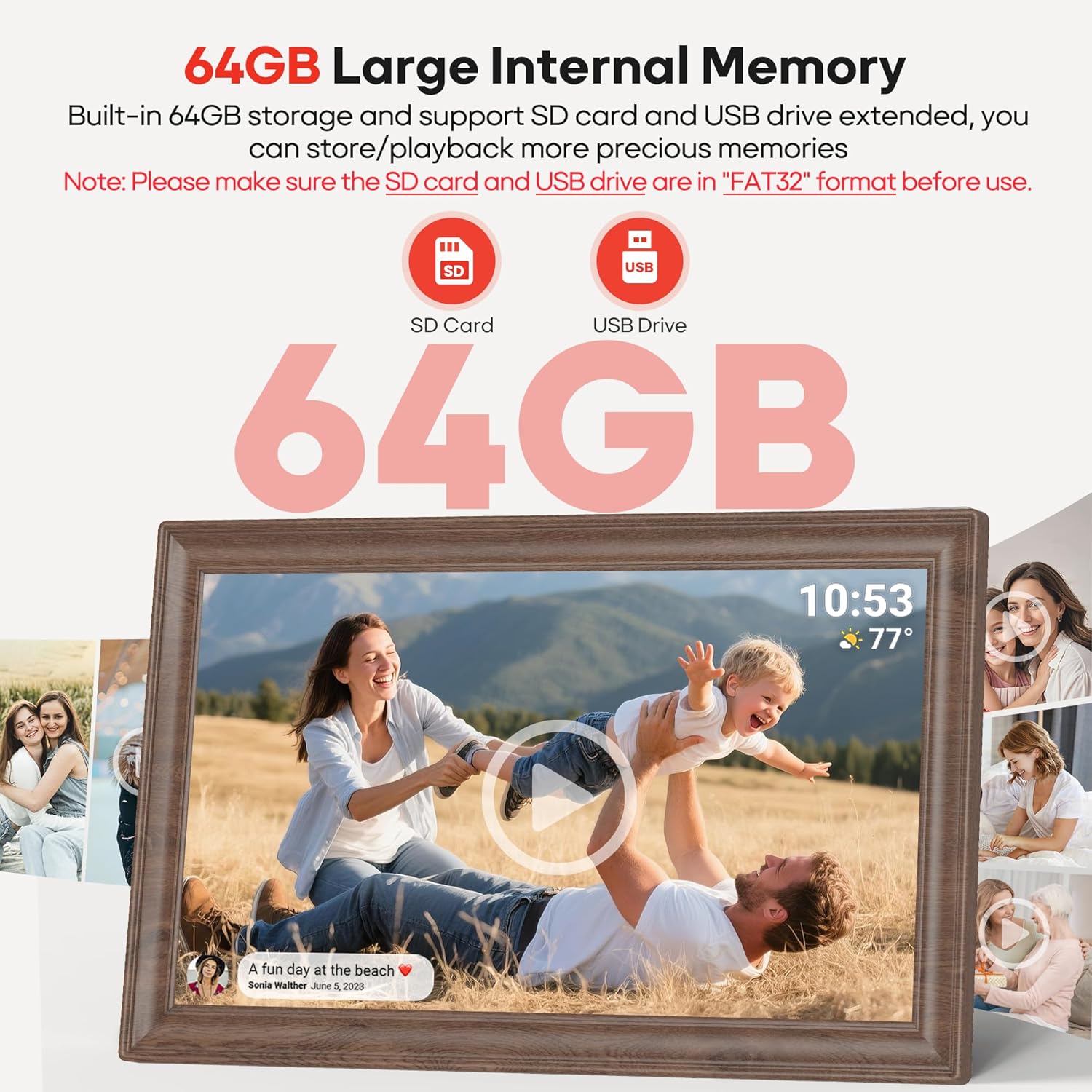
Figure 3.2: Large internal memory and expandable storage options.
3.3 Advanced Features
- "Reply" Function: Send emojis to loved ones to express appreciation for shared photos.
- Auto-Rotate: Photos automatically adjust orientation for desktop or wall mounts. Switch between landscape and portrait modes.
- Slideshow: Plays your photos smoothly in a continuous loop.
- Custom Settings: Adjust weather/clock display, playback order, hide/publish pictures, brightness, and sleep mode.
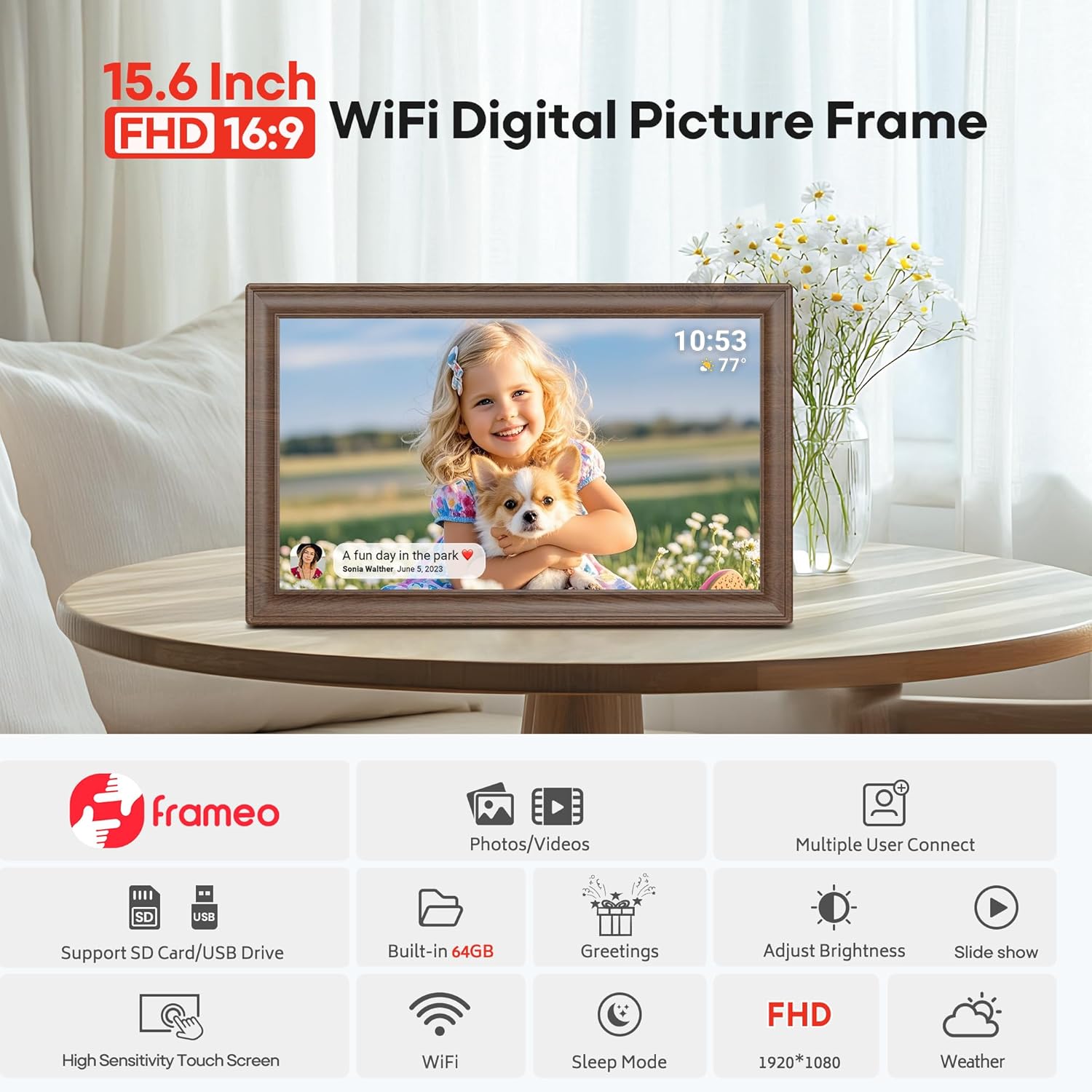
Figure 3.3: Auto-rotate and wall-mounted display options.
4. Maintenance
To ensure the longevity and optimal performance of your digital picture frame, follow these maintenance guidelines:
- Cleaning: Use a soft, dry, lint-free cloth to clean the screen and frame. Avoid using abrasive cleaners or sprays directly on the screen.
- Placement: Place the frame on a stable, flat surface or mount it securely on a wall. Avoid direct sunlight, extreme temperatures, and high humidity.
- Software Updates: Periodically check for and install software updates via the Frameo app or the frame's settings menu to ensure the best performance and access to new features.
- Power Management: Utilize the sleep mode feature to automatically turn the screen off during specified times, conserving energy and extending screen life.
5. Troubleshooting
If you encounter any issues with your digital picture frame, refer to the following common troubleshooting steps:
- Frame Not Turning On: Ensure the AC adapter is securely connected to both the frame and a working power outlet. Try a different outlet if necessary.
- Wi-Fi Connection Issues: Verify that your Wi-Fi network is 2.4GHz. Restart your Wi-Fi router and the digital frame. Re-enter the Wi-Fi password carefully.
- Photos/Videos Not Appearing: Check your internet connection. Ensure the Frameo app is updated to the latest version. Confirm that the photos/videos were successfully sent from the app. For SD/USB, ensure the drive is in FAT32 format and the files are supported (JPG, JPEG, BMP, PNG, MP4).
- Screen Unresponsive: Try restarting the frame by unplugging it and plugging it back in. If the issue persists, contact customer support.
- Auto-Rotate Not Working: Ensure the frame is placed on a stable surface or mounted correctly. Check the frame's settings to confirm auto-rotate is enabled.
6. Specifications
| Feature | Specification |
|---|---|
| Product Dimensions | 15.75 x 7.87 x 0.99 inches |
| Item Weight | 3.19 pounds |
| Item Model Number | 159k |
| Brand | BIGASUO |
| Color | 15.6 Inch Brown Wood |
| Resolution | 1080p |
| Compatible Devices | Smartphone |
| Screen Size | 15.6 Inches |
7. Warranty and Support
Your BIGASUO digital picture frame comes with a standard manufacturer's warranty. Please refer to the warranty card included in your product packaging for specific terms and conditions, including warranty duration and coverage details.
For technical support, troubleshooting assistance beyond what is covered in this manual, or warranty claims, please contact BIGASUO customer service. Contact information is typically provided on the product packaging or on the official BIGASUO website.