Introduction
The ULANZI Stream Controller Macro Keyboard D200 U-Studio Macro Pad is a versatile device designed to streamline your workflow and enhance productivity for various applications, including streaming, content creation, and general computer tasks. This manual provides detailed instructions for setting up, operating, customizing, and maintaining your D200 Macro Pad.
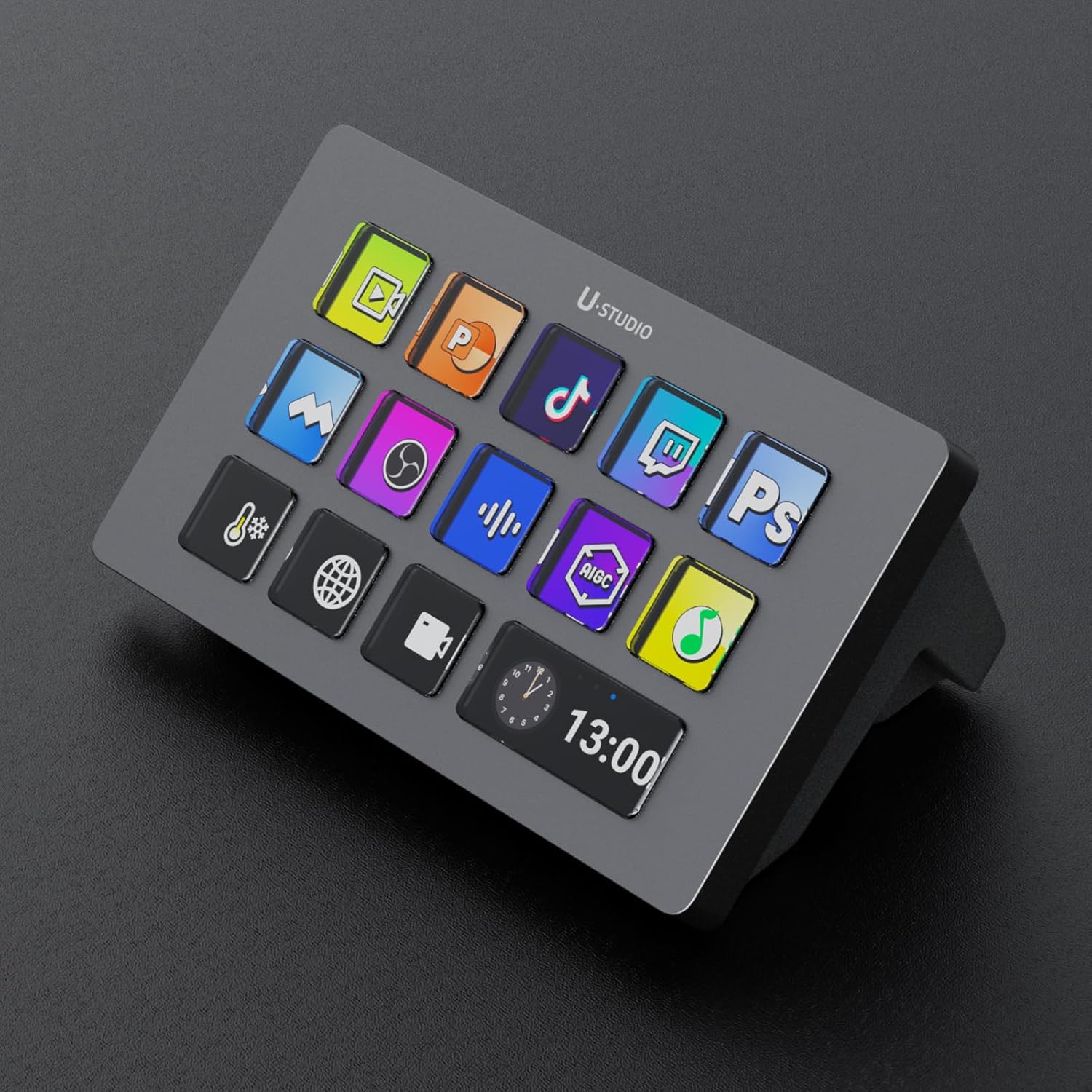
Image: ULANZI Stream Controller Macro Keyboard D200, showcasing its sleek design and customizable LCD keys.
Setup
What's in the Box
- D200 Macro Pad
- USB Cable
System Requirements
- Windows: Win 10 and later
- macOS: 10.13 and later
Initial Connection
1. Connect the D200 Macro Pad to your PC using the provided USB cable. Ensure a secure connection to a compatible USB port.
2. Visit the official ULANZI website (www.ulanzi.com) to download the U-Studio software. Follow the on-screen instructions to complete the installation.
3. Launch the U-Studio application to begin customizing your macro pad.
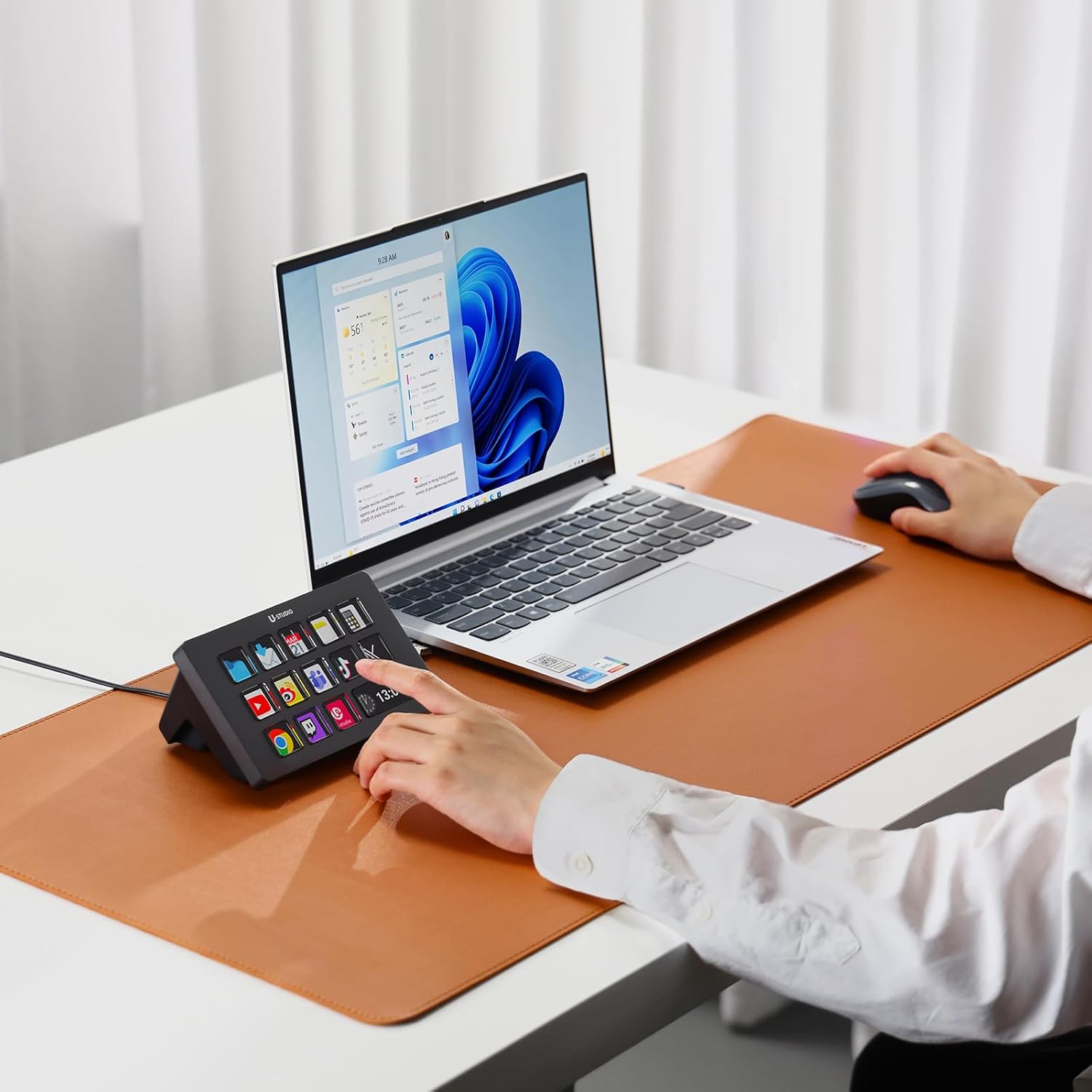
Image: Diagram illustrating the connection of the ULANZI D200 Stream Controller to a computer via USB-C.
Operating Instructions
Macro Key Functions
The D200 features 13 fully customizable LCD keys and 1 large LCD key. These keys can be programmed to instantly trigger unlimited actions with a single tap. The large LCD key can display system information such as CPU/GPU usage or time.

Image: The ULANZI D200 Macro Pad showing various application icons on its customizable LCD keys, with a digital clock display on the large key.
U-Studio App Integration
The U-Studio application is the central hub for customizing your D200. It supports downloading rich plug-ins, configuration files, and icons. You can drag and drop actions onto keys and personalize settings with ease.

Image: The ULANZI D200 Stream Controller on a desk, with the U-Studio software interface displayed on a large monitor, showing drag-and-drop customization.
Multi-Action and Multi-Page Features
- Multi-Action: Execute multiple actions at once or in a sequence with a single key press. This allows for complex task automation.
- Multi-Page: Freely switch between different profiles, secondary pages, and folders to meet the needs of various scenarios. The device supports up to 10 secondary pages, with page up/down and specified jump functions, and a page indicator box for easy navigation.

Image: A hand pressing one of the customizable LCD keys on the ULANZI D200, demonstrating the multi-action capability.
Official Product Video
Video: Official ULANZI video demonstrating the macro keyboard stream controller in action, highlighting its features and ease of use.
Customization
The U-Studio App Store provides a wide range of plugins, profiles, and icons to personalize your D200. You can download specific plugins for applications like OBS, Twitch, YouTube, Photoshop, Lightroom, and more. The Ulanzi Creative Community continuously provides creative resources and supports open-source projects for further customization.

Image: The ULANZI D200 Stream Controller integrated into a creative workspace, showcasing its premium crafted design and versatility across different tasks like gaming, photo editing, and live streaming.
Specifications
| Feature | Detail |
|---|---|
| Item Weight | 1.21 pounds |
| Package Dimensions | 8.15 x 5.12 x 3.46 inches |
| Item Model Number | D200 |
| Compatible Devices | Mac, PC |
| Connector Type | USB |
| Hardware Interface | USB 3.0 Type C |
| Material Type | Acrylonitrile Butadiene Styrene (ABS), Aluminum |
| Number of Keyboard Keys | 14 |
| Connectivity Technology | USB |
| Special Feature | Programmable |
Troubleshooting
- Frequent Disconnects/Unresponsive Buttons: Ensure the USB cable is securely connected to both the D200 and your computer. Try connecting the device directly to a USB port on your computer, bypassing any hubs or docks. Test with a different USB-C to USB-A cable if available.
- Software Difficulty/Setup: Refer to the U-Studio software's built-in tutorials and online community resources for detailed guidance on macro creation and customization. Ensure your software and device firmware are up to date.
- Profiles Not Loading on Restart: Verify that the U-Studio software is set to launch automatically on system startup. Check software settings for profile management and ensure profiles are saved correctly.
- GIFs/Animations Not Playing: Ensure the GIF files meet the recommended specifications for the D200. Check for any software updates that might resolve animation display issues.
Maintenance
- Cleaning: Use a soft, dry cloth to clean the surface of the D200. Avoid using harsh chemicals or abrasive materials that could damage the LCD keys or casing.
- Storage: Store the device in a cool, dry place away from direct sunlight and extreme temperatures when not in use.
- Cable Care: Avoid bending or twisting the USB cable excessively to prevent internal damage.
Warranty and Support
For warranty information, technical support, or further assistance, please refer to the official ULANZI website or contact ULANZI customer service directly. Contact details are typically provided in the product packaging or on the manufacturer's website.


