
TATTMUSE Portable Thermal Printer
TATTMUSE Portable Thermal Printer User Manual
Model: Portable Thermal Printer
1. Introduction
This manual provides essential instructions for the setup, operation, and maintenance of your TATTMUSE Portable Thermal Printer. This device offers convenient, inkless printing for various documents, making it ideal for mobile and office use. Please read this manual thoroughly to ensure proper use and to maximize the lifespan of your printer.
2. Package Contents
Upon unboxing, please verify that all items listed below are present in your package:
- TATTMUSE Portable Thermal Printer
- Carrying Case
- 4 Rolls of Thermal Paper (1 roll letter size pre-installed, plus 4.33", 3.14", 2.08" size rolls)
- USB-C Cable
- USB-A Cable
- User Guide (this document)

Image 2.1: Contents of the TATTMUSE Portable Thermal Printer package, including the printer, carrying case, various thermal paper rolls, and cables.
3. Setup
3.1 Charging the Printer
The printer features a built-in 2600mAh rechargeable battery. Before first use, fully charge the printer using the provided USB-C or USB-A cable and a compatible power adapter (not included). The charging indicator light will provide status updates.
3.2 Loading Thermal Paper
The printer supports thermal roll paper, folded paper, and single sheets. It has a built-in paper bin. To load paper:
- Open the paper compartment cover.
- Insert the thermal paper roll or folded stack, ensuring the printable side faces the print head.
- Close the cover securely.

Image 3.1: Demonstrates the process of loading thermal paper into the printer's paper compartment.
3.3 Connecting to Devices
Your TATTMUSE Portable Thermal Printer offers both Bluetooth and USB connectivity.
3.3.1 Bluetooth Connection (for Mobile Devices)
The printer is compatible with iPhone, Android phones, iPads, and tablets via Bluetooth.
- Ensure the printer is powered on.
- Enable Bluetooth on your mobile device.
- Search for available devices and select the TATTMUSE printer.
- Follow any on-screen prompts to complete pairing.
- Download the official TATTMUSE printing application from your device's app store for optimal functionality.
3.3.2 USB Connection (for Laptops and Computers)
For Windows, macOS, Chrome OS, and Linux systems, connect the printer using the provided USB-C cable.
- Connect one end of the USB-C cable to the printer and the other to your computer.
- Important: You must download and install the appropriate printer driver from the official TATTMUSE website for your operating system.

Image 3.2: Illustrates the printer's compatibility with various operating systems and devices via Bluetooth and USB-C connections.
4. Operating Instructions
4.1 Printing Documents
Once connected, you can print various document types, including Word, TXT, PDF, Excel, and JPG files.
- Via Bluetooth (Mobile App): Open the TATTMUSE app, select the document or image you wish to print, adjust settings as needed, and initiate the print command.
- Via USB (Computer): After driver installation, the printer will appear as an available printer in your computer's print dialogue. Select the TATTMUSE printer and proceed with your print job as usual.
4.2 Multi-Size Printing
The printer supports multiple thermal paper sizes to accommodate diverse printing needs:
- 8.5" x 11" US Letter
- A4
- 4.33'' (110mm) width
- 3.14'' (80mm) width
- 2.08'' (53mm) width

Image 4.1: Displays the printer's capability to handle different file formats (Word, TXT, PDF, Excel, JPG) and various thermal paper types (folded, single sheet, rolls) for printing contracts, bills, notes, images, and to-do lists.
5. Paper Specifications
The TATTMUSE Portable Thermal Printer exclusively uses thermal paper. It is not compatible with standard inkjet or laser printer paper.
- Included Paper: The package includes 4 rolls of 8.5" x 11" US Letter size thermal paper.
- Compatibility: Ensure any third-party thermal paper is compatible with the printer's specifications and dimensions.
- Inkless Technology: The printer utilizes advanced thermal technology, eliminating the need for ink, toner, or ribbons.

Image 5.1: Shows the dimensions of the US Letter thermal paper, measuring 8.5 inches by 256 inches (roll length).
6. Maintenance
Proper maintenance ensures optimal performance and longevity of your thermal printer.
- Cleaning: Periodically wipe the exterior of the printer with a soft, dry cloth. For the print head, use a specialized thermal printer cleaning pen or isopropyl alcohol on a cotton swab, ensuring the printer is off and cooled down.
- Storage: Store the printer in a cool, dry place away from direct sunlight and extreme temperatures. Store thermal paper in its original packaging to protect it from light and heat, which can degrade its print quality over time.
- Inkless Advantage: As an inkless printer, you will not encounter issues related to ink clogging, smudging, or cartridge replacement.
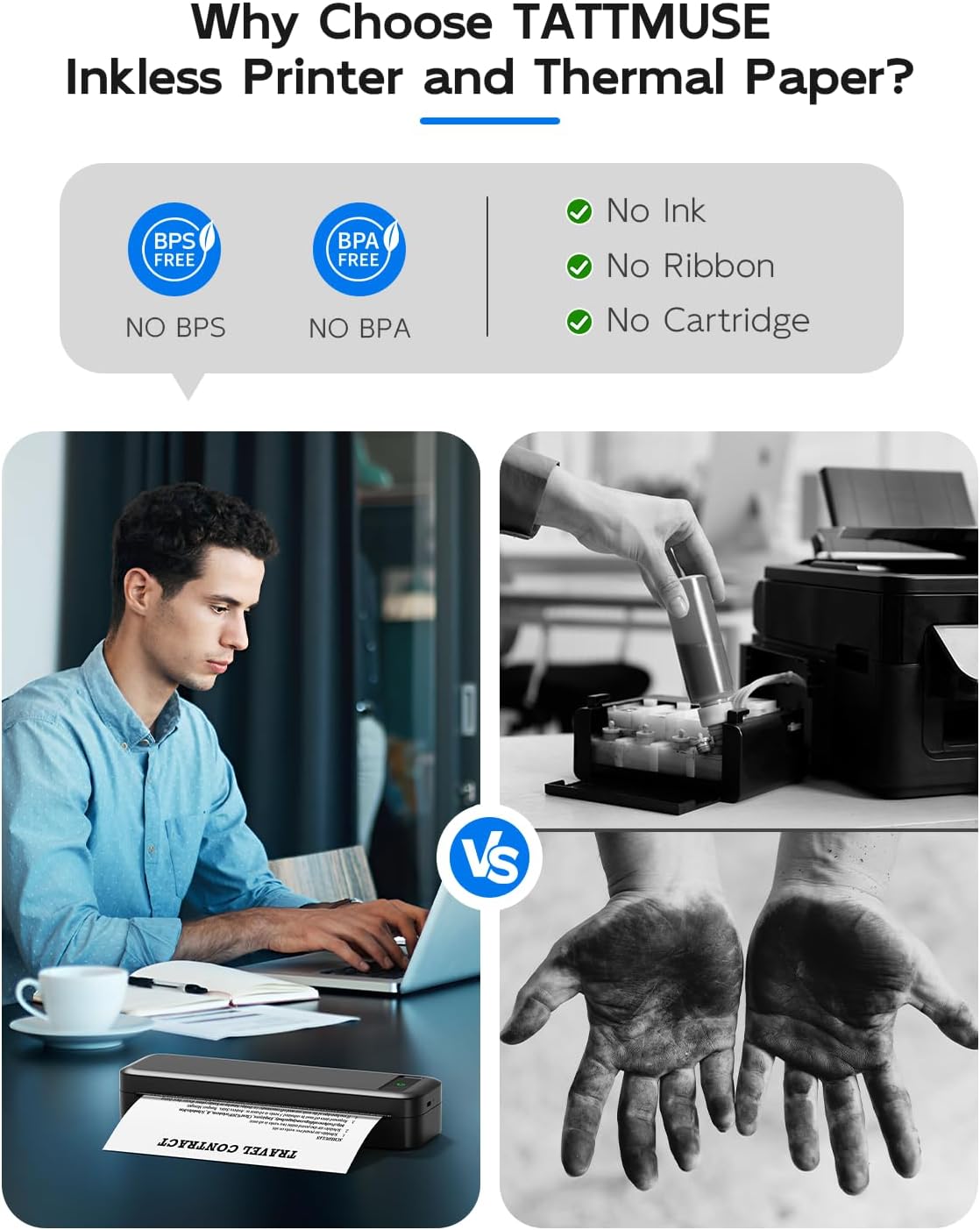
Image 6.1: Illustrates the benefits of an inkless thermal printer, highlighting the absence of ink, ribbon, or cartridge requirements compared to traditional printers.
7. Troubleshooting
If you encounter issues with your TATTMUSE Portable Thermal Printer, refer to the following common solutions:
- Printer Not Powering On: Ensure the battery is charged. Connect the printer to a power source and allow it to charge for at least 30 minutes before attempting to power it on again.
- No Print Output:
- Check if thermal paper is loaded correctly and the printable side is facing the print head.
- Ensure the paper compartment cover is fully closed.
- Verify that the printer is properly connected to your device (Bluetooth paired or USB cable securely attached).
- Poor Print Quality:
- Ensure you are using genuine thermal paper.
- Clean the print head as described in the Maintenance section.
- Check if the thermal paper is old or has been exposed to heat/light, which can degrade its quality.
- Bluetooth Connection Issues:
- Ensure Bluetooth is enabled on both the printer and your mobile device.
- Unpair and re-pair the printer from your device's Bluetooth settings.
- Restart both the printer and your mobile device.
- USB Connection Not Recognized:
- Verify that the correct printer driver for your operating system has been installed from the official TATTMUSE website.
- Try a different USB port on your computer.
- Ensure the USB cable is not damaged.
8. Specifications
| Feature | Specification |
|---|---|
| Model | Portable Thermal Printer |
| Printing Technology | Direct Thermal |
| Connectivity | Bluetooth, USB-C |
| Battery | 2600mAh Rechargeable Lithium-ion |
| Sheets per Charge | Approximately 160 sheets (8.5" x 11") |
| Weight | Approx. 1.5 lbs (0.68 kg) |
| Supported Paper Sizes | 8.5" x 11" US Letter, A4, 4.33" (110mm), 3.14" (80mm), 2.08" (53mm) |
| Supported Operating Systems | iOS, Android, iPadOS, macOS, Windows, Chrome OS, Linux |

Image 8.1: Highlights key performance specifications including the 2600mAh battery, 30 hours standby time, lightweight design, and capacity for 160 sheets of continuous printing.
9. Warranty and Support
Specific warranty details for the TATTMUSE Portable Thermal Printer are not provided within this document. For information regarding warranty coverage, technical support, or service, please refer to the product packaging, the official TATTMUSE website, or contact TATTMUSE customer service directly.
Related documentsPortable Thermal Printer


Ask a question about this manual
Ask about setup, troubleshooting, compatibility, parts, safety, or missing instructions. Manuals+ will review the question and use this page’s manual context to help answer it.