
1. Introduction
This manual provides detailed instructions for the SVITOO P11 11-inch Android 16 Tablet. It covers initial setup, operation, maintenance, and troubleshooting to ensure optimal performance and user experience. Please read this manual thoroughly before using your device.
2. Package Contents
Verify that all items listed below are included in your product package:
- SVITOO P11 11-inch Tablet
- Bluetooth Keyboard
- Wireless Mouse
- Stylus Pen
- OTG Interface Cable
- Charger and Charging Cable
- Tablet Case and Stand

Image 2.1: SVITOO P11 Tablet with its complete accessory bundle, including a keyboard, mouse, stylus, charger, and protective case.
3. Product Features
3.1 Operating System
The SVITOO P11 Tablet runs on the latest Android 16 operating system, offering enhanced multitasking capabilities, improved power efficiency, and robust data protection features. The system is designed for a smooth and secure user experience.

Image 3.1: The Android 16 interface on the SVITOO P11 Tablet, showcasing its modern design and application compatibility.
3.2 Performance
Equipped with an Octa-Core T7250 processor clocked at 2.0 GHz, the tablet delivers powerful performance for various tasks. It features 20 GB RAM (4GB physical, with up to 16GB virtual expansion) and 128 GB of internal storage, expandable up to 1 TB via a microSD card. This configuration supports seamless multitasking, streaming, gaming, and productivity without significant lag or overheating.

Image 3.2: Visual representation of the tablet's internal components, highlighting the UNISOC T7250 processor and memory configuration.
3.3 Display and Audio
The 11-inch IPS display offers a resolution of 1280 x 800 pixels, providing clear visuals. It features Widevine L1 certification for high-definition content streaming on platforms like Netflix and Prime Video. Anti-glare technology helps reduce eye strain during extended use. Dual stereo speakers enhance the audio experience, and wireless screen mirroring is supported for sharing content.

Image 3.3: The tablet's display quality, emphasizing its features for an immersive viewing experience.
3.4 Battery
A robust 8800 mAh battery powers the tablet, featuring NTC protection for temperature regulation to prevent overheating. This large capacity provides up to 14 hours of video playback, 10 hours of gaming, or 15 hours of navigation on a single charge, ensuring extended usage.

Image 3.4: Illustration of the tablet's 8800mAh battery, indicating its long-lasting power for various activities.
3.5 Cameras
The tablet is equipped with a 13 MP main rear camera and an 8 MP front camera, suitable for capturing photos, video calls, and scanning documents.

Image 3.5: Overview of the tablet's camera specifications and capabilities.
3.6 Connectivity
The P11 Tablet supports dual-band Wi-Fi (2.4G and 5G) for stable internet connectivity and Bluetooth 5 for connecting wireless accessories. It also includes GPS functionality, which requires a Wi-Fi connection for optimal use.
4. Setup
4.1 Initial Charging
Before first use, fully charge the tablet using the provided charger and USB cable. Connect the charger to a power outlet and the USB cable to the tablet's USB port. The battery indicator on the screen will show charging progress.
4.2 Powering On/Off
- To Power On: Press and hold the Power button located on the side of the tablet until the SVITOO logo appears.
- To Power Off: Press and hold the Power button until a power menu appears on the screen. Select "Power off" and confirm.
- To Restart: From the power menu, select "Restart" and confirm.
4.3 Initial Setup Wizard
Upon first power-on, the tablet will guide you through an initial setup wizard. Follow the on-screen prompts to:
- Select your preferred language.
- Connect to a Wi-Fi network.
- Set up your Google account (or skip for later).
- Review and accept terms and conditions.
- Set up screen lock (PIN, pattern, or password).
4.4 Connecting Accessories
The SVITOO P11 Tablet comes with a Bluetooth keyboard, wireless mouse, and stylus. To connect them:
- Bluetooth Keyboard/Mouse: Turn on the keyboard/mouse and put it into pairing mode (usually by pressing a dedicated button or a combination of keys). On your tablet, go to Settings > Connected devices > Bluetooth, turn Bluetooth on, and select the accessory from the list of available devices to pair.
- Stylus: The stylus typically does not require Bluetooth pairing and can be used directly on the screen.
5. Operating Instructions
5.1 Basic Navigation
The tablet uses touch gestures for navigation:
- Tap: Select an item or open an app.
- Tap and Hold: Access contextual menus or move icons.
- Swipe: Scroll through pages, lists, or switch between home screens.
- Pinch-to-Zoom: Zoom in or out on images and web pages.
5.2 Installing and Managing Apps
- Install Apps: Open the Google Play Store app, search for your desired app, and tap "Install."
- Uninstall Apps: Tap and hold an app icon on the home screen or app drawer, then drag it to "Uninstall" or select "App info" and choose "Uninstall." Alternatively, go to Settings > Apps > See all apps, select the app, and tap "Uninstall."
5.3 Wi-Fi and Bluetooth Connectivity
- Wi-Fi: Go to Settings > Network & internet > Internet. Turn on Wi-Fi, select your network, and enter the password if required.
- Bluetooth: Go to Settings > Connected devices > Bluetooth. Turn on Bluetooth and pair with desired devices.
5.4 Using the Cameras
Open the Camera app from your home screen or app drawer. You can switch between the front and rear cameras, select different modes (photo, video), and adjust settings like flash and timer.
5.5 Storage Management
To expand storage, insert a microSD card into the designated slot. You can manage your storage by going to Settings > Storage to view usage and free up space.
5.6 Widevine L1 for HD Streaming
The tablet supports Widevine L1, enabling high-definition video playback on streaming services that require this certification. Ensure your internet connection is stable for the best streaming quality.
6. Maintenance
6.1 Cleaning the Device
Use a soft, lint-free cloth to clean the screen and body of the tablet. For stubborn smudges, slightly dampen the cloth with water or a screen-cleaning solution. Avoid harsh chemicals or abrasive materials.
6.2 Battery Care
- Avoid extreme temperatures, as they can degrade battery life.
- Do not leave the tablet charging for excessively long periods after it's full.
- Use only the provided charger or a certified compatible charger.
- For long-term storage, charge the battery to about 50% and power off the device.
6.3 Software Updates
Regularly check for and install software updates to ensure your tablet has the latest features, security patches, and performance improvements. Go to Settings > System > System update to check for updates.
6.4 Storage Optimization
Periodically clear unnecessary files, cache data, and uninstall unused apps to maintain optimal performance. You can use the built-in storage management tools in Settings > Storage.
7. Troubleshooting
This section addresses common issues you might encounter with your SVITOO P11 Tablet.
7.1 Device Not Turning On
- Ensure the battery is charged. Connect the charger and wait a few minutes before attempting to power on.
- Press and hold the Power button for at least 10-15 seconds to force a restart.
7.2 Wi-Fi Connectivity Issues
- Toggle Wi-Fi off and on in Settings > Network & internet.
- Restart your Wi-Fi router.
- Forget the network and reconnect: Go to Settings > Network & internet > Internet, tap the gear icon next to your network, and select "Forget." Then reconnect.
7.3 Slow Performance
- Close unused apps running in the background.
- Clear cache data for frequently used apps (Settings > Apps > See all apps > [App Name] > Storage & cache > Clear cache).
- Free up internal storage by deleting unnecessary files or moving them to a microSD card.
- Restart the tablet.
7.4 Apps Crashing or Not Responding
- Force stop the app: Go to Settings > Apps > See all apps > [App Name] > Force stop.
- Clear the app's cache and data (this will reset the app to its initial state): Settings > Apps > See all apps > [App Name] > Storage & cache > Clear storage / Clear data.
- Uninstall and reinstall the app.
7.5 Factory Reset (Last Resort)
If issues persist, a factory reset can resolve many software-related problems. Warning: This will erase all data on your tablet. Back up important data before proceeding.
- Go to Settings > System > Reset options.
- Select Erase all data (factory reset).
- Confirm your decision and enter your PIN/pattern/password if prompted.
- The tablet will restart and begin the reset process.
8. Specifications
| Feature | Specification |
|---|---|
| Model Number | P11 |
| Operating System | Android 16 |
| Processor | Octa-Core T7250 (2.0 GHz) |
| RAM | 20 GB (4GB physical installed) |
| Internal Storage | 128 GB |
| Expandable Storage | Up to 1 TB via microSD |
| Screen Size | 11 Inches |
| Display Resolution | 1280 x 800 Pixels |
| Display Type | IPS LCD |
| Refresh Rate | 90 Hz |
| Max Brightness | 350 Nits |
| Widevine Certification | Widevine L1 |
| Rear Camera | 13 MP |
| Front Camera | 8 MP |
| Battery Capacity | 8800 mAh |
| Battery Life (Average) | 14 hours (video playback) |
| Connectivity | Wi-Fi (2.4G + 5G), Bluetooth 5, GPS |
| USB Ports | 1 (Type-C) |
| Headphone Jack | 3.5 mm |
| Dimensions (L x W x H) | 28.23 x 17.84 x 0.98 cm |
| Weight | 1.49 kilograms |
9. Warranty and Support
SVITOO is committed to providing reliable products and excellent customer service.
- Warranty: Your SVITOO P11 Tablet comes with a 1-year manufacturer's warranty and legal guarantee.
- Return Policy: A 30-day return policy is provided.
- Customer Support: We offer 24/7 customer support. Responses are guaranteed within 24 hours, including weekends.
- Warranty Returns: Free returns are provided in case of a valid warranty claim.
- Invoice: An invoice with stated VAT is available upon request.
For any assistance, please contact SVITOO customer service through the platform where you purchased the product or refer to the contact information provided in your product packaging.
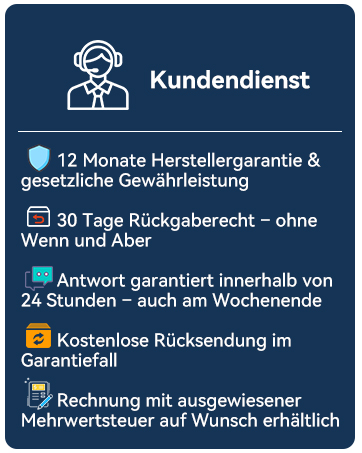
Image 9.1: Overview of SVITOO's customer service commitments.


