
DOMO SLP9
DOMO Slate SLP9 OS12 T310 Tablet PC User Manual
Model: SLP9
Introduction
This manual provides essential information for the proper use and maintenance of your DOMO Slate SLP9 OS12 T310 Tablet PC. Please read it thoroughly before operating the device to ensure optimal performance and longevity.
What's in the Box
- 1 Pc DOMO Slate SLP9 OS12 T310 Tablet PC
- 1 Pc Charging Power Adapter
- 1 Pc Type-C USB Cable
- 1 Pc Type-C OTG Cable
- 1 Sim Card Tray Eject Pin
- User Manual (this document)
Product Overview
Familiarize yourself with the physical components of your DOMO Slate SLP9 OS12 T310 Tablet PC.
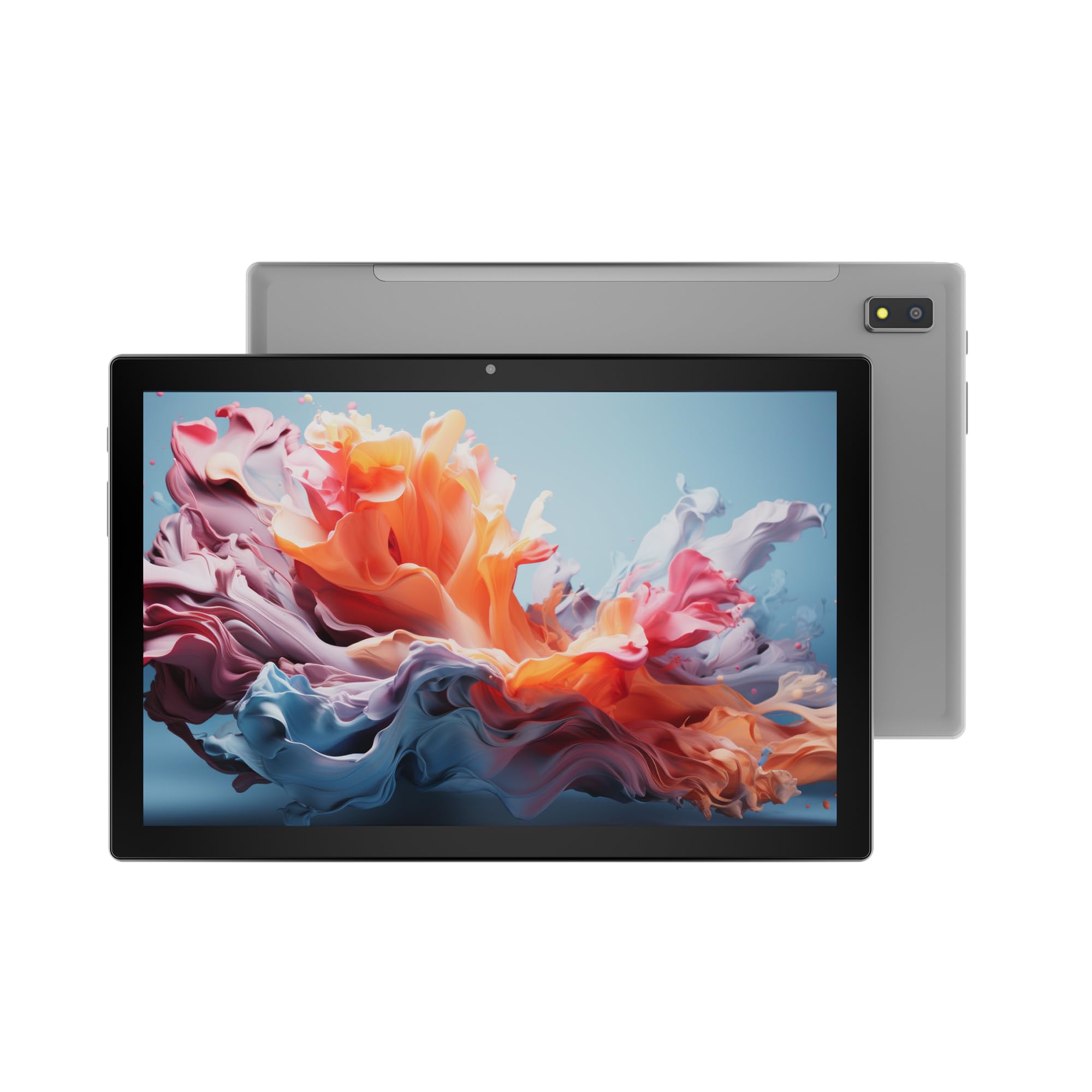
Figure 1: Front view of the DOMO Slate SLP9 OS12 T310 Tablet PC, showcasing the 10.1-inch IPS LCD display.

Figure 2: Angled view of the tablet, highlighting its slim profile and screen.

Figure 3: Side view of the tablet, showing the placement of buttons and ports.

Figure 4: Rear view of the tablet, displaying the camera module and branding.
Key Components
- 10.1-inch IPS HD LCD Display: High-resolution screen for clear visuals.
- Front Camera: Located above the screen for video calls and selfies.
- Rear Camera with LED Flash: For capturing photos and videos.
- Power Button: To turn the device on/off or put it to sleep.
- Volume Buttons: To adjust audio levels.
- Type-C USB Port: For charging and data transfer.
- Dual SIM Slot: Supports 4G, 3G, and 2G SIM cards for cellular connectivity and voice calling.
- MicroSD Card Slot: For expandable storage up to 1TB.
- Dual Box Type Speakers: For audio output.
Setup
1. Charging the Tablet
Before first use, fully charge your tablet. Connect the provided Type-C USB cable to the tablet's Type-C port and the other end to the charging power adapter. Plug the adapter into a wall outlet. The battery indicator on the screen will show charging status.
2. Inserting SIM and MicroSD Cards
- Locate the SIM/MicroSD card tray on the side of the tablet.
- Insert the provided SIM eject pin into the small hole next to the tray to open it.
- Carefully place your 4G/3G/2G SIM card(s) and/or MicroSD card into the designated slots on the tray. Ensure correct orientation as indicated on the tray.
- Gently push the tray back into the tablet until it clicks into place.
3. Initial Power On and Setup
- Press and hold the Power Button until the DOMO logo appears on the screen.
- Follow the on-screen prompts to select your language, connect to a Wi-Fi network, set up your Google account, and configure other initial settings.
- Once setup is complete, your tablet is ready for use.
Operating Instructions
Basic Navigation
- Touch: Tap an icon to open an app or select an item.
- Touch and Hold: Press and hold an item to access contextual menus or move icons.
- Swipe: Drag your finger across the screen to scroll through pages or lists.
- Pinch: Use two fingers to zoom in or out on photos and web pages.
Connecting to Networks
Wi-Fi Connection
- Go to Settings > Network & internet > Wi-Fi.
- Toggle Wi-Fi On.
- Select your desired network from the list and enter the password if prompted.
Bluetooth Pairing
- Go to Settings > Connected devices > Bluetooth.
- Toggle Bluetooth On.
- Select the device you wish to pair with from the list of available devices. Confirm the pairing code if prompted.
Cellular Data and Voice Calling (4G)
With a valid SIM card inserted, your tablet supports 4G cellular data and voice calling (VoLTE). Ensure your SIM card is activated for these services.
- To enable/disable mobile data, go to Settings > Network & internet > Mobile network.
- To make a call, open the Phone app and dial the number.
Camera Operation
Open the Camera app from your home screen or app drawer.
- Tap the Shutter button to take a photo.
- Tap the Video icon to switch to video recording mode.
- Use the Switch Camera icon to toggle between the front and rear cameras.
GPS Functionality
The tablet has an inbuilt GPS chip and antenna. To use location services, ensure GPS is enabled in Settings > Location. You can then use navigation apps or other location-based services.
Maintenance
Cleaning the Device
- Use a soft, lint-free cloth to clean the screen and body of the tablet.
- Avoid using harsh chemicals, abrasive cleaners, or aerosol sprays.
- Do not allow moisture to enter openings.
Battery Care
- Avoid extreme temperatures, as they can degrade battery life.
- Use only the provided charger and cable.
- Do not leave the tablet charging for extended periods after it is fully charged.
Software Updates
Periodically check for system updates to ensure your tablet has the latest features and security enhancements. Go to Settings > System > System update.
Troubleshooting
| Problem | Possible Solution |
|---|---|
| Tablet does not power on. | Ensure the battery is charged. Connect the charger and try again. If unresponsive, press and hold the power button for 10-15 seconds to force a restart. |
| Cannot connect to Wi-Fi. | Check if Wi-Fi is enabled in settings. Ensure the Wi-Fi password is correct. Restart your router and the tablet. |
| SIM card not detected. | Ensure the SIM card is correctly inserted into the tray. Restart the tablet. Check if the SIM card is active with your service provider. |
| Slow performance. | Close unused applications. Clear cache. Consider uninstalling unnecessary apps. Perform a factory reset as a last resort (backup data first). |
| Camera not working. | Ensure the camera app has necessary permissions. Restart the tablet. |
Specifications
| Feature | Detail |
|---|---|
| Brand | DOMO |
| Model Name | Slate SLP9 OS12 T310 |
| Display | 10.1-inch IPS HD LCD, 1920 x 1200 Pixels, 400 NITS Brightness, 2.5D Corning Glass Touch Screen |
| Processor | UNISOC Tiger T310 - 64-bit Quadcore @ 3.8Ghz |
| RAM | 4GB LPDDR4 |
| Internal Storage | 64GB |
| Expandable Storage | Up to 1TB via MicroSD card |
| Operating System | Android 12 |
| Rear Camera | 13MP with LED Flash |
| Front Camera | 5MP |
| Battery | 5020 mAh rechargeable polymer battery |
| Connectivity | Dual SIM (4G VoLTE, 3G, 2G), DualBand Wi-Fi (2.4GHz & 5GHz), Bluetooth 5.0, GPS, FM Radio |
| Ports | Type-C USB Port, POGO Connector |
| Dimensions (L x W x Thickness) | 24.4L x 16.2W x 1Th Centimeters |
| Weight | 505 Grams |
| Housing | Metal |
| Country of Origin | India |
Warranty and Support
Warranty Information
The DOMO Slate SLP9 OS12 T310 Tablet PC comes with a 1-year warranty for the device and 3 months warranty for accessories. The warranty type is Onsite, which includes free pickups and deliveries for service.
Warranty Exclusions: Physical damages, water damages, moisture damages, seal tampering, and burnout cases are not covered under warranty.
Customer Support
For technical assistance, troubleshooting, or warranty claims, please contact DOMO customer support. Support options include an online knowledge base, support tickets, and phone support. Post-warranty services are available as paid onsite services.
For more information, visit the official DOMO Store on Amazon.
Ask a question about this manual
Ask about setup, troubleshooting, compatibility, parts, safety, or missing instructions. Manuals+ will review the question and use this page’s manual context to help answer it.