1. Setup Guide
Follow these steps to set up your Diivoo WiFi Water Timer and connect it to the Smart Life App.
1.1 Unboxing and Overview
Upon unboxing, you will find the Diivoo WiFi Water Timer unit and the WiFi Hub. The water timer connects directly to your garden hose faucet, while the hub connects to your home WiFi network to enable smart functionalities.

Image: The Diivoo WiFi Water Timer (left) and its compact WiFi Hub (right), shown alongside a smartphone displaying the Smart Life app interface. This setup allows for remote control and scheduling of your watering system.
1.2 Physical Installation
- Attach the Water Timer: Securely screw the Diivoo Water Timer onto your outdoor garden hose faucet. Ensure a tight fit to prevent leaks. The timer is designed with a filter to prevent large particles from entering the system.
- Connect Hoses: Attach your garden hoses to the outlets on the bottom of the water timer. This model supports one outlet.
- Power the WiFi Hub: Plug the WiFi Hub into an indoor power outlet within range of your home's 2.4 GHz WiFi network. The hub acts as the bridge between your water timer and your smartphone.
1.3 Smart Life App Connection
The Smart Life App is essential for controlling and programming your water timer. Ensure your mobile device is connected to a 2.4 GHz WiFi network during setup.
- Download the App: Download the "Smart Life" app from your mobile device's app store (available for iOS and Android).
- Register/Log In: Open the app and register a new account or log in if you already have one.
- Add WiFi Hub: In the app, follow the instructions to add the WiFi Hub. This typically involves selecting "Add Device" and choosing the appropriate device type.
- Add Water Timer: Once the hub is connected, add the water timer to the app. This may involve scanning a QR code located on the timer or following in-app prompts for device discovery.
- Configure Settings: After successful pairing, you can configure the timer's settings, including naming the device and setting up initial watering plans.
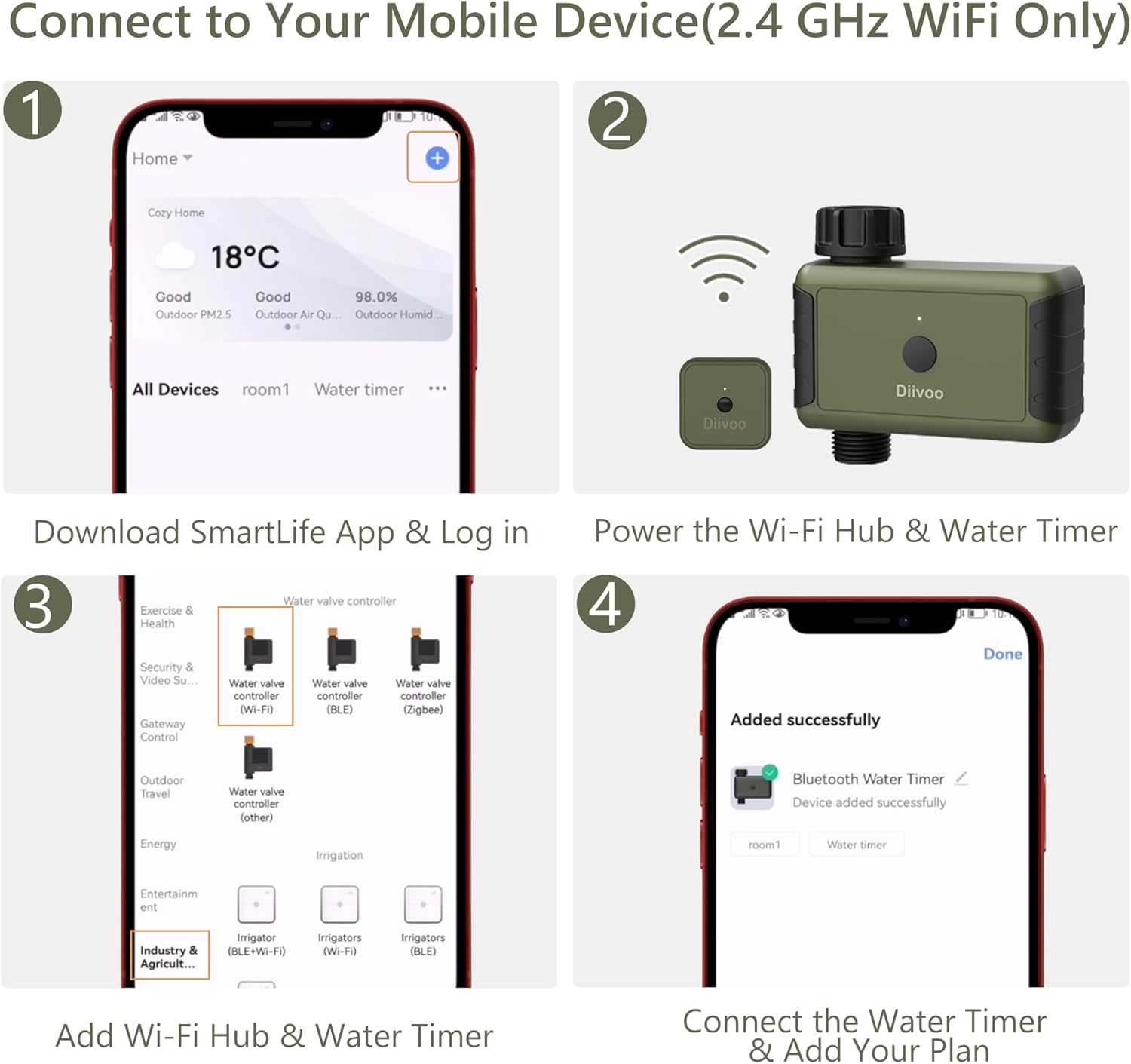
Image: A four-panel illustration detailing the connection process: 1. Download Smart Life App & Log in, 2. Power the Wi-Fi Hub & Water Timer, 3. Add Wi-Fi Hub & Water Timer, 4. Connect the Water Timer & Add Your Plan.
2. Operating Your Diivoo Water Timer
The Diivoo WiFi Water Timer offers flexible control options through the Smart Life App and voice commands.
2.1 Smart Life App Control
The Smart Life App provides comprehensive control over your watering schedules from anywhere with an internet connection.
- Remote Control: Turn the water on or off manually from your smartphone.
- Scheduling: Create up to 20 separate watering schedules. You can set specific start times, durations, and days of the week for each schedule.
- Watering History: View a detailed history of past watering events within the app.

Image: A visual representation of the Diivoo WiFi Water Timer's remote control capabilities, showing a user relaxing in a hammock while managing a sprinkler system via the Smart Life app on their phone.
2.2 Voice Control Integration
The Diivoo Water Timer is compatible with Amazon Alexa and Google Assistant, allowing for convenient voice-activated control.
- Connecting Voice Assistants: Link your Smart Life account to your Alexa or Google Home app. Ensure the water timer device is added to your gateway list in the Smart Life app.
- Voice Commands: Use simple commands such as "Alexa, open Diivoo water timer" or "Ok Google, open [device name]" to control your watering.
- Troubleshooting Voice Commands: If commands are not recognized, verify the device name in the app is easy to pronounce and ensure the device is properly linked. Manually check the on/off button on the timer for water flow.

Image: A user interacting with the Diivoo Water Timer via voice commands, demonstrating compatibility with Amazon Alexa and Google Assistant for hands-free operation of the sprinkler system.

Image: A screenshot from the Smart Life app showing troubleshooting tips for Amazon Alexa and Google Assistant integration, advising users to check device addition to the gateway list, set an easy-to-read device name, and manually verify water flow.

Image: A screenshot from the Smart Life app illustrating example voice commands for Google Assistant and Amazon Alexa, including commands to open, close, and check the status of the water timer device.
2.3 Watering Modes
The Diivoo Water Timer supports two primary watering modes to suit various needs:
- Timed Irrigation Mode: Program specific watering schedules that allow the timer to operate automatically at designated times and for set durations.
- Cyclical Irrigation Mode: Set a cycle of watering and pause periods within a defined timeframe. For example, water for 10 minutes, then pause for 30 minutes, repeating throughout the day.

Image: A split image demonstrating the two primary watering modes: Timed Irrigation (left) for scheduled watering at specific times, and Cyclical Irrigation (right) for repeated watering and pause cycles within a set period.
2.4 Rain Delay and Manual Watering
The timer includes features for adapting to weather conditions and immediate watering needs.
- Rain Delay: Temporarily suspend watering for 24, 48, or 72 hours to conserve water during rainy periods. This function is set manually within the app.
- Manual Mode: Initiate immediate watering for a specified duration, overriding any programmed schedules. This is useful for quick watering tasks like pool filling, drip irrigation, or spot watering.

Image: An illustration showcasing the rain delay function with options for 24H, 48H, and 72H delays, along with visual examples of various manual watering applications such as pool filling, drip irrigation, garden watering, and potting lawn.
2.5 Real-time Notifications
Receive instant notifications on your smartphone regarding the status of your water timer, such as when a valve opens or closes.

Image: A person viewing real-time notifications on their smartphone from the Smart Life app, indicating when the water timer's valve has turned ON or OFF, providing immediate status updates.
3. Maintenance
Proper maintenance ensures the longevity and optimal performance of your Diivoo WiFi Water Timer.
- Filter Cleaning: The water timer is equipped with an internal filter to prevent debris from entering. Periodically inspect and clean this filter to maintain proper water flow and prevent blockages. Unscrew the timer from the faucet and remove the filter for rinsing.
- Battery Replacement: The timer operates on batteries (type not specified in product data, typically AA or AAA). Replace batteries when the low battery indicator appears in the app or on the device. Ensure the battery compartment is sealed properly after replacement to maintain water resistance.
- Winterization: Before the first frost, disconnect the water timer from the faucet and store it indoors in a dry, protected area. This prevents damage from freezing water.
- General Cleaning: Wipe down the exterior of the timer with a damp cloth as needed to remove dirt and grime. Avoid using harsh chemicals.
4. Troubleshooting
If you encounter issues with your Diivoo WiFi Water Timer, refer to the following common solutions:
| Problem | Possible Cause | Solution |
|---|---|---|
| No water flow |
|
|
| App connectivity issues |
|
|
| Schedules not running |
|
|
For further assistance, consult the "FAQ & Feedback" section within the Smart Life App or contact customer support.
5. Specifications
- Brand: Diivoo
- Model Number: WT-03/WG02
- Color: Green
- Material: Nylon (30% reinforced)
- Product Dimensions: 4.84"D x 4.37"W x 1.91"H
- Item Weight: 13.1 ounces
- Water Pressure Range: 7.25 psi to 116 psi
- Water Resistance Rating: IPX5
- Number of Settings: Up to 20 separate watering schedules
- Compatibility: Smart Life App, Amazon Alexa, Google Assistant
- Manufacturer: Zhuhai Tessan Power Technology Co., Ltd.
6. Warranty and Support
Diivoo is committed to providing high-quality products and customer satisfaction.
- Warranty Information: Please refer to the specific warranty documentation included with your product for details on coverage and terms.
- Customer Support: Our US/CA-based customer care team is available 5 days a week via email or phone to assist with any professional support needs.
- Online Resources: Visit the official Diivoo website or the brand store on Amazon for additional resources, FAQs, and product updates.


