1. Introduction
This manual provides comprehensive instructions for the installation, operation, and maintenance of your CFTGIW NEO NAS DS01Z Door/Window Sensor Alarm. This device is designed to enhance your home security by detecting the opening and closing of doors and windows, integrating seamlessly with Z-Wave 300 and 500 series systems. Please read this manual thoroughly before using the product to ensure proper function and safety.
2. Package Contents
Verify that all items listed below are present in your package:
- NEO NAS DS01Z Door/Window Sensor Alarm Main Body
- NEO NAS DS01Z Door/Window Sensor Alarm Deputy Body (Magnet)
- Installation Accessory Kit (Screws, adhesive tape)
- User Manual
3. Product Overview
The CFTGIW NEO NAS DS01Z is a compact and discreet sensor designed to monitor the open/closed status of doors, windows, cabinets, and drawers. It consists of two main parts: the main sensor unit and a magnetic deputy unit.
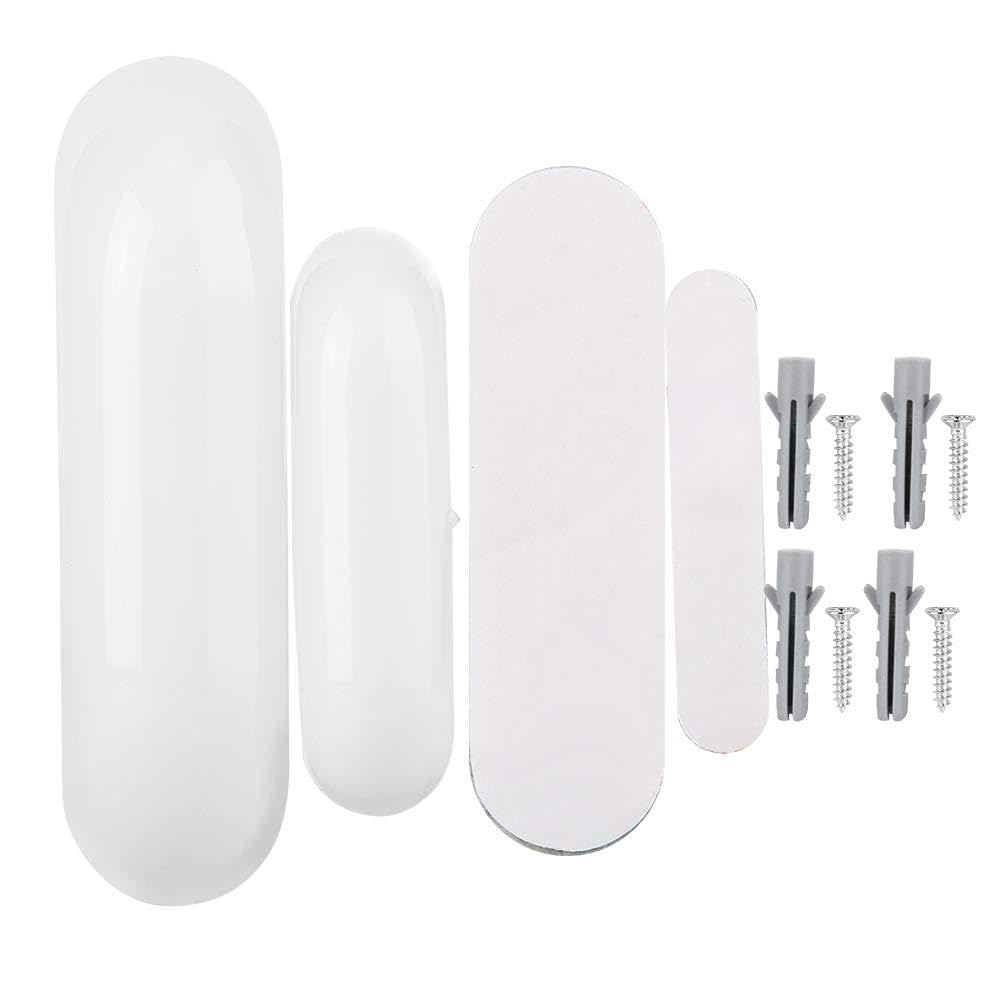
Figure 1: NEO NAS DS01Z Door/Window Sensor Alarm. This image shows the main sensor unit and the smaller magnetic deputy unit, typically installed on a door or window frame and the moving part, respectively.
Key Features:
- Reliable Detection: Provides precise open/close status for secured entry points.
- Instant Alerts: Notifies users immediately via smartphone or laptop upon detection of an unexpected opening.
- Enhanced Z-Wave Plus: Utilizes 500 series chip for faster and more secure communication.
- Discreet Design: Compact and stylish, blending seamlessly with home decor.
- Customization: Integrates with Z-Wave communication for automated responses (e.g., turning on lights).
- Compatibility: Works with leading alarm systems such as SmartThings, Vera, Zipato, and Iris.
4. Specifications
| Brand | CFTGIW |
| Model Number | CFTGIWmvgdi4g9re-02 |
| Material | ABS plastic |
| Working Frequency (EU Version) | 868.4MHz |
| Working Frequency (US Version) | 908.4MHz |
| Compatibility | Z-Wave 300 series and 500 series |
| Range | Up to 50m outdoors, 30m indoors |
| Power Source | CR2 battery |
| Standby Current | 1uA |
| Battery Life | Approximately 2.2 years |
| Working Temperature | 0-40℃ (32-104°F) |
| Main Body Dimensions (L*W*H) | Approx. 70 x 20 x 20mm (2.8 x 0.8 x 0.8in) |
| Deputy Body Dimensions (L*W*H) | Approx. 40 x 11 x 11mm (1.6 x 0.4 x 0.4in) |
| Item Weight | 2.12 ounces |
5. Setup and Installation
5.1 Battery Installation
- Gently open the main sensor unit casing.
- Insert the CR2 battery, ensuring correct polarity (+/-).
- Close the casing securely.
5.2 Z-Wave Network Inclusion (Pairing)
To integrate the sensor into your Z-Wave network:
- Place your Z-Wave controller (hub) into inclusion (pairing) mode. Refer to your controller's manual for specific instructions.
- Within 1.5 seconds, press the Z-Wave button on the main sensor unit three times quickly. The LED indicator will flash to confirm inclusion mode.
- The sensor will attempt to pair with your controller. Once successfully paired, the LED will stop flashing and remain solid for a few seconds before turning off.
- If inclusion fails, the LED will flash rapidly for a longer period. Repeat the process.
5.3 Physical Installation
Install the sensor on a door or window frame using the provided adhesive tape or screws.
- Mount the main sensor unit on the fixed part of the door/window frame.
- Mount the magnetic deputy unit on the moving part of the door/window.
- Ensure the two units are aligned and the gap between them is no more than 10mm (0.4 inches) when the door/window is closed.
- Test the sensor by opening and closing the door/window to confirm detection.
6. Operation
6.1 Monitoring Door/Window Status
Once installed and paired, the sensor will automatically detect when the door or window it is attached to is opened or closed. This status change is immediately communicated to your Z-Wave controller.
- Open: When the magnetic deputy unit moves away from the main sensor unit, the sensor reports an "open" status.
- Closed: When the magnetic deputy unit is close to the main sensor unit, the sensor reports a "closed" status.
6.2 Receiving Alerts
Depending on your Z-Wave controller's configuration, you can receive instant notifications on your smartphone or other devices when the sensor detects an opening. Configure these alerts within your Z-Wave hub's application.
6.3 Z-Wave Network Exclusion (Unpairing)
To remove the sensor from your Z-Wave network:
- Place your Z-Wave controller into exclusion (unpairing) mode.
- Within 1.5 seconds, press the Z-Wave button on the main sensor unit three times quickly. The LED indicator will flash to confirm exclusion mode.
- The sensor will attempt to unpair. Once successfully excluded, the LED will stop flashing.
7. Maintenance
7.1 Battery Replacement
The sensor is powered by a CR2 battery with an approximate life of 2.2 years. When the battery is low, the sensor will typically send a low battery alert to your Z-Wave controller. Replace the battery as follows:
- Gently open the main sensor unit casing.
- Remove the old CR2 battery.
- Insert a new CR2 battery, observing correct polarity.
- Close the casing securely.
7.2 Cleaning
Wipe the sensor with a soft, dry cloth. Do not use liquid cleaners or abrasive materials, as these can damage the device.
8. Troubleshooting
| Problem | Possible Cause | Solution |
|---|---|---|
| Sensor not pairing with Z-Wave controller. |
|
|
| Sensor not detecting open/close events. |
|
|
| Short battery life. |
|
|
9. Warranty and Support
For warranty information and technical support, please refer to the documentation provided with your purchase or contact CFTGIW customer service through the retailer where the product was purchased. Keep your proof of purchase for warranty claims.


