Introduction
This manual provides comprehensive instructions for the setup, operation, maintenance, and troubleshooting of your ASUS TUF Gaming VG259Q5A 24.5-inch Full HD gaming monitor. Please read this manual thoroughly before using the product to ensure proper functionality and to maximize your experience.

Front view of the ASUS TUF Gaming VG259Q5A monitor, showcasing its design and display.
1. Setup
1.1 Unpacking and Package Contents
Carefully remove all components from the packaging. Verify that all items listed below are present and undamaged. If any item is missing or damaged, contact your retailer.
- ASUS TUF Gaming VG259Q5A Monitor
- DisplayPort Cable
- L-shaped Screwdriver
- Power Cord & Adapter
- Quick Start Guide
- Warranty Card

Visual representation of the contents included in the ASUS TUF Gaming VG259Q5A monitor package.
1.2 Assembling the Stand
- Place the monitor face down on a soft, clean surface to prevent scratches.
- Attach the stand base to the stand neck, securing it with the provided screw using the L-shaped screwdriver.
- Align the assembled stand with the mounting slot on the back of the monitor and push until it clicks into place.
1.3 Connecting the Monitor
Connect the monitor to your computer or other devices using the appropriate cables. Ensure all connections are secure.
- Power Connection: Connect the power adapter to the monitor's power input, then plug the power cord into a power outlet.
- Video Connection: Use either the DisplayPort cable or an HDMI cable to connect the monitor to your graphics card. The monitor supports two HDMI 2.0 ports and one DisplayPort.
- Audio Connection: If desired, connect headphones or external speakers to the 3.5mm earphone jack on the monitor.

Rear view of the ASUS TUF Gaming VG259Q5A monitor highlighting its connectivity ports: two HDMI 2.0, one DisplayPort, and an earphone jack.
2. Operation
2.1 Powering On/Off
Press the power button located on the monitor's rear panel to turn the monitor on or off. The power indicator light will illuminate when the monitor is on.
2.2 On-Screen Display (OSD) Navigation
The monitor features an intuitive OSD menu for adjusting various settings. Use the joystick and buttons on the rear panel to navigate the menu:
- Joystick: Move up/down/left/right to navigate, press to select.
- Buttons: Provide quick access to specific functions or exit menus.
2.3 Adjusting Display Settings
Optimize your viewing experience by adjusting the monitor's display settings.
Refresh Rate and Response Time
The VG259Q5A features a 200Hz refresh rate and 0.3ms GTG response time for smooth visuals.

Comparison image demonstrating the smoothness of a 200Hz refresh rate versus a 60Hz refresh rate.

The 24.5-inch Full HD display with Fast IPS technology and 0.3ms response time.
Adaptive Sync (FreeSync Premium / G-SYNC Compatible)
Enable Adaptive Sync in the OSD menu and on your graphics card settings to eliminate screen tearing and stuttering for a fluid gaming experience.

Comparison of gameplay with Adaptive Sync ON (fluid) and Adaptive Sync OFF (tearing).
ASUS Extreme Low Motion Blur (ELMB)
Activate ELMB to further reduce motion blur, especially in fast-paced scenes.
GameVisual Modes
Select from various GameVisual modes (e.g., Racing, MOBA, Cinema, RTS/RPG, FPS, sRGB, Scenery, Night Vision) to optimize display settings for different content types.

Demonstration of GameVisual modes, showing optimized display settings for different content.
GamePlus Features
Access GamePlus features like Crosshair, Timer, FPS Counter, and Display Alignment for in-game assistance.
Overview of ASUS GamePlus features, providing in-game enhancements.
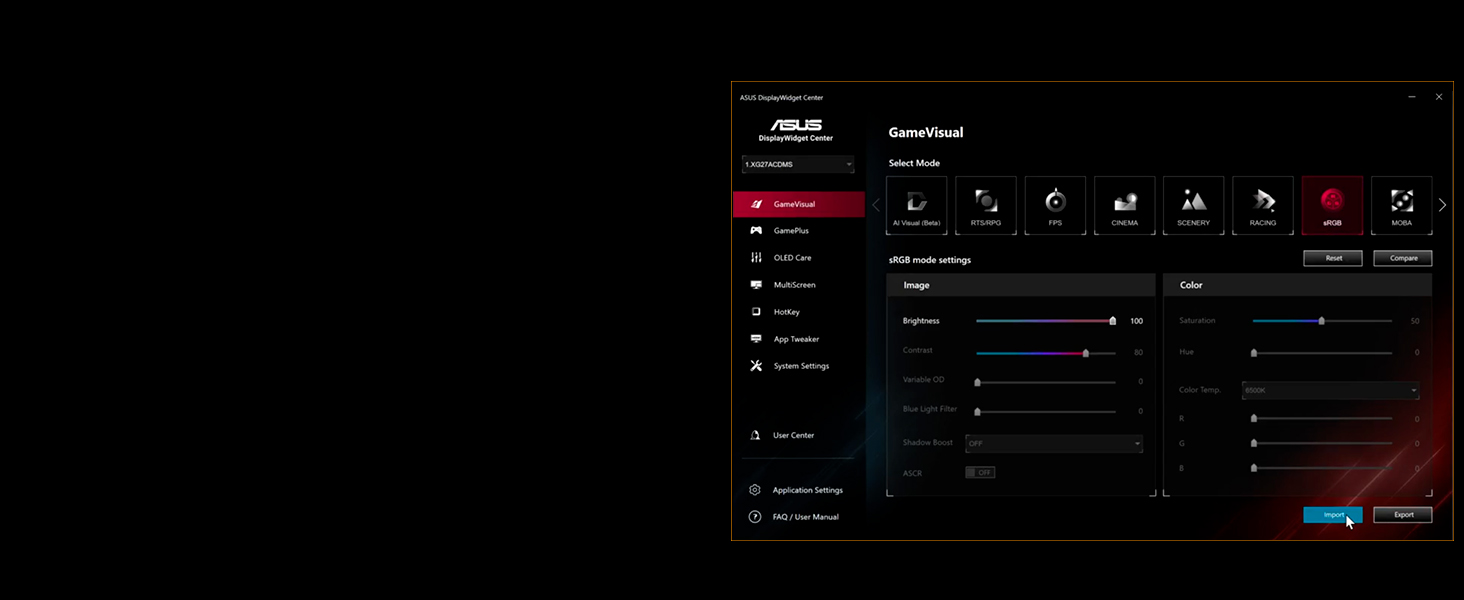
2.4 Using DisplayWidget Center
The DisplayWidget Center software allows for easy adjustment of monitor settings directly from your computer using a mouse. Install the software from the ASUS support website for your model.

Screenshot of the ASUS DisplayWidget Center software interface, showing various monitor settings.
2.5 Ergonomic Adjustments
The monitor stand allows for tilt adjustments to achieve an optimal viewing angle.
- Tilt: Adjust the screen tilt from +23° to -5° for comfortable viewing.

Side view of the ASUS TUF Gaming VG259Q5A monitor showing its ergonomic tilt adjustment range of +23° to -5°.
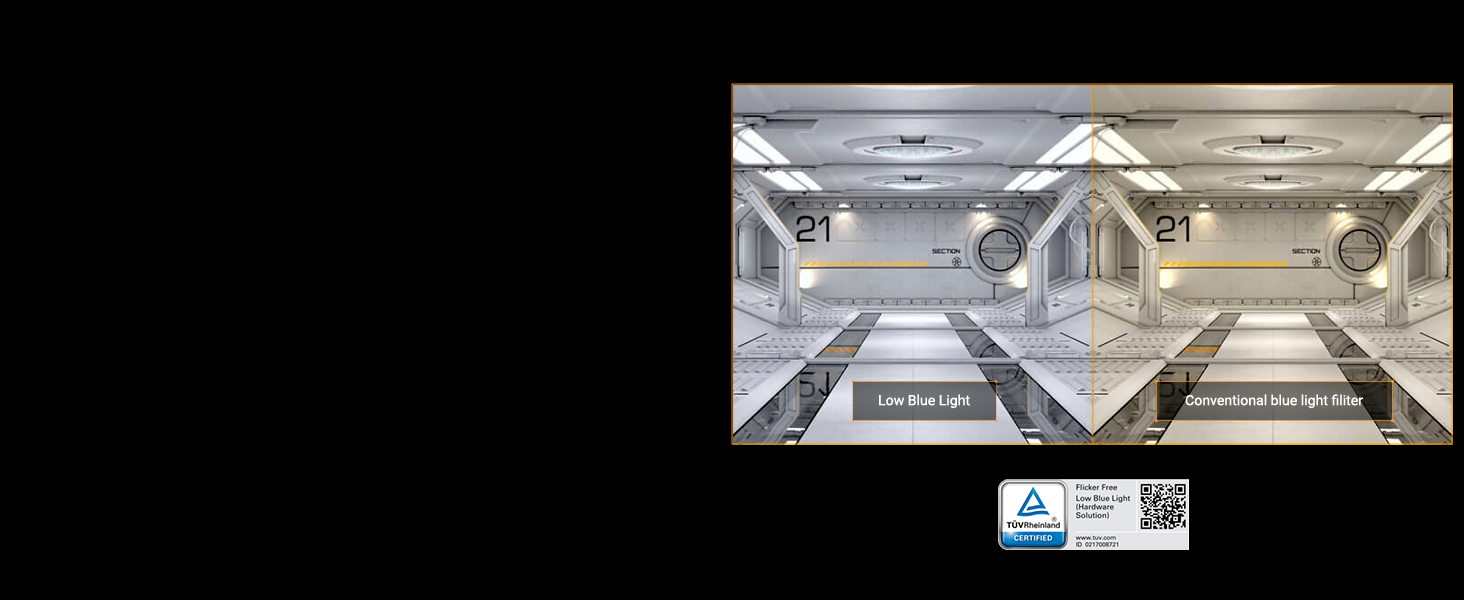
2.6 Eye Care Features
The monitor incorporates ASUS Eye Care technology to reduce eye strain during prolonged use.
- Low Blue Light: Reduces harmful blue light emissions.
- Flicker-Free Technology: Eliminates screen flickering.
Comparison illustrating the effect of Low Blue Light mode versus a conventional blue light filter. Certified by TÜV Rheinland. Certification Details
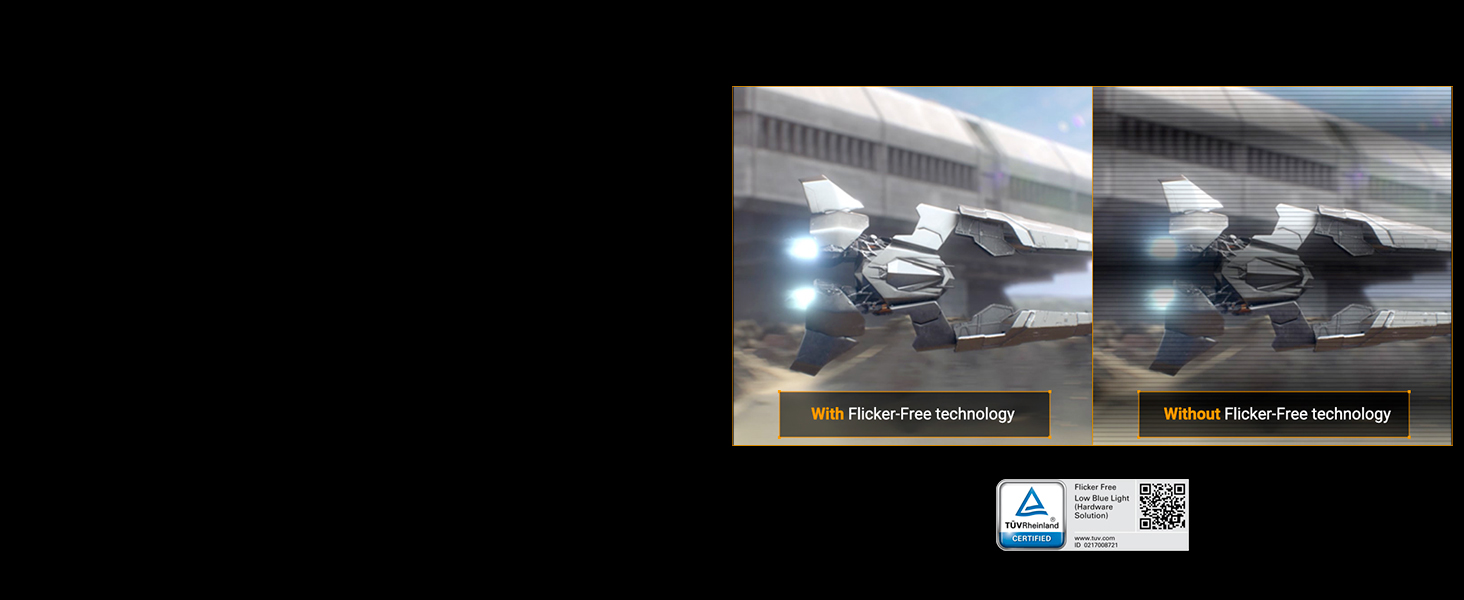
Demonstration of Flicker-Free technology reducing screen flicker. Certified by TÜV Rheinland. Certification Details
3. Maintenance
3.1 Cleaning the Monitor
To clean the monitor screen, gently wipe it with a soft, lint-free cloth. For stubborn marks, dampen the cloth with a small amount of water or a mild, non-abrasive screen cleaner. Avoid using alcohol, ammonia, or abrasive cleaners.
3.2 General Care
- Avoid placing the monitor in direct sunlight or near heat sources.
- Ensure adequate ventilation around the monitor.
- Do not place heavy objects on the monitor or its cables.
- Unplug the monitor from the power outlet during lightning storms or when unused for extended periods.
4. Troubleshooting
If you encounter issues with your monitor, refer to the following common problems and solutions:
| Problem | Possible Solution |
|---|---|
| No image on screen | Check power connection. Ensure video cable is securely connected to both monitor and computer. Select correct input source via OSD. |
| Image is blurry or distorted | Adjust resolution and refresh rate in your computer's display settings. Check video cable for damage. |
| Screen tearing or stuttering | Ensure Adaptive Sync (FreeSync Premium) is enabled in both monitor OSD and graphics card settings. |
| No sound from speakers/earphone jack | Check volume settings on monitor and computer. Ensure audio output is set to the monitor in your computer's sound settings. |
| Monitor not turning on | Verify power cord and adapter connections. Test power outlet with another device. |
5. Specifications
Detailed technical specifications for the ASUS TUF Gaming VG259Q5A monitor:

Diagram illustrating the product dimensions of the ASUS TUF Gaming VG259Q5A monitor.
| Feature | Specification |
|---|---|
| Screen Size | 24.5 Inches |
| Panel Type | Fast IPS |
| Resolution | 1920 x 1080 (Full HD) |
| Refresh Rate | 200Hz |
| Response Time | 0.3ms GTG (min.) |
| Aspect Ratio | 16:9 |
| Connectivity | 2 x HDMI (2.0), 1 x DisplayPort, Earphone Jack |
| Adaptive Sync Technology | AMD FreeSync Premium, G-SYNC Compatible, VESA AdaptiveSync |
| Special Features | ASUS Extreme Low Motion Blur (ELMB), DisplayWidget Center, GameVisual, GamePlus, Low Blue Light, Flicker-Free |
| Ergonomics | Tilt (+23° ~ -5°) |
| Dimensions (LxWxH) | 8 x 25 x 18 inches (Product), 55.9 cm (22.01") W x 40.1 cm (15.79") H x 17.4 cm (6.85") D (Display with Stand) |
| Weight | 7.5 pounds |
6. Warranty and Support
6.1 Warranty Information
Your ASUS TUF Gaming VG259Q5A monitor comes with a 3-year limited warranty. Please refer to the included Warranty Card for detailed terms and conditions, including coverage and limitations. Keep your proof of purchase for warranty claims.
6.2 Contacting Support
For technical assistance, troubleshooting beyond this manual, or warranty service, please visit the official ASUS support website or contact ASUS customer service. You can find contact information and support resources at www.asus.com/support/.


