
Bewinner Bewinner9b5mqz8kn4
Bewinner Emergency Radio Digital DAB DAB+ User Manual
Model: Bewinner9b5mqz8kn4
Introduction
This manual provides detailed instructions for the setup, operation, and maintenance of your Bewinner Emergency Radio Digital DAB DAB+. This versatile device features DAB/DAB+ and FM radio reception, Bluetooth 5.0 connectivity, and multiple power options including solar charging. Please read this manual thoroughly to ensure proper use and longevity of your radio.
Product Overview
The Bewinner Emergency Radio is designed for portability and multi-functionality. It combines digital radio capabilities with a Bluetooth speaker and various media playback options, powered by a rechargeable battery with solar charging support.

Image: The Bewinner Emergency Radio shown alongside a smartphone, illustrating its Bluetooth music playback capability.
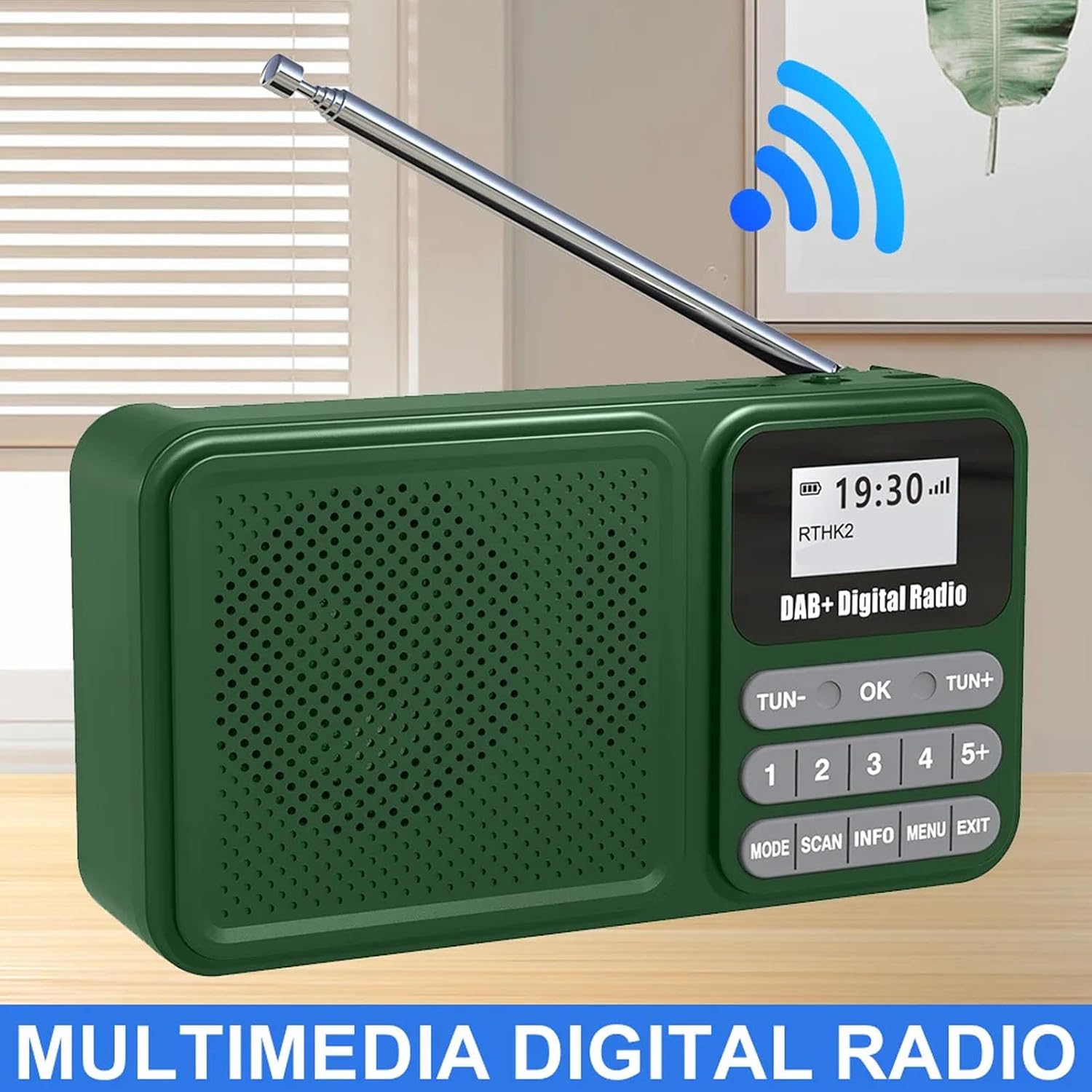
Image: The Bewinner Emergency Radio highlighting its digital radio reception with a wireless signal icon.
Setup
1. Battery Installation
- Locate the battery compartment cover on the back of the radio.
- Slide the cover to open it.
- Insert the provided 1200mAh lithium battery, ensuring correct polarity.
- Close the battery compartment cover securely.
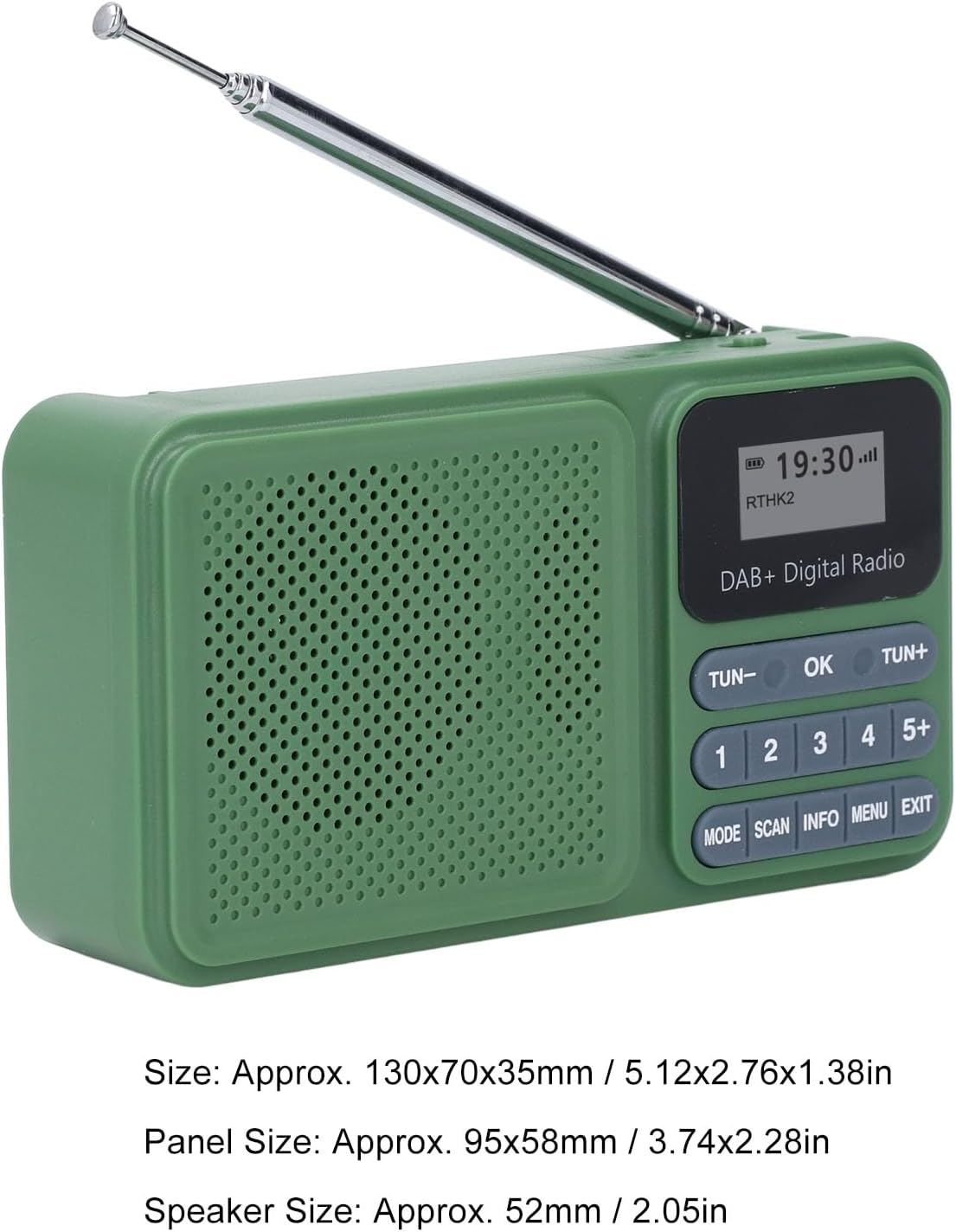
Image: The Bewinner Emergency Radio and its USB charging cable.
2. Initial Charging
- Connect the provided USB-C cable to the DC 5V port on the side of the radio.
- Connect the other end of the cable to a USB power adapter (not included) or a computer USB port.
- Allow the radio to charge fully before first use. The charging indicator will show the status.
- For solar charging, place the radio with the solar panel facing direct sunlight. The solar panel provides approximately 130mA at 5V.

Image: The back of the Bewinner Emergency Radio featuring its large solar charging panel.
3. Antenna Extension
For optimal radio reception, extend the telescopic antenna fully. The antenna can be rotated 360 degrees to find the best signal.

Image: The telescopic antenna of the Bewinner Emergency Radio, demonstrating its 360-degree rotation for signal optimization.
Operating Instructions
1. Power On/Off
Slide the ON/OFF switch located on the side of the radio to power it on or off.
2. Mode Selection
Press the MODE button to cycle through available modes: DAB, FM, Bluetooth, USB, and SD card playback.
3. DAB/DAB+ Radio Operation
- In DAB mode, press the SCAN button to automatically scan for available DAB/DAB+ stations.
- Use the TUN- and TUN+ buttons to navigate through the scanned stations.
- Press OK to select a station.
- To save a station, press and hold one of the numbered preset buttons (1-5+) until the display confirms the save.
- To recall a preset station, briefly press the corresponding numbered button.
4. FM Radio Operation
- In FM mode, press the SCAN button to automatically scan for available FM stations.
- Use the TUN- and TUN+ buttons to manually tune or navigate through scanned stations.
- Press OK to confirm a station.
- FM radio supports 30 preset stations.
5. Bluetooth 5.0 Connectivity
- Switch the radio to Bluetooth mode using the MODE button.
- The radio will enter pairing mode, indicated on the LCD display.
- On your mobile device, enable Bluetooth and search for "Bewinner Radio" (or similar).
- Select the radio to pair. Once connected, you can stream audio wirelessly.

Image: The Bewinner Emergency Radio displaying a Bluetooth connection to a smartphone, ready for audio streaming.
6. USB/SD Card Playback
- Insert a USB drive or a Micro SD card (up to 32GB, not included) into the respective ports on the side of the radio.
- Switch the radio to USB or SD card mode using the MODE button.
- The radio will automatically detect and play MP3/WMA audio files.
- Use the TUN- and TUN+ buttons to skip tracks.
- Press OK to play/pause.

Image: A detailed view of the radio's side panel, indicating the Micro SD card slot, USB port, audio jack, and Type-C charging port.
7. Volume Control
Adjust the volume using the rotary knob labeled "V-" and "V+" on the side of the radio.
8. Time Setting
The radio automatically sets the time when a DAB signal is received. Manual time adjustment options may be available in the menu settings (refer to the MENU button and navigation).
Maintenance
- Clean the radio with a soft, dry cloth. Do not use liquid cleaners or abrasive materials.
- Avoid exposing the radio to extreme temperatures, direct sunlight for prolonged periods (beyond solar charging), or high humidity.
- Keep the device away from strong magnetic fields.
- When not in use for extended periods, store the radio in a cool, dry place and ensure it is fully charged periodically to maintain battery health.
Troubleshooting
| Problem | Possible Cause | Solution |
|---|---|---|
| No power | Battery depleted or incorrectly installed. | Charge the battery using the USB-C port or solar panel. Ensure the battery is inserted with correct polarity. |
| Poor radio reception | Antenna not extended or weak signal area. | Extend the telescopic antenna fully and adjust its position. Try moving to an area with better signal strength. |
| Bluetooth not connecting | Radio not in Bluetooth mode or device too far. | Ensure the radio is in Bluetooth mode. Keep your device within 8 meters of the radio. Re-pair if necessary. |
| USB/SD card not playing | Unsupported file format or card/drive not detected. | Ensure files are MP3 or WMA format. Check if the USB drive or SD card is properly inserted and formatted. Maximum capacity 32GB. |
Specifications
- Model: Bewinner9b5mqz8kn4
- Material: ABS
- DAB/DAB+ Frequency Range: 174-240MHz
- FM Frequency Range: 87.5-108MHz
- Bluetooth Version: V5.0
- Bluetooth Effective Distance: >8m
- Speaker: Approx. 52mm / 2.05in, 4ohm, 3W
- Battery Type: Lithium Battery
- Battery Capacity: 1200mAh
- Full Charge Playback Time: 6-8 hours (DAB Mode 40% VOL)
- Solar Panel: Polycrystalline Silicon, Approx. 95x58mm / 3.74x2.28in
- Solar Panel Charging Output: About 130mA 5V
- Multimedia Support: MP3, WMA (via Micro SD card or USB drive)
- Micro SD Card/USB Drive Max Capacity: 32GB (Not Included)
- Product Dimensions: Approx. 130x70x35mm / 5.12x2.76x1.38in
- Item Weight: 10.6 ounces / 300 Grams

Image: The Bewinner Emergency Radio with its approximate dimensions indicated.
Official Product Videos
Solar Powered DAB Radio Overview
Video: A demonstration of the Bewinner Emergency Radio, showcasing its features including battery installation, antenna extension, and power-on sequence.
Emergency Radio Digital DAB DAB+ Features
Video: An in-depth look at the Bewinner Emergency Radio, demonstrating its various modes such as Bluetooth, USB, SD card, DAB, and FM radio functionality.
Warranty and Support
For warranty information or technical support, please refer to the product packaging or contact Bewinner customer service directly. Contact details are typically available on the manufacturer's official website or through your point of purchase.
Ask a question about this manual
Ask about setup, troubleshooting, compatibility, parts, safety, or missing instructions. Manuals+ will review the question and use this page’s manual context to help answer it.