
1. Introduction and Overview
The Toladrone TD12LCD Drone is a foldable quadcopter designed for both beginners and experienced users, featuring a remote control with an integrated LCD screen for real-time image transmission. Equipped with brushless motors, it offers stable flight performance and enhanced durability. This manual provides essential information for safe and effective operation of your drone.

Figure 1: Toladrone TD12LCD Drone with Remote Control and Carrying Case
2. What's Included
Your Toladrone TD12LCD Drone package includes the following components:
- TD12LCD Drone (Foldable)
- Remote Control with LCD Screen
- Modular Battery (Lithium Polymer, 1800 mAh)
- USB Charging Cable
- Screwdriver
- Carrying Case
- Instruction Manual
- 4 Spare Propellers
- 4 Propeller Guards

Figure 2: Complete package contents
3. Setup
3.1 Battery Installation and Charging
Ensure both the drone battery and remote control are fully charged before use. The drone uses a 1800 mAh Lithium Polymer battery. The remote control has an internal rechargeable battery.
- Drone Battery: Insert the charged modular battery into the designated slot at the rear of the drone.
- Remote Control: Connect the USB charging cable to the remote control's charging port. The charging indicator will show its status.
3.2 Unfolding the Drone
Carefully unfold the drone's arms until they lock into their fully extended position. Ensure all four arms are securely extended before flight.
3.3 Propeller Guards Installation (Optional)
For added protection, especially for beginners or indoor flight, attach the propeller guards to each motor arm. Use the provided screwdriver and screws if necessary.

Figure 3: Drone with Propeller Guards
3.4 SD Card Insertion
The drone supports an SD card up to 32GB for storing photos and videos. Insert the micro SD card into the designated slot on the remote control.
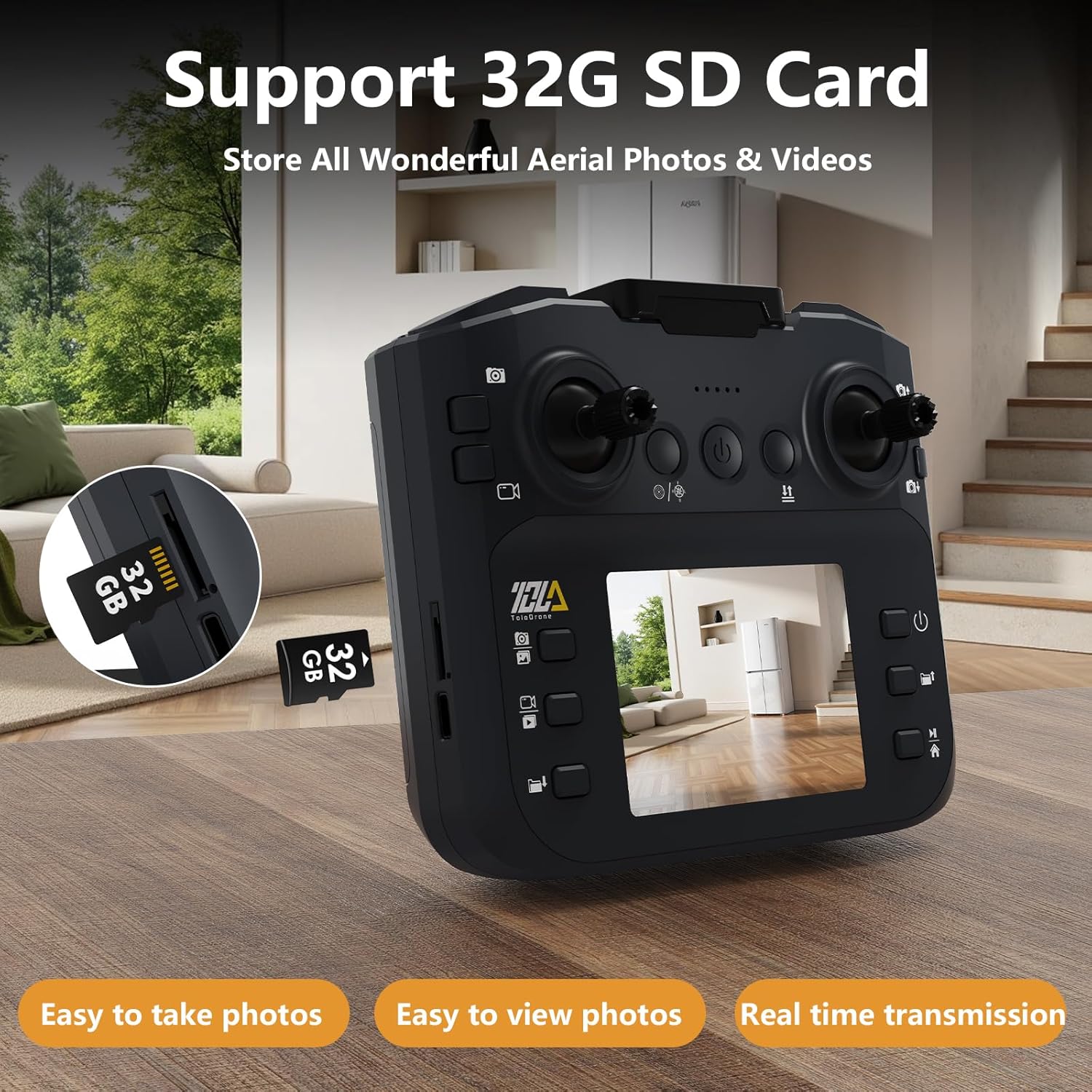
Figure 4: SD Card Slot on Remote Control
4. Operating Instructions
4.1 Power On and Pairing
- Power On Drone: Press and hold the power button on the drone for 3 seconds until the LEDs flash.
- Power On Remote: Turn on the remote control. The remote will connect to the drone automatically. LEDs on the drone will become steady when connected.
4.2 Calibration
Before the first flight or after an impact, compass and gyro calibration are recommended for stable flight.
- Compass Calibration: Press the calibration button on the remote. Follow the on-screen prompts on the remote's LCD to rotate the drone horizontally and vertically.
- Gyro Calibration: Press the gyro button on the remote. The drone's front LEDs will flash rapidly then become steady, indicating successful calibration.
4.3 Basic Flight Controls
The remote control features joysticks for directional movement and dedicated buttons for various functions. Familiarize yourself with the remote control layout:

Figure 5: Remote Control Layout
- One Key Take-off/Landing: Press the dedicated button for automatic take-off or landing.
- Headless Mode: Simplifies control by eliminating the need to orient the drone's front.
- 3 Speed Modes: Switch between low, medium, and high speeds to suit your skill level and environment.
- Obstacle Avoidance: Long press the obstacle avoidance button to activate the front camera's laser sensors, preventing collisions.
- 360 Degree Flip: Press the 360 flip button on the right-hand side for acrobatic maneuvers.
4.4 Flight Demonstration
Video 1: TD12LCD Drone Introduction Video - Demonstrates basic flight and features.
5. Media Capture and Viewing
The TD12LCD drone is equipped with a 1080p camera for high-definition photo and video capture. All media is stored on the inserted micro SD card.
- Taking Photos: Press the dedicated photo button on the remote control.
- Recording Videos: Press the dedicated video button on the remote control to start/stop recording.
- Viewing Media: You can review captured photos and videos directly on the remote control's LCD screen or by inserting the micro SD card into a computer.
Video 2: TD12LCD Drone Video - Showcases camera capabilities during flight.
6. Advanced Flight Features
The TD12LCD drone offers several advanced features for an enhanced flying experience:
- Gravity Sensing: Control the drone's movement by tilting your smartphone (when using the app).
- Trajectory Flight: Draw a path on your smartphone screen, and the drone will automatically follow it.

Figure 6: Advanced App Functions
Video 3: Video for TD12LCD Drone - Demonstrates various flight modes and controls.
7. Maintenance
- Propeller Inspection: Regularly check propellers for any chips, cracks, or damage. Replace damaged propellers using the provided spares and screwdriver.
- Cleaning: Keep the drone and remote control clean and free from dust and debris. Use a soft, dry cloth.
- Storage: When not in use, fold the drone and store all components neatly in the carrying case to prevent damage.
8. Troubleshooting
- Drone Drifts: Perform compass and gyro calibration as described in Section 4.2. Use the fine-tuning buttons on the remote control to adjust stability during flight.
- No Connection: Ensure both the drone and remote control are powered on and fully charged. Repeat the pairing process.
- Poor Camera Feed: Check SD card insertion. Ensure sufficient battery on both drone and remote.
- Short Flight Time: Ensure the battery is fully charged. Flight time can vary based on flight mode, speed, and environmental conditions (e.g., wind).
9. Specifications
- Brand: Toladrone
- Model Name: TD12LCD
- Color: Black
- Item Weight: 0.62 Kilograms (1.37 pounds)
- Product Dimensions: 7.1"L x 6.3"W x 2.4"H
- Control Type: Remote Control
- Connectivity Technology: Wi-Fi, RF
- Wireless Communication Technology: RF
- Special Feature: 360 Degree Flip
- Video Capture Resolution: 1080p
- Video Capture Format: MP4
- Optical Sensor Technology: CMOS
- Battery Capacity: 1800 Milliamp Hours
- Battery Cell Composition: Lithium Polymer
- Are Batteries Included: Yes
- Rechargeable Battery Included: Yes
- Remote Control Included?: Yes
- Manufacturer: Toladrone
- Date First Available: May 9, 2025
10. Warranty and Support
Toladrone is committed to providing professional and friendly service to ensure a positive experience with your drone. If you encounter any problems while using your drone, please do not hesitate to contact our professional technicians for assistance and technical support.
