1. Introduction
This manual provides essential information for the safe and efficient use of your realme 14 Pro Lite 5G Smartphone. Please read this guide thoroughly before operating your device to ensure optimal performance and longevity. Keep this manual for future reference.
2. What's in the Box
Upon unboxing your realme 14 Pro Lite 5G Smartphone, please verify that all the following items are included:
- realme 14 Pro Lite 5G Smartphone
- USB Cable
If any item is missing or damaged, please contact your retailer or realme customer support.
3. Device Overview
Familiarize yourself with the physical features and components of your realme 14 Pro Lite 5G Smartphone.

Figure 3.1: Front and back view of the realme 14 Pro Lite 5G, showcasing the 92MP camera system and the 6.7-inch curved display.
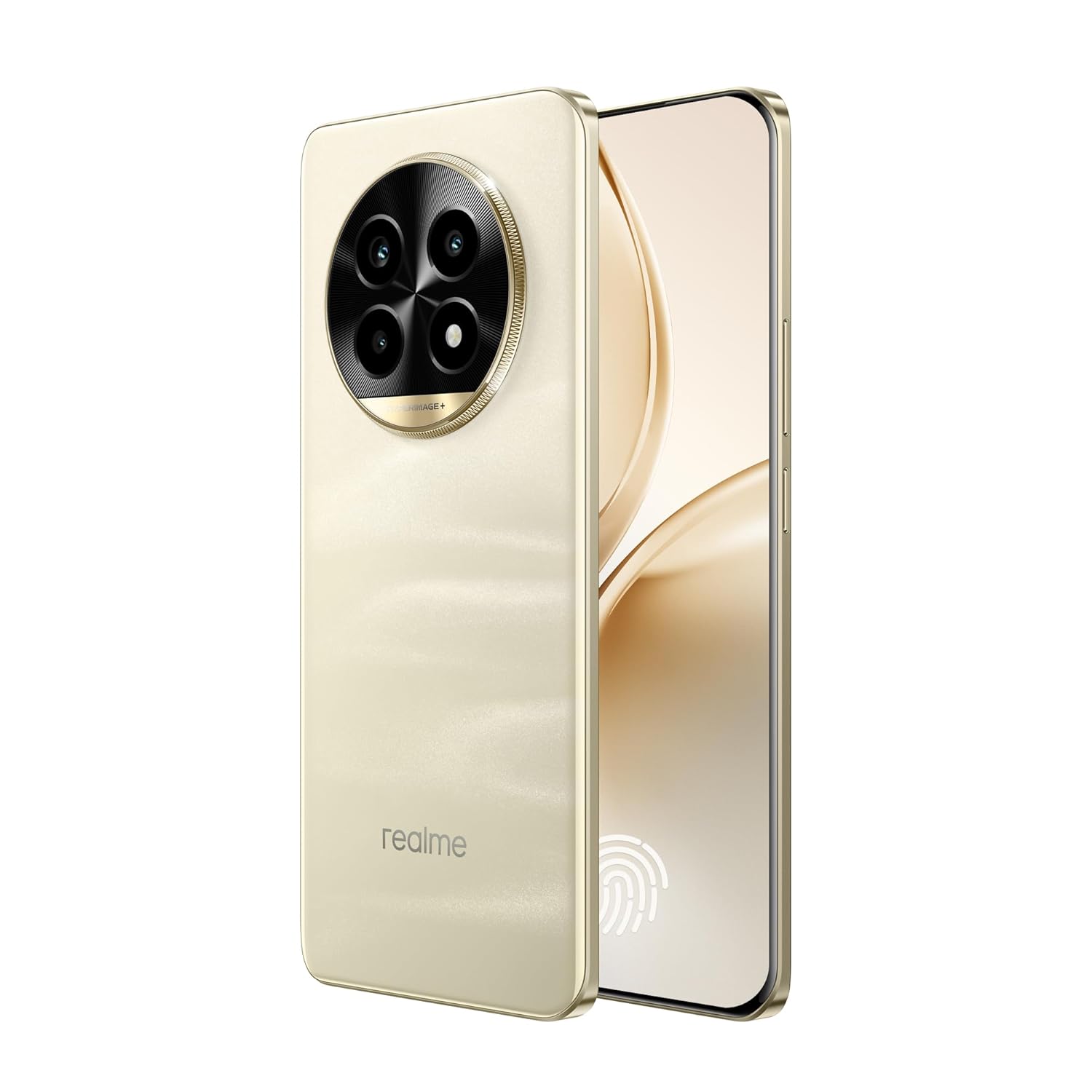
Figure 3.2: Angled perspective of the realme 14 Pro Lite 5G, emphasizing the sleek design and curved screen edges.
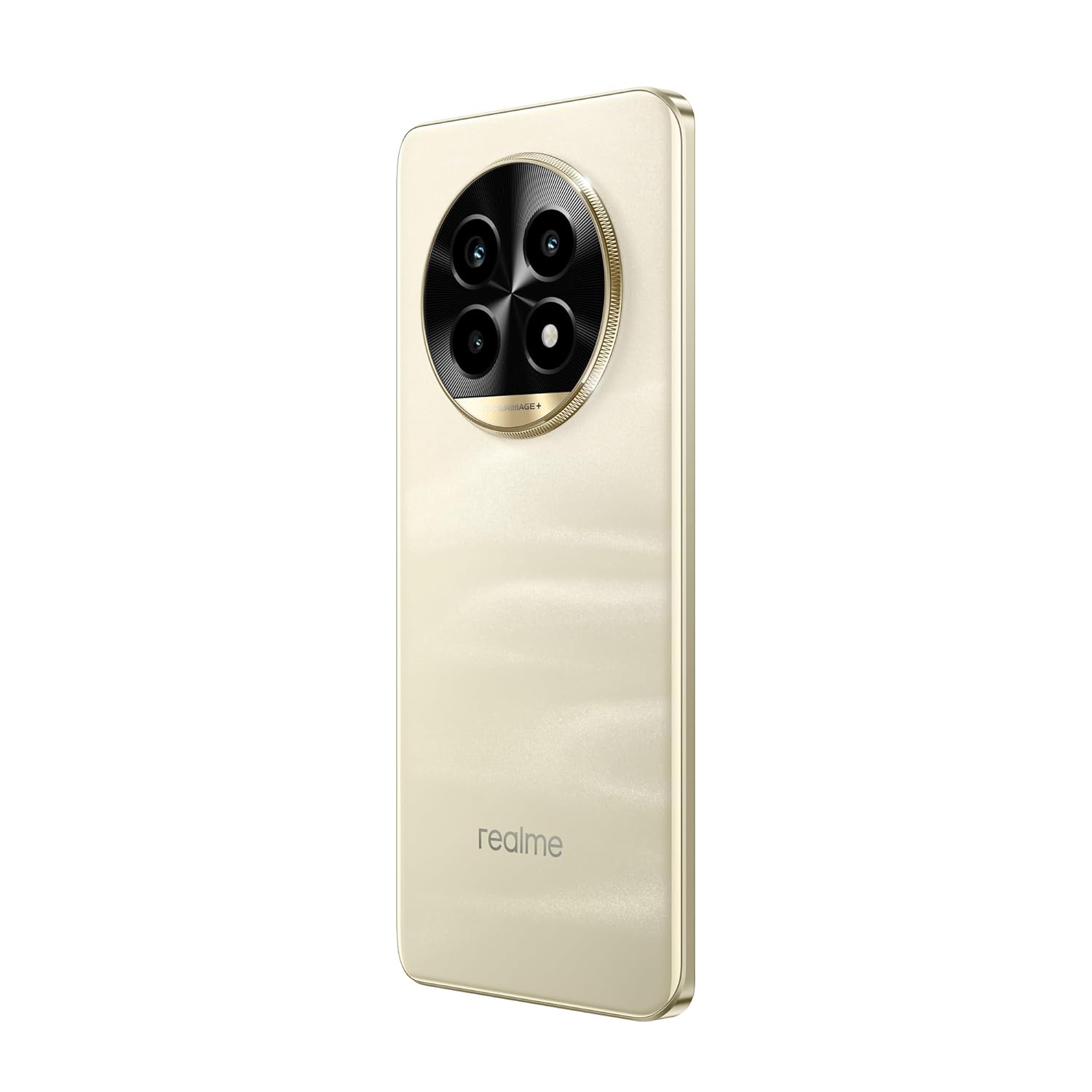
Figure 3.3: Side profile of the realme 14 Pro Lite 5G, illustrating the placement of physical buttons.

Figure 3.4: Top and bottom views of the realme 14 Pro Lite 5G, detailing the USB port, speaker, and microphone locations.
4. Setup
4.1. SIM Card Installation
- Locate the SIM card tray on the side of your device.
- Insert the SIM ejector tool (not included, typically found in the original packaging) into the small hole next to the tray and press firmly until the tray pops out.
- Place your Nano-SIM card(s) and/or microSD card (if applicable) into the tray with the gold contacts facing down, ensuring they are correctly aligned.
- Carefully push the tray back into the slot until it is flush with the device.
4.2. Powering On/Off
- To Power On: Press and hold the Power button (located on the side) until the realme logo appears on the screen.
- To Power Off: Press and hold the Power button until the power options menu appears. Tap 'Power off' and confirm.
- To Restart: Press and hold the Power button until the power options menu appears. Tap 'Restart' and confirm.
4.3. Initial Setup
The first time you power on your device, you will be guided through an initial setup process. Follow the on-screen instructions to:
- Select your language and region.
- Connect to a Wi-Fi network.
- Sign in with your Google account or create a new one.
- Set up screen lock (PIN, pattern, password, fingerprint).
- Review and accept terms and conditions.
5. Operating Your Device
5.1. Display and Navigation
Your realme 14 Pro Lite 5G features a 6.7-inch 120Hz Curved Vision Display for smooth and responsive interaction. Navigate the interface using touch gestures:
- Tap: Select an item or open an app.
- Swipe: Scroll through lists or switch between screens.
- Pinch: Zoom in or out on images and web pages.
- Long Press: Access contextual menus or move icons.
5.2. Camera Functions
The device is equipped with 92MP Cameras for capturing high-quality photos and videos. To use the camera:
- Open the Camera app from your home screen or app drawer.
- Select your desired mode (e.g., Photo, Video, Portrait).
- Tap the shutter button to take a photo or start/stop recording a video.
- Use the on-screen controls to adjust zoom, flash, and other settings.
5.3. Battery and Charging
Your realme 14 Pro Lite 5G is powered by a 5200mAh battery and supports 45W Ultra Charge for rapid recharging.
- Connect the provided USB cable to the device's charging port and a compatible 45W Ultra Charge adapter.
- Ensure the device is charged regularly to maintain battery health.
- Avoid exposing the device to extreme temperatures during charging.
5.4. Connectivity
The device supports various connectivity options:
- Wi-Fi: Connect to wireless networks for internet access.
- Bluetooth: Pair with wireless headphones, speakers, and other Bluetooth-enabled devices.
- USB: Connect to a computer for data transfer or use with USB accessories.
- 5G Network: Utilize the Snapdragon 7s Gen 2 5G Chipset for high-speed mobile data connectivity.
6. Maintenance
6.1. Cleaning Your Device
- Use a soft, lint-free cloth to gently wipe the screen and body of the phone.
- Avoid using harsh chemicals, abrasive materials, or aerosol sprays.
- The device has IP65 protection, offering dustproof and water-resistant performance. However, avoid intentional submersion in water.
6.2. Software Updates
Regularly check for and install software updates to ensure your device has the latest features, security patches, and performance improvements. You can usually find this option in the 'Settings' menu under 'System' or 'About phone'.
7. Troubleshooting
If you encounter issues with your device, try the following common solutions:
- Device not turning on: Ensure the battery is charged. Connect the charger and wait a few minutes before attempting to power on again.
- Apps crashing or freezing: Close the problematic app and reopen it. If the issue persists, restart your device.
- Poor network signal: Check your SIM card installation. Move to an area with better network coverage.
- Charging issues: Ensure the charging cable and adapter are securely connected and undamaged. Try a different power outlet.
- Screen unresponsive: Force restart your device by holding the Power button for an extended period (usually 10-15 seconds).
For more complex issues, refer to the realme support website or contact customer service.
8. Specifications
Detailed technical specifications for the realme 14 Pro Lite 5G Smartphone:
| Feature | Specification |
|---|---|
| Model Number | RMX3990 |
| Operating System | Android 15 |
| RAM | 8 GB |
| Display | 6.7 inch 120Hz Curved Vision Display, 2400 x 1080 Resolution |
| Processor | Snapdragon® 7s Gen 2 5G Chipset |
| Main Camera | 92MP Cameras (Rear) |
| Front Camera | Yes |
| Battery Capacity | 5200mAh (Battery Power Rating: 6000) |
| Charging | 45W Ultra Charge |
| Connectivity | Bluetooth, USB, Wi-Fi |
| Dimensions (LxWxH) | 16.1 x 7.4 x 0.82 cm |
| Weight | 188 g |
| Protection | IP65 (Dustproof and Water-resistant) |
| Audio Jack | No headphone jack |
9. Safety Information
Please observe the following safety guidelines to prevent damage to your device or injury to yourself:
- Do not disassemble, repair, or modify the device yourself.
- Use only realme-approved chargers and accessories.
- Avoid exposing the device to extreme temperatures, direct sunlight, or fire.
- Keep the device away from water and liquids, despite its IP65 rating, to prevent damage.
- Do not use the device while driving or operating heavy machinery.
- Dispose of the device and its battery responsibly according to local regulations.
10. Warranty and Support
Your realme 14 Pro Lite 5G Smartphone comes with a manufacturer's warranty. For detailed warranty terms and conditions, please refer to the warranty card included with your product or visit the official realme website.
For technical support, troubleshooting assistance, or service inquiries, please contact realme customer support through their official channels. You can typically find contact information on the realme website or in the support section of your device's settings.


