
1. Product Overview
The Relndoo TB02 is a 10.1-inch Android 14 tablet designed for versatile use. It features an Octa-Core processor, ample memory and storage, and a high-capacity battery, making it suitable for various tasks from entertainment to productivity.
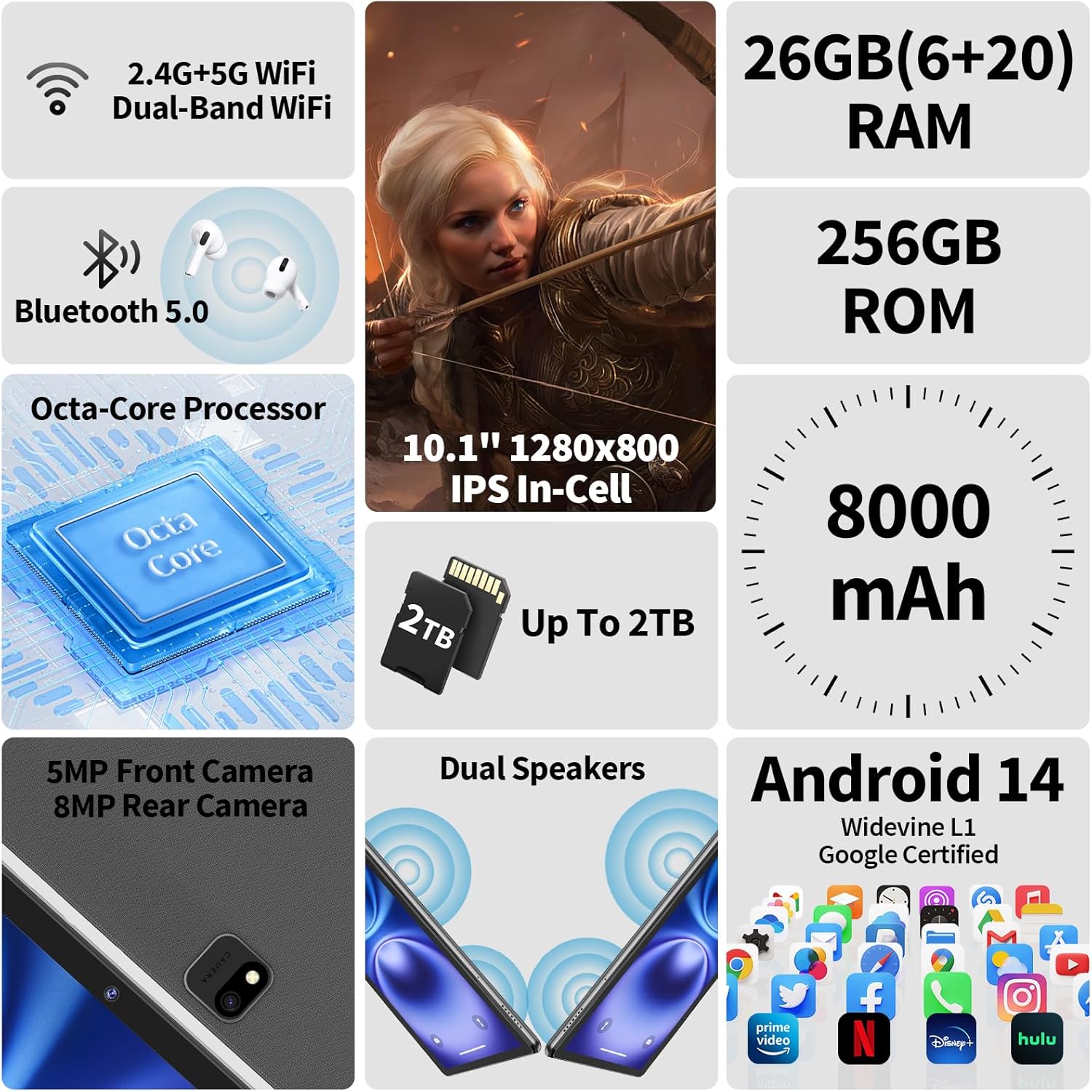
An overview of the Relndoo TB02 Android 14 Tablet, highlighting its key features such as 2.4G+5G Dual-Band WiFi, Bluetooth 5.0, Octa-Core Processor, 10.1-inch IPS display, 26GB RAM, 256GB ROM, 8000mAh battery, 5MP front camera, 8MP rear camera, and Android 14 operating system.
2. Setup Guide
2.1 Package Contents
Before beginning, verify that all items are present in the package:
- 1 x 10.1 inch Relndoo Android Tablet
- 1 x Keyboard
- 1 x Mouse
- 1 x Stylus Pen
- 1 x Foldable Protective Case
- 1 x Screen Protector (pre-applied)
- 1 x Charging Head
- 1 x USB-C Charger Cable
- 1 x User Manual
The image displays the complete package contents for the Relndoo TB02 tablet, including the tablet itself, a charging head, wireless mouse, foldable protective case, USB-C charging cable, stylus pen, Bluetooth keyboard, protective film, and the user manual.
2.2 Charging the Tablet
Before first use, fully charge the tablet. Connect the USB-C charger cable to the tablet's USB-C port and the charging head to a power outlet. The charging indicator will show the charging status.
2.3 Powering On/Off
- To Power On: Press and hold the Power button until the Relndoo logo appears.
- To Power Off: Press and hold the Power button, then select 'Power off' from the options on the screen.
- To Restart: Press and hold the Power button, then select 'Restart' from the options.
2.4 Initial Setup
Upon first power-on, follow the on-screen prompts to configure your tablet:
- Select your preferred language.
- Connect to a Wi-Fi network.
- Sign in with your Google account or create a new one. This is necessary to access the Google Play Store and other Google services.
- Review and accept the terms and conditions.
- Set up screen lock (PIN, pattern, or password) for security.
2.5 Connecting Accessories
The included keyboard, mouse, and stylus connect via Bluetooth.
- Ensure the accessory is charged and in pairing mode (refer to the accessory's individual instructions if needed).
- On your tablet, go to Settings > Connected devices > Bluetooth.
- Turn Bluetooth on.
- Tap 'Pair new device' and select the accessory from the list of available devices.
- Follow any on-screen prompts to complete pairing.
3. Operating Instructions
3.1 Android 14 Features
Your tablet runs on Android 14, offering enhanced customization and privacy features:
- Split-Screen Multitasking: Run two apps side-by-side for improved productivity.
- Widget Optimization: Customize your home screen with various widgets for quick access to information.
- Privacy Protection: Enhanced controls over app permissions and data access.
- Game Mode: Optimize performance for gaming sessions.
- Kids Mode: Create a safe and controlled environment for children.

An infographic detailing the features of Android 14 on the Relndoo TB02 tablet, including enhanced convenience, fluency, personalization, and privacy, with specific functions like real-time subtitle, game mode, focus computing, and customizable timers.
3.2 Display and Navigation
The 10.1-inch IPS touchscreen supports standard touch gestures:
- Tap: Select an item or open an app.
- Swipe: Navigate through screens or scroll content.
- Pinch-to-Zoom: Enlarge or reduce content size.
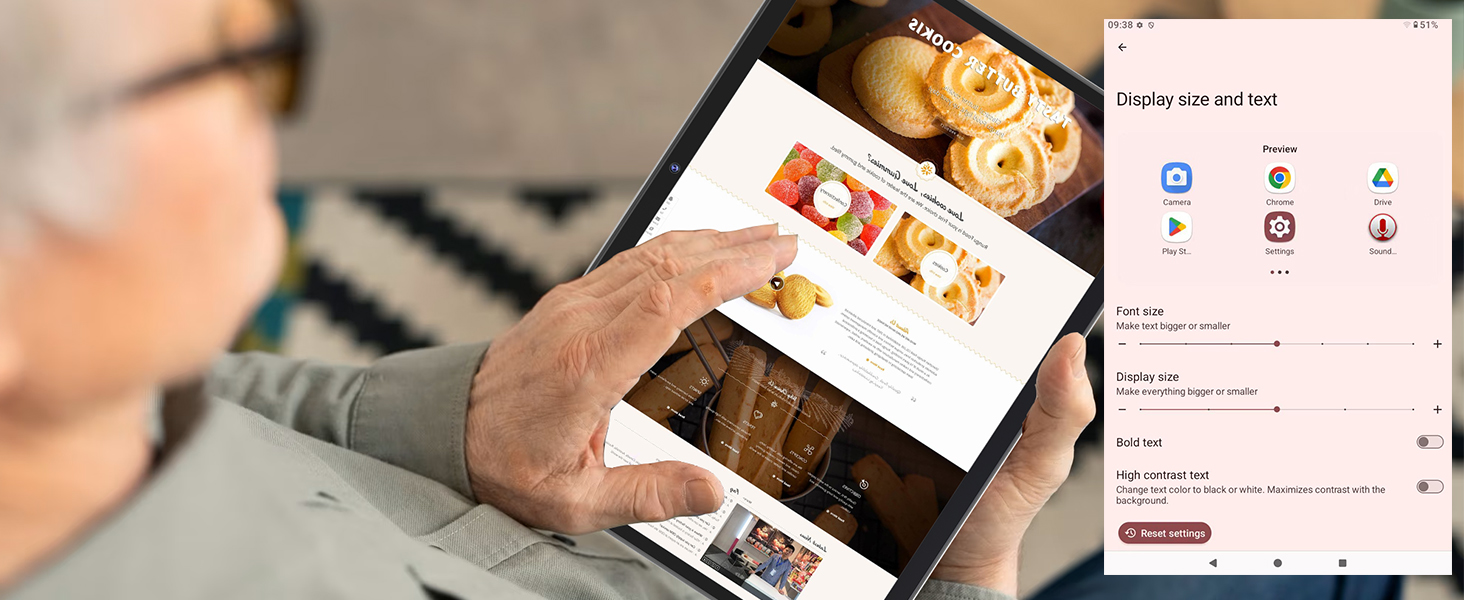
- Long Press: Access contextual menus or move icons.
3.3 Wi-Fi and Bluetooth Connectivity
To connect to networks and devices:
- Wi-Fi: Go to Settings > Network & internet > Wi-Fi. Turn Wi-Fi on and select your desired network. Enter the password if prompted. The tablet supports dual-band 2.4G and 5G Wi-Fi.
- Bluetooth: Go to Settings > Connected devices > Bluetooth. Turn Bluetooth on to pair with headphones, speakers, or other compatible devices.

This image highlights the tablet's upgraded connectivity features, including 2.4G & 5G Dual-Band WiFi for ultra-fast network access and Bluetooth 5.0 for fast and stable connections with peripherals.
3.4 Storage Management
The tablet comes with 256GB of internal storage. You can expand this up to 2TB using a TF (microSD) card (sold separately).
- Inserting a TF Card: Locate the card slot on the side of the tablet. Gently insert the TF card until it clicks into place.
- Managing Storage: Go to Settings > Storage to view storage usage and manage files.

This image illustrates the tablet's memory and storage capabilities, showing 26GB RAM (6GB physical + 20GB extended) and 256GB internal memory, with support for micro SD cards up to 2TB for expanded storage.
3.5 Multimedia
- Widevine L1 Support: Enjoy high-definition streaming content from platforms like Netflix, Disney+, and Amazon Prime Video.
- Cameras: The tablet features an 8MP rear camera and a 5MP front camera for photos, videos, and video calls. Access the camera app from the home screen or app drawer.
- Audio: Dual stereo speakers provide clear sound. A 3.5mm headphone jack is available for private listening.
The image highlights the tablet's Widevine L1 support, enabling 1080P viewing experiences on streaming platforms such as Netflix, HBO, Hulu, and Amazon Prime Video, ensuring high-quality content playback.
3.6 Google Play Store
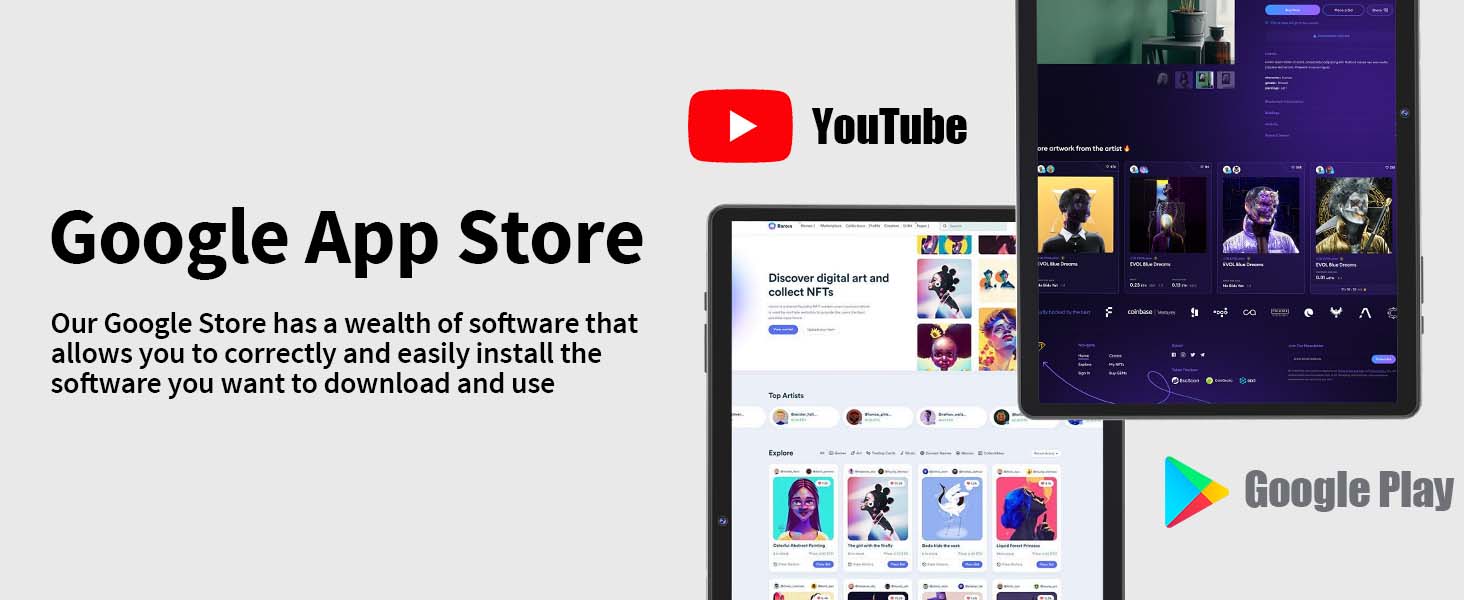
As a GMS-certified device, the Relndoo TB02 provides full access to the Google Play Store. Tap the Play Store icon to browse and download a wide variety of applications, games, movies, and books.
4. Maintenance
4.1 Battery Care
- Avoid fully discharging the battery frequently.
- Do not expose the tablet to extreme temperatures.
- Use the provided charger and cable for optimal charging.
4.2 Cleaning the Device
- Use a soft, lint-free cloth to clean the screen and body.
- Avoid using harsh chemicals or abrasive materials.
- Do not spray cleaners directly onto the screen.
4.3 Software Updates
Regularly check for and install software updates to ensure optimal performance, security, and access to new features. Go to Settings > System > System update to check for available updates.
5. Troubleshooting
If you encounter issues with your tablet, refer to the following common solutions:
- Tablet Not Charging / Poor Battery Life:
- Ensure the charging cable and adapter are securely connected and undamaged.
- Try a different power outlet.
- If battery life is short, reduce screen brightness, close unused apps, and disable unnecessary features like Bluetooth or GPS when not in use.
- Slow Performance / Apps Crashing:
- Close background applications.
- Clear cache for problematic apps (Settings > Apps > [App Name] > Storage > Clear cache).
- Ensure sufficient free storage space.
- Restart the tablet.
- Low Audio Output:
- Check the volume settings in Settings > Sound & vibration.
- Ensure no headphones are partially plugged in.
- Test with different audio content or applications.
- Wi-Fi/Bluetooth Connectivity Issues:
- Toggle Wi-Fi or Bluetooth off and on.
- Restart your router (for Wi-Fi issues).
- Forget the network/device and reconnect.
5.1 Factory Reset
If problems persist, a factory reset may resolve them. Warning: This will erase all data on your tablet. Back up important data before proceeding.
- Go to Settings > System > Reset options.
- Select 'Erase all data (factory reset)'.
- Confirm your decision and enter your PIN/pattern if prompted.
6. Specifications
Detailed technical specifications for the Relndoo TB02 tablet:
| Feature | Specification |
|---|---|
| Model Name | TB02 |
| Operating System | Android 14 |
| Screen Size | 10.1 Inches |
| Screen Resolution | 1280 x 800 pixels (HD IPS) |
| Processor | RK3562 Octa-Core ARM A53 |
| RAM | 26GB (6GB Physical + 20GB Virtual) |
| Internal Storage | 256GB |
| Expandable Storage | Up to 2TB via TF Card (microSD) |
| Battery Capacity | 8000mAh |
| Average Battery Life | Up to 12 hours (video playback) |
| Front Camera | 5MP |
| Rear Camera | 8MP |
| Wireless Connectivity | 2.4G/5G Dual-Band Wi-Fi (802.11ac, 802.11n) |
| Bluetooth | Bluetooth 5.0 |
| Ports | USB-C, 3.5mm Headphone Jack |
| Dimensions (LxWxH) | 10.7 x 7.5 x 2.5 inches |
| Item Weight | 3.23 pounds |

A detailed view of the RK3562 Octa-Core processor, emphasizing its efficient, fast, and stable performance, designed to maintain smooth operation and clear processing for the tablet.

This image showcases the 8000mAh large capacity battery with Type-C fast charging, indicating extended usage times for various activities like gaming, video playback, and standby.
7. Warranty and Support
7.1 Warranty Information
Please refer to your purchase documentation or the product packaging for specific warranty terms and conditions. Typically, electronic devices come with a limited manufacturer's warranty covering defects in materials and workmanship.
7.2 Customer Support
For technical assistance, troubleshooting not covered in this manual, or warranty claims, please contact Relndoo customer support through the retailer where the product was purchased or visit the official Relndoo brand store online.
Online Support: Relndoo Brand Store