
1. Introduction
This manual provides essential instructions for setting up, operating, maintaining, and troubleshooting your Relndoo TB02 Android 14 Tablet. Please read this manual thoroughly before using your device to ensure optimal performance and longevity.
2. Package Contents
Verify that all items listed below are included in your package. If any items are missing or damaged, please contact customer support.
- 1 x Relndoo TB02 Android 14 Tablet (10.1 inch)
- 1 x Bluetooth Keyboard
- 1 x Wireless Mouse
- 1 x Stylus Pen
- 1 x Foldable Protective Case
- 1 x Screen Protector (pre-applied)
- 1 x Charging Head
- 1 x USB-C Charger Cable
- 1 x User Manual
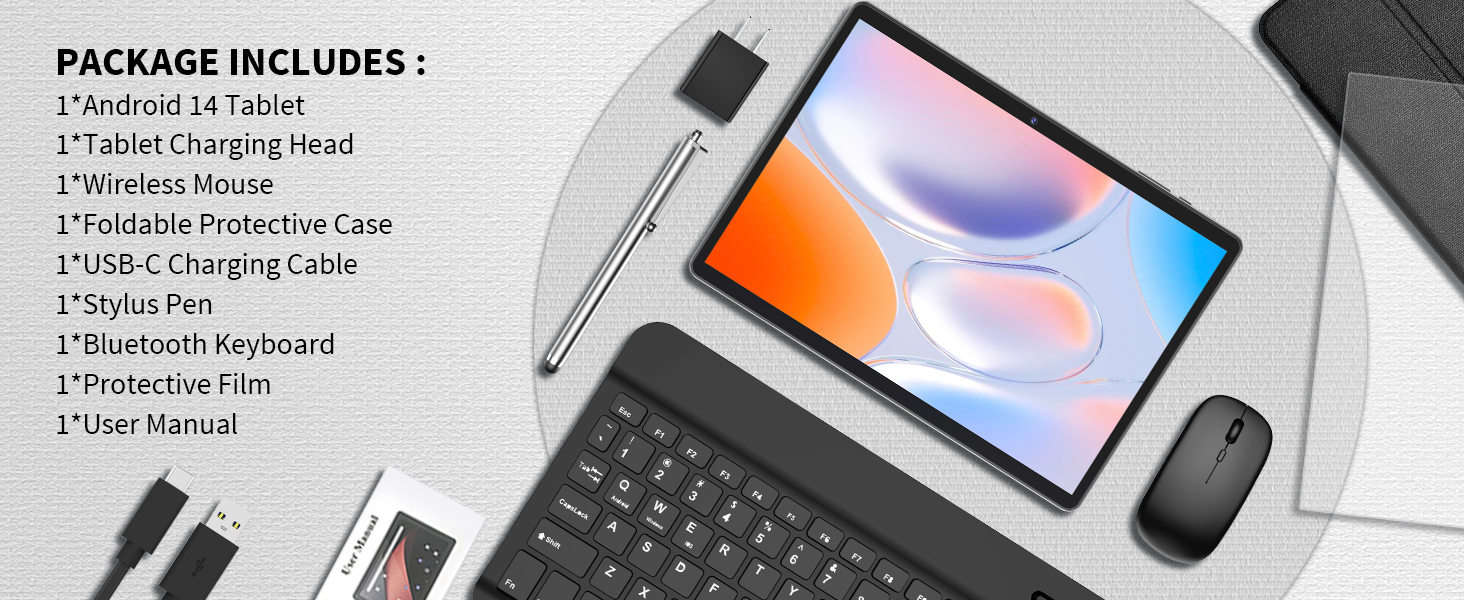
Image: Contents of the Relndoo TB02 Tablet package, including the tablet, keyboard, mouse, stylus, protective case, charging head, USB-C cable, and user manual.
3. Setup
3.1 Initial Charging
Before first use, fully charge the tablet. Connect the provided USB-C cable to the tablet's USB-C port and the charging head. Plug the charging head into a power outlet. The charging indicator will show the charging status. It is recommended to use only the included charging head and cable to prevent potential damage to the battery or device.
3.2 Powering On/Off
- To Power On: Press and hold the Power button located on the side of the tablet until the Relndoo logo appears on the screen.
- To Power Off: Press and hold the Power button until a power menu appears. Select "Power off" from the options.
- To Restart: Press and hold the Power button until a power menu appears. Select "Restart" from the options.
3.3 Connecting to Wi-Fi
- Go to Settings > Network & internet > Wi-Fi.
- Toggle the Wi-Fi switch to the On position.
- Select your desired Wi-Fi network from the list of available networks.
- Enter the network password if prompted, then tap Connect.
3.4 Google Account Setup
Upon initial setup or after a factory reset, you will be guided to sign in with your Google account. A Google account is required to access the Google Play Store, download apps, and utilize Google services like Gmail and Google Drive. If you do not have a Google account, you can create one during this process.
Image: The Google Play Store interface, demonstrating access to various applications.
3.5 Connecting Accessories (Keyboard, Mouse, Stylus)
The included keyboard and mouse connect via Bluetooth. The stylus is a passive capacitive stylus and does not require pairing.
- Bluetooth Keyboard/Mouse:
- Ensure the keyboard/mouse is charged and powered on.
- On your tablet, go to Settings > Connected devices > Bluetooth.
- Toggle Bluetooth to On.
- The tablet will scan for available devices. Select the keyboard or mouse from the list.
- Follow any on-screen prompts to complete the pairing process.
- Stylus Pen: The stylus pen is ready for use upon removal from its packaging. No pairing or charging is required.
4. Operating Instructions
4.1 Android 14 Operating System
Your Relndoo TB02 tablet runs on Android 14, offering enhanced customization, privacy features, and improved performance. Key features include:
- Split-Screen Multitasking: Run two apps side-by-side for increased productivity.
- Widget Optimization: Customize your home screen with dynamic widgets.
- Enhanced Privacy Controls: Manage app permissions and data access with greater precision.
- GMS Certification: Full access to Google Play Store and Google services.
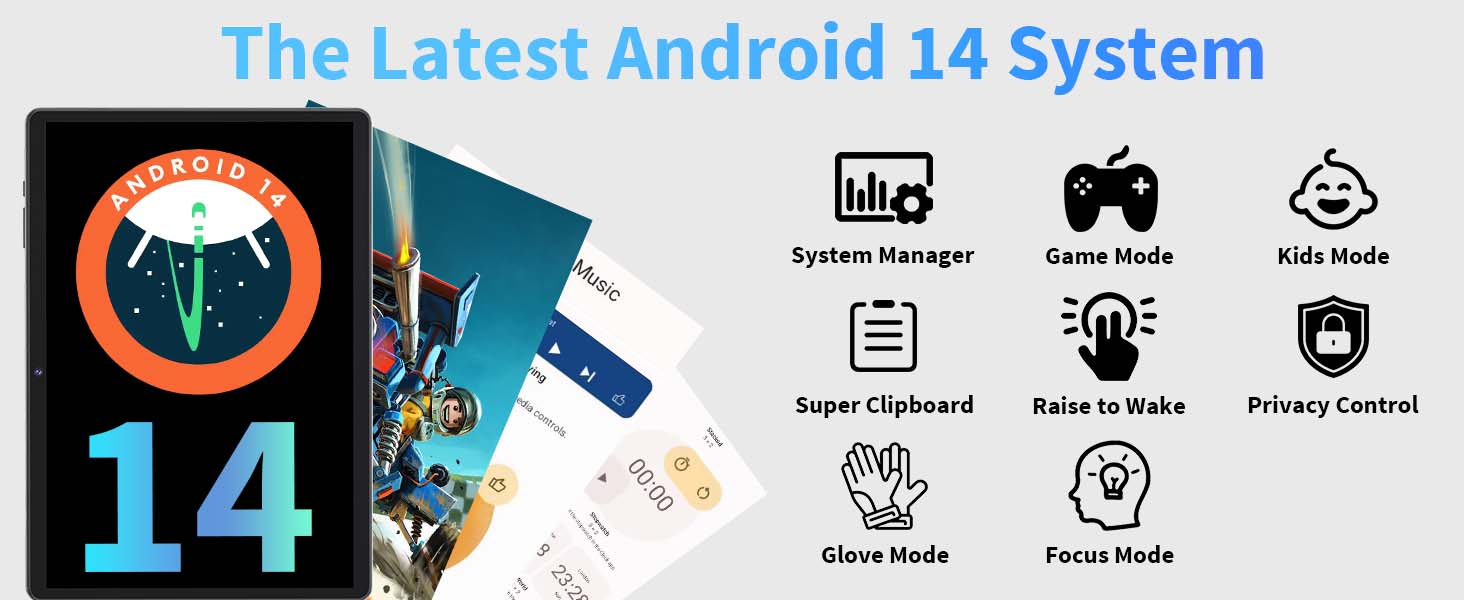
Image: Overview of the Android 14 system features, including various modes and controls.
4.2 Display and Multimedia
The tablet features a 10.1-inch HD (1280x800) IPS touchscreen. It supports Widevine L1, enabling high-definition streaming on platforms such as Netflix, Disney+, and Amazon Prime Video. Dual stereo speakers provide clear audio, and a 3.5mm headphone jack is available for private listening.
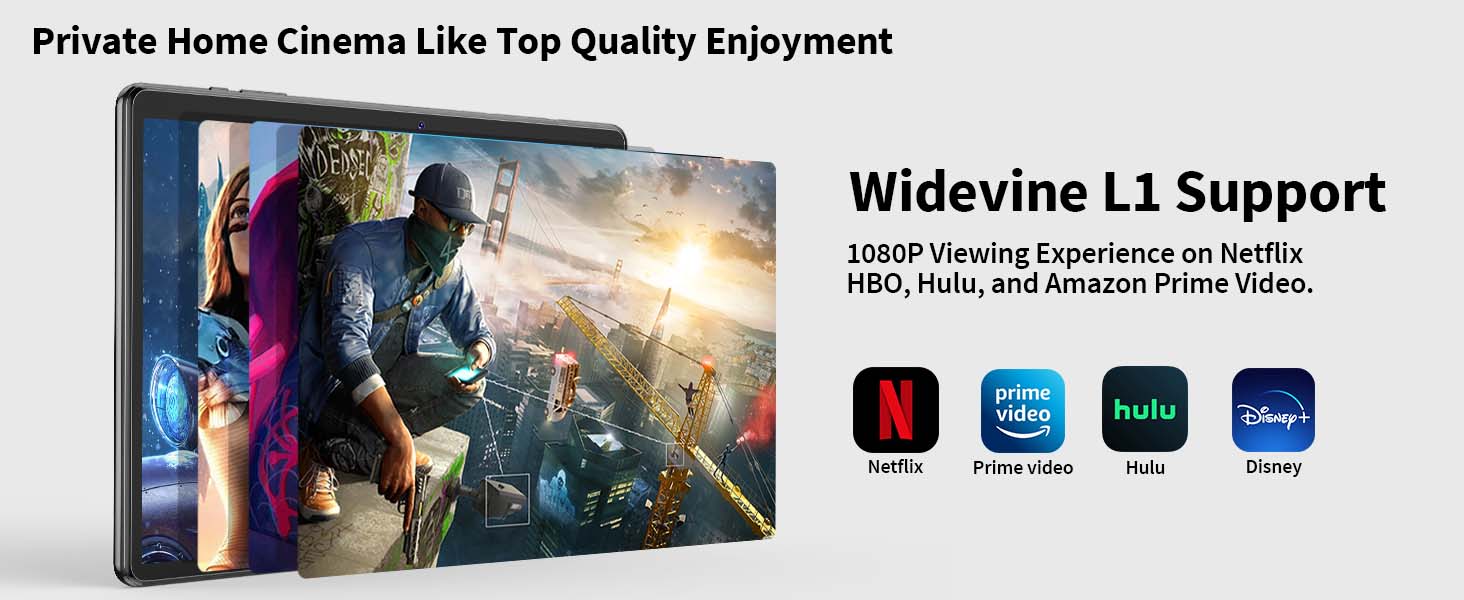
Image: The tablet's Widevine L1 support for high-definition streaming on popular platforms.
4.3 Camera Usage
The tablet is equipped with an 8MP rear camera for capturing photos and videos, and a 5MP front camera for video calls and selfies.
- To open the Camera app: Tap the Camera icon on your home screen or in the app drawer.
- To switch between front/rear cameras: Tap the camera switch icon.
- To take a photo: Tap the shutter button.
- To record a video: Switch to video mode and tap the record button.
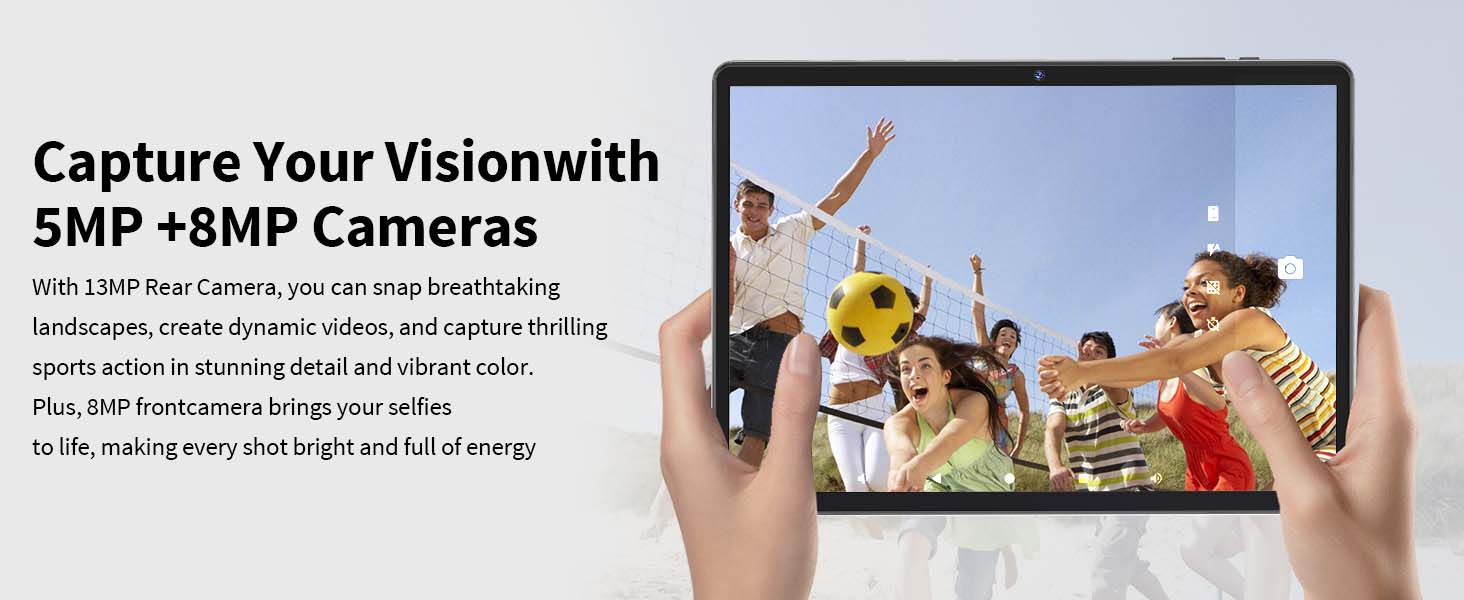
Image: Illustration of the tablet's 5MP front and 8MP rear cameras in use.
5. Features
5.1 Performance and Storage
The Relndoo TB02 is powered by an 8-core RK3562 processor, designed for smooth multitasking and efficient operation. It comes with 26GB of RAM (6GB physical + 20GB virtual) and 256GB of internal storage. Storage can be expanded up to 2TB using a TF (microSD) card (sold separately).
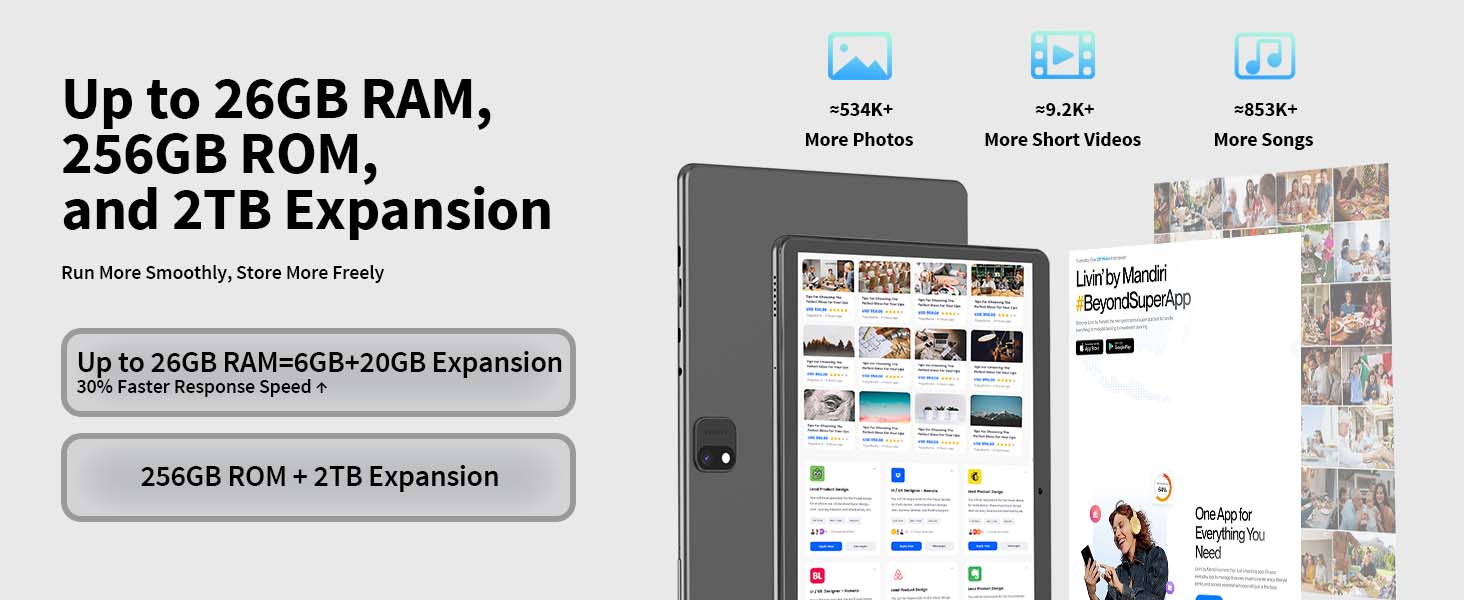
Image: Visual representation of the tablet's memory and storage capabilities.
5.2 Battery
The tablet is equipped with an 8000mAh battery, providing up to 12 hours of video playback. It supports USB-C fast charging.
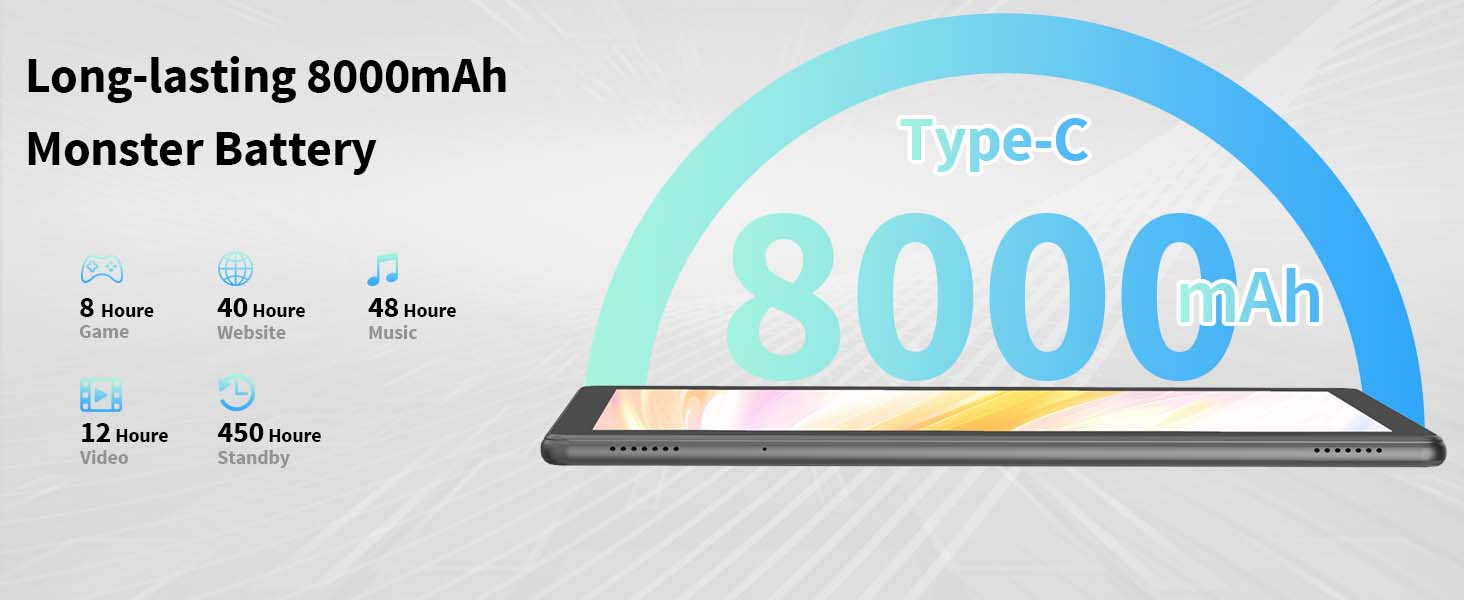
Image: Details on the 8000mAh battery and its estimated usage duration for various activities.
5.3 Connectivity
The TB02 tablet supports dual-band Wi-Fi (2.4G & 5G) for fast internet access and Bluetooth 5.0 for connecting wireless peripherals.
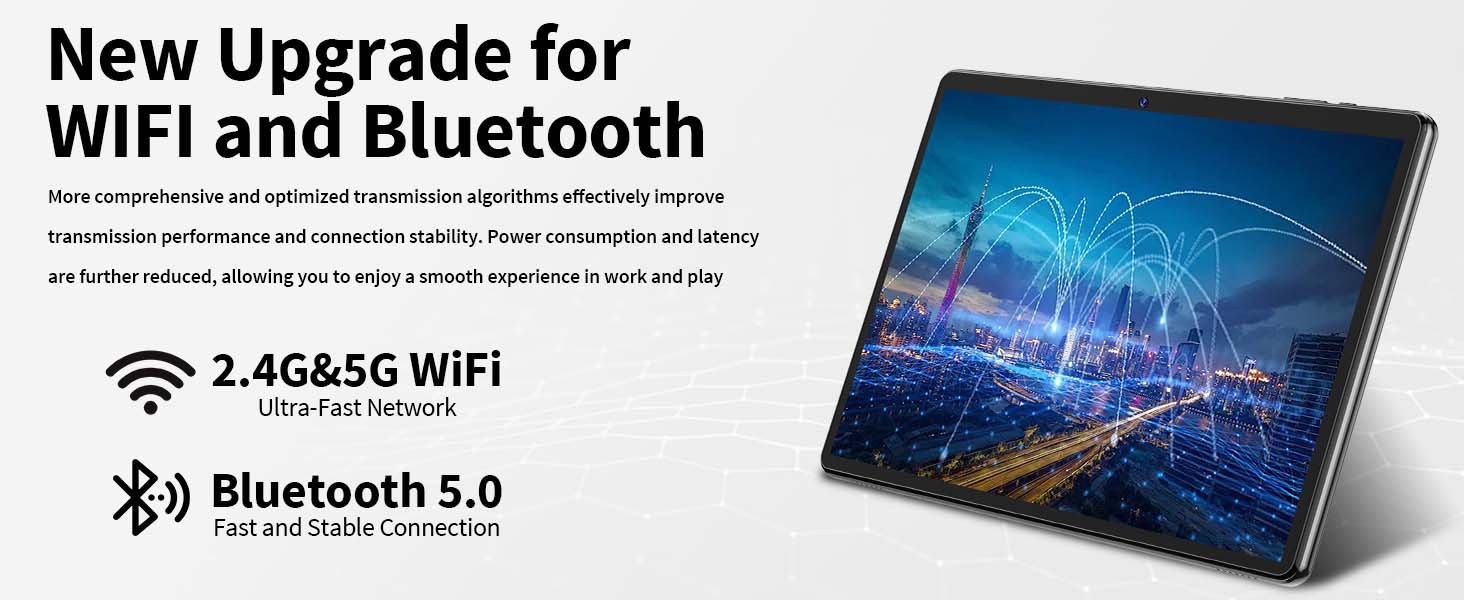
Image: Information on the tablet's dual-band Wi-Fi and Bluetooth 5.0 connectivity.
6. Maintenance
6.1 Cleaning
To clean your tablet, use a soft, lint-free cloth. For stubborn smudges, slightly dampen the cloth with water or a screen cleaner specifically designed for electronics. Avoid using harsh chemicals, abrasive materials, or excessive moisture.
6.2 Battery Care
To prolong battery life, avoid exposing the tablet to extreme temperatures. Use only the charger provided with your tablet or a compatible USB-C charger that meets the device's power requirements. Overcharging or using an incompatible charger can damage the battery.
6.3 Software Updates
Periodically check for system updates to ensure your tablet has the latest features and security patches. Go to Settings > System > System update to check for and install available updates.
7. Troubleshooting
If you encounter issues with your Relndoo TB02 tablet, refer to the following common solutions:
| Problem | Possible Solution |
|---|---|
| Tablet does not power on | Ensure the tablet is charged. Connect to the charger and wait a few minutes before attempting to power on again. If it still doesn't turn on, perform a force restart by holding the power button for 10-15 seconds. |
| Wi-Fi connectivity issues (frequent disconnections) | Try restarting your Wi-Fi router and the tablet. Forget the Wi-Fi network on the tablet and reconnect. Ensure you are within range of the Wi-Fi signal. If issues persist, try connecting to a different Wi-Fi network to determine if the problem is with the tablet or the network. |
| Apps are slow or crashing | Close unnecessary background apps. Clear the cache of the problematic app (Settings > Apps > [App Name] > Storage > Clear cache). Restart the tablet. Ensure sufficient storage space is available. |
| Battery drains quickly | Reduce screen brightness. Close unused apps. Disable Wi-Fi, Bluetooth, and GPS when not in use. Check battery usage in Settings to identify power-hungry apps. Ensure you are using the correct charger. |
| Accessories (keyboard/mouse) not connecting | Ensure accessories are charged and powered on. Re-pair the Bluetooth accessories through Settings > Connected devices > Bluetooth. Ensure Bluetooth is enabled on the tablet. |
8. Specifications
| Feature | Detail |
|---|---|
| Model Name | TB02 |
| Operating System | Android 14 |
| Screen Size | 10.1 Inches |
| Screen Resolution | 1280 x 800 Pixels (HD IPS) |
| Processor | RK3562 8-Core ARM Processor |
| RAM | 26GB (6GB Physical + 20GB Virtual) |
| Internal Storage | 256GB |
| Expandable Storage | Up to 2TB via TF Card (MicroSD, not included) |
| Rear Camera | 8MP |
| Front Camera | 5MP |
| Battery Capacity | 8000mAh |
| Average Battery Life | Up to 12 Hours (video playback) |
| Charging Port | USB-C |
| Wireless Connectivity | Dual-Band Wi-Fi (802.11ac, 802.11n), Bluetooth 5.0 |
| Dimensions (LxWxH) | 10.7 x 7.5 x 2.5 inches |
| Item Weight | 2.97 pounds |
| Color | Green |
| Special Features | Widevine L1 Support, GMS Certified, 2-in-1 functionality with included accessories |
9. Warranty and Support
For warranty information, please refer to the documentation included with your purchase or contact Relndoo customer support. If you require technical assistance or have questions not covered in this manual, please reach out to our support team.
Customer Support: Refer to the contact information provided in your product packaging or on the official Relndoo website.