
Relndoo TB02
Relndoo 2-in-1 Android 14 Tablet User Manual
Model: TB02
1. Introduction
This user manual provides comprehensive instructions for the Relndoo 2-in-1 Android 14 Tablet (Model TB02). It covers setup, operation, maintenance, and troubleshooting to ensure optimal performance and user experience. Please read this manual thoroughly before using your device.

Image: The Relndoo 2-in-1 Android 14 Tablet, showcasing the tablet itself along with its included accessories: a detachable keyboard, wireless mouse, stylus pen, and protective case.
2. Package Contents
Verify that all items listed below are included in your package:
- 1 x 10.1 inch Relndoo Android Tablet
- 1 x Keyboard
- 1 x Mouse
- 1 x Stylus Pen
- 1 x Foldable Protective Case
- 1 x Screen Protector (pre-applied)
- 1 x Charging Head
- 1 x USB-C Charger Cable
- 1 x User Manual
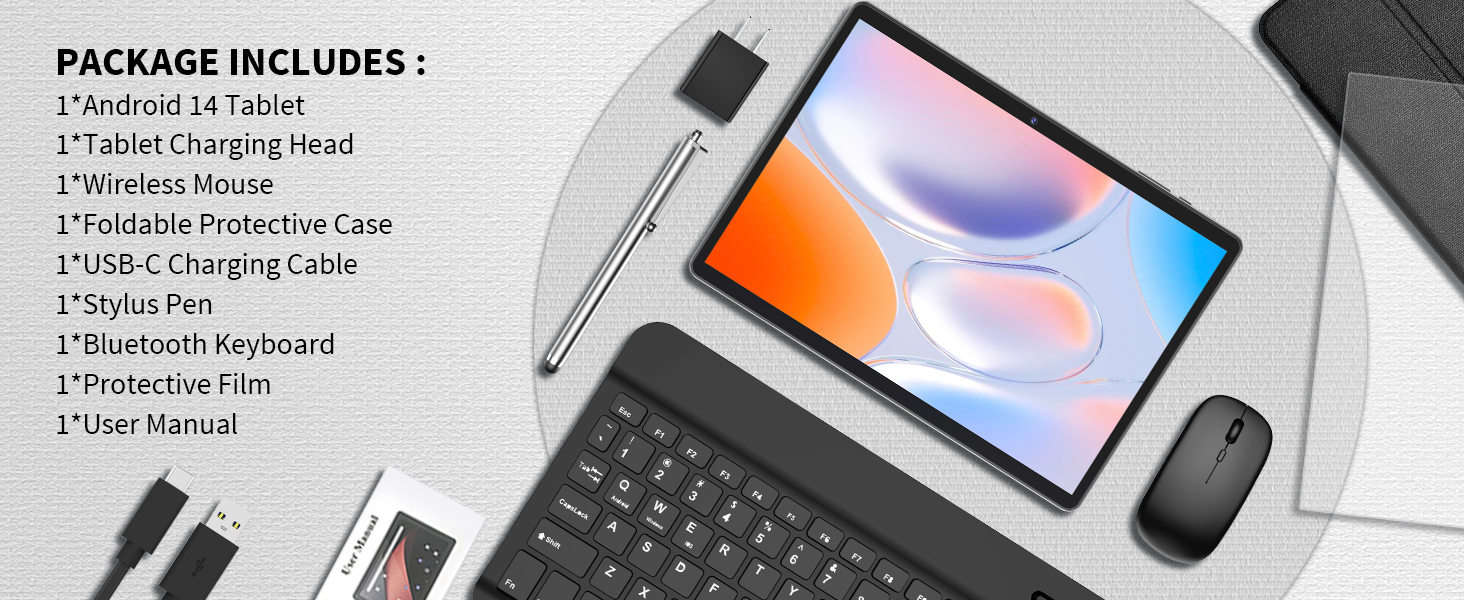
Image: A visual representation of all items included in the Relndoo Tablet package, such as the tablet, keyboard, mouse, stylus, case, charger, and cables.
3. Product Features Overview
The Relndoo TB02 Tablet is designed for versatile use, offering a blend of performance and portability. Key features include:
- Operating System: Latest Android 14 with GMS certification for full Google Play Store access.
- Performance: RK3562 8-Core processor for smooth multitasking.
- Memory & Storage: 26GB RAM (6GB physical + 20GB virtual) and 256GB internal storage, expandable up to 2TB via TF card.
- Display: 10.1-inch HD (1280x800) IPS touchscreen with Widevine L1 support for high-definition streaming.
- Battery: 8000mAh battery providing up to 12 hours of video playback.
- Cameras: 5MP front camera and 8MP rear camera.
- Connectivity: Dual-band 2.4G/5G Wi-Fi and Bluetooth 5.0.
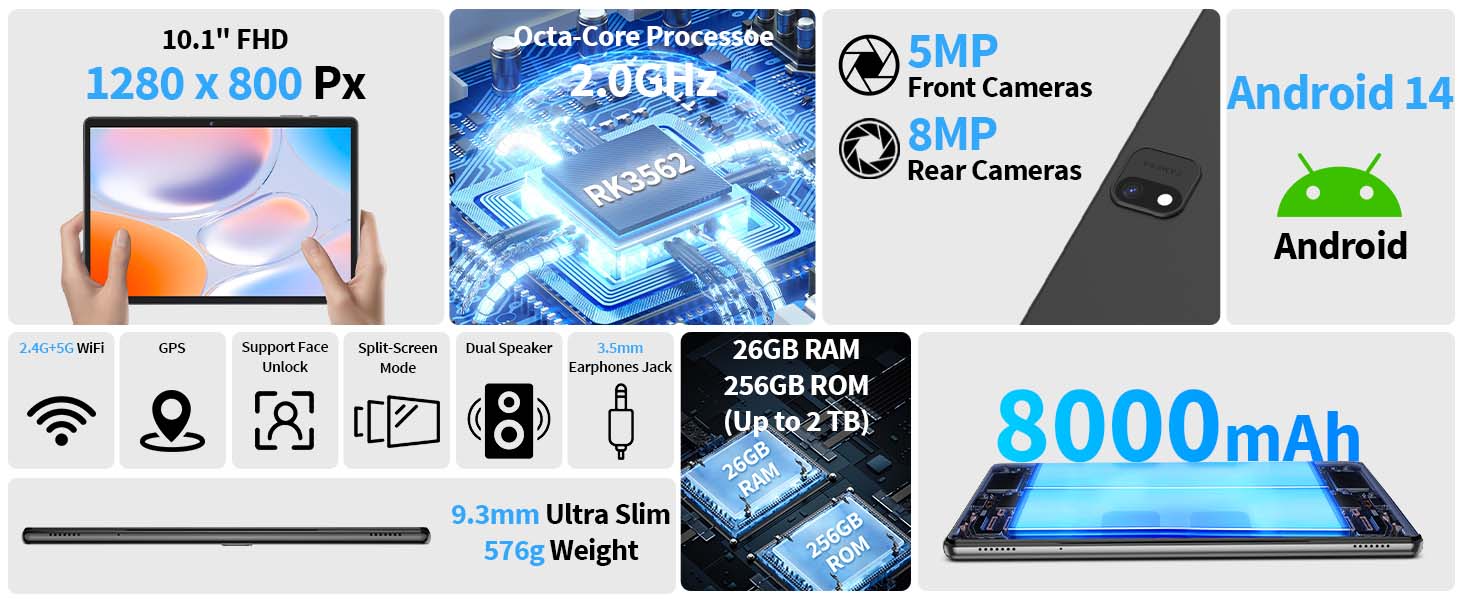
Image: An infographic highlighting the tablet's core features including 2.4G+5G WiFi, Bluetooth 5.0, Octa-Core Processor, 10.1" IPS display, 26GB RAM, 256GB ROM, 2TB expansion, 8000mAh battery, and dual cameras.
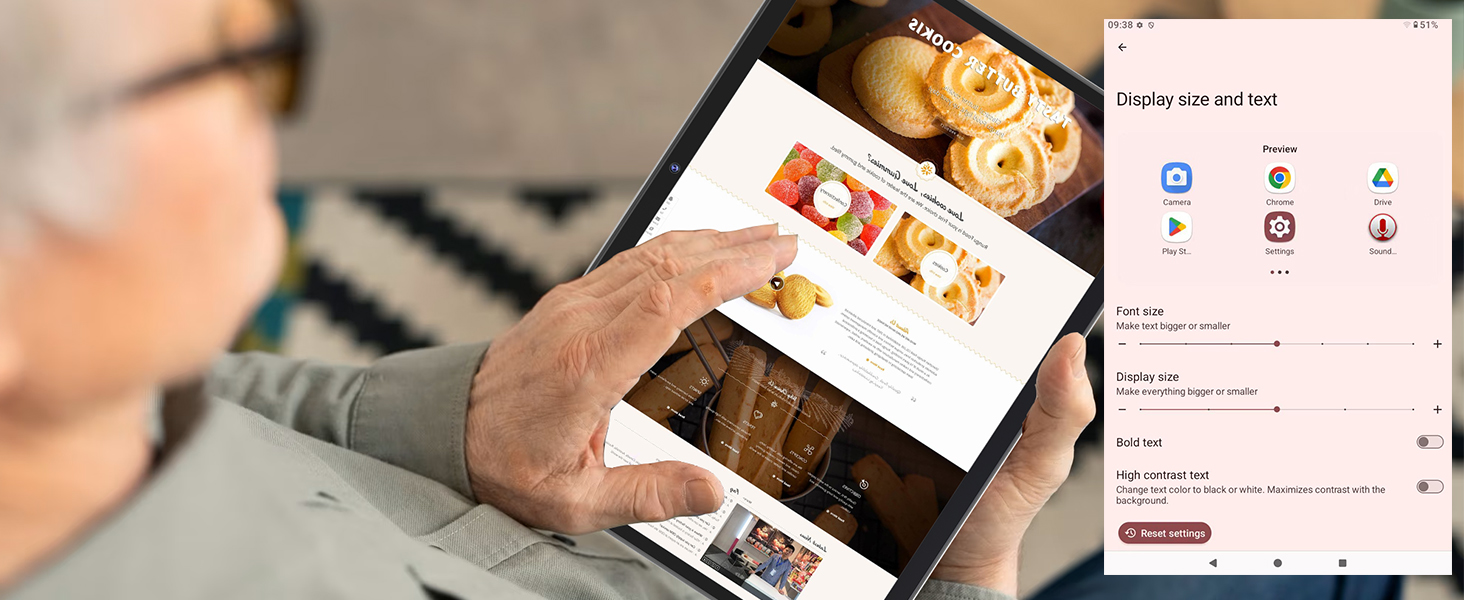
Image: Details on the tablet's memory configuration, showing 26GB RAM (6GB physical + 20GB expansion) and 256GB ROM with support for up to 2TB TF card expansion.
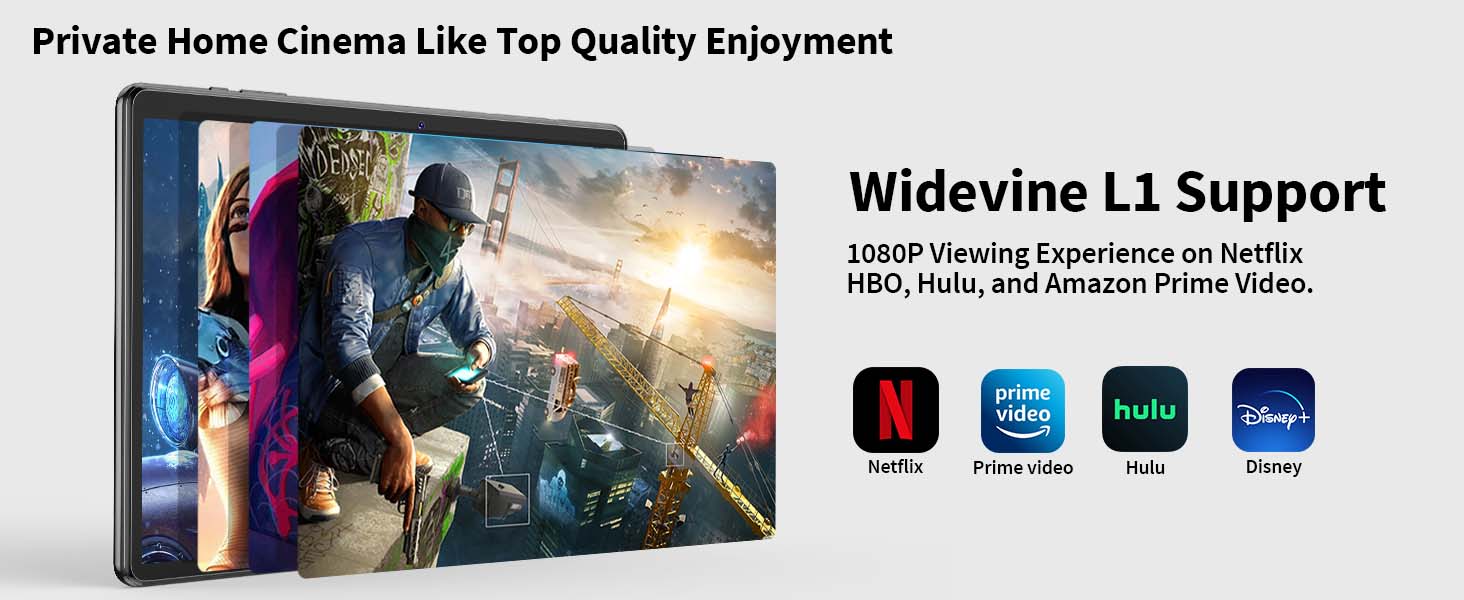
Image: An illustration of the RK3562 Octa-Core processor, highlighting its 12nm low consumption, A75 high performance, and Mali-G57 image processor.
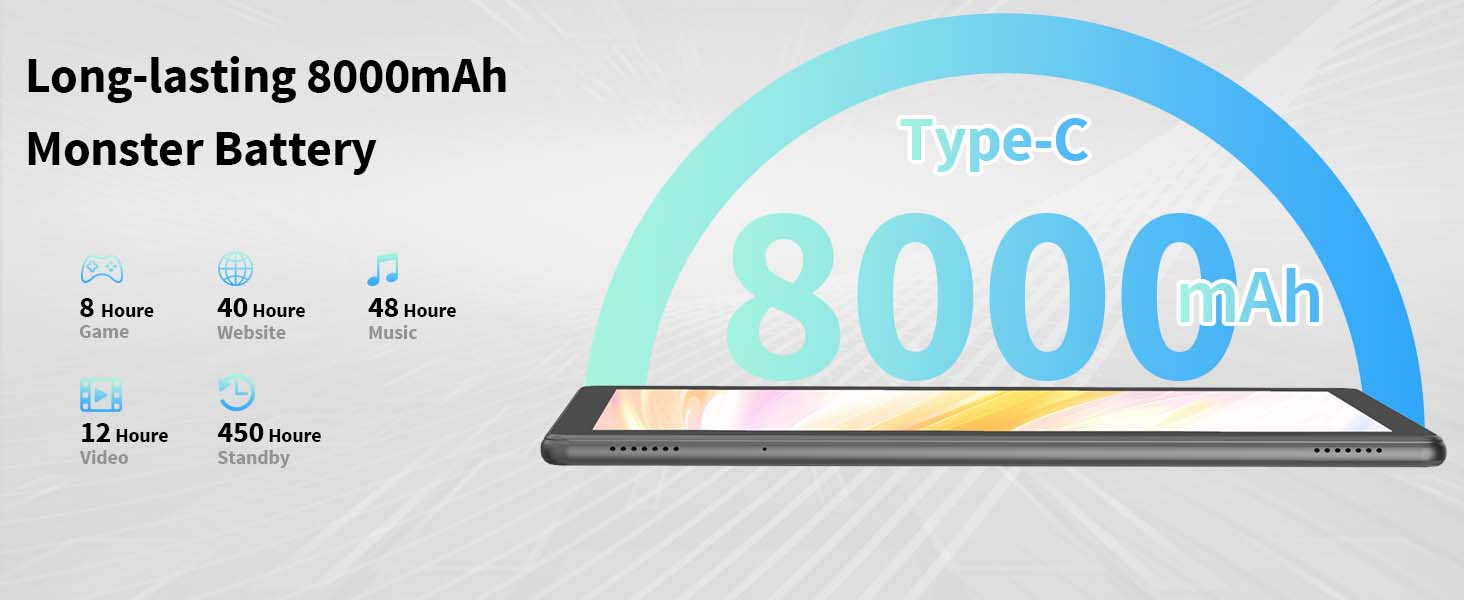
Image: A graphic illustrating the 8000mAh battery capacity and estimated usage times for various activities such as gaming (8 hours), video playback (12 hours), talk time (18 hours), and standby (450 hours).
4. Setup Guide
4.1 Initial Charging
Before first use, fully charge the tablet using the provided USB-C charger cable and charging head. The charging port is located on the side of the tablet. A full charge typically takes several hours.
4.2 Powering On/Off
- To Power On: Press and hold the Power button (usually on the top or side edge) for a few seconds until the Relndoo logo appears.
- To Power Off: Press and hold the Power button until a power menu appears on the screen. Select "Power off" or "Shut down".
- To Restart: From the power menu, select "Restart".
4.3 Connecting Accessories (Keyboard, Mouse, Stylus)
The included keyboard, mouse, and stylus connect via Bluetooth. Follow these steps to pair them:
- Ensure the accessory (keyboard/mouse) is powered on and in pairing mode (refer to the accessory's specific instructions if needed).
- On your tablet, go to Settings > Connected devices > Bluetooth.
- Turn on Bluetooth. The tablet will scan for available devices.
- Select the name of your keyboard, mouse, or stylus from the list of available devices.
- Follow any on-screen prompts to complete the pairing process (e.g., entering a PIN).
4.4 Initial Android Setup
Upon first power-on, you will be guided through the Android setup wizard. This includes:
- Selecting your language.
- Connecting to a Wi-Fi network.
- Signing in with your Google account (or creating a new one). This is essential for accessing the Google Play Store and other Google services.
- Setting up screen lock (PIN, pattern, password).
- Reviewing privacy settings.
5. Operating the Tablet
5.1 Basic Navigation
The tablet uses a touchscreen for navigation:
- Tap: To open apps, select items, or press buttons.
- Tap & Hold: To access contextual menus or move icons.
- Swipe: To scroll through pages, home screens, or menus.
- Pinch-to-Zoom: To zoom in or out on images, maps, or web pages.
5.2 Using the Keyboard and Mouse
Once paired, the keyboard and mouse function similarly to a laptop setup, enhancing productivity:
- The keyboard allows for faster typing in documents, emails, and messaging apps.
- The mouse provides precise cursor control for navigation, selecting text, and interacting with elements.
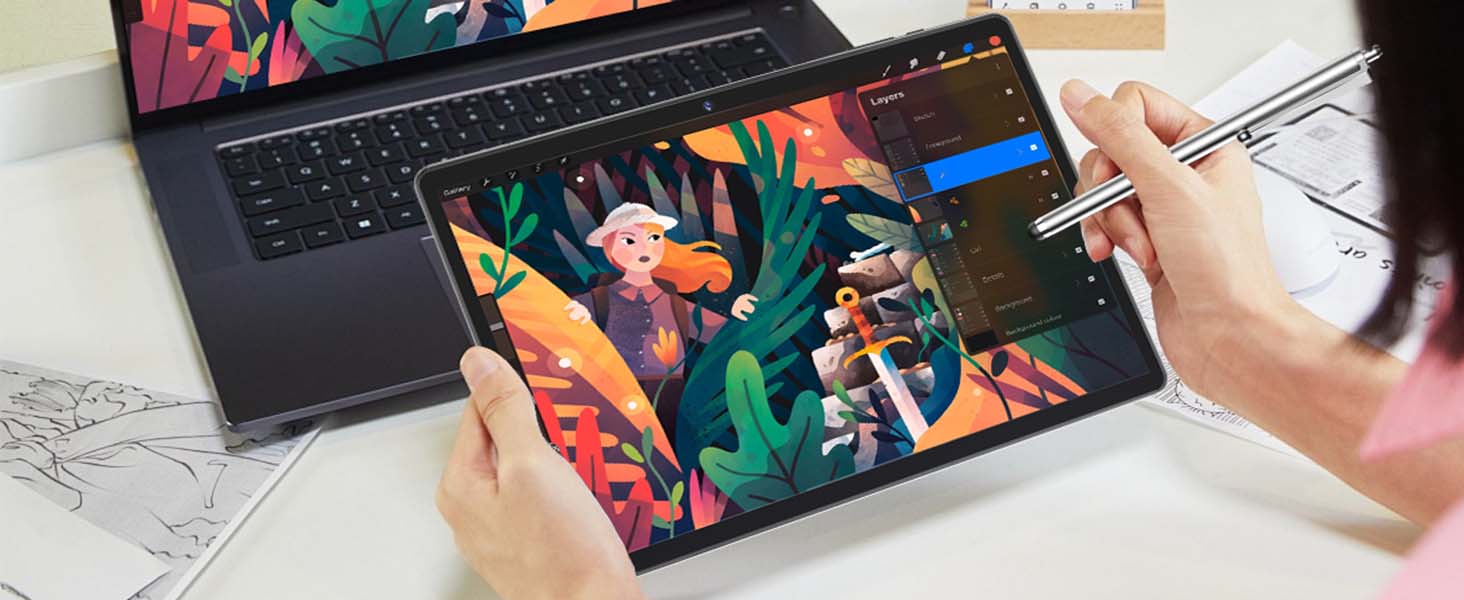
Image: A user interacting with the tablet using the external keyboard and mouse, demonstrating enhanced productivity.
5.3 Installing and Managing Applications
Access a vast library of applications through the Google Play Store:
- Open the Play Store app.
- Search for apps by name or browse categories.
- Tap "Install" to download and install an app.
- To uninstall, go to Settings > Apps, select the app, and tap "Uninstall".

Image: The Google Play Store interface displayed on the tablet, illustrating the availability of various applications for download.
5.4 Multitasking and Split-Screen
Android 14 enhances multitasking. To use split-screen mode:
- Open the first app you want to use.
- Tap the recent apps button (square icon) or swipe up and hold from the bottom of the screen to view recent apps.
- Tap the app icon at the top of the first app's card and select "Split screen".
- Choose the second app from your recent apps or app drawer.
5.5 Streaming with Widevine L1
The tablet supports Widevine L1, allowing you to stream high-definition content from popular platforms like Netflix, Disney+, Hulu, and Amazon Prime Video.
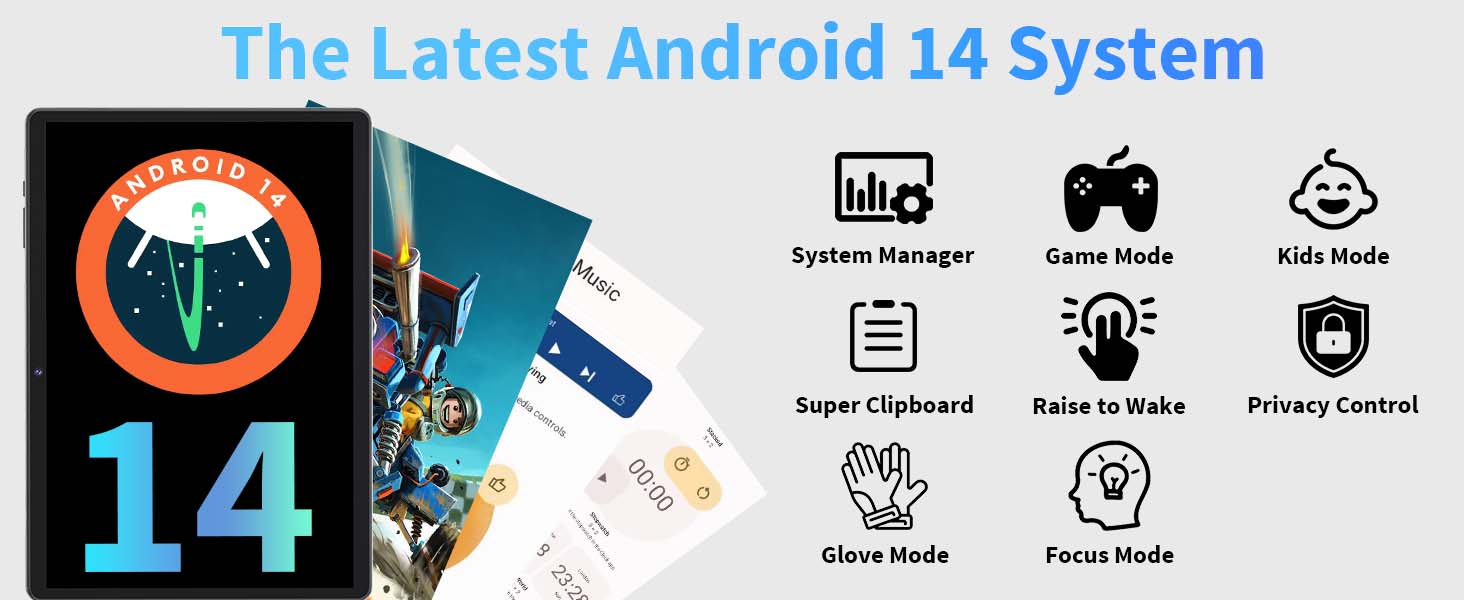
Image: A visual demonstrating the tablet's Widevine L1 support, enabling 1080P viewing experience on streaming platforms such as Netflix, Prime Video, Hulu, and Disney+.
6. Maintenance
6.1 Cleaning the Tablet
- Use a soft, lint-free cloth (e.g., microfiber) to clean the screen and body.
- For stubborn smudges, slightly dampen the cloth with water or a screen cleaner designed for electronics.
- Avoid harsh chemicals, abrasive materials, or excessive moisture.
6.2 Battery Care
- Avoid extreme temperatures, as they can degrade battery life.
- Do not let the battery completely drain frequently.
- Use the original charger for optimal charging and battery health.
6.3 Software Updates
Regularly check for and install software updates to ensure your tablet has the latest features, security patches, and performance improvements. Go to Settings > System > System update.
6.4 Storage Management
To maintain optimal performance, periodically manage your tablet's storage:
- Delete unused apps and large files.
- Clear app cache (Settings > Apps > select app > Storage & cache > Clear cache).
- Utilize cloud storage or external TF card for large media files.
7. Troubleshooting
| Problem | Possible Solution |
|---|---|
| Tablet does not power on. | Ensure the battery is charged. Connect the charger and wait a few minutes before attempting to power on again. If unresponsive, press and hold the power button for 10-15 seconds to force a restart. |
| Wi-Fi connection issues. | Restart the tablet and your Wi-Fi router. Forget the network in Wi-Fi settings and reconnect. Ensure you are within range of the Wi-Fi signal. |
| Slow performance or apps crashing. | Close unused apps running in the background. Clear app caches. Ensure sufficient free storage space. Restart the tablet. |
| Battery drains quickly. | Reduce screen brightness. Disable Wi-Fi/Bluetooth when not in use. Close background apps. Limit location services. Check battery usage in settings to identify power-hungry apps. |
| Accessories (keyboard/mouse) not connecting. | Ensure accessories are charged and in pairing mode. Unpair and re-pair the accessories in Bluetooth settings. Restart both the tablet and the accessory. |
7.1 Factory Reset
If persistent issues occur, a factory reset may be necessary. Warning: This will erase all data on your tablet. Back up important data before proceeding. Go to Settings > System > Reset options > Erase all data (factory reset).
8. Specifications
| Feature | Detail |
|---|---|
| Brand | Relndoo |
| Model Name | TB02 |
| Operating System | Android 14 |
| Screen Size | 10.1 Inches |
| Max Screen Resolution | 1280x800 Pixels |
| Processor Brand | ARM (RK3562 8-Core) |
| Memory (RAM) | 26 GB (6GB physical + 20GB virtual) |
| Flash Memory Size (ROM) | 256 GB |
| Expandable Storage | Up to 2TB via TF card (sold separately) |
| Average Battery Life | 12 Hours (video playback) |
| Battery Capacity | 8000mAh |
| Front Camera | 5MP |
| Rear Camera | 8MP |
| Connectivity | 2.4G/5G Wi-Fi, Bluetooth 5.0 |
| Item Weight | 2.92 pounds |
| Product Dimensions (LxWxH) | 10.7 x 7.5 x 2.5 inches |
9. Warranty and Support
For warranty information, please refer to the documentation included with your product or contact the retailer where the product was purchased. Keep your proof of purchase for warranty claims.
For technical support or further assistance, please contact Relndoo customer service through their official website or the contact information provided in your product packaging.
Ask a question about this manual
Ask about setup, troubleshooting, compatibility, parts, safety, or missing instructions. Manuals+ will review the question and use this page’s manual context to help answer it.