
Introduction
The NEWYES Syncpen 4.0 Set is an innovative tool designed to bridge the gap between traditional handwriting and digital technology. This set includes a digital pen and an erasable notebook, allowing you to capture handwritten notes and drawings digitally, convert them to text, and manage them efficiently on your smartphone or tablet. This manual provides detailed instructions to help you get the most out of your Syncpen 4.0 Set.
Key features include:
- Digitalize Handwriting: Instantly upload handwritten notes or drawings to your device.
- Accurate OCR: Supports precise recognition in up to 73 languages for text, doodles, and formulas.
- Efficient Digital Storage: Easily organize, manage, and access your notes on your phone or cloud storage.
- One-Click Sharing: Share your creations on social media platforms.
- Smart and Convenient Experience: Simple design and intuitive use for converting written content to digital.
Package Contents
Please verify that all items listed below are included in your package:

Image: Overview of the NEWYES Syncpen 4.0 Set package contents, showing the Syncpen, smart notebook, stylus nib, pen refills, notebook refills, USB cable, cleaning cloth, and user manual.
- Syncpen 4.0 Digital Pen x 1
- Smart Notebook x 1
- Stylus Nib x 1 (for the digital set only)
- Pen Refills x 5
- Notebook Refills x 2
- USB Cable x 1
- Cleaning Cloth x 1
- User Manual x 1
Setup
1. Charging the Syncpen
Before first use, fully charge the Syncpen using the provided USB cable. Connect the USB cable to the pen's charging port and a power source (e.g., computer USB port or wall adapter). The indicator light on the pen will show charging status and turn off when fully charged.
2. Installing the NEWYES App
Download the official NEWYES app from your device's app store (Apple App Store for iOS or Google Play Store for Android). Search for "NEWYES" and install the application.
- Minimum OS requirements: Android 13.0, iOS 16.
3. Pairing the Syncpen with Your Device
- Ensure Bluetooth is enabled on your smartphone or tablet.
- Open the NEWYES app.
- Follow the in-app instructions to pair your Syncpen. The pen will typically be detected automatically when powered on and near your device.
- Confirm the pairing request on your device.

Image: Illustration showing the synchronization process between the electronic notebook and the application, highlighting the one-touch erase button on the notebook.
Operating Instructions
1. Writing and Digitalizing Notes
Write naturally on the special paper in your NEWYES notebook. The Syncpen's integrated camera captures your strokes and instantly transmits them to the connected NEWYES app.

Image: A hand writing on the NEWYES notebook with the Syncpen, while a smartphone displays the digitized notes in real-time, showing the seamless transfer of handwritten content.
Ensure the pen is powered on and connected via Bluetooth for real-time synchronization. If writing offline, the notes will sync once the pen reconnects to the app.
2. Using OCR (Optical Character Recognition)
The NEWYES app features powerful OCR technology to convert your handwritten notes into editable digital text. This function supports up to 73 languages.
- In the app, select the note you wish to convert.
- Tap the "Recognize" or OCR icon.
- Choose the language for recognition if prompted.
- The app will process the handwriting and display the converted text, which you can then copy, edit, or share.
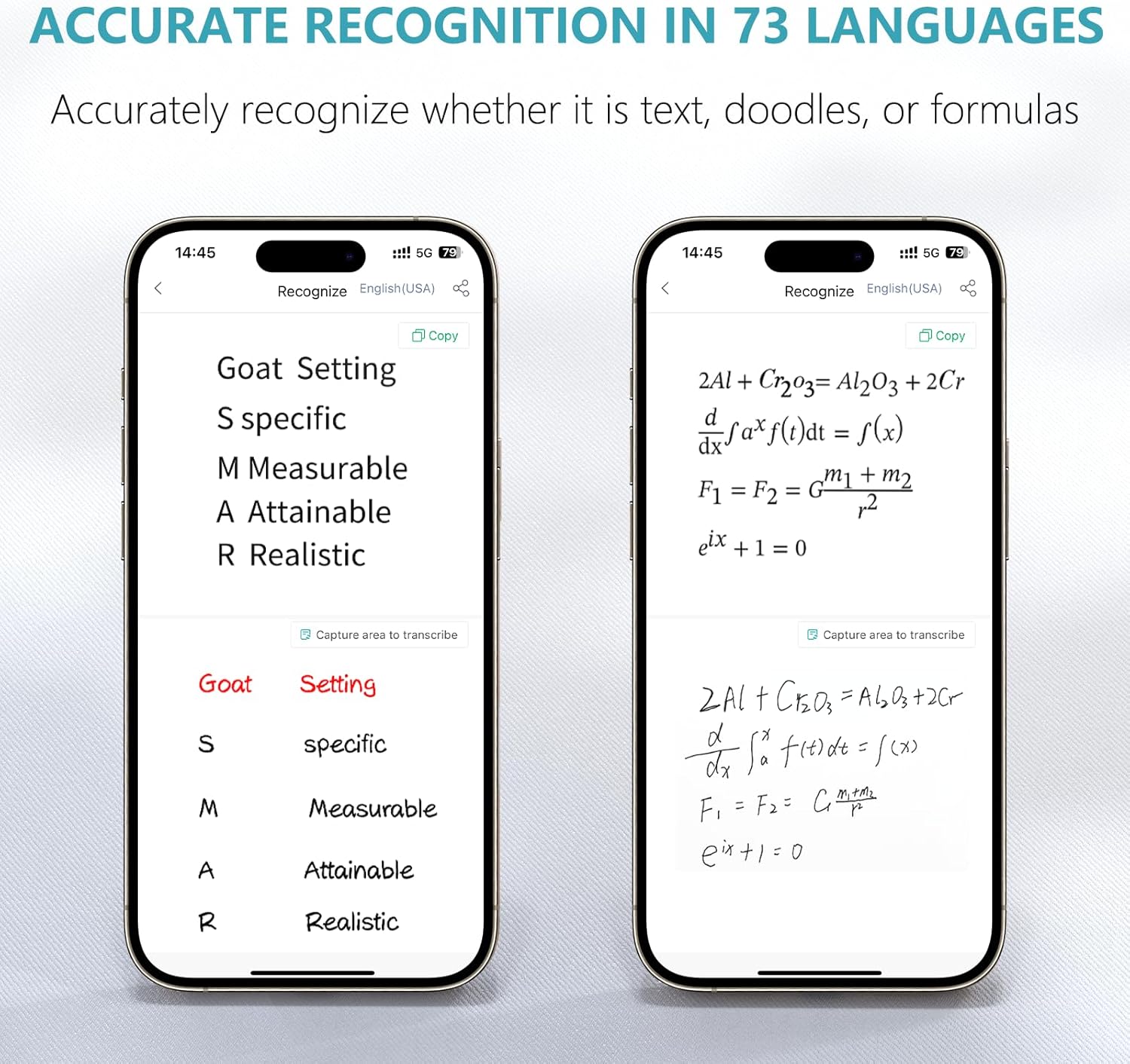
Image: Two smartphone screens demonstrating the OCR feature. One screen shows handwritten text converted to typed text, and the other shows handwritten mathematical formulas accurately recognized and displayed digitally.

Image: A smartphone displaying the app's handwriting recognition feature, showing options for various languages and automatic detection of mathematical formulas, chemical symbols, and offline synchronization capabilities.
3. Recording Writing Track
The Syncpen 4.0 can record the entire process of your writing, allowing you to replay your notes or drawings stroke by stroke.
- While writing, ensure the recording function is active in the app (if applicable).
- To view the playback, open the desired note in the app and select the "Writing playback" option.
- You can adjust the playback speed (e.g., 1X, 2X, 3X, 4X).
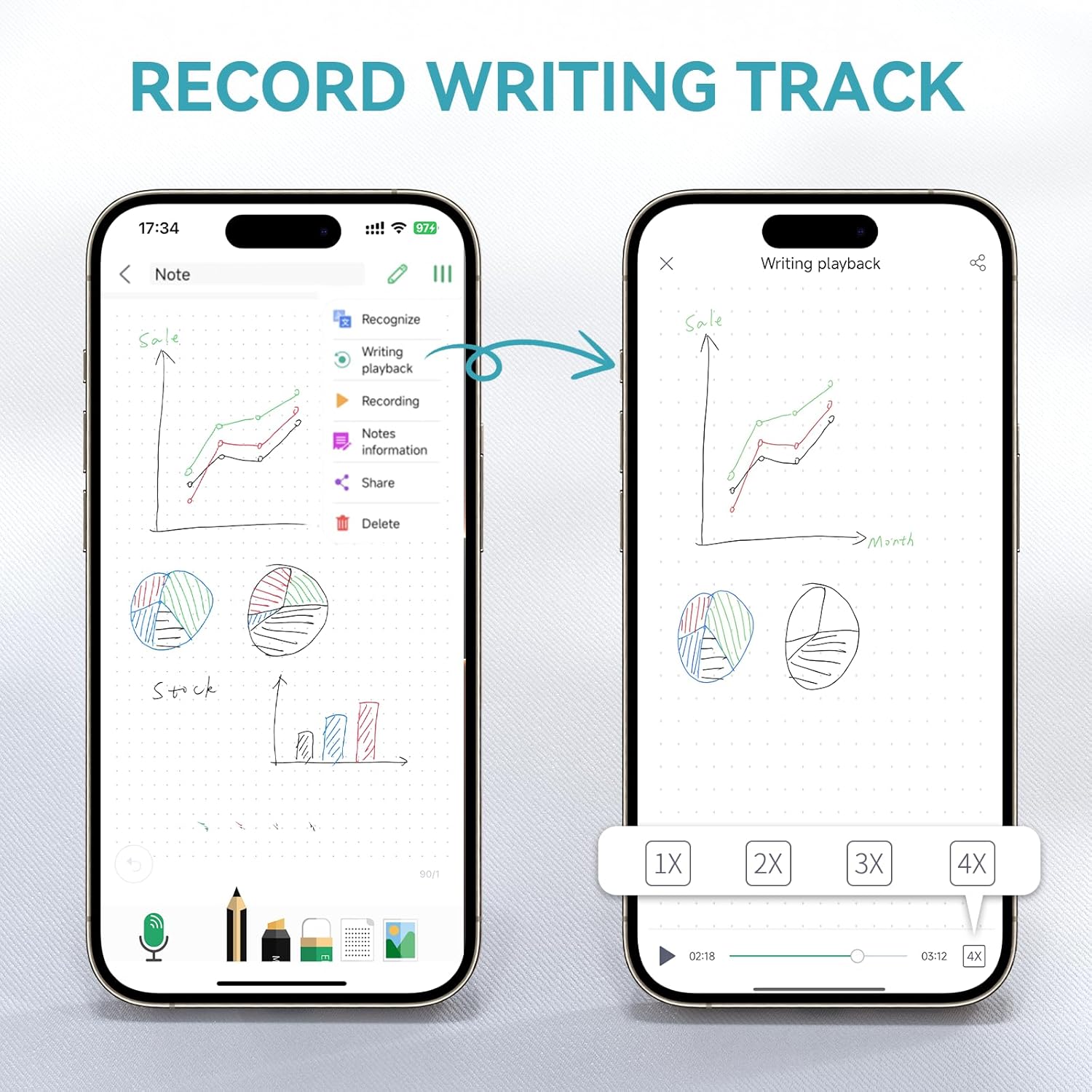
Image: A smartphone screen showing a handwritten graph and charts, with an arrow pointing to another screen displaying the playback of the writing process with speed control options.
4. Organizing and Managing Notes
The NEWYES app provides tools to keep your digital notes organized.
- Tagging: Assign tags to your notes for easy categorization and searching.
- Searching: Use the search bar to find notes by keywords or tags.
- Folders: While the app primarily uses tags, you can simulate folder-like organization by consistently using specific tags for related notes.
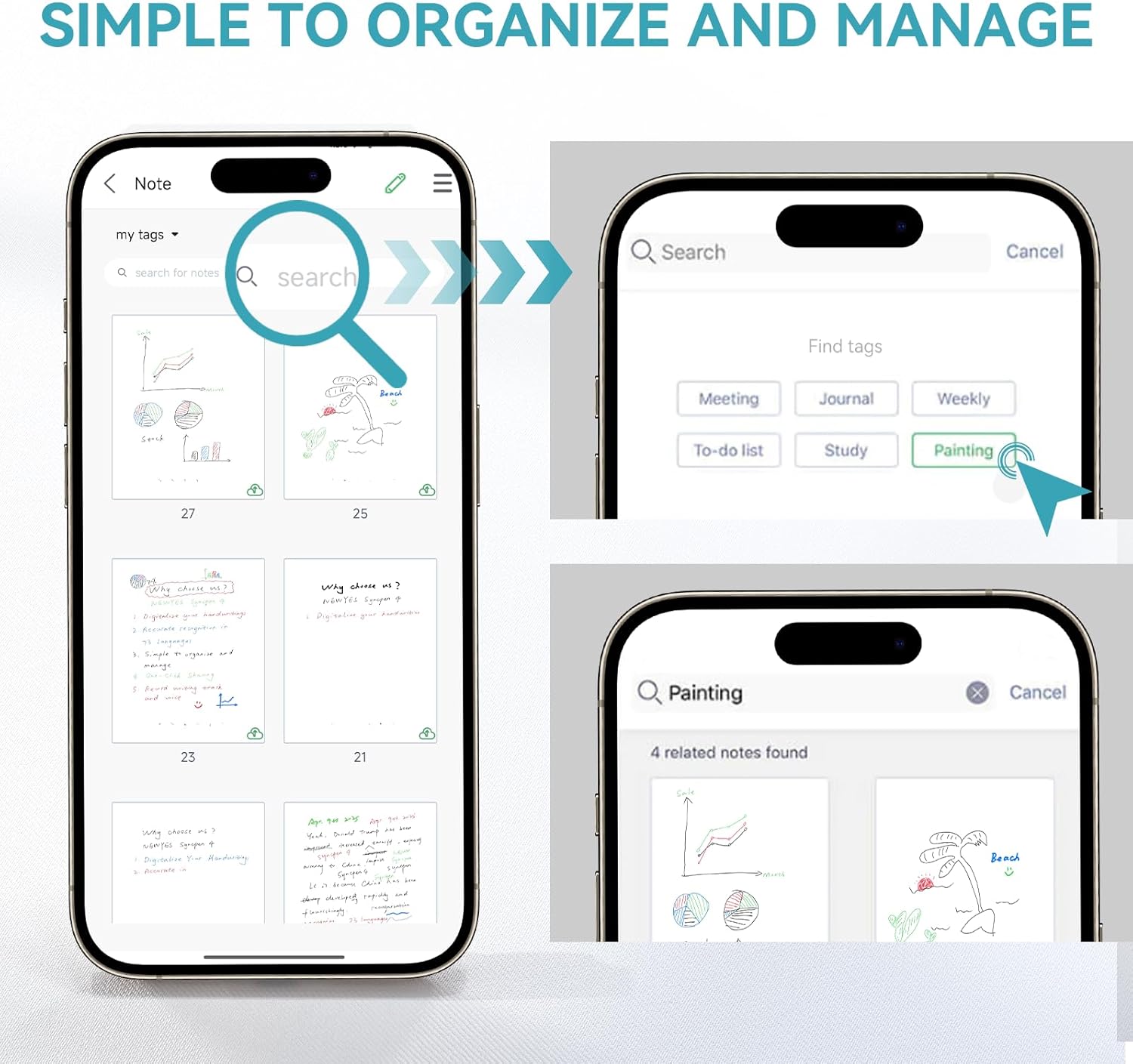
Image: A smartphone screen showing a gallery of digitized notes, with a magnifying glass icon indicating a search function. Another screen shows search results filtered by tags like "Meeting," "Journal," "Study," and "Painting."

Image: A smartphone displaying a user-friendly note-taking interface, showing options for viewing notes as images or text lists, and instant search capabilities using keywords and personal tags.
5. Sharing Notes to Social Media
Share your digitized notes, drawings, or creations directly from the app to various social media platforms or other applications.
- Open the note you wish to share.
- Tap the "Share" icon.
- Select your desired sharing method (e.g., Instagram, Facebook, Twitter, WhatsApp, Email, save as PDF, DOC, or image).
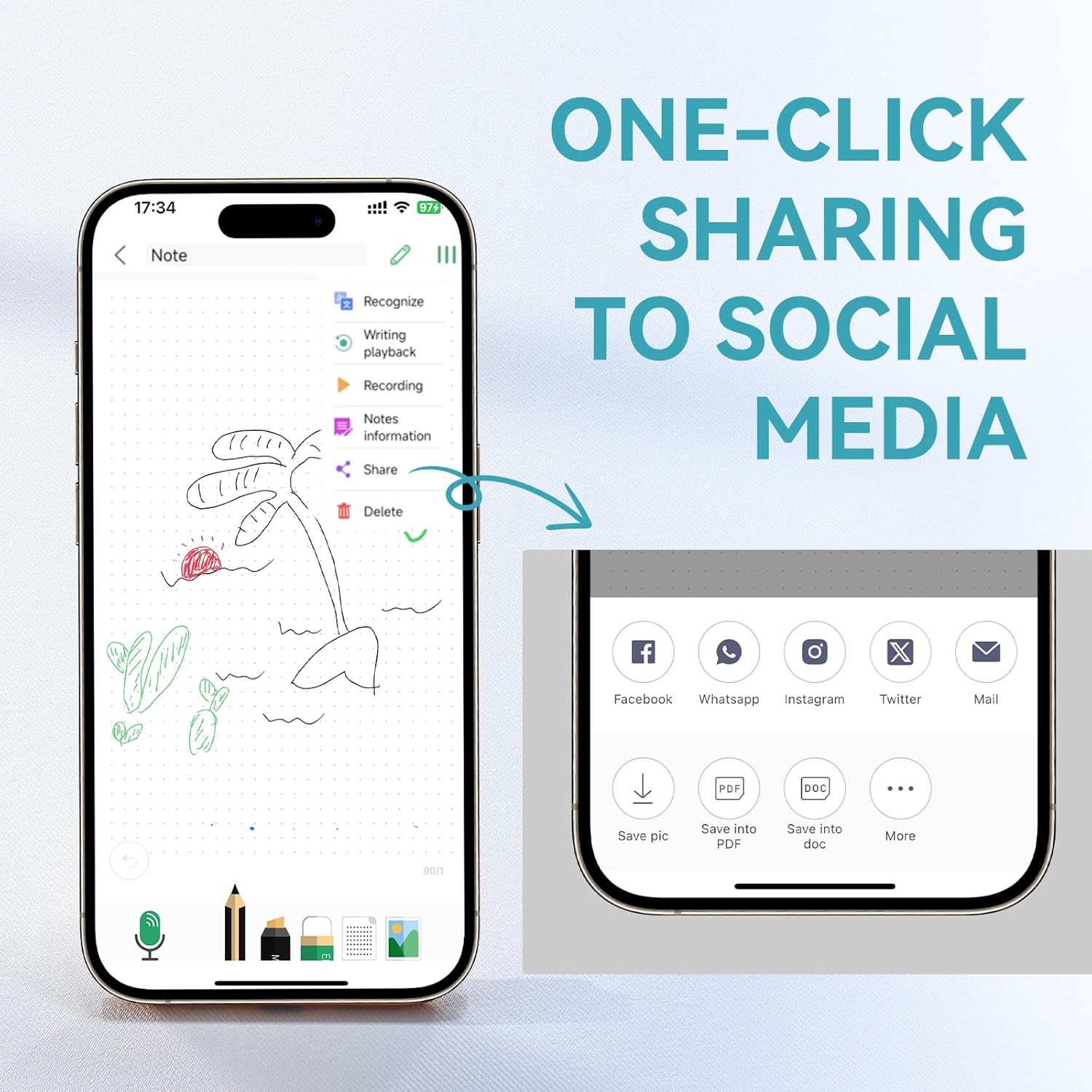
Image: A smartphone screen showing a handwritten drawing with a "Share" option selected, revealing various social media icons (Facebook, WhatsApp, Instagram, Twitter, Mail) and document export options (Save pic, Save into PDF, Save into doc).
6. Customization and Additional Features
The app allows for various customizations and offers additional features:
- Color and Thickness: Adjust the color and thickness of your digital strokes in the app.
- Audio Recording: Record audio alongside your notes.
- Image Import: Import images into your notes.
- Highlighting: Use highlighting tools within the app.
- Eraser Tool: Correct mistakes digitally.
- Editable Page Templates: Utilize various page templates.

Image: A smartphone screen showing the app's customization interface, including a color palette, line thickness adjustments, and icons for voice recording, highlighting, eraser, editable page templates, and image import.

Image: A display of touch screen icons for quick actions such as "Save and next page," "Start recording," "Stop recording," and various ink colors (Red, Green, Blue, Black), along with line thickness options (Fine, Thick).
Maintenance
1. Cleaning the Erasable Notebook
The NEWYES erasable notebook pages can be cleaned in several ways:
- Wet Cleaning: Use a damp cloth to wipe away ink. Ensure the cloth is not overly wet to avoid damaging the pages.
- Heat Erasing: For specific erasable inks, applying heat (e.g., from a hairdryer) can make the ink disappear without a trace. Refer to the ink specifications for compatibility.

Image: A hand wiping a notebook page with a damp cloth, illustrating the wet cleaning method for erasable ink. Text highlights "Wet cleaning: Ink erased without traces," "Heat erasable: Just blow hot air with a hairdryer and the writing will disappear," and "Washable & ultra-resistant paper."
The notebook is designed for over 50,000 erasures, ensuring long-term usability.
2. Syncpen Care
- Keep the pen clean and free from dust or debris, especially around the camera lens.
- Store the pen in a safe place to prevent damage.
- Use only official NEWYES pen refills to ensure proper functionality and avoid damage to the pen's sensor.
Troubleshooting
1. Pen Not Connecting or Not Found
- Check Power: Ensure the Syncpen is charged and powered on.
- Bluetooth: Verify Bluetooth is enabled on your device and the pen is within range.
- App Restart: Close and reopen the NEWYES app.
- Device Restart: Restart your smartphone or tablet.
- Re-pair: If issues persist, unpair the pen from your device's Bluetooth settings and re-pair it through the NEWYES app.
2. Inaccurate Handwriting Recognition (OCR)
- Clarity of Writing: Ensure your handwriting is clear and legible.
- Language Setting: Verify that the correct language is selected in the app for OCR.
- Lighting: Ensure adequate lighting when writing to help the pen's camera capture strokes accurately.
- App Updates: Check for any available app updates, as these often include improvements to OCR algorithms.
3. App Crashes or Freezes
- Restart App: Force close the app and reopen it.
- Device Resources: Close other background applications to free up device memory.
- App Updates: Ensure your NEWYES app is updated to the latest version.
- Device Compatibility: Confirm your device meets the minimum OS requirements (Android 13.0, iOS 16).
4. Incomplete Note Capture
- Pen Position: Ensure the pen is held correctly and the camera is not obstructed.
- Paper Type: Use only the official NEWYES notebook paper, as it is designed for optimal pen tracking.
- Ink Flow: Check if the pen refill has sufficient ink and is writing smoothly.
- Synchronization: Verify the pen is actively connected to the app or that offline notes are syncing correctly.
Specifications
| Brand | NEWYES |
| Model | SYNCPEN 4.0 |
| Color | Black with silver accents |
| Material | Plastic |
| Item Weight | 1.14 Kilograms (for the set) |
| Compatible Devices | Smartphone, Tablet |
| Minimum OS Required | Android 13.0, iOS 16 |
| Battery Type | 1 x 9V battery (included) - Note: Product images and USB cable suggest rechargeable pen, but specifications list 9V battery. Please refer to actual product for clarification. |
| Erasable Pages | Guaranteed over 50,000 erasures |
Warranty
The NEWYES Syncpen 4.0 Set comes with a manufacturer's warranty of 1 year. Please retain your proof of purchase for warranty claims. For detailed warranty terms and conditions, refer to the documentation included with your product or contact NEWYES customer support.
Support
For further assistance, technical support, or to explore more products, please visit the official NEWYES store or contact their customer service.
Official NEWYES Store: NEWYES Store on Amazon.fr
Product Videos
Watch these official videos for visual guides and demonstrations of the NEWYES Syncpen 4.0 Set's features.
NEWYES Syncpen 4.0 Overview
Video: A general overview of the NEWYES Syncpen 4.0 Set, demonstrating its core functionalities and design. (Duration: 0:54)
Detailed Features and Usage
Video: An in-depth look at the various features of the Syncpen 4.0, including detailed usage scenarios and tips. (Duration: 1:56)
Advanced Functions Demonstration
Video: This video showcases advanced functionalities of the Syncpen 4.0, such as specific app features and integration. (Duration: 1:58)
Quick Start Guide
Video: A concise guide to quickly set up and start using your NEWYES Syncpen 4.0. (Duration: 0:44)
Product Highlights
Video: Short highlights reel showcasing the main benefits and features of the Syncpen 4.0. (Duration: 0:29)
Syncpen in Action
Video: A demonstration of the Syncpen 4.0 being used in various real-world scenarios. (Duration: 0:20)
User Experience
Video: Showcasing the user experience with the NEWYES Syncpen 4.0 and its accompanying app. (Duration: 0:27)
Product Features Showcase
Video: A brief showcase of the key features that make the Syncpen 4.0 stand out. (Duration: 0:22)


