
1. Introduction
The ORICO MiniMate M4Max is an integrated external SSD hub and a protective TPU case specifically designed for the Mac mini M4. This device expands your Mac mini's storage capacity with an internal 1TB SSD and enhances its connectivity options through multiple ports. The included TPU case provides protection while maintaining the aesthetic and form factor of your Mac mini.
2. Product Overview
The MiniMate M4Max offers several key features to enhance your Mac mini M4 experience:
- Integrated Design: The MiniMate M4Max is designed to match the dimensions and aesthetic of the Mac mini M4, allowing it to stack directly underneath. This design helps in organizing cables and maintaining a consistent appearance with your Mac mini.
- High-Speed Data Transfer: The device features dual USB 3.2 Gen2 ports, providing data transfer speeds of up to 10Gbps. These ports support simultaneous read and write operations for external SSDs or HDDs, facilitating rapid transfer of large files.
- All-in-One Connectivity Hub: The integrated hub includes SD and TF card slots for direct media import, a 3.5mm audio jack for headphones or microphones, and a USB 2.0 port suitable for connecting wireless peripherals like keyboards and mice.
- Precision Fit TPU Case: The included TPU case is precisely molded to fit the Mac mini M4, ensuring alignment with all ports, buttons, and ventilation openings. This design provides a secure fit without obstructing functionality.
- Comprehensive Protection: The TPU case offers comprehensive protection for the Mac mini M4. It features a fingerprint-resistant exterior, a soft microfiber lining to prevent scratches, and reinforced corners designed to absorb impacts.

Image showing the ORICO MiniMate M4Max hub connected to a Mac mini, displaying various data types like information, video, and database files, illustrating its role as a storage expansion and data management companion. The hub features SD/TF card slots and USB ports.
3. Setup
3.1 Installing the Mac mini M4 into the TPU Case
- Ensure your Mac mini M4 is powered off and all cables are disconnected.
- Carefully align the Mac mini M4 with the opening of the ORICO TPU case.
- Gently slide the Mac mini M4 into the case, ensuring all ports, buttons, and ventilation openings align with the case's precision cutouts. The case is designed for a snug fit to prevent movement.

Image highlighting the precise dimensions (12.70cm x 12.70cm) of the ORICO MiniMate M4Max, showing how it seamlessly stacks with the Mac mini. Insets display the rear ports of the Mac mini and the textured bottom of the MiniMate, emphasizing its integrated design.

Image showing the ORICO MiniMate M4Max TPU case installed on a Mac mini, with cables connected to the rear ports. The design ensures all interfaces remain unobstructed for full functionality.
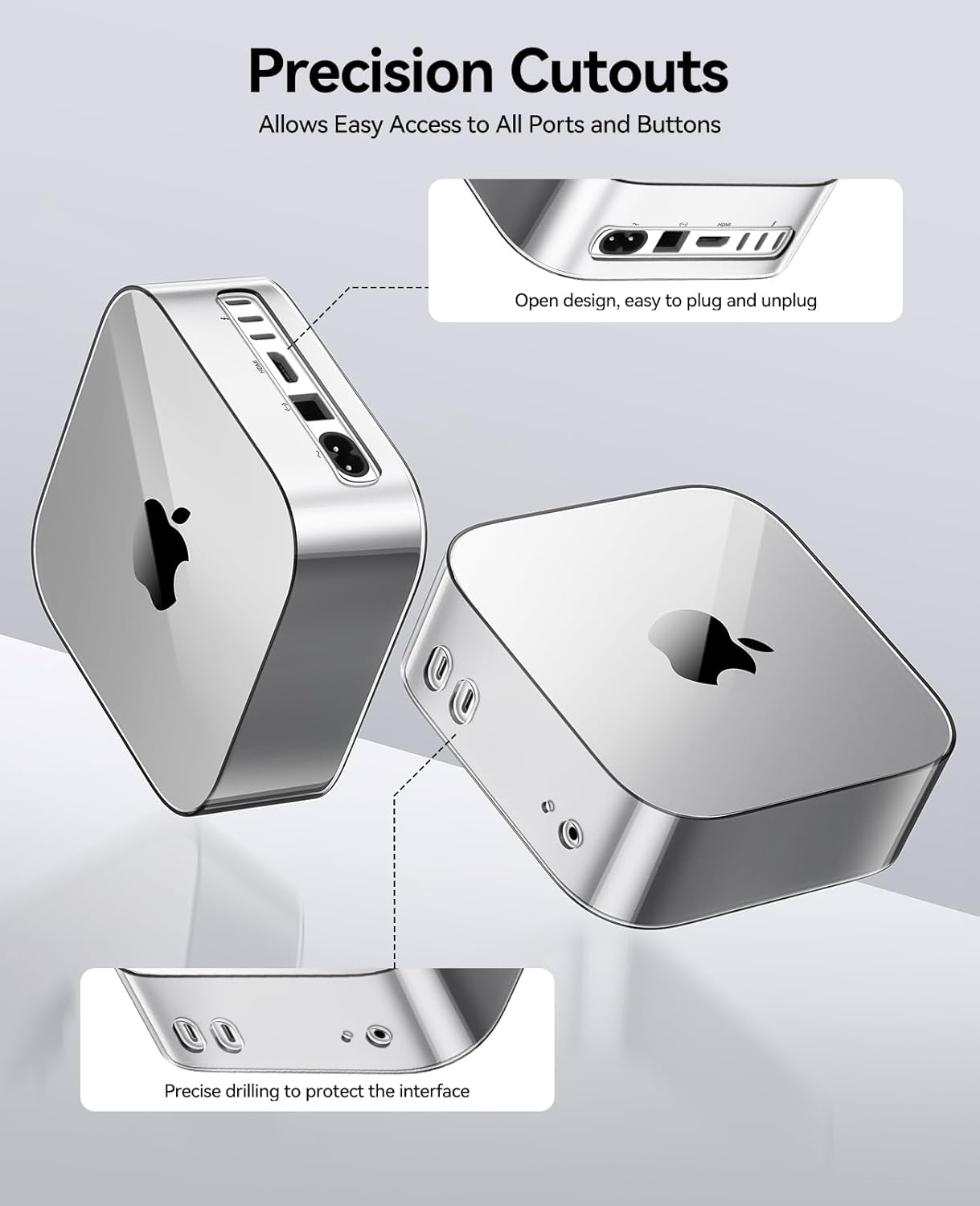
Image detailing the precision cutouts of the ORICO MiniMate M4Max TPU case, ensuring easy access to all ports and buttons of the Mac mini. The design allows for simple plug-and-unplug operations and protects interfaces.
3.2 Connecting the MiniMate M4Max Hub to the Mac mini
- Place the MiniMate M4Max hub directly underneath your Mac mini M4 (now in its TPU case).
- Connect the provided USB-C to USB-C cable from the MiniMate M4Max hub to an available USB-C/Thunderbolt port on your Mac mini M4. This connection provides both power and data transfer for the hub and its internal 1TB SSD.
- Power on your Mac mini M4. The MiniMate M4Max's internal 1TB SSD should be recognized as an external drive.
3.3 Connecting Peripherals
- SD/TF Cards: Insert your SD or TF (MicroSD) memory cards into the corresponding slots on the front of the MiniMate M4Max for direct access to media files.
- USB Devices: Connect USB peripherals such as external hard drives, flash drives, or other accessories to the dual USB 3.2 Gen2 ports for high-speed data transfer. The USB 2.0 port is ideal for wireless keyboard/mouse receivers or other low-bandwidth devices.
- Audio Devices: Plug headphones or a microphone into the 3.5mm audio jack for audio input/output.
4. Operating Instructions
4.1 Using the Internal 1TB SSD
Once connected, the internal 1TB SSD of the MiniMate M4Max will appear as an external drive on your Mac mini M4. You can use it for storing files, backups, or as an extended workspace. For optimal performance, ensure the drive is formatted appropriately for macOS (e.g., APFS or HFS+).
4.2 High-Speed Data Transfer via USB 3.2 Gen2 Ports
The two USB 3.2 Gen2 ports support data transfer speeds up to 10Gbps. Connect compatible external SSDs, hard drives, or other high-speed devices to these ports for rapid file transfers. These ports are suitable for tasks requiring high bandwidth, such as editing 4K video or managing large project files.

Image demonstrating the ORICO MiniMate M4Max hub connected to a Mac mini, with a progress bar indicating high-speed data transfer (1000MB/s) via USB 3.2. Various application icons are visible, suggesting efficient workflow for creative professionals.
4.3 Using SD/TF Card Slots
Insert your SD or TF (MicroSD) card into the respective slot. The card will appear as a removable drive on your Mac mini, allowing you to import photos, videos, or other data directly.
4.4 Using the 3.5mm Audio Jack
Connect your headphones, speakers, or a microphone to the 3.5mm audio jack. Ensure your Mac mini's sound settings are configured to use the MiniMate M4Max's audio output/input if it doesn't switch automatically.
4.5 Using the USB 2.0 Port
The USB 2.0 port is suitable for connecting devices that do not require high data transfer speeds, such as wireless keyboard/mouse receivers, printers, or other standard USB peripherals.
5. Maintenance
5.1 Cleaning the TPU Case and Hub
- To clean the TPU case, gently wipe it with a soft, damp cloth. Avoid using harsh chemicals or abrasive materials that could damage the surface or fingerprint-resistant coating.
- For the hub, use a dry, soft cloth to wipe away dust. Do not use liquid cleaners directly on the ports or electronic components.
- Ensure all ports are free of dust and debris to maintain optimal connectivity.

Image illustrating the protective features of the ORICO MiniMate M4Max TPU case, highlighting its waterproof, shockproof, and dustproof capabilities with corresponding icons.
5.2 General Care
- Avoid exposing the device to extreme temperatures, direct sunlight, or high humidity.
- Do not attempt to disassemble the MiniMate M4Max hub, as this may void the warranty and cause damage.
- Handle the device with care to prevent drops or impacts, although the TPU case offers reinforced corner protection.
6. Troubleshooting
6.1 Device Not Recognized
- Check Connection: Ensure the USB-C cable connecting the MiniMate M4Max to your Mac mini is securely plugged into both devices. Try a different USB-C port on your Mac mini if available.
- Restart Mac mini: Sometimes a simple restart can resolve recognition issues.
- Check System Information: Go to About This Mac > System Report > USB to see if the MiniMate M4Max is listed. If it is, but not appearing in Finder, there might be a formatting issue with the internal SSD.
6.2 Slow Data Transfer Speeds
- Verify Port Type: Ensure you are using the USB 3.2 Gen2 ports for high-speed devices. Connecting a high-speed device to the USB 2.0 port will result in slower speeds.
- Cable Quality: Use the provided high-quality USB-C cable or another certified USB 3.2 Gen2 compatible cable.
- Device Compatibility: Ensure the external device you are connecting (e.g., external SSD) is capable of 10Gbps speeds.
- System Load: High CPU or disk usage on your Mac mini can affect transfer speeds. Close unnecessary applications.
6.3 SD/TF Card Not Reading
- Proper Insertion: Ensure the card is inserted correctly into the slot.
- Card Condition: Try a different SD/TF card to rule out a faulty card.
- Card Format: Ensure the card is formatted in a file system compatible with macOS (e.g., FAT32, exFAT, HFS+).
7. Specifications
- Model: ORICO MiniMate M4Max
- Internal Storage: 1TB SSD
- Data Interface: USB 3.2 Gen2 (10Gbps)
- Ports:
- 2 x USB 3.2 Gen2 (10Gbps)
- 1 x USB 2.0
- 1 x SD Card Slot
- 1 x TF Card Slot
- 1 x 3.5mm Audio Jack
- Compatibility: Mac mini M4
- ASIN: B0F832SLKV
- Date First Available: January 6, 2025
8. Warranty and Support
Warranty information for the ORICO MiniMate M4Max is not provided within this manual. For details regarding warranty coverage, technical support, or service inquiries, please refer to the official ORICO website or contact ORICO customer support directly. Please have your product model and purchase information ready when contacting support.