1. Introduction
This manual provides detailed instructions for the installation, operation, and maintenance of your Hodozzy Android 15 Car Stereo. Please read this manual thoroughly before using the product to ensure proper function and safety. Keep this manual for future reference.
2. Product Overview
The Hodozzy Android 15 Car Stereo is an advanced multimedia system designed for select Ford vehicles. It features a 7-inch Ultra HD touchscreen, Android 15 operating system, and integrated connectivity options to enhance your driving experience.
Key Features:
- Android 15 Operating System
- 7-inch Ultra HD Touchscreen (1024*600 resolution)
- Wireless CarPlay & Android Auto support
- Built-in GPS Navigation with offline map support
- Bluetooth for hands-free calling and music streaming
- Integrated WiFi for internet access
- DSP (Digital Sound Processor) for enhanced audio
- FM/RDS Radio
- Steering Wheel Control compatibility
- Includes AHD Rear Camera
Vehicle Compatibility:
This unit is compatible with various Ford models, including:
- Ford F150 (2004-2008)
- Ford F250 (2004-2008)
- Ford F350 (2004-2008)
- Ford Explorer (2006-2009)
- Ford Edge (2007-2010)
- Ford Fusion
- Ford Mustang (2007-2009)
- Ford E250/E350 (2009-2014)
- Ford MKX (2007-2009)
- Ford Five Hundred (2005-2007)
- Ford Expedition (2007-2014)
- Ford Shelby GT500 (2007-2009)
Please verify your vehicle's dashboard configuration and model year for exact compatibility before installation.
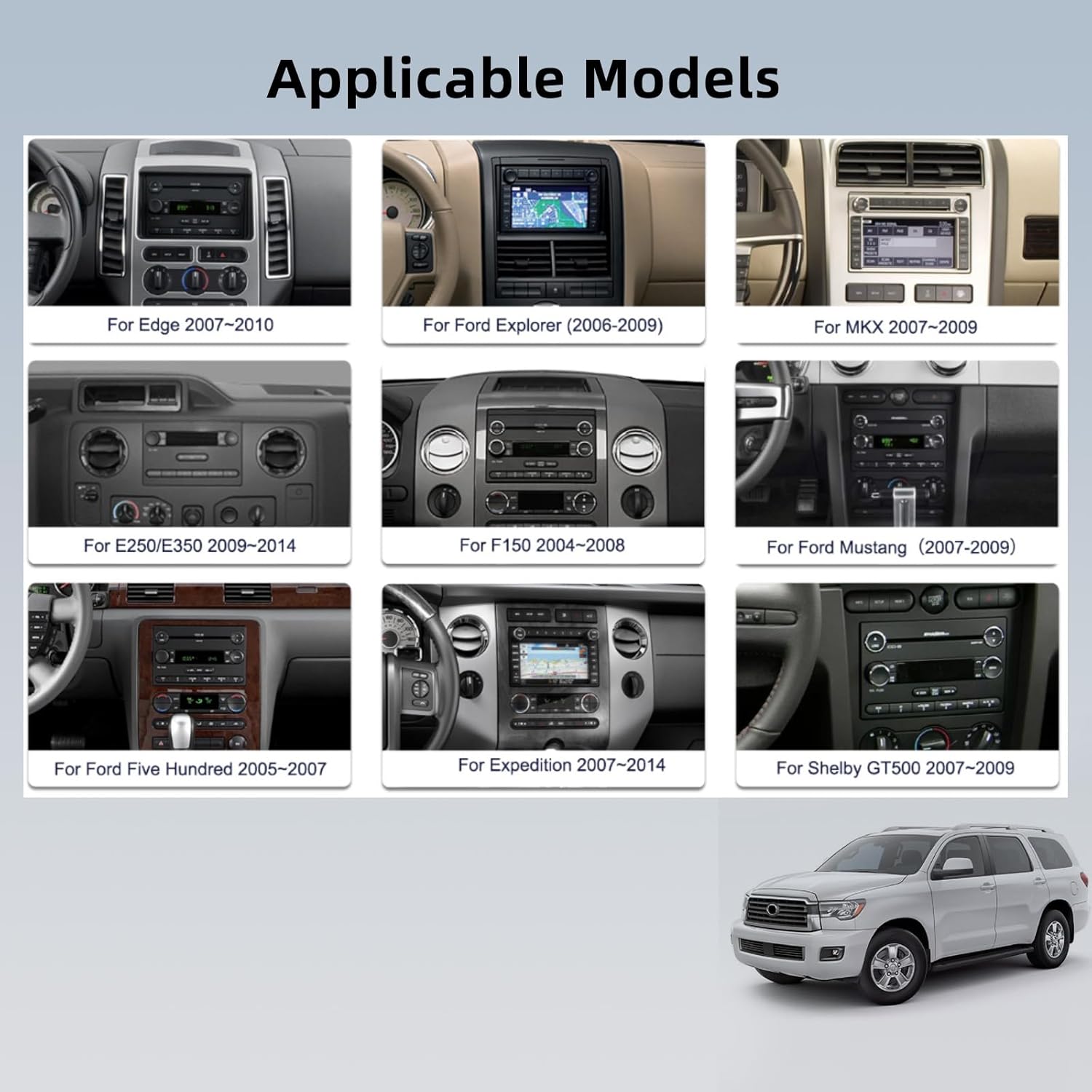
Image: Hodozzy Android 15 Car Stereo seamlessly integrated into a Ford F150 dashboard, showcasing its 7-inch display and physical buttons.
3. Package Contents
Upon opening the package, ensure all the following components are present:
- Hodozzy Android 15 Car Stereo Unit
- Power Cable
- RCA Cable
- 3.8Pin Canbus Plug
- USB Cable
- Rear Camera Input Cable
- Radio Antenna
- GPS Antenna
- Canbus Decoder
- Microphone (MIC)
- Adapter Antenna
- User Manual (this document)
- Backup Camera

Image: The Hodozzy Android 15 Car Stereo unit displayed alongside all its included accessories, such as power cables, GPS antenna, USB cables, and the backup camera.
4. Setup & Installation
Professional installation is recommended for this car stereo system. Incorrect wiring or installation can damage the unit or your vehicle's electrical system.
4.1 Pre-Installation Checks
- Disconnect the vehicle's battery to prevent electrical shorts.
- Confirm compatibility with your vehicle's make, model, and year.
- Inspect all components in the package for any damage.
4.2 Wiring Connections
Carefully connect the provided wiring harness to the car stereo and your vehicle's existing wiring. Refer to the wiring diagram below and your vehicle's specific wiring schematics.
- Power Cable: Connect to constant power (B+), accessory power (ACC), and ground (GND).
- Speaker Wires: Connect to the corresponding vehicle speaker wires (Front Left, Front Right, Rear Left, Rear Right).
- GPS Antenna: Mount the GPS antenna in a location with a clear view of the sky, typically on the dashboard or under the windshield.
- Radio Antenna: Connect the radio antenna.
- Rear Camera Input: Connect the video cable from the backup camera to the designated input on the stereo. Ensure the reverse trigger wire is connected to your vehicle's reverse light circuit.
- Canbus Decoder: Connect the Canbus decoder as per the vehicle-specific instructions to enable steering wheel controls and other vehicle data integration.
- USB Cables: Route USB extension cables to an accessible location for connecting external devices.
4.3 Physical Installation
- Carefully remove the factory radio from your vehicle's dashboard.
- Mount the Hodozzy car stereo into the dashboard opening, securing it with the appropriate brackets.
- Reconnect the vehicle's battery.
- Power on the unit and perform initial function tests.
5. Operating Instructions
5.1 Basic Operation
- Power On/Off: Press and hold the power button. A short press typically mutes/unmutes audio.
- Touchscreen: Navigate the interface by tapping, swiping, and pinching on the 7-inch display.
- Volume Control: Adjust using the physical buttons or on-screen controls.
- Home Button: Returns to the main Android home screen.
5.2 Wireless CarPlay & Android Auto
This unit supports both wireless CarPlay for iOS devices and wireless Android Auto for Android devices.
- Ensure Bluetooth is enabled on your smartphone.
- On the car stereo, open the CarPlay/Android Auto application.
- Search for your car stereo's Bluetooth name on your phone and pair.
- Follow the on-screen prompts to establish the connection.
- Once connected, you can access navigation, music, messages, and other compatible apps directly from the stereo's screen.
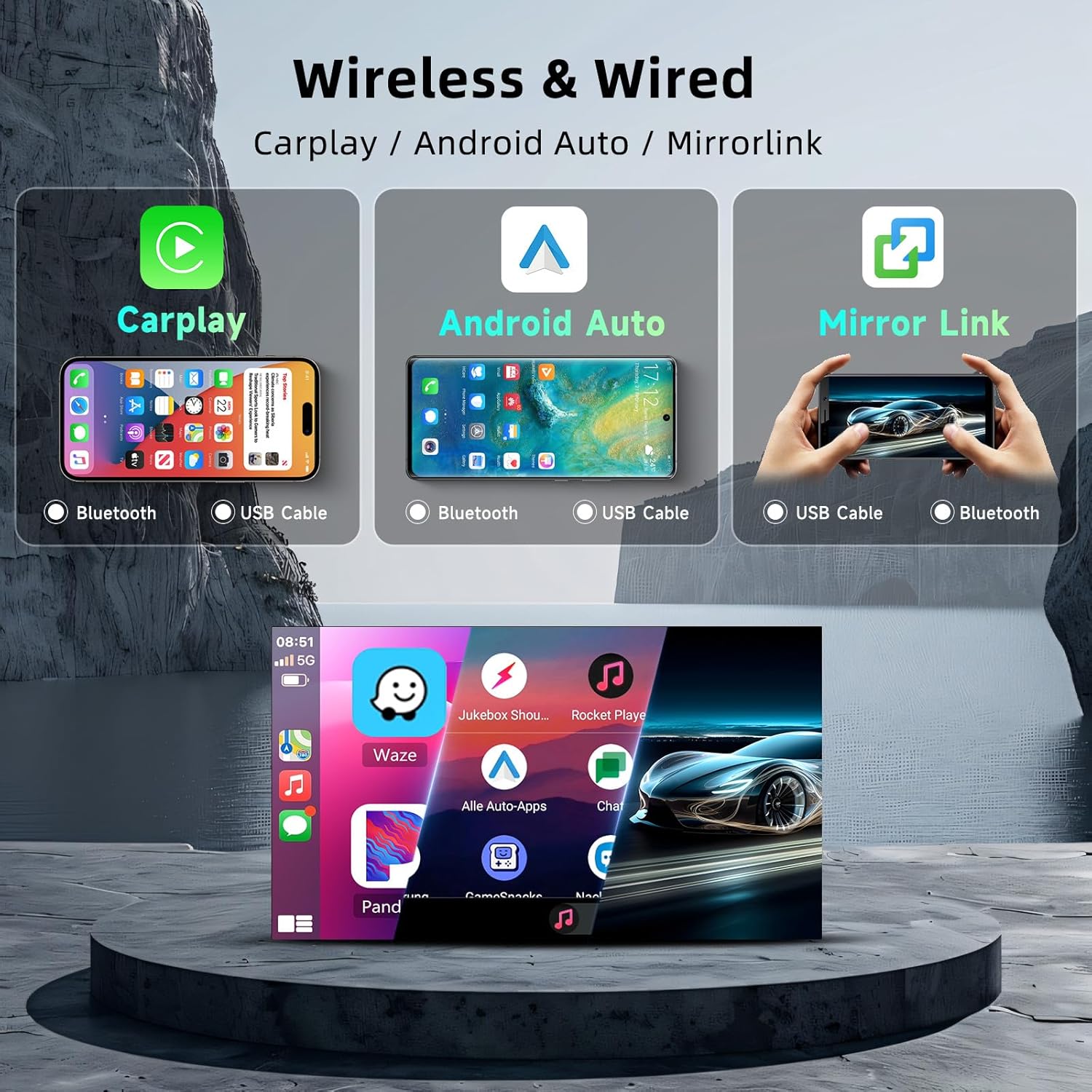
Image: A visual representation of the wireless CarPlay, Android Auto, and Mirrorlink functionalities, showing how smartphones connect via Bluetooth or USB to display apps on the car stereo screen.
5.3 GPS Navigation & WiFi
The built-in GPS module provides accurate navigation. Connect to WiFi for online maps and real-time traffic updates.
- GPS: Open the pre-installed navigation app (e.g., Google Maps, Waze). Ensure the GPS antenna is properly installed.
- WiFi: Go to Settings > Network & Internet > Wi-Fi. Connect to an available hotspot (e.g., from your smartphone) to enable online features and download apps.
- Offline Maps: Download map data for your region to use navigation without an internet connection.

Image: The car stereo displaying a navigation map, with icons for GPS, WiFi, and various Android apps, highlighting the 2GB RAM and 64GB ROM specifications.
5.4 Bluetooth Functions
Pair your smartphone via Bluetooth for hands-free communication and audio streaming.
- Go to the Bluetooth application on the stereo.
- Enable Bluetooth on your phone and search for the stereo.
- Select the stereo's name from your phone's Bluetooth list and confirm pairing.
- Hands-free Calling: Make and receive calls directly from the stereo screen.
- Bluetooth Music: Stream audio from your phone to the car stereo.
5.5 FM/RDS Radio & EQ
Access local radio stations and customize your audio experience.
- FM/RDS Radio: Open the Radio app. Use the scan function to find available stations. RDS (Radio Data System) displays station information like song titles or traffic updates.
- Equalizer (EQ): Access the EQ settings to adjust sound profiles (e.g., Pop, Rock, Jazz) or create custom settings for bass, treble, and other audio frequencies.

Image: Displays the Bluetooth interface for hands-free calling, the FM radio tuner with RDS information, and the graphic equalizer for sound customization.
5.6 Rear Camera Operation
The included AHD rear camera provides a clear view when reversing.
- When the vehicle is shifted into reverse gear, the stereo automatically displays the rear camera feed on the screen.
- The camera features HD night vision and a wide 160-degree viewing angle.
5.7 Steering Wheel Control
Program your vehicle's steering wheel buttons to control the stereo functions.
- Go to the Steering Wheel Control settings in the stereo's menu.
- Follow the on-screen instructions to assign functions (e.g., volume up/down, track skip, mode change) to your steering wheel buttons.

Image: Illustrates the AHD rear camera view with parking guidelines and the interface for programming steering wheel controls, showing various button functions.
6. Maintenance
6.1 Screen Cleaning
To clean the touchscreen, power off the unit and gently wipe the screen with a soft, lint-free cloth. For stubborn smudges, use a screen cleaner specifically designed for electronic displays. Avoid abrasive materials or harsh chemicals.
6.2 Software Updates
Periodically check the manufacturer's website or the stereo's system settings for available software updates. Updates can improve performance, add new features, and fix bugs. Follow the provided instructions carefully when performing updates.
6.3 General Care
- Avoid exposing the unit to extreme temperatures or direct sunlight for prolonged periods.
- Do not spill liquids on the unit.
- Ensure proper ventilation around the unit to prevent overheating.
7. Troubleshooting
If you encounter issues with your Hodozzy car stereo, refer to the following common problems and solutions:
| Problem | Possible Cause | Solution |
|---|---|---|
| Unit does not power on | Incorrect wiring, blown fuse, vehicle battery issue | Check power, ground, and ACC connections. Inspect vehicle fuses. Ensure battery is charged. |
| No sound output | Speaker wiring issues, volume muted, incorrect audio settings | Verify speaker connections. Check volume level and mute status. Adjust audio output settings. |
| GPS signal lost or inaccurate | GPS antenna improperly installed or obstructed | Ensure GPS antenna has a clear view of the sky. Check antenna connection. |
| CarPlay/Android Auto connection issues | Bluetooth/USB connection problems, phone compatibility | Restart phone and stereo. Re-pair Bluetooth. Try a different USB cable. Ensure phone OS is compatible. |
| Backup camera not displaying | Camera wiring, reverse trigger wire, camera malfunction | Check camera video input and reverse trigger wire connections. Test camera functionality. |
| Steering wheel controls not working | Canbus connection, incorrect programming | Verify Canbus decoder connection. Re-program steering wheel controls in settings. |
| Touchscreen unresponsive | Software glitch, physical damage | Restart the unit. If issue persists, contact customer support. |
If the problem persists after attempting these solutions, please contact Hodozzy customer support.
8. Specifications
| Feature | Specification |
|---|---|
| Operating System | Android 15 |
| Display Size | 7 Inches |
| Display Resolution | 1024*600 pixels |
| Memory (RAM) | 2GB |
| Storage (ROM) | 64GB |
| Connectivity | Bluetooth, WiFi, USB |
| Special Features | Android Auto, Apple CarPlay, GPS, DSP, FM/RDS Radio, Touchscreen |
| Included Components | Backup camera |
| Item Weight | 2.81 pounds |
| Package Dimensions | 11.65 x 10.24 x 4.33 inches |
| Vehicle Service Type | Car, SUV, Truck |
9. Warranty Information
This Hodozzy car stereo comes with a 2-year warranty from the date of purchase. This warranty covers manufacturing defects and malfunctions under normal use. Please retain your proof of purchase for warranty claims. The warranty does not cover damage caused by improper installation, misuse, accidents, or unauthorized modifications.
10. Customer Support
For technical assistance, troubleshooting, or warranty inquiries, please contact Hodozzy customer support:
- Email: hodozzyofficial@163.com
Please provide your product model number (ddf479f8-d72b-4a33-a25e-296faadea9b0) and a detailed description of your issue when contacting support.

Image: Hodozzy customer support details, including an email address for inquiries.
11. Official Product Videos
Watch these official videos for additional guidance and product demonstrations.
Video: Product overview and feature demonstration (Duration: 0:46).
Video: Detailed look at specific functions (Duration: 0:40).
Video: Installation tips and setup guide (Duration: 0:47).
Video: Advanced features and user interface navigation (Duration: 1:04).


