
1. Introduction
Thank you for choosing the KOSCHEAL A6 Single-Axis Gimbal Selfie Stick. This versatile device combines a gimbal stabilizer, selfie stick, and tripod into one compact unit, designed to enhance your mobile photography and videography. With its advanced anti-shake technology, detachable fill light, and convenient Bluetooth remote control, the A6 allows you to capture stable, high-quality content with ease. This manual provides detailed instructions for setup, operation, and maintenance to ensure optimal performance.
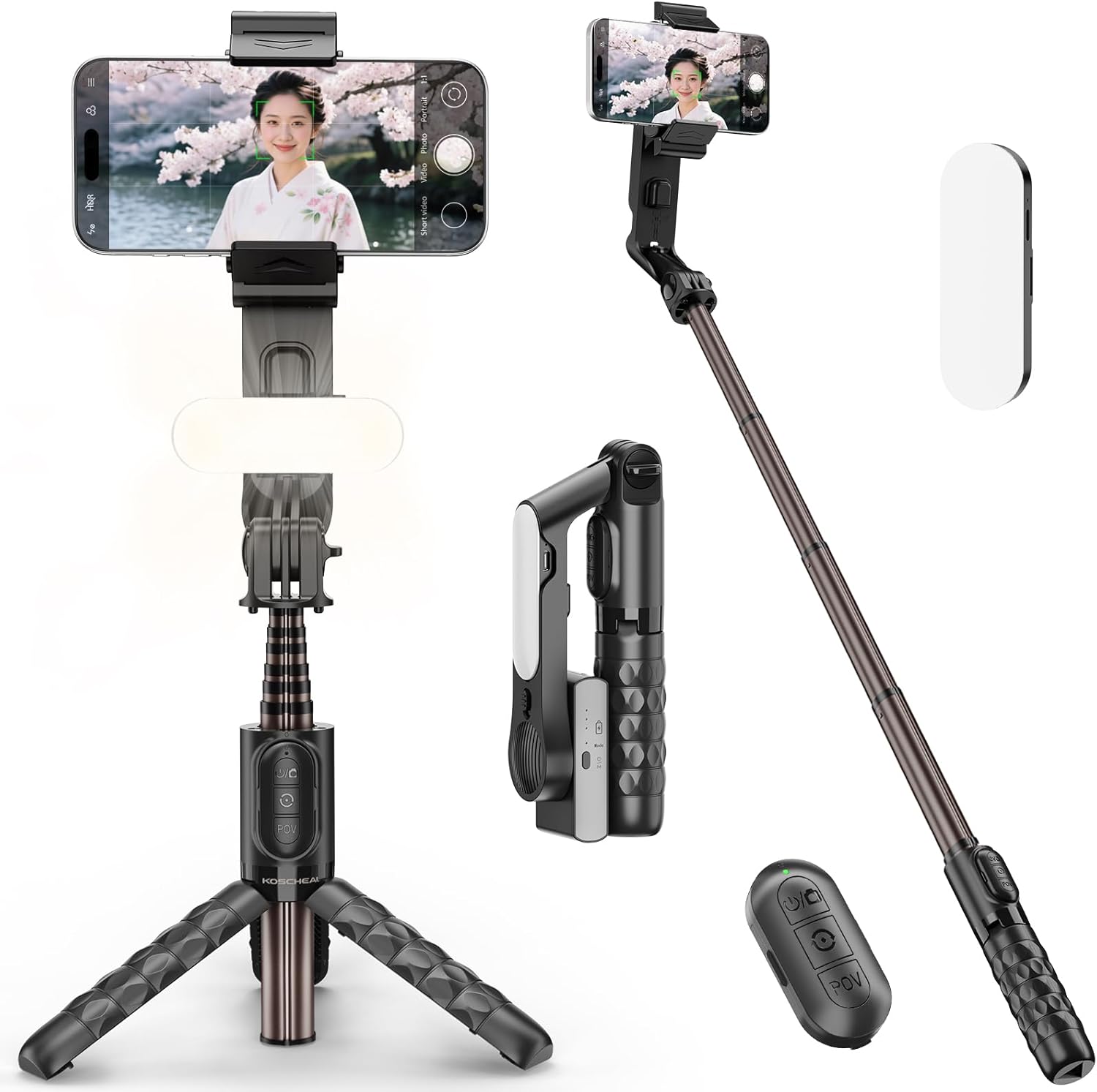
Image 1.1: KOSCHEAL A6 Gimbal Selfie Stick, showcasing its main components including the phone clamp, extendable pole, tripod base, detachable remote, and fill light.
2. Product Overview
2.1 Package Contents
- KOSCHEAL A6 Gimbal Selfie Stick
- Bluetooth Remote Control
- Detachable Fill Light
- USB Charging Cable
- User Manual
2.2 Component Identification
Familiarize yourself with the main parts of your KOSCHEAL A6 device:
- Smartphone Clamp: Securely holds your smartphone.
- Gimbal Head: Provides 1-axis stabilization.
- Extendable Pole: Telescopic arm for selfie stick functionality.
- Handle/Tripod Base: Serves as a grip and unfolds into a stable tripod.
- Bluetooth Remote: Detachable remote for wireless control.
- Fill Light: Provides adjustable illumination for various lighting conditions.
- Mode Switch Button: Toggles between gimbal and selfie stick modes.
- Charging Port: USB Type-C port for charging the gimbal and fill light.
3. Setup
3.1 Unfolding the Device
- Gently pull the top smartphone clamp upwards to extend the pole.
- To use as a tripod, apply slight outward force from the center of the handle's base to unfold the three legs. Ensure they are fully extended for stability.
3.2 Attaching Your Smartphone
- Open the smartphone clamp and carefully insert your phone.
- Important: Before powering on the gimbal, ensure your smartphone is positioned precisely in the center of the clamp to maintain balance and prevent motor strain. The clamp is compatible with phones between 3.6cm and 8.7cm wide, with a maximum weight of 280g.
3.3 Pairing the Bluetooth Remote Control
- Remove the Bluetooth remote control from its slot on the handle.
- Press and hold the power button on the remote for a few seconds until the indicator light flashes, indicating it's in pairing mode.
- On your smartphone, go to Bluetooth settings and search for available devices.
- Select "KOSCHEAL A6" (or similar name) from the list to pair. The indicator light on the remote will stop flashing once successfully paired.
- The remote is compatible with Android 4.4 and iOS 5.1 or higher.

Image 3.1: Detachable Bluetooth remote control for wireless operation.
4. Operating Instructions
4.1 Powering On/Off
- Gimbal Power: Press and hold the power button on the gimbal head for 2 seconds to turn it on. The indicator light will illuminate. Repeat to turn off.
- Remote Power: Press and hold the power button on the remote until the green LED lights up for a few seconds to turn on. Hold again until the LED flashes several times to turn off.
4.2 Switching Modes (Gimbal / Selfie Stick)
The KOSCHEAL A6 offers two primary modes:
- Gimbal Mode: Provides 1-axis stabilization to reduce camera shake. Best used when the telescopic pole is extended to 3 sections or less for optimal stability.
- Selfie Stick Mode: The gimbal function is locked, allowing you to use the device as a traditional selfie stick or tripod.
To switch between modes, use the dedicated mode switch button on the device. Refer to the diagram below for its location.

Image 4.1: Illustration of the mode switch mechanism, allowing users to easily toggle between selfie stick and gimbal stabilization modes.
4.3 Using the Detachable Fill Light
The A6 features front and rear fill lights to illuminate your subjects:
- Power On/Off: Press and hold the power button on the fill light unit to turn it on or off.
- Change Light Mode: Short press the power button to cycle through 3 light modes: Warm Light, Natural Light, and White Light.
- Adjust Brightness: Short press the brightness adjustment button to cycle through 9 brightness levels.

Image 4.2: Visual representation of the three light modes (Warm, Natural, White) available on the detachable fill light.

Image 4.3: Demonstrates the use of the built-in LED light to control ambiance and enhance night photography or videography.
4.4 Remote Control Functions
The Bluetooth remote allows for convenient wireless control:
- Shutter Button (Top):
- Click: Takes a photo or starts/stops video recording.
- Long Press (2 seconds): Turns the device's power on/off.
- Mode Button (Middle):
- Single Click: Switches between horizontal and vertical shooting orientation.
- Double Click: Activates "Dreamspace" mode (clockwise rotation).
- Triple Click: Activates "Dreamspace" mode (counter-clockwise rotation).
- POV Button (Bottom):
- Click: Activates Half-Track POV mode.
- Click again: Cancels POV mode.
To use the remote as a shutter for your smartphone camera, ensure your phone's camera settings allow the volume button to act as a shutter.

Image 4.4: Detailed explanation of the remote control buttons and their corresponding functions for photo, video, and gimbal mode adjustments.
4.5 Adjusting Angles and Orientation
The gimbal head allows for flexible angle adjustments:
- You can freely adjust the smartphone's angle for horizontal, vertical, or diagonal orientations using the button slides.
- The gimbal's 1-axis stabilization automatically maintains a level horizon.
5. Features
5.1 Anti-Shake 1-Axis Gimbal Stabilization
The KOSCHEAL A6 integrates a powerful motion gyroscope and high-precision motor control with unique anti-shake and auto-balancing technology. This ensures your smartphone remains stable, effectively eliminating blur and shake during photography and videography, even during movement. It's ideal for capturing smooth footage for vlogs, live streams, and action shots.
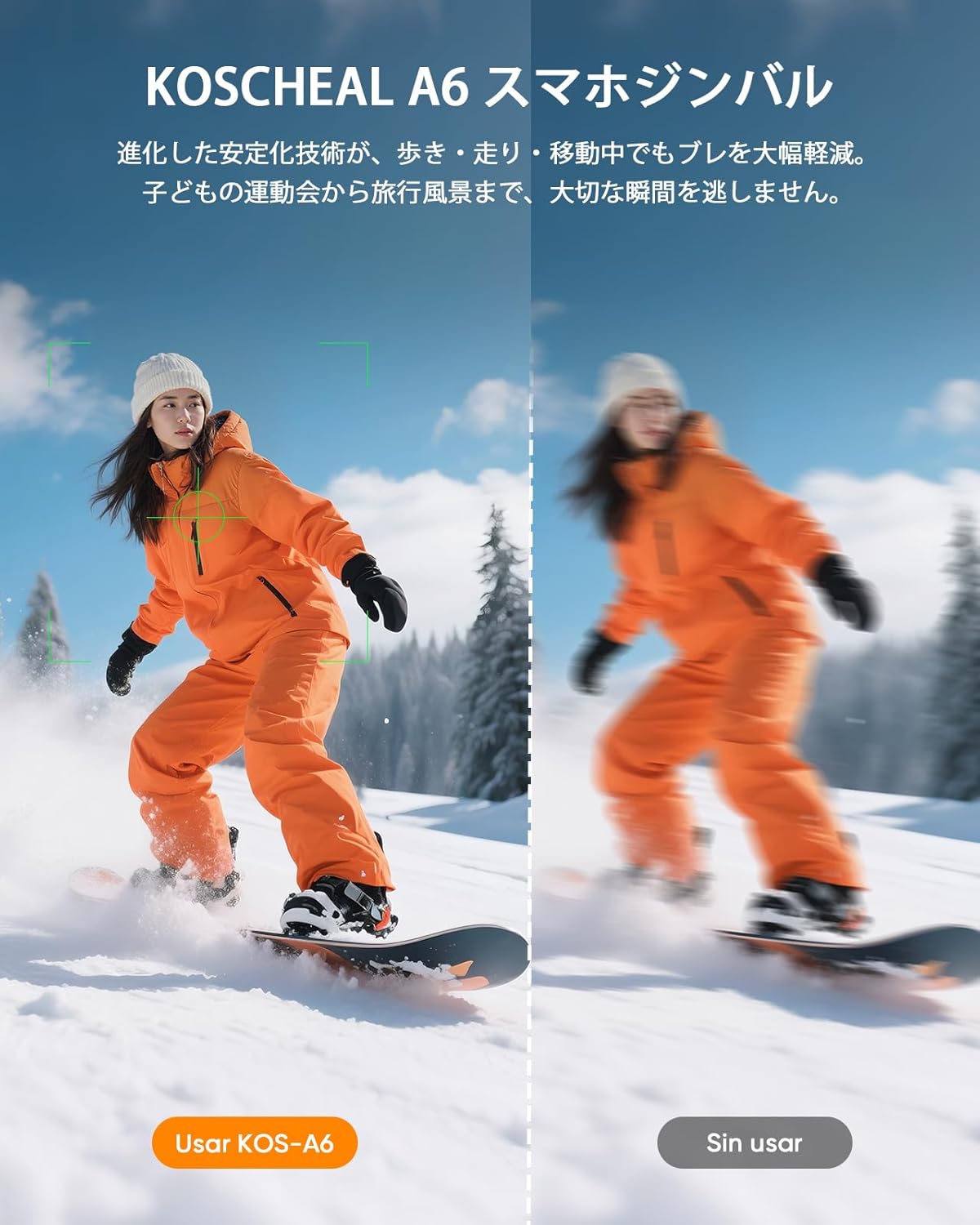
Image 5.1: Demonstrates the significant reduction in blur and shake when using the KOSCHEAL A6 stabilizer compared to unstabilized footage.

Image 5.2: Illustrates the professional-grade stability provided by the A6, canceling out shakes and maintaining smooth visuals even during active movements like walking or running.
5.2 3-in-1 Versatile Design
The A6 seamlessly transforms between three essential tools:
- Selfie Stick: The 6-section telescopic aluminum alloy pole extends up to 79cm (31 inches), allowing you to capture wider angles and group shots.
- Tripod Stand: The handle's base unfolds into a stable tripod, perfect for hands-free live streaming, video calls, time-lapses, or stable group photos.
- Gimbal Stabilizer: Provides smooth, anti-shake footage for dynamic shots.

Image 5.3: Shows the KOSCHEAL A6 in its three primary configurations: extended as a selfie stick, set up as a tripod, and held as a gimbal for stabilized shooting.

Image 5.4: Highlights the integrated design of the extendable arm and tripod, emphasizing ease of use without needing additional accessories.
5.3 Compact and Portable Design
The A6 folds down to a compact 18cm (7 inches), making it extremely easy to carry in a bag or pocket. Its lightweight design (265g) ensures it's a convenient companion for all your adventures.
5.4 Advanced Shooting Modes
Beyond basic stabilization, the A6 supports various creative shooting modes:
- 360-degree Rotation (Dreamspace Mode): Achieve dynamic, cinematic rotation effects similar to those seen in movies.
- Panorama Mode: Capture expansive panoramic shots.
- Track Shooting: Follow subjects smoothly.
- Portrait Mode: Optimized for vertical video and photography.
- Gesture Control: (Requires compatible smartphone app)
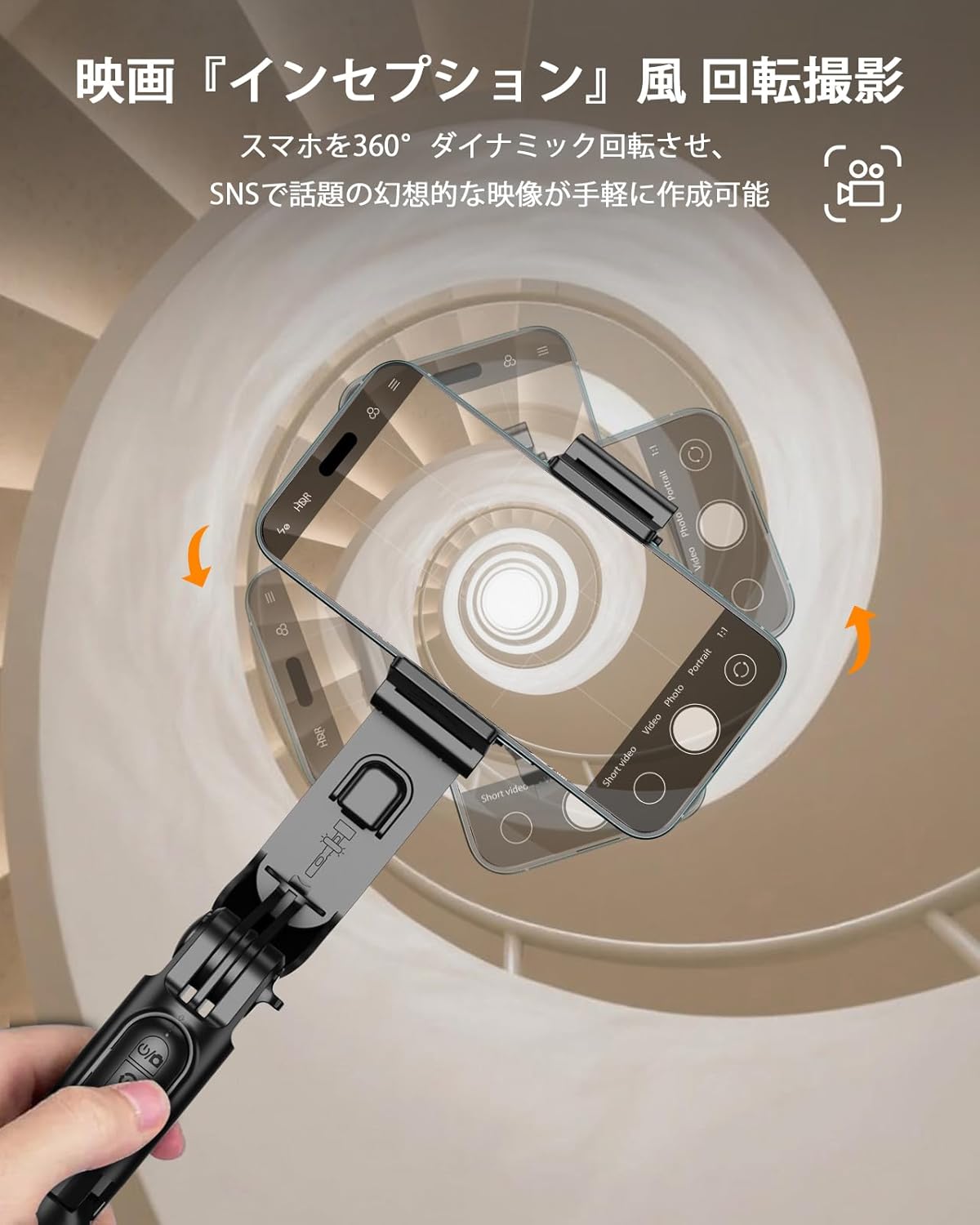
Image 5.5: Illustrates the 360-degree dynamic rotation feature, enabling users to create imaginative, 'Inception'-style video effects.
6. Maintenance
6.1 Charging
- Use the provided USB charging cable to charge the gimbal and fill light. Connect the cable to the Type-C charging port on the device and a standard USB power adapter (DC5V, 500mAh recommended).
- The indicator light will show charging status and turn off when fully charged.
- The remote control uses a replaceable CR1632 button cell battery.
6.2 Cleaning and Storage
- Wipe the device with a soft, dry cloth. Do not use harsh chemicals or abrasive materials.
- Store the device in a cool, dry place away from direct sunlight and extreme temperatures.
- Ensure the device is fully charged before long-term storage to preserve battery life.
7. Troubleshooting
- Gimbal not stabilizing or vibrating:
- Ensure the smartphone is perfectly centered in the clamp before powering on the gimbal.
- Check if the phone's weight exceeds 280g.
- Ensure the gimbal is in gimbal mode and not locked in selfie stick mode.
- For optimal stabilization, use the gimbal mode when the telescopic pole is extended to 3 sections or less.
- Bluetooth remote not connecting:
- Ensure the remote is charged or has a fresh CR1632 battery.
- Turn off and on the remote, then re-attempt pairing with your smartphone.
- Check your smartphone's Bluetooth settings and forget previous pairings if necessary.
- Fill light not working:
- Ensure the fill light unit is charged.
- Press and hold the power button on the light to turn it on.
- Tripod instability:
- Ensure the tripod legs are fully extended and placed on a flat, stable surface.
- Verify the smartphone is balanced in the clamp.
8. Specifications

Image 8.1: Visual diagram detailing the dimensions and key specifications of the KOSCHEAL A6.
| Feature | Specification |
|---|---|
| Brand | KOSCHEAL |
| Model Number | A6 |
| Color | Black |
| Product Dimensions (Folded) | 18 x 4 x 7 cm (7.09 x 1.57 x 2.76 inches) |
| Product Dimensions (Extended) | Up to 79 cm (31 inches) |
| Product Weight | 265 g (0.58 lbs) |
| Compatible Phone Width | 3.6 cm - 8.7 cm |
| Max Phone Weight | 280 g |
| Gimbal Battery Capacity | 400 mAh |
| Operating Voltage | 3.7 V |
| Charging Voltage | DC5V |
| Charging Current | 500 mAh |
| Remote Control Battery | CR1632 (Replaceable) |
| Compatible OS | Android 4.4 and above, iOS 5.1 and above |
| Included Accessories | USB Charging Cable, User Manual |
9. Warranty and Support
KOSCHEAL products are designed for reliability and performance. For any questions, technical support, or warranty claims, please contact KOSCHEAL customer service through the retailer where you purchased the product. Please retain your proof of purchase for warranty purposes.


