
Wbacon XD024
Wbacon XD024 External Blu-Ray Drive User Manual
Model: XD024
Introduction
This manual provides essential information for the proper setup, operation, and maintenance of your Wbacon External Blu-Ray Drive. This device offers read/write capabilities for CDs and DVDs, and read capabilities for Blu-ray discs, connecting via USB 3.0 and Type-C interfaces. It is designed for broad compatibility with various operating systems.
Setup Instructions
The Wbacon External Blu-Ray Drive features a convenient 2-in-1 USB 3.0 and Type-C cable, which is integrated into the device for easy storage and portability. This drive is designed for plug-and-play functionality, meaning no additional drivers are typically required for basic recognition by your computer.
- Unpack the Drive: Carefully remove the Blu-Ray drive from its packaging.
- Access the Integrated Cable: Locate the integrated USB cable on the underside of the drive. Gently pull it out from its storage groove.
- Connect to Your Computer: Plug the USB 3.0 or Type-C connector into an available port on your laptop or desktop PC. Ensure a secure connection.
- Power Connection (if necessary): For some systems or demanding tasks, an additional power cable (not included with all models) might be required if your USB port does not provide sufficient power.
- Software Installation for Blu-ray Playback: To utilize the Blu-ray playback functionality, dedicated software must be installed on your computer. The drive itself does not include playback software.

Image: The external Blu-Ray drive connected to a laptop, demonstrating the USB connection.

Image: Detailed view of the drive's embedded cable design and anti-slip features.
Video: A demonstration of the Blu-Ray drive being connected to a PC and a disc being inserted.
Operating Instructions
This external drive supports reading and writing various optical media. Follow these steps for typical operation:
- Insert a Disc: Press the eject button on the front of the drive to open the disc tray. Place your CD, DVD, or Blu-ray disc onto the tray, ensuring it is seated correctly. Gently push the tray back into the drive until it clicks shut.
- Automatic Recognition: Your computer should automatically detect the inserted disc. For data discs, a pop-up window may appear, prompting you to choose an action. For media discs, you may need to open your preferred media player software.
- Blu-ray Playback: For Blu-ray discs, specialized playback software is essential. Recommended software includes 'PowerDVD10-19' for Windows and 'Macgo Blu-ray Player' for Mac OS. Ensure your software is up-to-date and supports the Blu-ray format.
- Burning Discs: To burn CDs or DVDs, use appropriate burning software on your computer. The drive supports burning normal CD and DVD discs in sizes of 8.5GB, 4.7GB, and 700MB.
- Ejecting a Disc: Press the eject button on the drive or use the eject function within your operating system or media player software.
Performance Specifications:
- CD Read Speed: Up to 24x
- DVD Read Speed: Up to 8x
- BD Read Speed: Up to 6x
- CD Write Speed: Up to 24x
- DVD Write Speed: Up to 8x
The drive supports 3D playback and delivers high resolution up to nearly 4K. However, it does not support the playback of 4K Ultra HD discs.

Image: Overview of the drive's maximum read and burn speeds for various disc types.

Image: The drive enabling 1080P HD Blu-Ray playback for an enhanced viewing experience, also showing its use for data backup, software installation, music, and games.
Video: A demonstration of the Blu-Ray drive playing a disc on a PC.
Compatibility
The Wbacon External Blu-Ray Drive is broadly compatible with various operating systems:
- Windows: Supports Windows 7, 8, 10, Vista, ME, SE, XP, 98, and 2000.
- Mac OS: Compatible with all versions of Mac OS 10 or below.
- Linux: Fully supported.
Important Note: This drive does not support connection to TVs, cars, iPhones, or iPads.
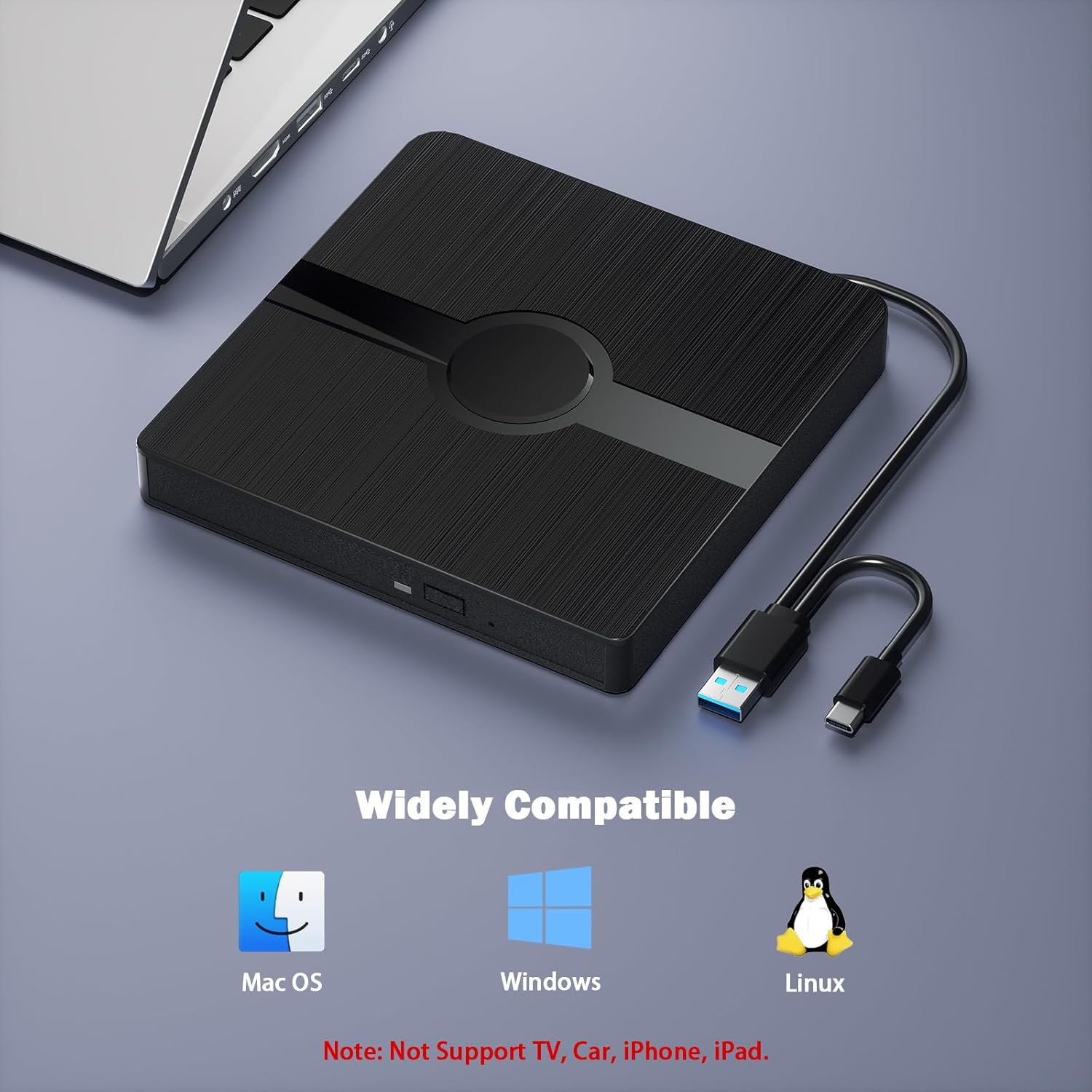
Image: Visual representation of the drive's wide compatibility with Mac OS, Windows, and Linux.

Image: Illustration of the drive's compatibility with desktop, MacBook, and notebook computers, explicitly stating it does not support TV, Car, iPhone, or iPad.
Maintenance
To ensure the longevity and optimal performance of your Wbacon External Blu-Ray Drive, follow these maintenance guidelines:
- Cleaning: Use a soft, dry, lint-free cloth to clean the exterior of the drive. Avoid using harsh chemicals or abrasive materials. For the optical lens, use a specialized optical drive cleaning kit if necessary, following the kit's instructions carefully.
- Storage: When not in use, store the drive in a clean, dry place away from direct sunlight, extreme temperatures, and excessive dust. Utilize the integrated cable storage to prevent damage to the cable.
- Handling: Handle the drive gently. Avoid dropping it or subjecting it to strong impacts, which can damage internal components.
- Disc Care: Always use clean, scratch-free discs. Dirty or damaged discs can affect read/write performance and potentially harm the drive's laser lens.
Troubleshooting
If you encounter issues with your Wbacon External Blu-Ray Drive, consider the following:
- Drive Not Recognized: Ensure the USB cable is securely connected to both the drive and your computer. Try a different USB port or a different computer to rule out port-specific issues.
- Disc Not Reading/Playing:
- Verify the disc is clean and free of scratches.
- For Blu-ray discs, confirm you have compatible playback software installed (e.g., PowerDVD10-19 for Windows, Macgo Blu-ray Player for Mac OS).
- If experiencing issues with copyrighted Blu-ray discs due to zone bit code protection, you may need to download shielding software like 'Any DVD' to decode it.
- Check if your computer is compatible with Blu-ray playback by downloading and running 'Cyberlink BD & 3D Advisor'.
- Region Code Limitations: The region code on the drive can only be changed a limited number of times (typically 5 times, including the initial setting). Be mindful of this when playing discs from different regions.
- 4K Ultra HD Discs: This drive does not support 4K Ultra HD discs. Attempting to play them will result in an error.
- Burning Issues: Ensure you are using compatible CD-R/RW or DVD-R/RW media and appropriate burning software.

Image: Important tips for using the Blu-Ray drive, covering Blu-ray burning, 4K UHD disc limitations, software requirements, and region code changes.
Specifications
| Feature | Detail |
|---|---|
| Brand | Wbacon |
| Model Number | XD024 |
| Hardware Platform | PC |
| Operating System Compatibility | Linux, Mac OS 10 or below, Windows 10, Windows 2000, Windows 7, Windows 8, Windows 98, Windows Me, Windows SE, Windows Vista, Windows XP |
| Item Weight | 12 ounces |
| Package Dimensions | 6.1 x 6.06 x 1.06 inches |
| Color | Black |
| Special Feature | Lightweight, Plug & Play |
| Hardware Interface | USB 3.0 Type C |
| Optical Storage Write Speed | DVD: 8X, CD: 24X |
| Optical Storage Read Speed | BD: 6X, DVD: 8X, CD: 24X |
Warranty Information
Specific warranty details are not provided in the product information. Please refer to the retailer or manufacturer's official website for current warranty terms and conditions.
Customer Support
For technical assistance, troubleshooting beyond this manual, or general inquiries, please contact Wbacon customer support. Contact information is typically available on the product packaging, the retailer's website, or the official Wbacon website.
Ask a question about this manual
Ask about setup, troubleshooting, compatibility, parts, safety, or missing instructions. Manuals+ will review the question and use this page’s manual context to help answer it.