
1. Introduction
This manual provides comprehensive instructions for the installation, operation, maintenance, and troubleshooting of your XFX Swift AMD Radeon RX 9060 XT Series graphics card. Designed for high-performance computing, this card features 16GB GDDR6 memory and a triple fan cooling solution to deliver exceptional visual experiences. Please read this manual thoroughly before installation and use to ensure proper functionality and longevity of your product.

Figure 1: XFX Swift AMD Radeon RX 9060 XT Graphics Card and Box
This image displays the XFX Swift AMD Radeon RX 9060 XT graphics card alongside its retail packaging. The card features a sleek black design with three cooling fans visible on the front, indicating its robust thermal solution. The packaging highlights key features and branding.
2. Safety Information
Adhering to these safety guidelines is crucial for preventing damage to the graphics card, your computer system, and personal injury.
- Static Electricity: Always discharge static electricity from your body before handling the graphics card. Use an anti-static wrist strap or touch a grounded metal object (e.g., computer chassis) to prevent electrostatic discharge (ESD) damage.
- Power Supply: Ensure your power supply unit (PSU) meets the minimum wattage requirements for the graphics card and your system. Refer to the Specifications section for details.
- Ventilation: Ensure adequate airflow within your computer case. Poor ventilation can lead to overheating and reduced performance or component lifespan.
- Handling: Handle the graphics card by its edges or the metal bracket. Avoid touching the gold-plated PCIe connector or the components on the circuit board.
- Power Off: Always power off your computer and unplug it from the wall outlet before installing or removing the graphics card.
3. What's in the Box
Verify that all items are present in the package:
- XFX Swift AMD Radeon RX 9060 XT Graphics Card
- Quick Install Guide
4. Setup
4.1. System Requirements
Before installation, ensure your system meets the following minimum requirements:
- Motherboard: PCIe x16 slot
- Power Supply: Recommended 650W or greater PSU with appropriate PCIe power connectors.
- Operating System: Windows 10/11 64-bit, Linux 64-bit.
- Memory: 8GB system RAM (16GB recommended).
- Storage: Minimum 500MB available hard drive space for driver installation.
4.2. Installation Steps
Follow these steps to install your XFX Swift AMD Radeon RX 9060 XT graphics card:
- Prepare Your System:
- Power off your computer and unplug the power cable from the wall outlet.
- Open your computer case.
- Locate an available PCIe x16 slot on your motherboard.
- Remove any expansion slot covers that correspond to the graphics card's size (typically two or three slots).
- Install the Graphics Card:

Figure 2: Front View of Graphics Card
This image shows the front of the XFX Swift AMD Radeon RX 9060 XT graphics card, highlighting its three large cooling fans and the XFX branding. The robust fan design is integral to the card's thermal management.
- Carefully align the graphics card with the PCIe x16 slot.
- Press down firmly and evenly on the card until it is fully seated in the slot. You should hear a click as the retention clip engages.
- Secure the graphics card to the computer case with the screws removed earlier.
- Connect Power Cables:
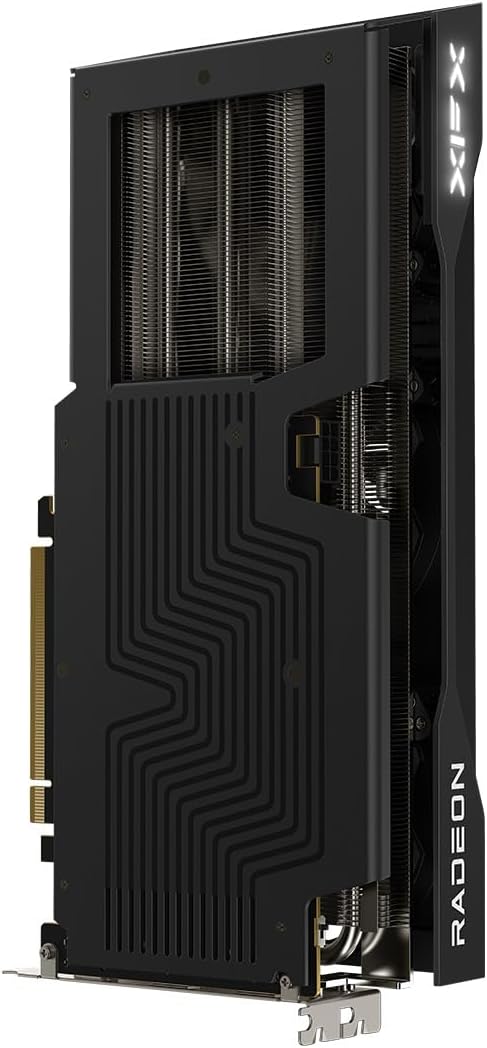
Figure 3: Back View of Graphics Card
This image displays the backplate of the XFX Swift AMD Radeon RX 9060 XT graphics card. The backplate features a distinctive pattern and helps with structural integrity and heat dissipation. The PCIe connector is visible at the bottom.
- Connect the necessary PCIe power cables from your power supply to the graphics card. The XFX RX 9060 XT typically requires two 8-pin PCIe power connectors. Ensure they are securely connected.
- Close Case and Connect Display:
- Close your computer case.
- Connect your display monitor to one of the video output ports on the graphics card (HDMI or DisplayPort).
- Plug the computer's power cable back into the wall outlet.
5. Operating
5.1. Initial Power On
After physical installation, power on your computer. The system should boot and display an image on your monitor. If no image appears, refer to the Troubleshooting section.
5.2. Driver Installation and Software
For optimal performance and stability, it is essential to install the latest graphics drivers. Do not install drivers before the GPU is physically installed.
- Download Drivers: Visit the official AMD website (www.amd.com/en/support) and download the latest AMD Radeon Software Adrenalin Edition drivers for your RX 9060 XT graphics card and operating system.
- Install Drivers: Run the downloaded installer and follow the on-screen prompts. It is recommended to perform a clean installation to avoid conflicts with previous drivers.
- AMD Radeon Software: The Adrenalin Edition software provides tools for performance tuning, game optimization, display settings, and monitoring. Explore its features to customize your experience.
5.3. Display Connection
The XFX Swift AMD Radeon RX 9060 XT supports multiple display outputs:
- HDMI: Connect to HDMI-compatible displays.
- DisplayPort (DP): Connect to DisplayPort-compatible displays.
You can connect multiple monitors simultaneously for an extended desktop or multi-display gaming setup, depending on the capabilities of your operating system and software.
6. Maintenance
Regular maintenance helps ensure the longevity and optimal performance of your graphics card.
- Dust Removal: Periodically clean dust from the graphics card's heatsink and fans using compressed air. Ensure the fans are not spinning while cleaning to prevent damage. Perform this with the computer powered off and unplugged.
- Driver Updates: Keep your graphics drivers updated. AMD frequently releases new drivers that include performance improvements, bug fixes, and support for new games and applications.
- System Ventilation: Ensure your computer case has good airflow. Clean case fans and filters regularly to prevent dust buildup that can restrict airflow and lead to higher temperatures.
7. Troubleshooting
This section addresses common issues you might encounter.
| Problem | Possible Cause | Solution |
|---|---|---|
| No display output after installation. | Card not seated correctly, power cables not connected, monitor input incorrect. | Ensure card is fully seated in PCIe slot. Verify all PCIe power cables are securely connected. Check monitor input source. Test with a different display cable or monitor. |
| Driver installation fails or crashes. | Conflicting old drivers, corrupted download. | Use AMD's clean uninstall utility or Display Driver Uninstaller (DDU) to remove all previous graphics drivers before attempting a fresh installation. Re-download the driver package. |
| System crashes or freezes during gaming/heavy load. | Overheating, insufficient power, unstable overclock. | Monitor GPU temperatures using AMD Radeon Software. Ensure adequate case ventilation. Verify PSU meets recommended wattage. If overclocked, revert to default settings. |
| Fans are not spinning. | Zero RPM mode enabled, fan failure. | Many modern GPUs feature a Zero RPM mode where fans only spin when the GPU reaches a certain temperature. Check GPU temperature under load. If fans never spin even under load, contact support. |
8. Specifications
Key technical specifications for the XFX Swift AMD Radeon RX 9060 XT graphics card:
| Feature | Detail |
|---|---|
| Chipset | AMD RX 9060 XT |
| Memory | 16 GB GDDR6 |
| Memory Speed | 20 GHz |
| Boost Clock | Up to 3320 MHz |
| Base Clock | 1900 MHz |
| Cooling Solution | XFX SWFT Triple Fan |
| Max Screen Resolution | 3840x2160 |
| Video Output Interface | DisplayPort, HDMI |
| Item Model Number | RX-96TS316BA |
| Item Weight | 3.37 pounds |
| Product Dimensions (LxWxH) | 11.42 x 4.92 x 0.04 inches |
| Country of Origin | China |
9. Warranty and Support
XFX products are manufactured to the highest quality standards. For information regarding your product's warranty, please refer to the warranty card included with your purchase or visit the official XFX website for the most current warranty policy.
For technical support, driver downloads, and frequently asked questions, please visit the XFX support page:
When contacting support, please have your product model number (RX-96TS316BA) and serial number ready.


