
Potensic ATOM 2
Contents
Potensic ATOM 2 Drone User Manual
Comprehensive Guide for Operation and Maintenance
1. Introduction
The Potensic ATOM 2 Drone is a high-performance, compact aerial photography and videography tool designed for both beginners and experienced pilots. Weighing under 249g, it requires no FAA registration, offering unparalleled freedom for capturing stunning moments.
Equipped with a 1/2'' Sony CMOS sensor, the ATOM 2 captures crisp 8K photos and records stable 4K/30fps HDR videos. Its advanced features include a 3-axis gimbal for smooth footage, AI Track for intelligent object following, and AI Super Night Shot for superior low-light performance.
The newly upgraded remote control, featuring PixSync 4.0 technology, ensures enhanced sensitivity and precision with a control range of up to 10 km and 1080p/30fps live view transmission. The Fly More Combo provides extended flight times with multiple batteries and a fast charging hub.
2. What's in the Box
Your Potensic ATOM 2 Drone Fly More Combo includes the following components:

Image: All components included in the Potensic ATOM 2 Drone Fly More Combo, including the drone, remote controller, batteries, charging hub, propellers, and carrying accessories.
- 1 x Potensic ATOM 2 Drone
- 1 x Remote Controller
- 3 x Intelligent Flight Batteries
- 1 x Fast Charging Hub
- 1 x SanDisk 128GB Extreme microSD Memory Card
- 1 x High USB Speed Memory Card Reader
- 8 x Pair of Spare Propellers (16 individual propellers)
- 16 x Spare Screws
- 1 x Gimbal Protector
- 1 x Screwdriver
- 1 x USB-C Charging Cable
- 2 x Adapter Cables (USB Type-C Connector and Lightning Connector)
- 1 x Shoulder Bag
- 1 x Propeller Strap
- 1 x Drone Photography Backpack
- 1 x Drone Landing Pad
- 1 x Camera Lens Cleaning Kit
- 1 x 6-Slot Memory Card Wallet
3. Setup
3.1 Charging Batteries
Before first use, fully charge all intelligent flight batteries and the remote controller. The included fast charging hub can charge three batteries simultaneously in approximately 1.3 hours.

Image: Comparison of flight times with one battery (32 mins) versus three batteries (96 mins) using the fast charging hub.
- Connect the charging hub to a power source using the USB-C charging cable.
- Insert the intelligent flight batteries into the charging slots.
- Monitor the charging indicators on the batteries and hub.
- Charge the remote controller using its dedicated USB-C port.
3.2 Drone Preparation
- Unfold the Drone: Carefully unfold the front and rear arms of the drone until they click into place.
- Install Propellers: If not pre-installed, attach the propellers according to the markings (e.g., A and B) on the propellers and motor arms. Ensure they are securely fastened.
- Insert Battery: Slide a fully charged intelligent flight battery into the battery compartment on the rear of the drone until it locks.
- Remove Gimbal Protector: Gently remove the gimbal protector before powering on the drone.

Image: The Potensic ATOM 2 drone, highlighting its compact size and weight under 249g, which typically exempts it from FAA registration requirements.
3.3 Remote Controller and App Setup
- Mount Your Mobile Device: Extend the phone holder on the remote controller and securely place your smartphone.
- Connect Cable: Use one of the provided adapter cables (USB-C to USB-C or USB-C to Lightning) to connect your mobile device to the remote controller.
- Install PotensicPro App: Download and install the "PotensicPro" app from your device's app store. This app is essential for controlling the drone, accessing live view, and utilizing intelligent flight features.
4. Operating the Drone
4.1 Powering On and Pre-Flight Check
- Press and hold the power button on the drone until the indicator lights turn on.
- Press and hold the power button on the remote controller to turn it on.
- Launch the PotensicPro app on your mobile device.
- Ensure the drone and remote controller are successfully connected (indicated by solid status lights).
- Perform a visual inspection of the drone for any damage, ensure propellers are clear, and the gimbal is free to move.
- Check GPS signal strength in the app before takeoff for stable flight.
4.2 Basic Flight Controls
Familiarize yourself with the remote controller sticks and their functions:
- Left Stick: Controls altitude (up/down) and yaw (rotate left/right).
- Right Stick: Controls forward/backward and left/right movement.
- Auto Takeoff/Landing: Use the dedicated button in the app or on the remote for automated takeoff and landing.
- Return-to-Home (RTH): Press the RTH button to initiate an automatic return to the takeoff point. Ensure sufficient battery for RTH.

Image: A person operating the Potensic ATOM 2 drone with the remote controller, demonstrating the ease of use in an outdoor setting.
4.3 Camera and Intelligent Features
The ATOM 2 offers a range of advanced camera and flight modes:

Image: Close-up of the Potensic ATOM 2's camera, emphasizing its ability to capture 8K photos and 4K HDR video with a Sony CMOS sensor.
- Photo Modes:
- 8K Photo: Capture ultra-high-resolution still images.
- 2.7K Vertical Shooting: Optimized for social media, capturing portrait-oriented video.
- 4x Digital Zoom: Zoom in on subjects from a distance.
- Panoramic: Automatically stitches multiple photos into a wide panoramic shot.
- Video Modes:
- 4K/30fps HDR Video: High-dynamic-range video for vibrant and detailed footage.
- Dolly Zoom: Creates a dramatic visual effect where the background appears to zoom while the foreground remains constant.
- Slow Motion: Records video at a higher frame rate for smooth slow-motion playback.
- QuickShots: Pre-programmed cinematic flight paths (e.g., Dronie, Rocket, Circle, Helix) for easy professional-looking videos.
- AI Track:

Image: The Potensic ATOM 2 drone demonstrating its AI Track capability, following a moving vehicle with precision.
Utilizes advanced AI to lock onto and follow a selected subject. Available tracking modes include Spotlight (drone keeps subject in frame), Follow (drone follows subject), and Parallel (drone follows subject from the side).
- AI Stunning Night Shot:
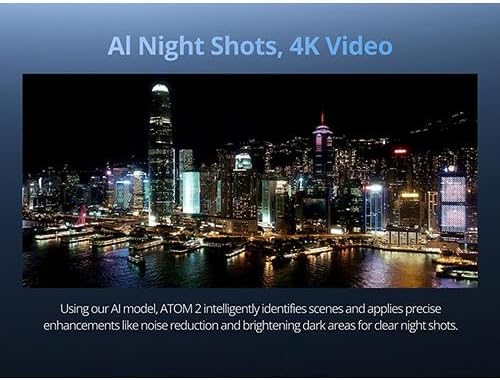
Image: An example of a night shot captured by the ATOM 2, showcasing its AI Night Shot feature for clear video in low-light conditions.
Intelligently identifies scenes and applies precise enhancements like noise reduction and brightening dark areas for clear night shots.
- Max 10KM Transmission:

Image: The remote controller connected to a smartphone, illustrating the drone's maximum 10KM transmission range and 1080p live view.
The PixSync 4.0 technology provides a stable and long-range video transmission up to 10 kilometers with 1080p live view.
5. Maintenance
5.1 Battery Care
- Store batteries in a cool, dry place away from direct sunlight.
- Do not overcharge or over-discharge batteries.
- If storing for extended periods, discharge batteries to approximately 50-60% capacity.
- Avoid exposing batteries to extreme temperatures.
5.2 Propeller Inspection and Replacement
- Before each flight, inspect all propellers for cracks, bends, or damage.
- Replace any damaged propellers immediately using the provided spare propellers and screwdriver.
- Ensure correct propeller type (A or B) is installed on the corresponding motor.
5.3 Gimbal and Camera Lens Cleaning
- Always use the gimbal protector when transporting or storing the drone.
- Gently clean the camera lens with the provided lens cleaning kit or a soft, lint-free cloth. Avoid harsh chemicals.
- Ensure the gimbal moves freely before flight.
5.4 General Cleaning
- Wipe down the drone body and remote controller with a clean, damp cloth.
- Avoid getting moisture into electronic components.
6. Troubleshooting
6.1 Common Issues and Solutions
| Issue | Possible Cause | Solution |
|---|---|---|
| Drone not powering on | Low or uncharged battery; Battery not inserted correctly. | Ensure battery is fully charged and properly seated. |
| No connection to remote controller | Remote controller not powered on; App not launched; Interference. | Power on both devices; Launch app; Move to an open area away from interference. |
| Poor image/video quality | Dirty lens; Gimbal obstruction; Low light conditions (without AI Night Shot). | Clean lens; Ensure gimbal is free; Use AI Night Shot in low light. |
| Drone drifts during flight | Weak GPS signal; Compass calibration needed. | Fly in open area with strong GPS; Perform compass calibration via app. |
For further assistance, refer to the PotensicPro app's help section or contact Potensic Customer Support.
7. Specifications
| Feature | Detail |
|---|---|
| Brand | Potensic |
| Model Name | ATOM 2 |
| Item Weight | 249 Grams (8.8 ounces) |
| Video Capture Resolution | 4K (HDR) |
| Effective Still Resolution | 48 MP (8K Photo) |
| Sensor Type | 1/2'' Sony CMOS sensor |
| Max Transmission Range | 10 KM (6.2 miles) |
| Live View Transmission | 1080p/30fps |
| Flight Time (with 3 batteries) | Up to 96 minutes |
| Charging Time (3 batteries) | Approx. 1.3 hours (with charging hub) |
| Special Features | Under 249g, 2.7K Vertical Shooting, 4x Digital Zoom, Panoramic, Dolly Zoom, Slow Motion, QuickShots, AI Track, AI Stunning Night Shot |
| Connectivity Technology | Wi-Fi, RF |
| Control Type | Remote Control |
| Product Dimensions | 11.81"L x 9.64"W x 2.28"H |
| UPC | 739252608558 |
| Manufacturer Part Number | ATOM2_K1 |
8. Warranty and Support
Potensic offers dedicated customer care and support for the ATOM 2 drone. For any inquiries, technical assistance, or warranty claims, please utilize the following resources:
- PotensicPro App: The in-app chat service provides instant support and hassle-free assistance.
- Potensic Official Website: Visit the official Potensic website for FAQs, firmware updates, and contact information.
- Amazon Store: For product-related questions or issues, you can also visit the Potensic Store on Amazon.
Please retain your proof of purchase for warranty purposes.
Documents and downloads
Ask a question about this manual
Ask about setup, troubleshooting, compatibility, parts, safety, or missing instructions. Manuals+ will review the question and use this page’s manual context to help answer it.