
1. Product Overview
The Amazon Fire TV Stick 4K Plus is a streaming media player designed to deliver 4K Ultra HD content to your television. It features Wi-Fi 6 support for improved connectivity and comes with an Alexa Voice Remote for intuitive control.

Image: The Amazon Fire TV Stick 4K Plus, its Alexa Voice Remote, and the product packaging. This image illustrates the main components included with the device.
2. Setup Guide
2.1. What's in the Box
- Fire TV Stick 4K Plus
- Alexa Voice Remote
- Power cable and power adapter
- HDMI extender cable
- 2 AAA batteries
- Quick Start Guide
2.2. System Requirements
- High-definition television with an available high-speed HDMI input.
- High-speed internet connection via Wi-Fi. A Wi-Fi 6 router is recommended for optimal Wi-Fi 6 support.
- TV must support minimum HDCP requirements for protected content playback. Compatible with 4K UHD TVs with HDMI capable of 2160p at 24/25/30/50/60 Hz and HDCP 2.2, or high-definition TVs with HDMI capable of 1080p or 720p at 50/60 Hz.
2.3. Connecting Your Device
- Connect the Fire TV Stick: Plug the Fire TV Stick 4K Plus directly into an available HDMI port on your television. If space is limited, use the included HDMI extender cable.
- Connect Power: Connect the power cable to the Fire TV Stick and then plug the power adapter into a wall outlet.
- Insert Batteries into Remote: Open the back of the Alexa Voice Remote and insert the two AAA batteries.
- Select HDMI Input: Turn on your TV and select the HDMI input where your Fire TV Stick is connected.
- Follow On-Screen Instructions: The Fire TV Stick will power on and guide you through connecting to your Wi-Fi network and registering your Amazon account.
3. Operating Instructions
3.1. Using the Alexa Voice Remote
The Alexa Voice Remote allows for quick navigation and voice control. Press the Alexa button and speak your commands to find content, launch apps, or control smart home devices.

Image: The Alexa Voice Remote, demonstrating its voice search capability with an example command. This highlights the ease of finding specific content using voice.
- Voice Search: Press the Alexa button and say commands like "Find action movies" or "Open Netflix."
- Navigation: Use the directional pad to move through menus and select items.
- Preset Buttons: Dedicated buttons provide quick access to popular streaming services.
- TV Control: The remote can control TV power and volume on compatible IR-enabled devices.
3.2. Accessing Entertainment
The Fire TV Stick 4K Plus provides access to a wide range of streaming services, including movies, TV episodes, and live TV. Subscription fees may apply for certain services.

Image: A visual representation of the diverse streaming applications available on the Fire TV platform, showcasing popular services like Prime Video, Netflix, and Disney+.
- 4K Ultra HD Streaming: Enjoy content in vibrant 4K Ultra HD with support for Dolby Vision, HDR10+, and immersive Dolby Atmos audio, provided your TV and content support these formats.
- Free Content: Access over 400,000 free movies and TV episodes from ad-supported streaming apps like Fire TV Channels, Prime Video, Tubi, and Pluto TV.
- Cloud Gaming: Stream Xbox games directly on your Fire TV Stick 4K Plus with Xbox Game Pass via cloud gaming (subscription may be required).
3.3. Smart Home Integration
Control compatible smart home devices directly from your Fire TV Stick 4K Plus using the Alexa Voice Remote.

Image: A television screen showing a soccer match, with icons representing smart home devices (thermostat, smart camera, light) below. This illustrates the Fire TV Stick's capability to integrate with and control smart home ecosystems.
- Voice Control: Use voice commands to check cameras, adjust lights, or manage other connected devices.
4. Maintenance
To ensure optimal performance and longevity of your Fire TV Stick 4K Plus, consider the following:
- Keep Clean: Gently wipe the device and remote with a soft, dry cloth. Avoid using liquid cleaners.
- Software Updates: The device automatically receives software security updates. Ensure your device is connected to the internet to receive these updates, which improve functionality and security.
- Ventilation: Ensure the Fire TV Stick is not covered or placed in an enclosed space to allow for proper ventilation.
5. Troubleshooting
If you encounter issues with your Fire TV Stick 4K Plus, try the following steps:
- No Power/No Signal:
- Ensure the power adapter is securely plugged into a wall outlet and the Fire TV Stick.
- Verify your TV is set to the correct HDMI input.
- Try a different HDMI port on your TV.
- If using the HDMI extender, try connecting the Fire TV Stick directly to the TV.
- Remote Not Responding:
- Replace the AAA batteries in the remote.
- Pair the remote again by holding the Home button for 10 seconds.
- Network Connectivity Issues:
- Restart your Wi-Fi router and modem.
- Go to Settings > Network on your Fire TV Stick to check Wi-Fi status and reconnect.
- Ensure your Wi-Fi password is entered correctly.
- Buffering/Poor Video Quality:
- Ensure you have a high-speed internet connection.
- Minimize other devices using bandwidth on your network.
- If you have a Wi-Fi 6 router, ensure the Fire TV Stick is connected to the 5GHz band for better performance.
- General Issues:
- Restart the Fire TV Stick by unplugging the power adapter for a few seconds and plugging it back in.
- As a last resort, perform a factory reset via Settings > My Fire TV > Reset to Factory Defaults. This will erase all data and settings.
6. Specifications

Image: A visual comparison demonstrating the difference in resolution and detail between Standard Definition (SD), High Definition (HD), and 4K content. This highlights the enhanced visual experience offered by 4K.
| Feature | Detail |
|---|---|
| Size (Device) | 99 mm x 30 mm x 14 mm (housing only); 108 mm x 30 mm x 14 mm (including connector) |
| Weight (Device) | 43.5 g |
| Processor | Quad-core 1.7GHz |
| GPU | 650MHz |
| Storage | 8GB |
| Wi-Fi | Wi-Fi 6 dual-band: 802.11 a/b/g/n/ac/ax (2.4GHz and 5GHz) |
| Bluetooth | Bluetooth 5.2 + BLE |
| Voice Support | Yes, with Alexa Voice Remote or free Fire TV app |
| IR Device Control | Controls Fire TV Stick 4K Plus and certain functions (power, volume) on compatible IR-enabled devices (TVs, soundbars, A/V receivers) |
| Cloud Storage | Free cloud storage for digital content purchased from Amazon |
| Ports | HDMI 2.1 output with ARC input support, micro USB |
| Audio Support | Dolby Atmos, 7.1 surround sound, 2-channel stereo, HDMI audio pass through up to 5.1 |
| 4K Support | Requires compatible Ultra HD TV. Not all services available in 4K/HDR. |
| Content Formats (Video) | Dolby Vision, HDR 10, HDR10+, HLG, H.265, H.264, VP9, AV1 |
| Content Formats (Audio) | xHE-AAC, AAC-LC, AAC+, eAAC+, AAC-ELD, MP3, AMR-NB, FLAC, PCM/WAV, Vorbis, Dolby AC3, eAC3 (Dolby Digital Plus), Dolby Atmos (EC3_JOC), Dolby AC4, Dolby MAT, Dolby TrueHD pass-through, MPEG-H pass-through, DTS passthrough, DTS-HD passthrough (basic profile) |
| Content Formats (Photo) | JPEG, PNG, GIF, BMP |
| Output Resolution | 2160p, 1080p and 720p up to 60 fps |
| Remote Size | 38.68 mm x 141.3 mm x 17.6 mm |
| Remote Weight | 45g (without batteries) |
| Remote Batteries | 2 AAA (included) |
| Remote Technology | Bluetooth |
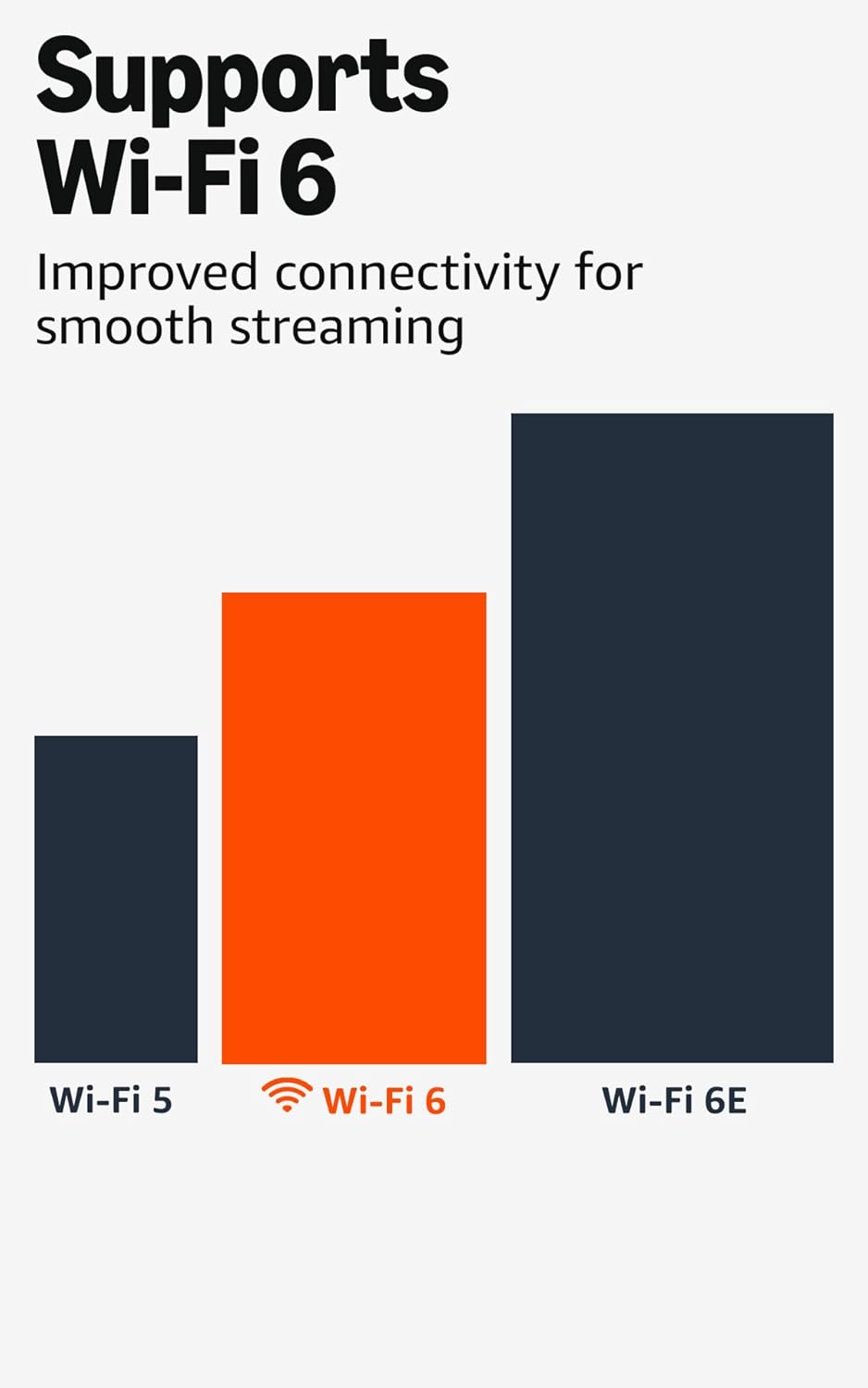
Image: A bar chart illustrating the performance differences between Wi-Fi 5, Wi-Fi 6, and Wi-Fi 6E. This visual emphasizes the improved connectivity and streaming capabilities offered by Wi-Fi 6, which the Fire TV Stick 4K Plus supports.
7. Warranty and Support
7.1. Warranty Information
The Amazon Fire TV Stick 4K Plus includes a 1-year limited warranty and service. Extended warranty options (1-year, 2-year, and 3-year) are available for purchase separately for U.S. customers.
7.2. Software Security Updates
This device receives guaranteed software security updates for at least four years after its last availability for purchase as a new unit on Amazon websites. For device-specific information, visit the 'Manage Your Content and Devices' section on Amazon.
7.3. Accessibility Features
The Fire TV Stick 4K Plus includes accessibility features to assist users:
- VoiceView Screen Reader: Enables access to most Fire TV features for users who are blind or visually impaired.
- Closed Captioning: Watch videos and TV shows with closed captioning displayed (not available for all content).
- Bluetooth Headphones: Listen to Fire TV with compatible Bluetooth headphones.


