

Introduction
This manual provides comprehensive instructions for the ASHATA 15.6-inch Portable Monitor. Designed for versatility and high performance, this monitor offers a 1080P resolution, 120Hz refresh rate, and broad compatibility with various devices. Please read this manual thoroughly to ensure proper setup, operation, and maintenance of your new portable monitor.
Key Features
- HD Visual Experience: Boasting a 15.6-inch screen with 1080P resolution and a 120Hz refresh rate, enjoy amazing visuals that enhance both work and entertainment with vibrant colors in 100% sRGB.
- Eye Care Technology: Activate the low blue mode to reduce harmful blue light without altering color display, ensuring a comfortable viewing experience while protecting your eyes.
- Seamless Compatibility: Equipped with 2 Type-C and Mini HD display interface ports, connect effortlessly to laptops, desktops, and gaming consoles with just one cable.
- Immersive Sound Experience: Featuring built-in 2 speakers with a unique design that minimizes distortion, you'll enjoy crystal clear sound that captivates and enhances immersive experiences.
- Multi-Screen Efficiency: This portable display transforms into a second screen for your laptop, enabling efficient multitasking, with easy switching between landscape and portrait modes compatible with Windows, Android, and other systems.
Setup Guide
Package Contents:
- ASHATA 15.6-inch Portable Monitor
- USB-C to USB-C Cable
- Mini HDMI to HDMI Cable
- USB-A to USB-C Power Cable
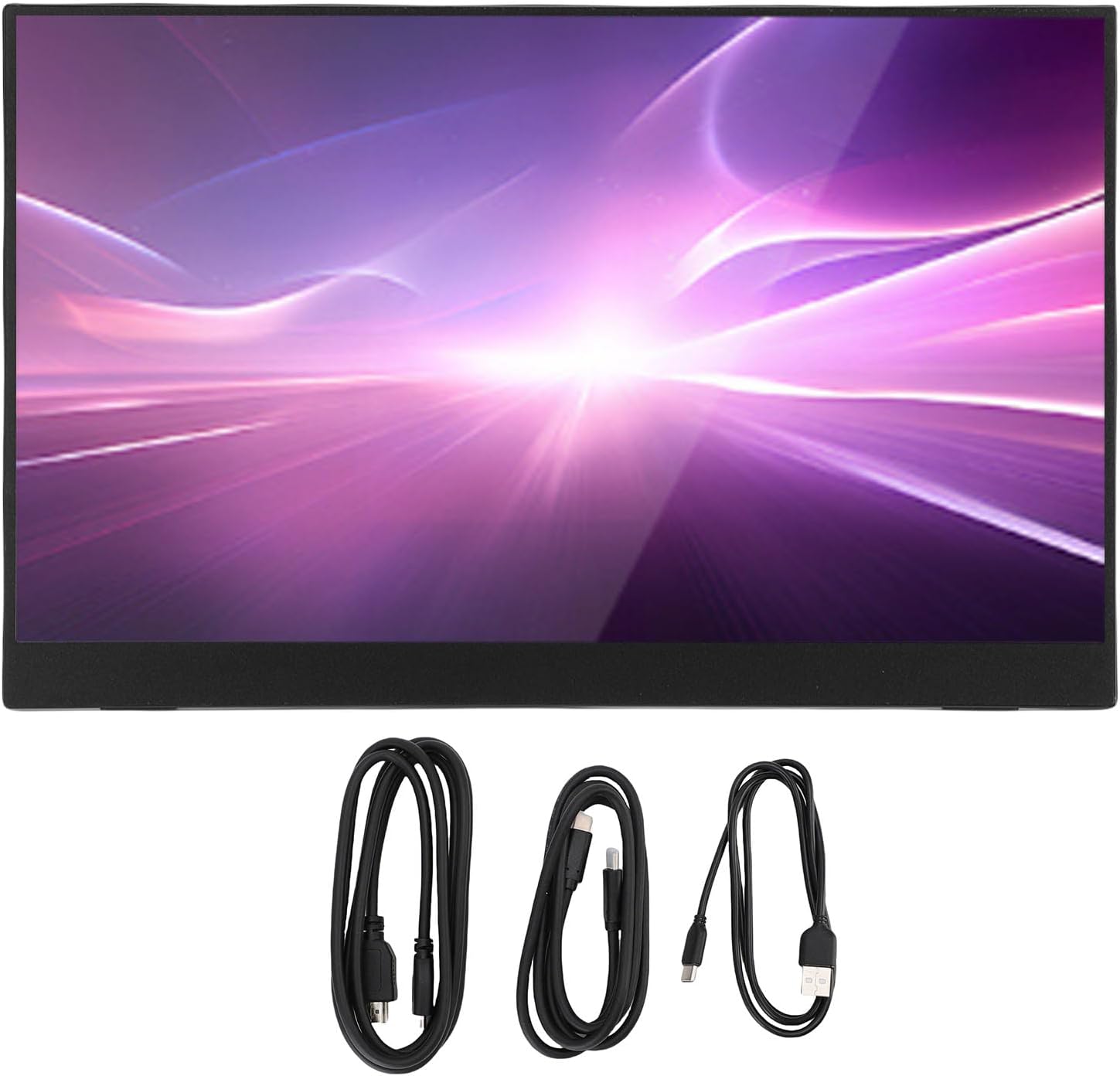
Image: The ASHATA portable monitor with its three accompanying cables laid out below it, illustrating the complete package contents.
Connecting Your Monitor:
- Power Connection: Connect the USB-A to USB-C power cable from a 5V/2A power adapter (not included) or a powered USB port on your device to the monitor's USB-C power input.
- Video & Data Connection (USB-C): For devices with a full-featured USB-C port (supporting DisplayPort Alt Mode and power delivery), connect the USB-C to USB-C cable from your device to one of the monitor's USB-C ports. This single cable can provide both power and video.
- Video Connection (HDMI): For devices with an HDMI output, connect the Mini HDMI to HDMI cable from your device's HDMI port to the monitor's Mini HD display interface port. You will also need to connect the USB-C power cable for power.
- Audio Output: If desired, connect headphones or external speakers to the 3.5mm headphone jack on the monitor.

Image: The ASHATA portable monitor connected to a laptop, showcasing its compatibility with multiple devices for extended display setups.
Operating Instructions
Power On/Off:
Press the power button located on the side of the monitor to turn it on or off. The monitor will automatically enter standby mode if no signal is detected.
On-Screen Display (OSD) Menu:
Use the control buttons (usually a joystick or a set of buttons) on the side of the monitor to navigate the OSD menu. This menu allows you to adjust settings such as brightness, contrast, color temperature, input source, and activate the low blue light mode.
Display Modes:
- Extend Mode: Extends your desktop across both screens, allowing for more workspace.
- Duplicate Mode: Mirrors your primary display, showing the same content on both screens.
- Second Screen Only: Displays content only on the portable monitor.
These modes can typically be configured through your operating system's display settings (e.g., Windows Display Settings, macOS System Preferences).

Image: The ASHATA portable monitor set up as a second screen alongside a laptop, demonstrating enhanced productivity through multi-screen collaboration.
Orientation Switching:
The monitor supports both landscape and portrait orientations. You can physically rotate the monitor, and then adjust the display orientation in your device's display settings to match.

Image: Two ASHATA portable monitors, one in landscape mode and one in portrait mode, illustrating the seamless transition between horizontal and vertical screen orientations.
Low Blue Light Mode:
To activate the low blue light mode for eye protection, navigate to the OSD menu and select the corresponding option. This feature reduces harmful blue light emissions without significantly altering color accuracy.

Image: A visual comparison on the ASHATA monitor, demonstrating the effect of the hardware low blue light screen technology, which protects eyes while maintaining color integrity.
Maintenance and Care
- Cleaning the Screen: Use a soft, lint-free cloth slightly dampened with water or a non-abrasive screen cleaner. Do not spray liquid directly onto the screen.
- Cleaning the Casing: Wipe the monitor casing with a soft, dry cloth. Avoid using harsh chemicals or abrasive materials.
- Storage: When not in use for extended periods, store the monitor in a cool, dry place, preferably in its original packaging or a protective sleeve to prevent dust and scratches.
- Handling: Always handle the monitor by its edges. Avoid applying pressure to the screen.
Troubleshooting
| Problem | Possible Cause | Solution |
|---|---|---|
| No signal / Black screen |
|
|
| Flickering screen |
|
|
| No sound from speakers |
|
|
Specifications
| Screen Size | 15.6 Inches |
| Resolution | 1920 x 1080 (1080P) |
| Refresh Rate | 120 Hz |
| Aspect Ratio | 1.78:1 |
| Connectivity | 2 x USB-C, 1 x Mini HDMI, 1 x 3.5mm Headphone Jack |
| Built-in Speakers | Yes (2 speakers) |
| Product Dimensions | 18.11 x 11.02 x 2.76 inches |
| Item Weight | 3.32 pounds |
| Model Number | ASHATAsoic1kx6qz |
| Manufacturer | ASHATA |
Warranty and Support
ASHATA products typically come with a standard manufacturer's warranty. Please refer to the warranty card included with your product or visit the official ASHATA website for detailed warranty terms and conditions.
For technical support, troubleshooting assistance, or warranty claims, please contact ASHATA customer service through their official channels. Keep your purchase receipt and product model number (ASHATAsoic1kx6qz) handy when contacting support.
You can find more information and support resources by visiting the ASHATA Store on Amazon.