
1. Introduction
This manual provides detailed instructions for the setup, operation, and maintenance of your Desview P15 Teleprompter. Please read this manual thoroughly before using the product to ensure proper function and longevity. Keep this manual for future reference.
2. Product Overview
The Desview P15 Teleprompter is a 15-inch aluminum alloy teleprompter designed for professional video production. It features a high-definition beam splitter glass and is compatible with DSLR cameras, mirrorless cameras, camcorders, iPads, tablets, and smartphones up to 15 inches. Its liftable design and no-assembly setup facilitate quick deployment.
Key Features:
- 15-inch High-Definition Display Mirror: Features industry-standard 7H hardness beam splitter glass with 70/30 visible light transmission for clear text readability without affecting camera footage.
- Durable Aluminum Alloy Construction: Premium metal construction ensures stability and durability.
- Wide Compatibility: Supports DSLR/mirrorless cameras, camcorders, and mobile devices (iPad, tablet, phone) up to 15 inches.
- Flexible Device Mounting: Accommodates horizontal and vertical prompting for tablets and smartphones.
- Remote Control & App Integration: Includes a Bluetooth remote for controlling text scrolling via the free "Desview" app (available on iOS App Store and Google Play).
- Wider Angle Shooting: Designed to prevent vignetting with 35mm horizontal and vertical shooting.
- Portable Design: Comes with a dedicated carry case for easy transport and protection.
Components:

The image above displays the main components: the teleprompter unit, a Bluetooth remote control, a cleaning cloth, and a protective carry case.
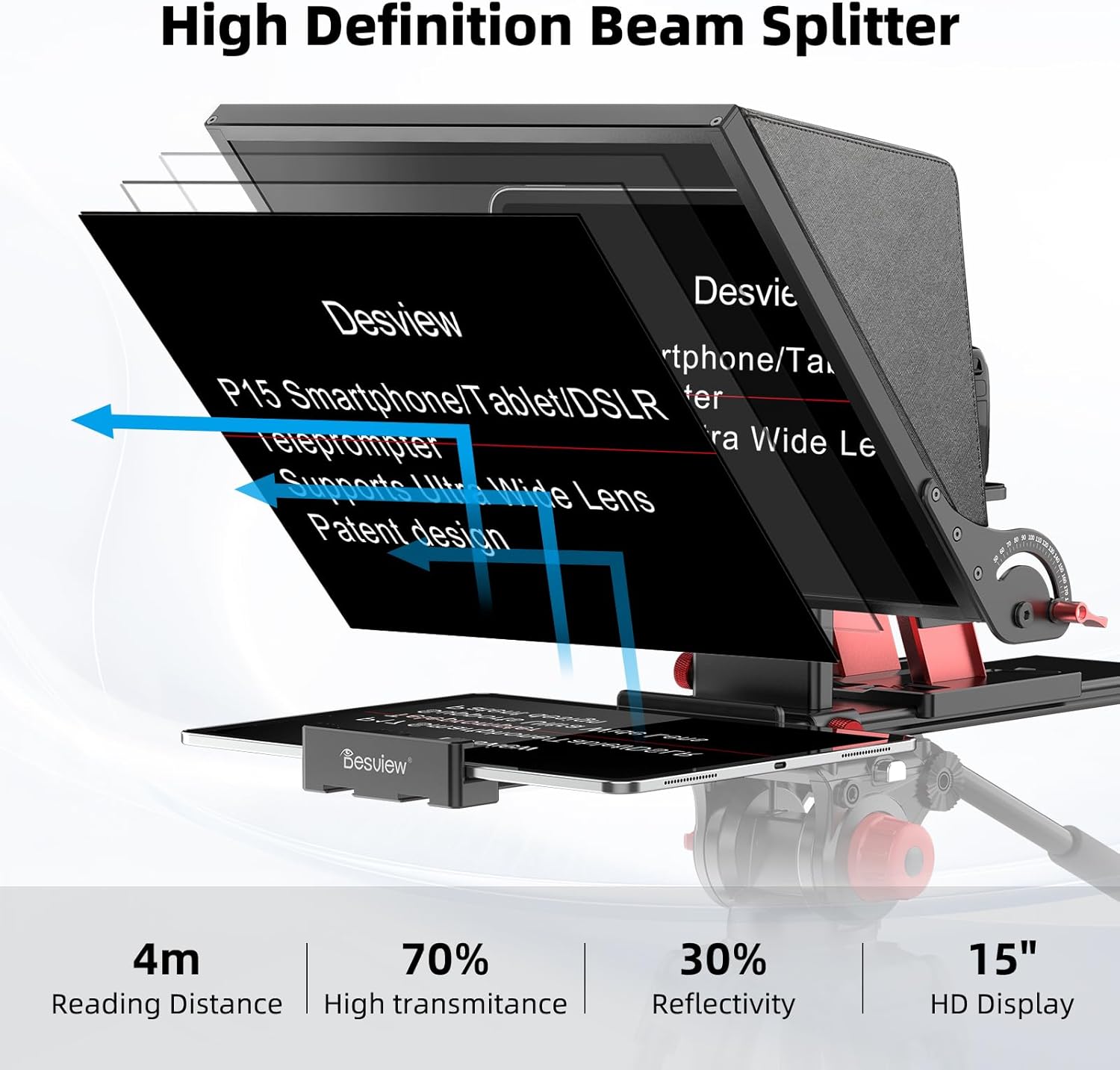
This image highlights the beam splitter glass, which allows the presenter to read text while the camera records through it without obstruction.
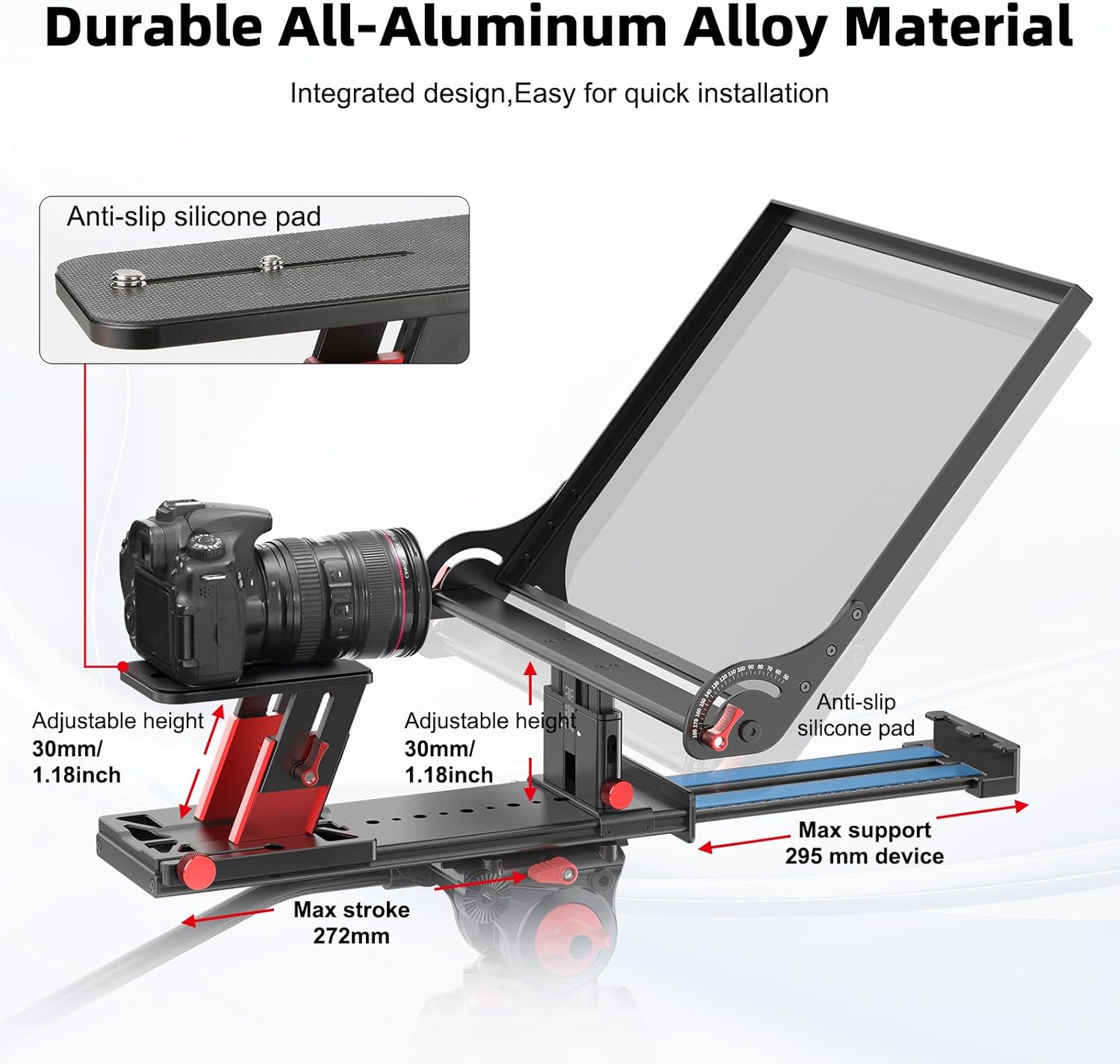
The teleprompter's robust aluminum alloy construction is visible, along with adjustable components for camera and device placement.
3. Setup Instructions
The Desview P15 Teleprompter is designed for quick and easy setup with minimal assembly required.
- Mounting the Teleprompter: Secure the teleprompter base onto a tripod or camera support system using the standard 1/4-inch or 3/8-inch screw threads.
- Attaching the Camera: Mount your DSLR, mirrorless camera, or camcorder onto the adjustable camera platform. Adjust the platform's height and position to ensure the camera lens is centered with the beam splitter glass. The platform offers 30mm (1.18 inches) of adjustable height.
- Inserting the Prompting Device: Place your iPad, tablet, or smartphone onto the device tray. The tray supports devices up to 15 inches and can be adjusted for both horizontal and vertical prompting. Ensure the device is securely seated on the anti-slip silicone pads.
- Attaching the Sun Hood: If necessary, attach the detachable sun hood to the teleprompter to minimize glare and reflections, improving text visibility.
- Power On: Ensure your camera and prompting device are powered on and ready for use.

This image demonstrates the placement of a camera and a tablet on the teleprompter, illustrating the adjustable features for optimal alignment.

The image above illustrates how to orient your tablet or smartphone for either horizontal or vertical prompting, depending on your content needs.
4. Operating Instructions
4.1 Using the Desview App and Bluetooth Remote
- Download the App: Download the free "Desview" app from the App Store (for iOS devices) or Google Play (for Android devices).
- Connect Remote: Turn on the Bluetooth remote control. Open the Desview app on your prompting device and pair the remote via Bluetooth settings within the app.
- Load Script: Open the Desview app and load your script. You can copy and paste text into the app.
- Control Prompting: Use the Bluetooth remote to control the script. Functions typically include:
- Scrolling text up/down
- Adjusting scrolling speed
- Pausing/resuming text
- Changing text and background colors

This image illustrates the Desview app on a smartphone and the accompanying Bluetooth remote, demonstrating how to control the script during recording.
4.2 Recording with the Teleprompter
- Positioning: Ensure your camera is properly focused and framed. Adjust the teleprompter's height and angle for comfortable reading.
- Text Visibility: Verify that the text on the beam splitter glass is clear and easily readable from your viewing distance. Adjust text size and contrast in the app if needed.
- Start Recording: Begin recording on your camera and simultaneously start the script scrolling using the remote control.
- Maintain Eye Contact: Look directly into the camera lens while reading the scrolling text to maintain natural eye contact with your audience.

This image showcases the teleprompter in action during live broadcasts and video recording sessions, highlighting its application in various professional settings.
5. Maintenance
Proper maintenance ensures the longevity and optimal performance of your Desview P15 Teleprompter.
- Cleaning the Glass: Use the provided dust cloth or a soft, lint-free microfiber cloth to gently wipe the beam splitter glass. For stubborn smudges, use a small amount of lens cleaning solution applied to the cloth, not directly to the glass. Avoid abrasive materials or harsh chemicals.
- Cleaning the Body: Wipe the aluminum alloy body with a soft, dry cloth. Do not use liquid cleaners directly on the electronic components.
- Storage: When not in use, store the teleprompter in its protective carry case to prevent dust accumulation and physical damage. Store in a cool, dry place away from direct sunlight.
- Battery Care: If the remote control uses replaceable batteries, remove them if the device will not be used for an extended period to prevent leakage.
6. Troubleshooting
If you encounter issues with your Desview P15 Teleprompter, refer to the following common solutions:
| Problem | Possible Cause | Solution |
|---|---|---|
| Text appears blurry or unclear | Dirty beam splitter glass; incorrect camera focus; improper lighting. | Clean the glass with a microfiber cloth. Ensure camera is focused on the presenter's eyes through the glass. Adjust room lighting or use the sun hood. |
| Remote control not working | Low battery; not paired; out of range. | Replace remote batteries. Re-pair the remote with the Desview app via Bluetooth. Ensure remote is within operating range of the prompting device. |
| Vignetting (dark corners) in camera footage | Camera lens too wide; camera positioned too far back. | Ensure your camera lens is compatible (35mm horizontal/vertical shooting supported). Adjust camera position forward on the platform. |
| Prompting device not fitting | Device exceeds maximum size. | Ensure your device is no larger than 15 inches. Adjust the device tray for proper fit. |
7. Specifications
- Model: P15
- Display Size: 15 inches
- Material: Aluminum Alloy
- Beam Splitter Glass: 7H Hardness, 70/30 Visible Light Transmission
- Compatibility: DSLR/Mirrorless Cameras, Camcorders, iPads/Tablets/Smartphones up to 15 inches
- Adjustable Height: 30mm (1.18 inches) for camera platform
- Max Device Support: 295mm
- Item Weight: 9.02 pounds
- Package Dimensions: 17.99 x 16.77 x 5.91 inches
- Manufacturer: Desview
8. What's in the Box
The Desview P15 Teleprompter package includes the following items:
- Teleprompter body
- Bluetooth Remote Control
- Protective Carry Case
- Dust Cloth
- User Manual

This image provides a clear overview of all components you should find inside the product packaging.
9. Warranty and Support
Desview products are manufactured to high-quality standards. For warranty information, technical support, or service inquiries, please contact Desview customer support through their official website or the retailer where the product was purchased. Please retain your proof of purchase for warranty claims.
