
1. Introduction
The fanxiang PS500 Magnetic Portable SSD is a compact and durable external storage solution designed for high-speed data transfer and broad compatibility. It features a strong magnetic attachment for secure connection to compatible devices and offers various capacities to meet diverse storage needs.

Image 1.1: The fanxiang PS500 Magnetic Portable SSD connected to a smartphone, showcasing its compact design and magnetic attachment.
2. Package Contents
Verify that all items listed below are included in your package:
- fanxiang PS500 Magnetic Portable SSD
- USB-C to USB-C Cable
- USB-C to USB-A Adapter
- Magnetic Ring (for non-magnetic phone cases)
- Quick Start Guide

Image 2.1: All components included in the fanxiang PS500 package: the SSD, USB-C cable, USB-A adapter, and magnetic ring.
3. Setup
3.1 Attaching the Magnetic Ring (Optional)
If your device or phone case does not have built-in magnetic attraction, you can use the included magnetic ring for secure attachment. Ensure the surface is clean and dry before applying the adhesive ring.

Image 3.1: Instructions for applying the magnetic ring to a phone case to enable magnetic attachment for the SSD.
3.2 Initial Connection
Connect the fanxiang PS500 SSD to your device using the appropriate cable:
- For USB-C devices (e.g., iPhone 15/16, iPad Pro, MacBook, modern PCs): Use the USB-C to USB-C cable.
- For USB-A devices (e.g., older PCs, laptops): Use the USB-C to USB-C cable with the USB-A adapter.
The SSD is plug-and-play and should be recognized automatically by most operating systems.
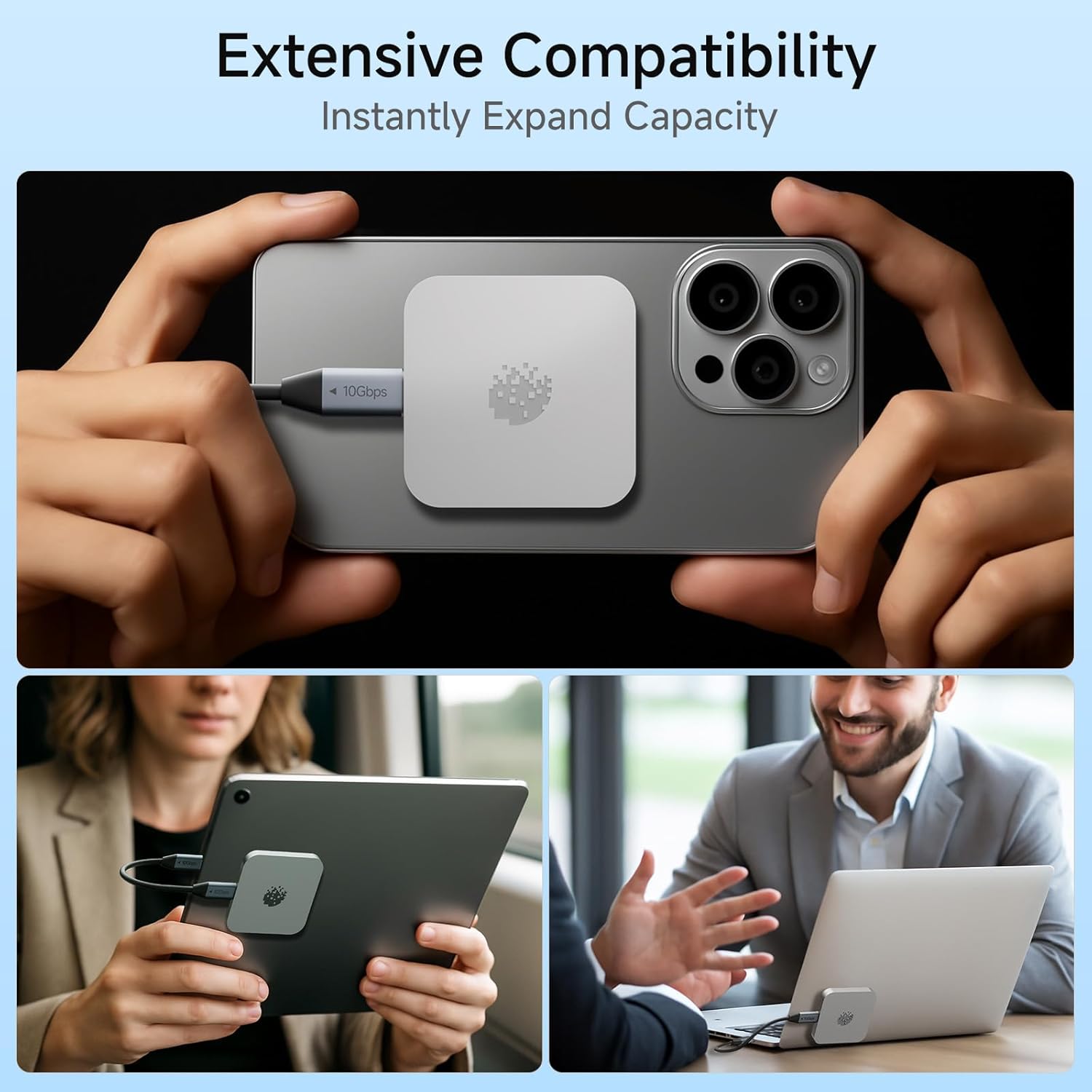
Image 3.2: The PS500 SSD connected to a smartphone, tablet, and laptop, demonstrating its wide compatibility.
4. Operating Instructions
4.1 Data Transfer
Once connected, the PS500 SSD will appear as an external drive on your device. You can drag and drop files, copy and paste, or use your device's file management system to transfer data.
The SSD supports USB 3.2 Gen 1 speeds, offering up to 490MB/s read and 390MB/s write speeds for efficient transfer of large files, photos, and videos.

Image 4.1: Visual representation of the PS500's data transfer capabilities, highlighting speed and capacity for various file types.
4.2 Using with iPhone (15/16 Series)
For iPhone 15/16 series, connect the SSD using the USB-C cable. Follow these general steps to transfer photos:
- Connect the SSD to your iPhone.
- Select the photos you wish to transfer.
- Click "Save to Files".
- Click "Browse".
- Select "PS500".
- Click "Save".
Note: Not compatible with iPhone 14 and earlier models due to port differences.

Image 4.2: Visual guide detailing the six steps to transfer photos from an iPhone 15/16 to the PS500 SSD.
4.3 Using with Android Phones
For Android phones, connect the SSD using the USB-C cable. Follow these general steps to transfer photos:
- Connect the SSD to your Android phone.
- Click "Files".
- Click "Images".
- Select the photos and click "Copy".
- Select "PS500".
- Click the checkmark to confirm.

Image 4.3: Visual guide detailing the six steps to transfer photos from an Android phone to the PS500 SSD.
4.4 Camera and Photography Gear Integration
The PS500 features a standard 1/4" thread, allowing it to be mounted directly onto cameras or other photography/video gear for direct recording or expanded storage during shoots.

Image 4.4: The 1/4" standard thread on the PS500 SSD, enabling direct mounting on photography and video equipment.
5. Maintenance
The fanxiang PS500 SSD is crafted from durable zinc alloy, providing shockproof, drop-resistant, and scratch-resistant protection. To ensure longevity:
- Avoid exposing the device to extreme temperatures or direct sunlight for prolonged periods.
- Keep the device clean and free from dust and debris. Use a soft, dry cloth for cleaning.
- While durable, avoid intentional drops or impacts to prevent potential internal damage.

Image 5.1: The durable zinc alloy shell of the PS500 SSD, designed for shockproof, drop-resistant, and scratch-resistant protection.
6. Troubleshooting
- Device Not Recognized:
- Ensure the USB cable is securely connected to both the SSD and your device.
- Try a different USB port on your computer or device.
- If using the USB-A adapter, ensure it is fully seated.
- Restart your computer or device. - Slow Transfer Speeds:
- Ensure you are using a USB 3.0/3.2 compatible port on your device. Older USB 2.0 ports will result in slower speeds.
- Avoid transferring many small files simultaneously; large single files transfer more efficiently.
- Close other applications that might be using system resources or disk I/O. - Magnetic Attachment Issues:
- Ensure the magnetic ring (if used) is properly adhered and aligned.
- Verify that your phone case is not excessively thick, which might weaken the magnetic connection. - SSD Gets Warm During Use:
- It is normal for SSDs to generate some heat during intensive data transfers. The zinc alloy body helps dissipate heat efficiently. If it becomes excessively hot or performance degrades, discontinue use and contact support.
7. Specifications
| Feature | Description |
|---|---|
| Model Name | PS500 |
| Digital Storage Capacity | 500 GB (also available in 1TB, 2TB) |
| Hard Disk Interface | USB 3.0 |
| Connectivity Technology | USB (Type-C, USB 3.2 Gen 1) |
| Read Speed | Up to 490 MB/s |
| Write Speed | Up to 390 MB/s |
| Special Feature | Portable, Magnetic Attachment, 1/4" Standard Thread |
| Compatible Devices | Camera, Desktop, Laptop, Smartphone (iPhone 15/16, Android), iPad Pro, MacBook |
| Enclosure Material | Zinc Alloy, Nand Flash Memory |
| Item Weight | 0.16 Kilograms |
8. Warranty and Support
8.1 Warranty Information
The fanxiang PS500 Magnetic Portable SSD comes with a 5-year manufacturer's warranty. This warranty covers defects in materials and workmanship under normal use. Please retain your proof of purchase for warranty claims.
8.2 Customer Support
For technical assistance, troubleshooting, or warranty inquiries, please contact fanxiang customer support through their official website or the retailer where the product was purchased.